






Open a support ticket
Open a ticket in the HyperDC client area: search first, choose a department, describe the problem, link the service and attach screenshots or logs.
- Beginner
- 6 min read
- Updated
Tested on: HyperDC client area
On this page
When a guide does not solve the problem, a support ticket brings it to our team. This guide walks you through the ticket form in your client area and shows what to fill in so that the first reply can already help.
Before you start
- Sign in to the client area with the user that manages the affected service.
- Check Support › Network Status. If an incident or maintenance is listed for your location or service, follow its updates first.
- Collect the details: the affected service or domain, when the problem started and the exact error message. Support tickets lists what helps most, including network measurements.
Step 1: Start a new ticket
Select Open Ticket in the left menu. The same button is on the dashboard and on My Support Tickets, and you can also press Ctrl K and choose Open Ticket (see search and keyboard shortcuts).
The page Create new Support Request opens.
Step 2: Search for an answer first
At the top of the page, type a few words into Describe the problem in a few words…. As the hint says, Search the knowledgebase first. Results from our knowledgebase and announcements appear as you type; use the arrow keys and Enter to open one. If nothing fits, carry on with the next step.
At the bottom of the page, two links help with outages: Is a service down? Network Status and Recent changes and maintenance: Announcements.
Step 3: Choose a department
Under Choose Department, select the card that fits your question. Each card shows the department name and a short description of what it handles.
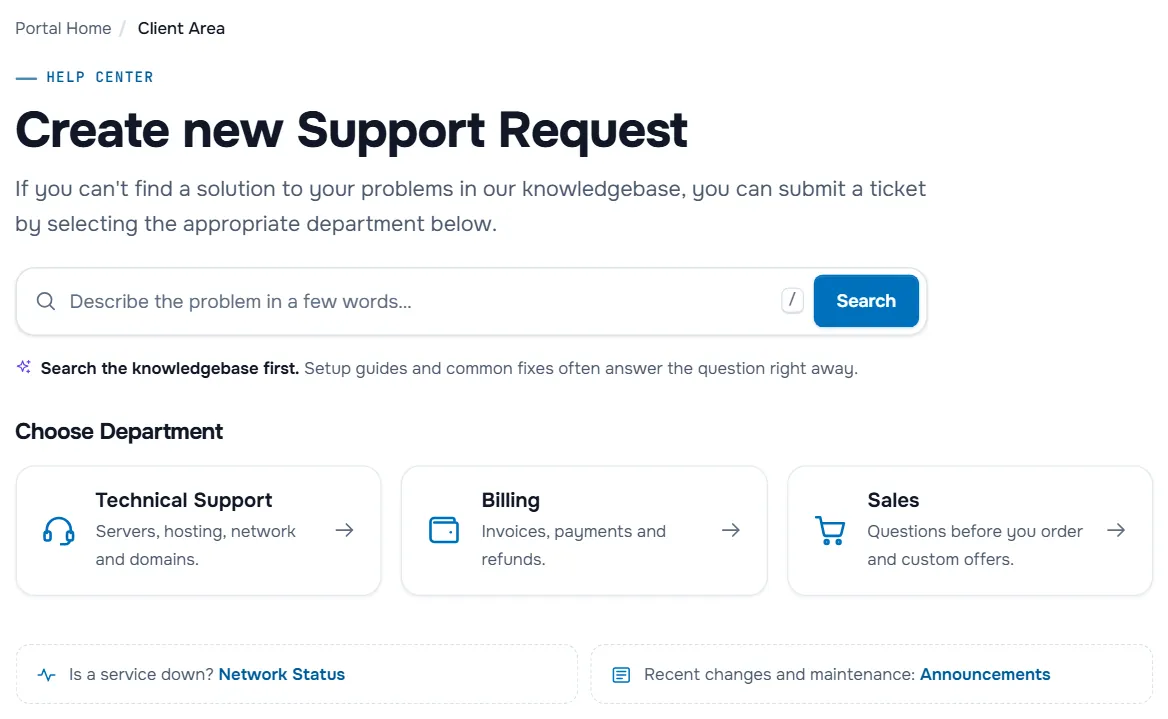
Verify: the form opens with the department you picked in the Department field.
Step 4: Fill in the form
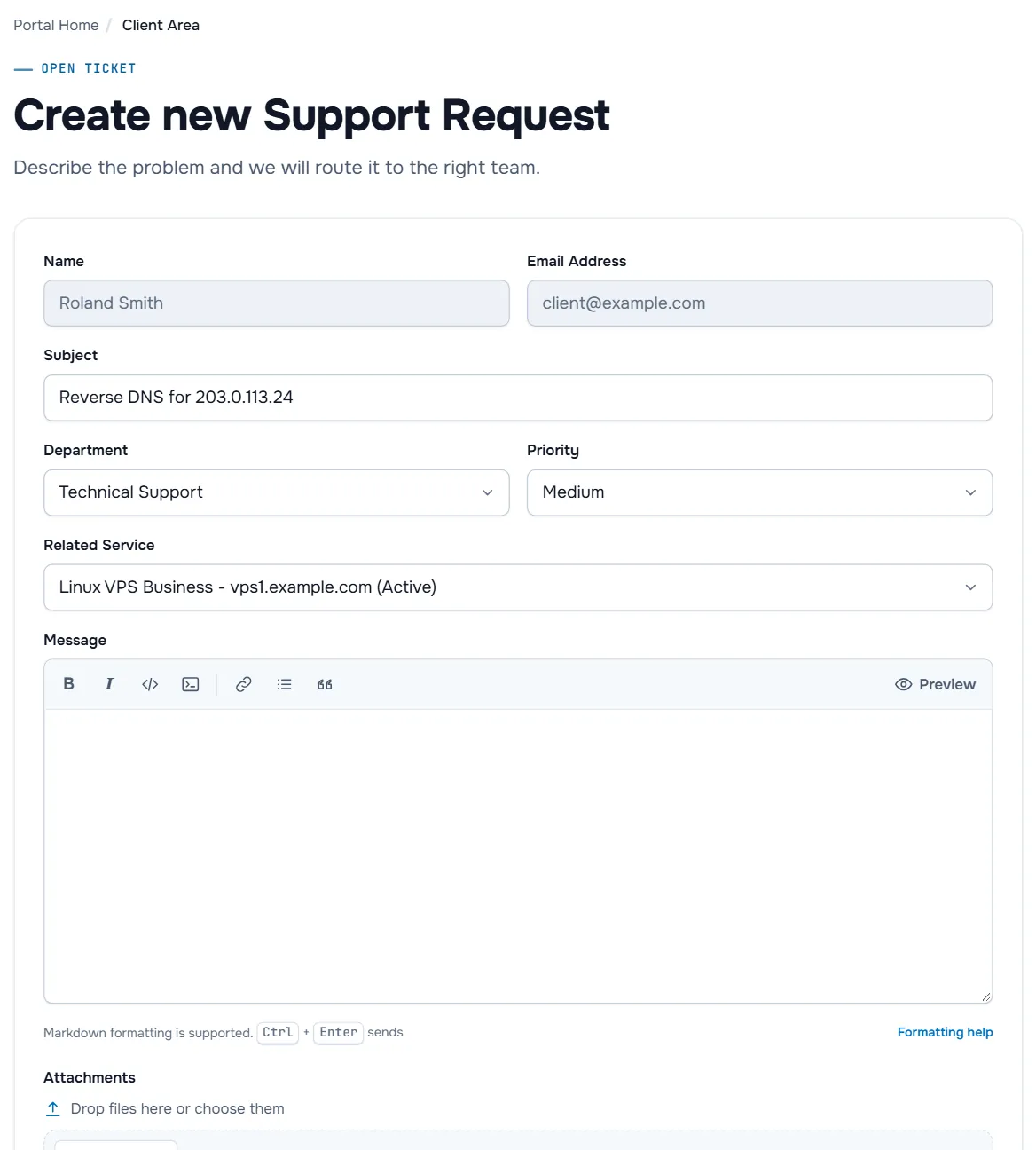
- Name and Email Address are taken from your account and cannot be changed here.
- Subject: a short summary, for example "VPS not reachable over SSH since 14:20 UTC".
- Department: change it here if you picked the wrong card.
- Priority: if the form shows this field, choose High for an outage or a security problem and Medium or Low for questions and planned changes.
- Related Service: choose the service the ticket is about. Each entry shows the product, its domain or host name and its status. Choose None if the question is not about one service.
- Message: describe the problem as explained in support tickets. The toolbar adds bold, italic, inline code, a Code block, a link, a bulleted list and a quote. Markdown formatting is supported. Select Preview to see the result and Formatting help for the syntax.
- Attachments: drop files on the field (Drop files here or choose them) or click it to pick files. You can select several files at once. The line below lists the Allowed File Extensions and the maximum file size; files that do not match are flagged before you send.
Some departments ask for extra details. Their fields appear below the attachments when you choose that department.
If our client area shows Knowledgebase Suggestions under the message while you type, have a look: the articles open in a new tab, so your draft stays where it is.
Step 5: Submit the ticket
Select Submit, or press Ctrl + Enter in the message box (⌘ + Enter on a Mac). Cancel takes you back without sending.
Verify: the page Ticket Created shows the Ticket ID, and an email with the ticket details arrives. The page also tells you what happens next: our team replies on the ticket page and by email, and if you remember something, add it as a reply instead of opening a new ticket. Select View Ticket to open the conversation or My Support Tickets for the list.
Troubleshooting
The form does not send. A required field is empty. Subject and Message must be filled in; a message next to the field tells you what is missing.
An attachment is refused. Check the file type and size against the line under Attachments. Paste long logs as text into a code block, or compress the screenshot.
My service is not in Related Service. The list shows the services of the client account you are signed in to. If you can open several accounts, switch to the right one first (switch between accounts), or choose None and name the service in the message.
I opened the same ticket twice. Reply on one of them that the other can be closed, and continue in one ticket.
Next steps
- Follow the answer and close the ticket: reply to and close tickets.
- Watch an ongoing incident: network status and announcements.
- What to expect from support: support FAQ.
Frequently asked questions
Which department should I choose?
The one that matches your question. Each department card has a short description. If you are unsure, choose the closest one: our team can move the ticket to the right department.
What does Priority change?
If the form shows Priority, it tells our team how urgent the ticket is. Choose High for an outage or a security problem, and Medium or Low for questions and planned changes.
Is my text lost if I leave the page?
No. The form saves what you type in this browser and restores it when you come back. Select Discard draft if you want to start again.
Which files can I attach?
The line under Attachments lists the allowed file extensions and the maximum file size. If a file is refused, paste log output as text into the message or attach a smaller screenshot.
Should I include my password?
No. Never send your client-area password or card details. If our team needs access to your server, they will ask in the ticket.