






Search and keyboard shortcuts in the client area
Open the HyperDC client area search with Ctrl K or the slash key, find services, domains, invoices and tickets as you type, and use keyboard shortcuts.
- Beginner
- 4 min read
- Updated
Tested on: HyperDC client area
On this page
The client area has one search box for everything in your account and a set of keyboard shortcuts for the pages you use most. Once you know them, you rarely need the menu. This guide shows how both work.
Before you start
- Sign in to the client area. Search and shortcuts work only for signed-in users.
- Search and shortcuts are made for a computer with a keyboard. On a phone, the top bar has no search field; use the menu and the bottom bar instead.
Step 1: Open the search
Use one of these:
- Click Search everything… in the top bar.
- Press Ctrl K (Cmd K on a Mac) anywhere in the client area.
- Press / when the cursor is not in a text field.
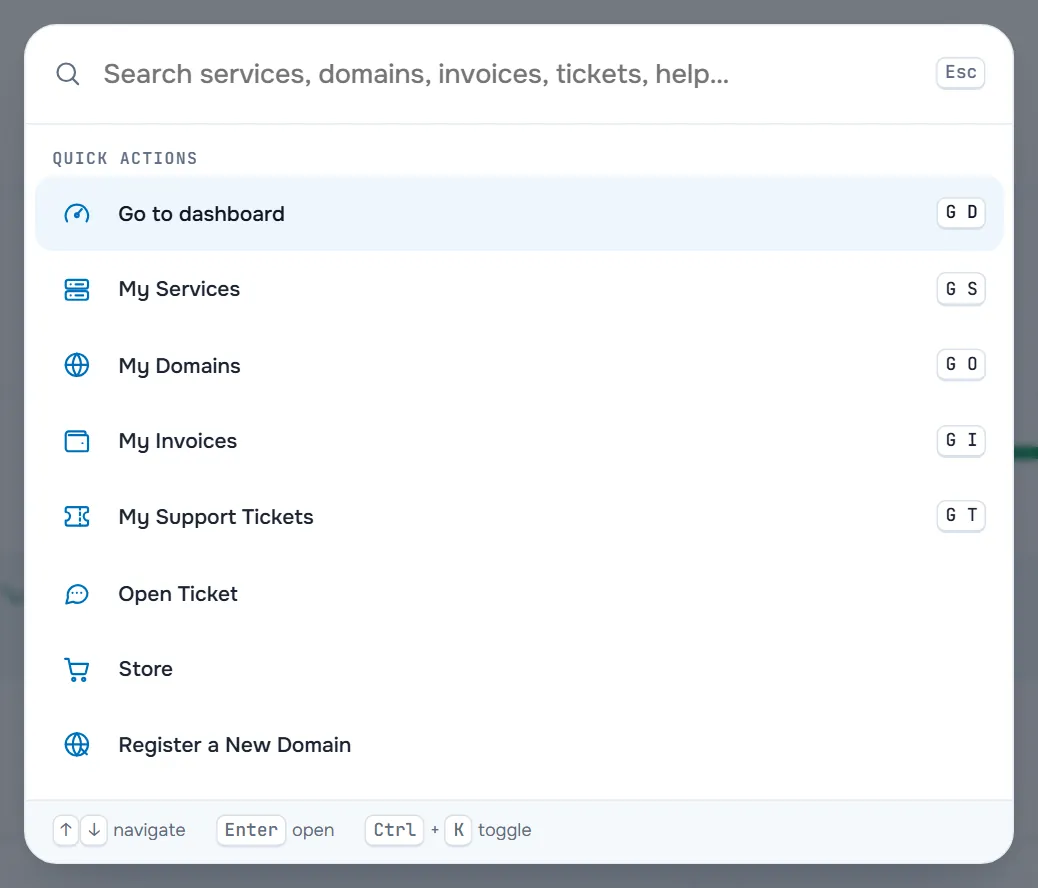
The search window opens with the field Search services, domains, invoices, tickets, help… and the Quick actions below it.
Step 2: Use the quick actions
Without typing anything you can jump to:
- Go to dashboard, My Services, My Domains, My Invoices and My Support Tickets, each with its shortcut on the right.
- Open Ticket, Store and Register a New Domain.
- Account Details and Security Settings.
- Toggle dark mode and Keyboard shortcuts.
If you opened something from the search before, a Recent group lists the last few entries at the top. Typing a word filters the quick actions, for example "dark" leaves Toggle dark mode.
Step 3: Search your account
Type at least two characters. Results appear as you type, grouped as Services, Domains, Invoices, Tickets, Guides and Knowledgebase:
- Services: by product or product group name, domain or host name, IP address or the nickname you gave the service.
- Domains: by domain name or nickname, with the expiry date.
- Invoices: by invoice number.
- Tickets: by ticket number or words from the subject.
- Guides: our guides in your language, by title, headings and text, each with its section and a short excerpt. The matching words are highlighted; small typos and missing accents are forgiven.
- Knowledgebase: help articles whose title matches.
Each result shows a short detail and, where it matters, its status. Your services, domains, invoices and tickets are searched only in the client account you are signed in to. When nothing matches, the window says No Records Found. The last row, Search all guides for “…”, opens the guides search page with your words.
Verify: typing the IP address of one of your servers lists that service under Services.
Step 4: Move with the keyboard
The bottom of the search window sums it up:
- ↑ and ↓ move through the results, Home and End jump to the first or last one.
- Enter opens the highlighted result.
- Ctrl K (Cmd K) or Esc closes the window.
Step 5: Use the keyboard shortcuts
Press ? (when the cursor is not in a text field) to see the list, or choose Keyboard shortcuts in the search window.
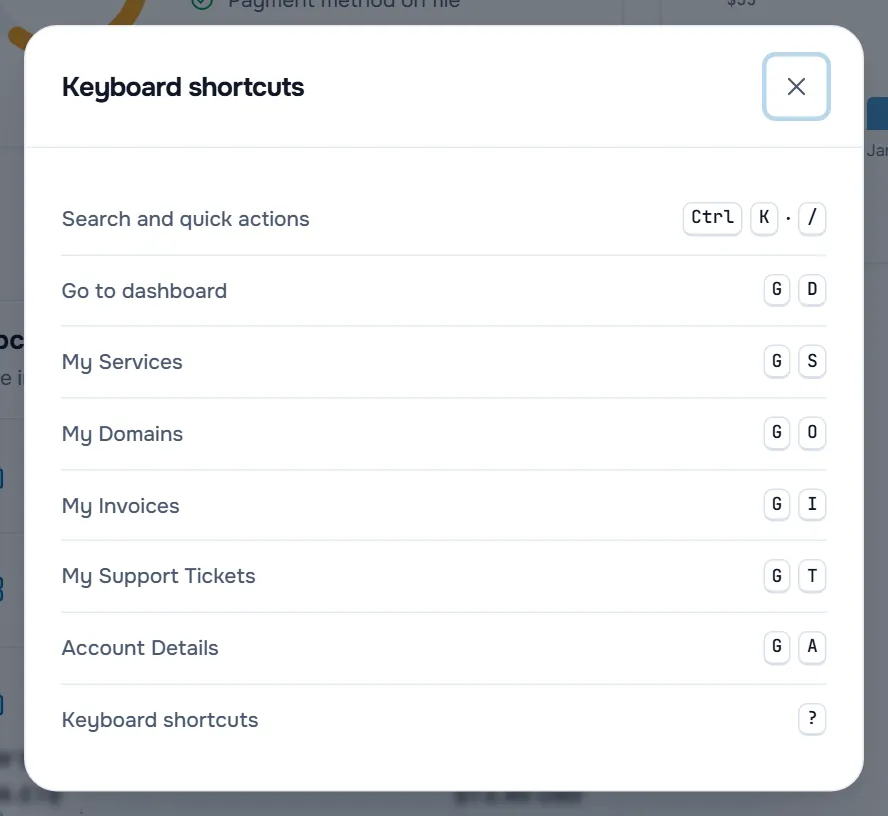
The page shortcuts are two keys pressed one after the other: first g (for "go"), then within about a second the letter.
| Keys | Opens |
|---|---|
| Ctrl K or / | Search and quick actions |
| g then d | Go to dashboard |
| g then s | My Services |
| g then o | My Domains |
| g then i | My Invoices |
| g then t | My Support Tickets |
| g then a | Account Details |
| ? | Keyboard shortcuts |
Troubleshooting
Ctrl K opens something else. Some browser extensions or programs use Ctrl K themselves. Use / or click Search everything… instead.
My service does not show up in the search. Check that you are signed in to the right client account. Search for the product name or the IP address; very short or partial words may match too many items. Cancelled services can still appear, with their status.
The search shows only quick actions. Type at least two characters. If the live results stay empty, reload the page; the quick actions keep working in the meantime.
Next steps
- Get to know the screen: client area tour.
- Give services nicknames you can search for: personalise your client area.
- See what is new for you: notifications in the client area.
Frequently asked questions
What can I find with the search?
Your services (by product, domain, IP address or nickname), your domains, invoices by number, tickets by number or subject, our guides (by title, headings and text) and articles from our knowledgebase. Of your own data, only the client account you are signed in to is searched.
The shortcuts do not react. Why?
Shortcuts are ignored while the cursor is in a text field, so they never interfere with typing. Click on an empty part of the page or press Esc, then try again. They work only when you are signed in.
Is there a shortcut on a Mac?
Yes. Use Cmd K instead of Ctrl K. The hints in the client area show the Mac key automatically. The slash key and the g shortcuts are the same on every system.
Where do the Recent entries come from?
The palette remembers the last few results you opened from it, in this browser only. They are not stored in your account.