






Reply to, close and rate a support ticket
Follow a HyperDC support ticket: read the status banner, reply with details and attachments, close the ticket when it is solved and rate our team's answer.
- Beginner
- 5 min read
- Updated
Tested on: HyperDC client area
On this page
Every reply from our team appears on the ticket page in your client area and arrives by email. This guide shows how to read a ticket, add information, close it when the problem is solved and tell us how we did.
Before you start
- You have opened a ticket, see open a support ticket.
- You are signed in with a user that may see the account's tickets.
Step 1: Open the ticket
Open Support › Tickets and select the ticket. Tickets with an answer you have not read carry a New reply badge. You can also follow the link in our email, or select the ticket in the notifications menu of the top bar (see notifications in the client area).
Step 2: Read the status and the conversation
The header shows the ticket number, the subject, the Department and the Priority, with the buttons Reply and Close on the right. Below it, a banner says whose turn it is:
- Our team has replied: read the latest reply. If you need anything else, write back and the ticket stays open.
- Waiting for our team: your message is with us. You will get our reply on the page and by email.
- Our team is working on it or This ticket is on hold: we are on it, or waiting for a related task, and will update the ticket.
- Closed: the ticket is solved. You can still reply to reopen it.
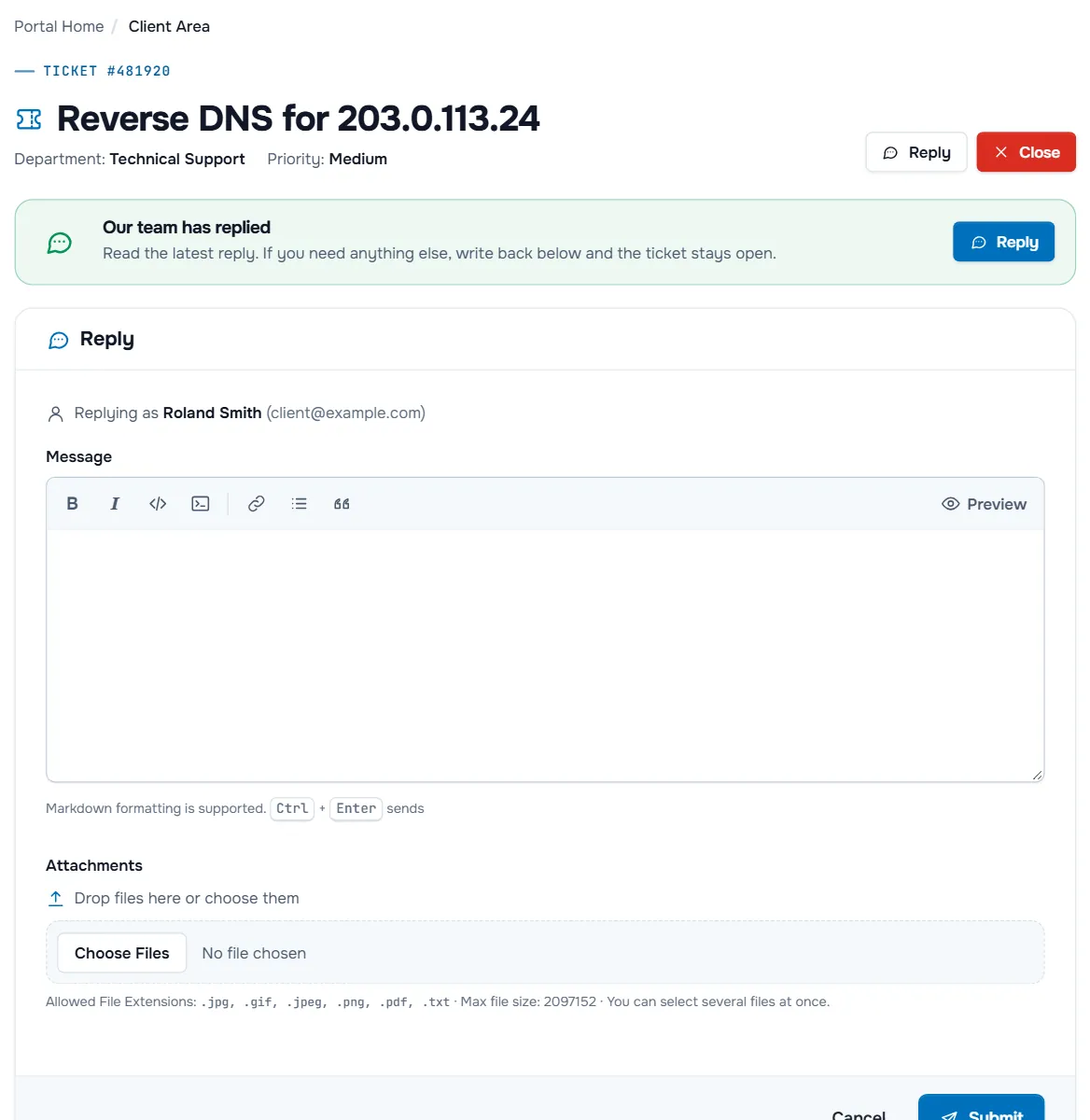
Each message shows the author, a label for your side or our team, and the date and time. Attachments are listed under the message and can be downloaded; old attachments may show Removed due to ticket inactivity. On long conversations, Jump to latest takes you to the newest message. Depending on our settings the newest message is at the top, with the reply box above it, or at the bottom.
Step 3: Reply with new information
- Select Reply or scroll to the reply box. It shows Replying as with your name and email address.
- Write your answer in Message. The toolbar, Preview and Markdown work as in the ticket form; use a Code block for command output.
- Add files under Attachments if they help. The allowed file extensions and the maximum file size are listed below the field.
- Select Submit, or press Ctrl + Enter in the message box.
Verify: your message appears in the conversation and the status changes to Customer-Reply.
Your text is saved in this browser while you type, so a closed tab does not lose it. If our client area shows How would you rate this reply? under a reply from our team, you can rate that reply with one to five stars.
Step 4: Close the ticket
When the problem is solved, select Close at the top of the ticket. A dialog asks Close this ticket? You can reopen it any time by replying. Confirm with Close.
Verify: the banner shows Closed and the text This ticket is closed. You may reply to this ticket to reopen it. Above the reply box, Sending a reply reopens this ticket. reminds you of the same.
If the Close button is not shown, reply that the problem is solved and our team closes the ticket.
Step 5: Rate our support
If we ask for feedback after a ticket is closed, the email contains a link to the page Feedback Request for Ticket.
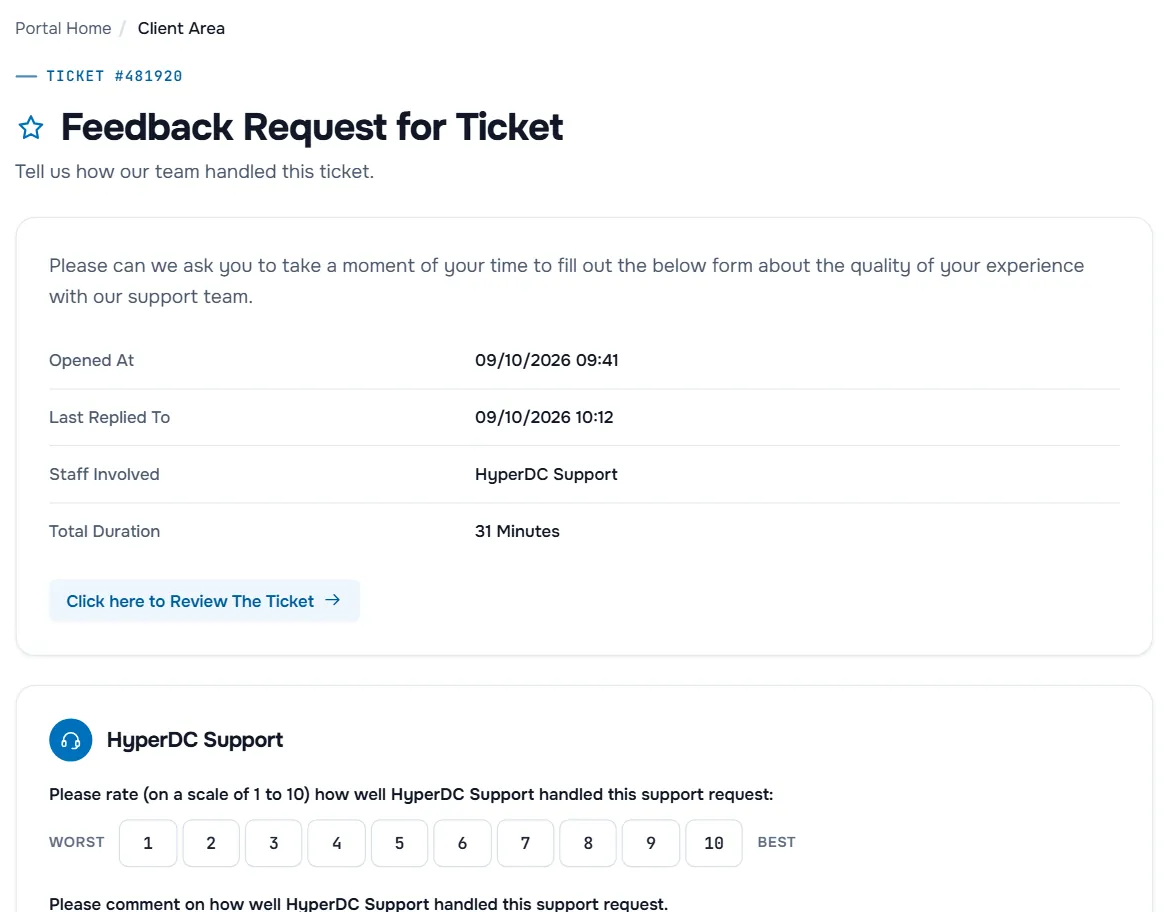
- The top of the page sums up the ticket: Opened At, Last Replied To, Staff Involved and Total Duration. Click here to Review The Ticket opens the conversation again.
- For each team member who answered, choose a rating from 1 (Worst) to 10 (Best) and add a comment if you like.
- Optionally answer How may we make your experience better in the future?
- Select Save Changes.
Verify: the page shows Submission Received. Feedback can be given once per ticket and only after it is closed.
Troubleshooting
My email reply did not appear in the ticket. Send it from the email address the ticket belongs to and keep the ticket number in the subject line. If it still does not appear, reply on the ticket page.
I cannot download an attachment. If it shows Removed due to ticket inactivity, ask in a reply for the file to be sent again.
The feedback page says the ticket must be closed first. The message Feedback cannot be provided until the ticket is closed appears for open tickets. Close the ticket, then open the feedback link again.
Next steps
- What to write in a reply: support tickets.
- Give other users access to tickets: users and contacts.
- Stay informed about incidents: network status and announcements.
Frequently asked questions
Can I reopen a closed ticket?
Yes. Write a reply on the closed ticket: the page says that sending a reply reopens it. If the new problem is unrelated, open a new ticket instead.
Can I answer from my email program?
Yes. Our team replies on the ticket page and by email, and you can answer either way. Send your reply from the email address the ticket belongs to.
Who can see and reply to my tickets?
You, and the users of your client account who have the ticket permissions. The account owner manages these permissions under User Management.
Do I have to close a ticket myself?
It helps: closing tells us the problem is solved. If you do not close it, our team closes it once the question is answered.