






Website & orderingThe order form
Configure a server in the order form
Walk through the Configure step of our order form: billing cycle, server hostname and root password, operating system, location, extras and the order summary.
- Beginner
- 8 min read
- Updated
Tested on: HyperDC website
On this page
After you select Order Now on a plan, the order form opens at the Configure step. Here you choose the billing cycle, check the server details, pick the operating system, location and extras, and watch the price in the order summary. This guide explains each section of the page for server plans (VPS, VDS and dedicated servers).
Before you start
- Pick the plan first. If you have not chosen one yet, see browse plans and prices.
- Know where your users are. Choose a data center location explains how to decide.
- Know which operating system your software needs. Changing it later means a reinstall that erases the server, see reinstall the operating system.
The progress bar at the top shows the four steps of an order: Configure, Cart, Details and Payment. Sections on the page are numbered in the order you fill them in. If the plan has a description, What is Included? at the top lists what the plan contains; select it to fold it away.
Step 1: Choose the billing cycle
Under Choose Billing Cycle, each card is one way to pay for the plan.
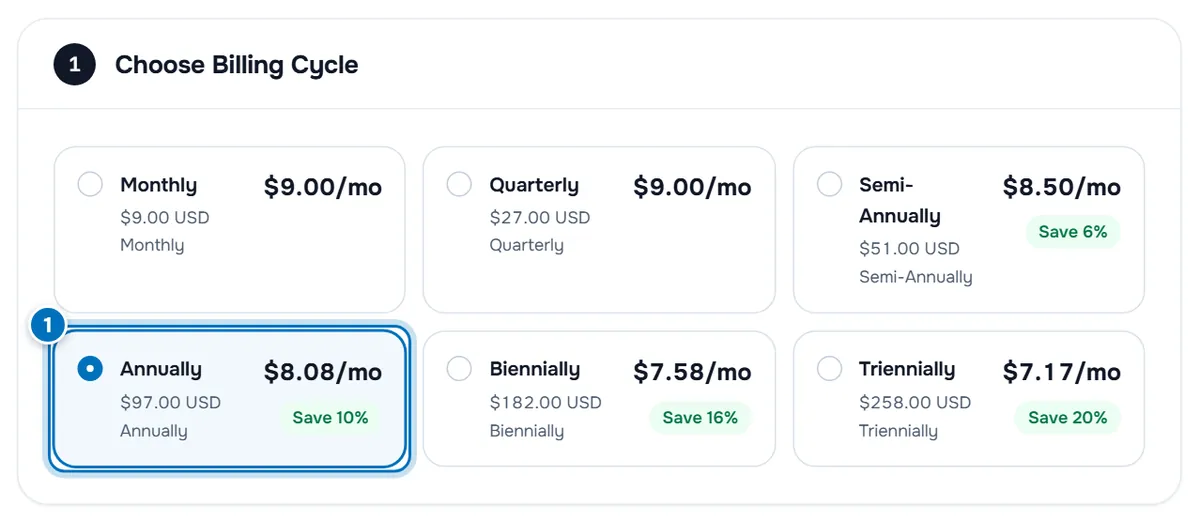
- The selected cycle — it is highlighted, and the order summary uses it.
Each card shows the price per month in large type, the total billed for the cycle under the name, and a green Save badge when the cycle costs less per month than paying monthly. The cycle you chose on the pricing table is already selected; select another card to change it.
Verify: the order summary on the right shows the amount for the cycle you selected.
Step 2: Check the server details
Server plans have a Configure Server section. For most plans we prepare the details for you.
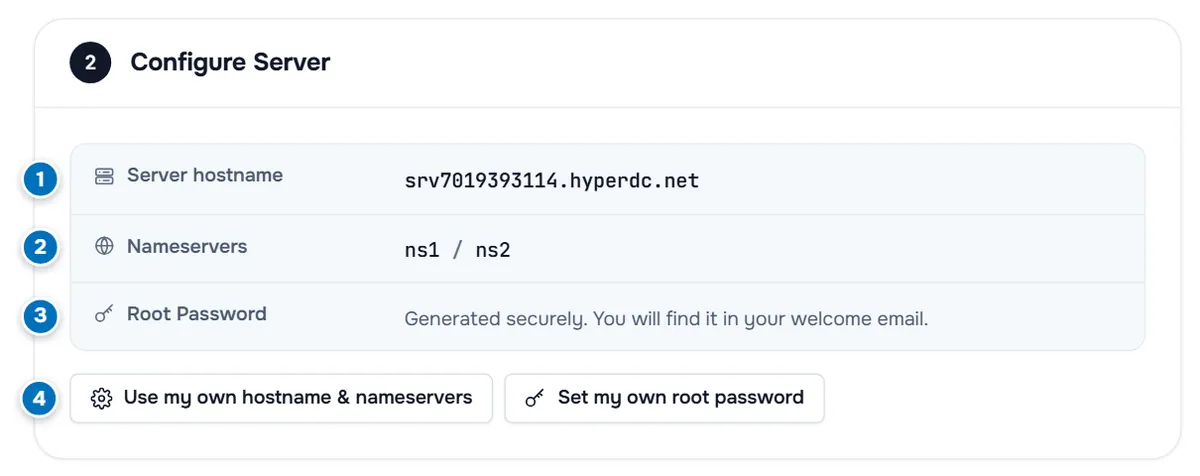
- Server hostname — the name your server starts with, generated for you.
- Nameservers — the nameserver prefixes of the server. They only matter if you run your own nameservers on the server; most customers keep them.
- Root Password — "Generated securely. You will find it in your welcome email."
- Use my own hostname & nameservers and Set my own root password — open the fields to enter your own values.
You do not have to change anything here. If you keep the generated values, you find the password in the welcome email when the server is ready.
Step 3: Set your own values (optional)
Select Use my own hostname & nameservers to edit the Hostname, NS1 Prefix and NS2 Prefix fields. A hint under the hostname field shows the format the form expects. Use the generated values brings the prepared values back.
Select Set my own root password to type the password yourself.
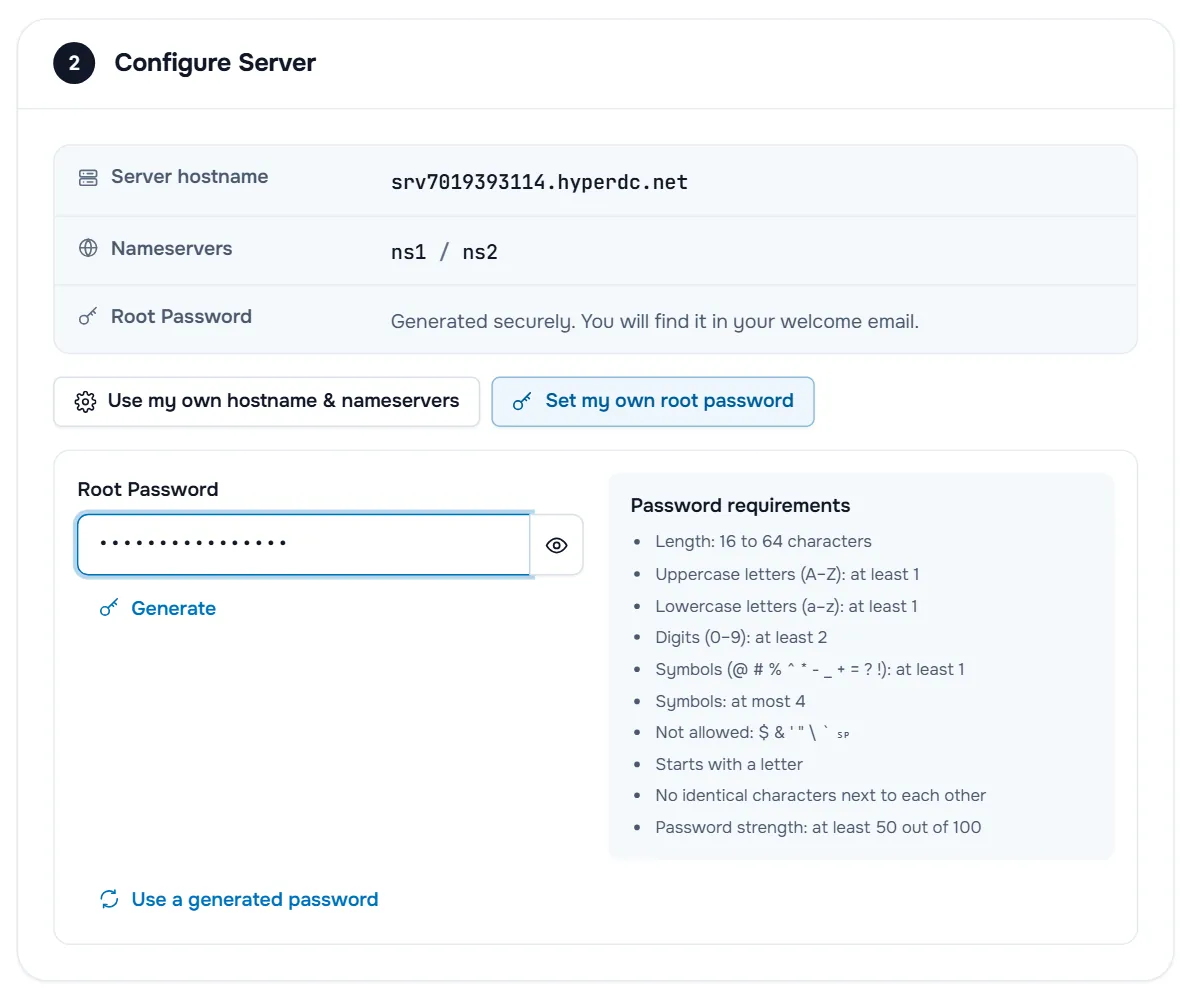
- The eye button shows or hides what you typed.
- Generate fills in a password that meets the rules.
- Password requirements lists the rules, such as the length, the character types needed and the characters that are not allowed. An error under the field tells you which rule is not met yet.
- Use a generated password switches back to a password we generate and email to you.
On some plans the hostname or root password fields are always shown instead of the summary; fill them in the same way.
Step 4: Choose the configurable options
Configurable Options lists the choices of the plan. Their names and choices come from the plan, so they vary by product.
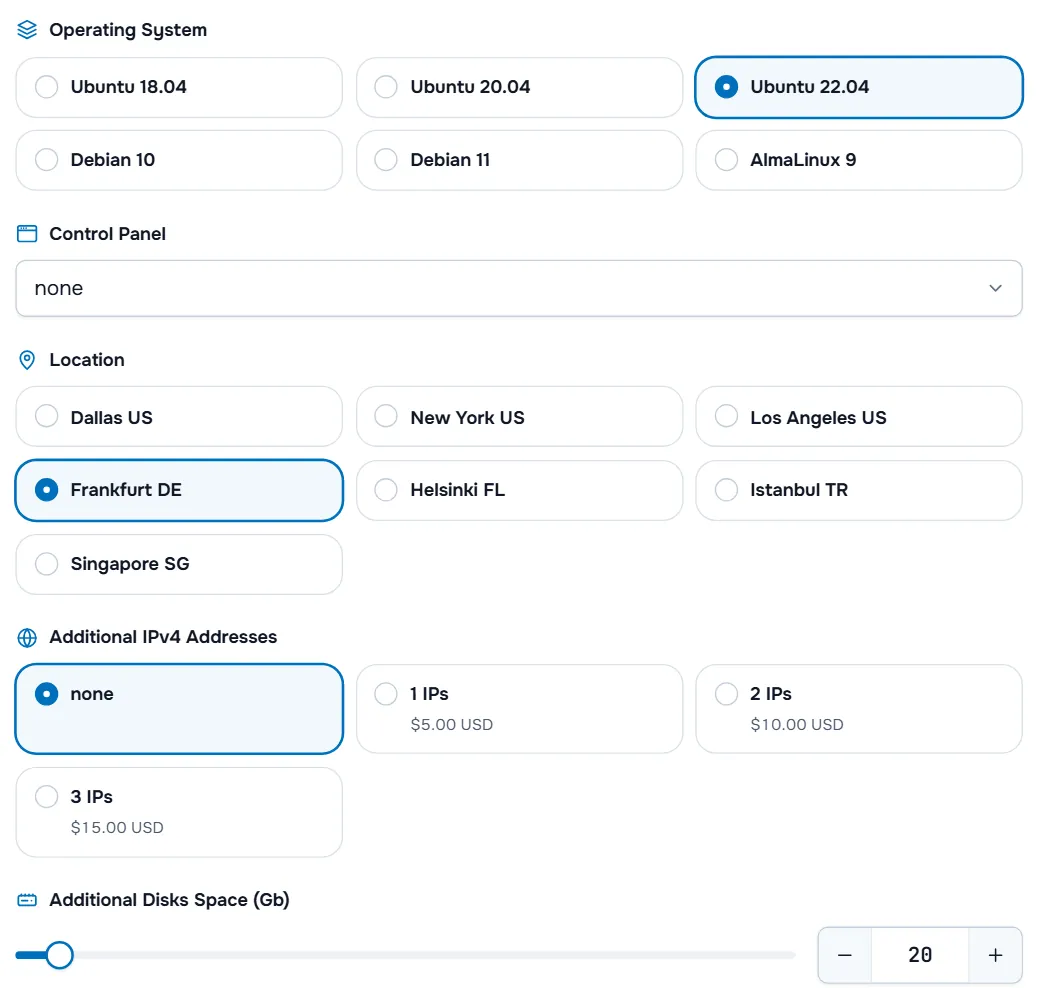
- Operating system. Pick the newest release the form offers, unless your software needs an older one.
- Control panel. Leave it at none for a plain server, or choose cPanel or Plesk if the plan offers them; the panel's price is added to the order.
- Location. The data centers this plan can be set up in. If the cards show a latency in milliseconds, with Fastest for you on one of them, it is estimated from your approximate location or measured from your browser. Use it as a guide.
- Additional IPv4 addresses, disk space, snapshots. Extras with their price per choice. Sliders and the minus and plus buttons set a quantity.
Verify: every option you changed appears as a line in the order summary, with its price.
Step 5: Add addons and required information
If the plan has addons, Available Addons lists them as cards with a description and a price; tick the ones you want. If the plan needs details from you, an Additional Information section asks for them; fields marked with an asterisk are required.
Need advice before you continue? The line "Have questions? Contact our sales team for assistance." at the bottom links to our contact page.
Step 6: Check the order summary and continue
The Order Summary on the right updates with every change.
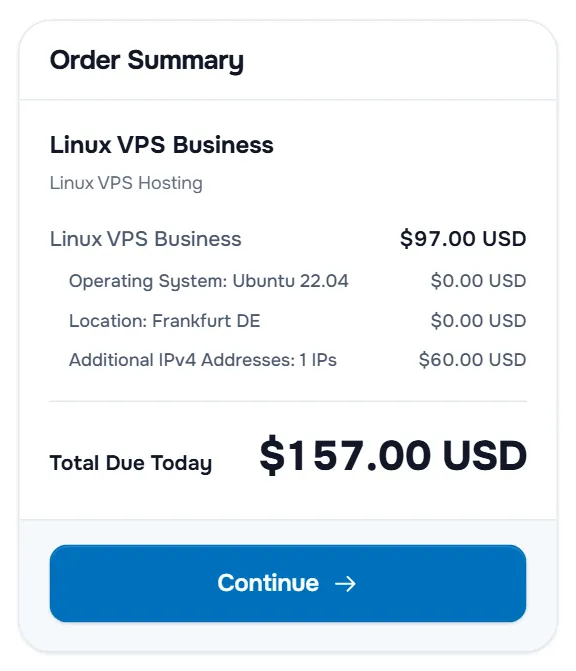
It lists the plan with its group, each option with its price, setup fees and taxes when they apply, and Total Due Today. On phones the summary sits below the form, and a bar at the bottom of the screen shows Total Due Today with Continue.
Select Continue. If your order includes a domain registration or transfer, Domains Configuration opens next, see add a domain to your order; otherwise your cart opens, see review your cart and apply a promo code.
Troubleshooting
"Please correct the following errors before continuing" appears. The box lists what needs fixing, for example a hostname in the wrong format or a password that misses a rule. Correct each field and select Continue again.
My root password is refused. Check the Password requirements list: length, required character types, characters that are not allowed. Use Generate if you want a password that meets every rule.
The location or operating system I need is not listed. This plan is not offered there or with that system. Check another plan of the same line, or ask our sales team through the contact link at the bottom of the form.
The total did not change after I picked an option. The summary recalculates in the background; wait a moment. If it still shows the old total, reload the page and choose the option again.
Next steps
- Domains with a hosting plan: add a domain to your order.
- Check items and totals: review your cart and apply a promo code.
- Sign in or create your account: check out step by step.
Frequently asked questions
Where do I find the root password if I do not set my own?
It is generated securely and sent in the welcome email when your server is ready. If you prefer to choose it yourself, select Set my own root password in the order form.
Which operating system should I choose?
The newest release the form offers, unless your software needs an older one. Newer releases receive security updates for longer.
Can I change the hostname later?
Yes. The hostname is a setting of the operating system, so you can change it on the server at any time. The generated name works well if you have no preference.
Why does the total change when I pick another billing cycle?
Prices of the plan, its options and addons follow the billing cycle. The order summary recalculates with each change, so the total always matches the choices on the page.
Can I change the location after ordering?
A server stays in the location it was set up in. Moving to another location means a new server and moving your data, so choose the location carefully and ask us before ordering if you are unsure.