






Website & orderingThe order form
Add a domain to your hosting order
Choose the domain for a new hosting service in our order form: register a new one, transfer one you own or use an existing domain, then set it up.
- Beginner
- 6 min read
- Updated
Tested on: HyperDC website
On this page
Hosting plans need a domain name, so their order form asks for one before the configure page. You can register a new domain, transfer a domain you already own, or keep your domain where it is and only point it to us. This guide walks through the domain step and the domain configuration page that follows for registrations and transfers.
Before you start
- Decide what you want to do with the domain. Register a new name, move an existing domain to us, or keep it at its current registrar.
- For a transfer: unlock the domain at its current registrar and get its EPP (authorisation) code. Transfer a domain to us explains the whole process.
- For an existing domain you keep elsewhere: make sure you can sign in at its registrar or DNS provider, because you will change its nameservers or records there.
- Domain registrations follow our domain registration agreement.
Step 1: Choose how the service gets its domain
After Order Now on a hosting plan, the page Choose a Domain... opens. Pick one of the options.
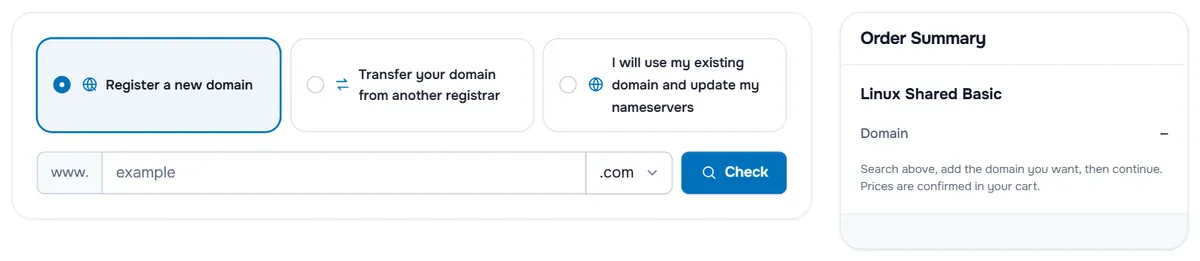
- Register a new domain — search for a free name and register it with the hosting.
- Transfer your domain from another registrar — move a domain you own to us.
- I will use my existing domain and update my nameservers — keep the domain where it is; nothing is added to your cart for it.
If you have already added a domain to your cart, Use a domain already in my shopping cart appears as well; choose it to link that domain to the hosting plan.
Step 2: Search for the domain and add it
Type the name without www. in the field, choose the extension in the list next to it and select the button of your option:
- Check (register): the result says whether the name is available, for example "example.com is available.", with the price after "Continue to register this domain for". When the name is taken, the result says it is unavailable. Suggested Domains below offers similar names; select Add to Cart on one you like, and the button changes to Added.
- Transfer: the form checks the domain. "Your domain is eligible for transfer" shows the transfer price and reminds you to unlock the domain at your current registrar. "Not Eligible for Transfer" lists the usual reasons, such as a domain that is not registered or was registered recently.
- Use (existing domain): the domain is linked to the hosting plan without a domain fee.
Verify: the Order Summary on the right shows your domain on the Domain line, and Continue appears. Select Continue to open the configure page of the hosting plan, see configure a server in the order form for the parts it shares with server plans.
Step 3: Configure the domain and its nameservers
When your order contains a registration or transfer, Domains Configuration opens after the configure page: "Please review your domain name selections and any addons that are available for them."
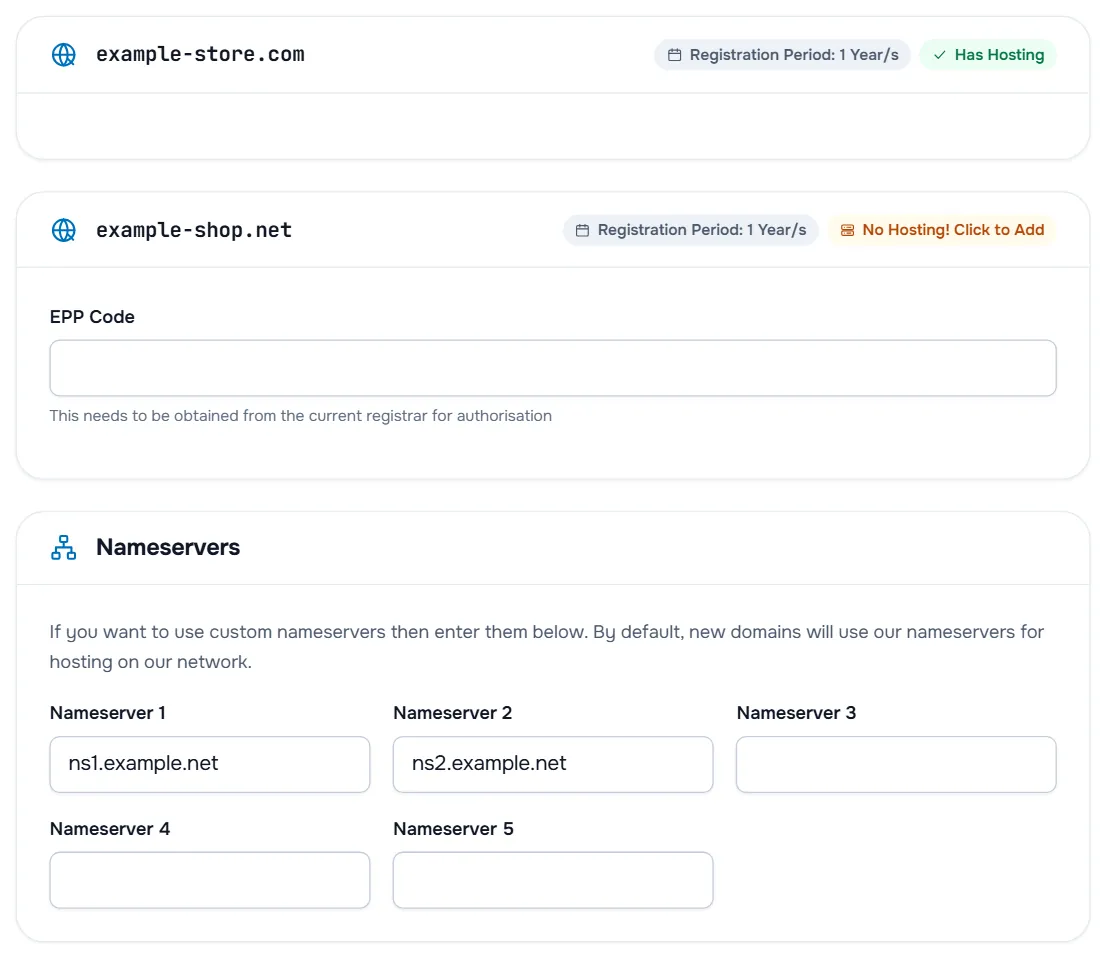
For each domain you see:
- Registration Period — the period in the cart. You can change it on the cart page.
- Has Hosting or No Hosting! Click to Add — whether a hosting plan in this order uses the domain. The second badge opens the store if you want to add hosting.
- EPP Code (transfers) — paste the code from your current registrar. "This needs to be obtained from the current registrar for authorisation".
- Extras — DNS Management, ID Protection or Email Forwarding, only when the extension offers them, each with its price.
- Extra registry fields — some extensions need additional details about the registrant; fill them in as asked.
If at least one domain has no hosting with us, the Nameservers section appears: "If you want to use custom nameservers then enter them below. By default, new domains will use our nameservers for hosting on our network." Keep the values to use our nameservers, or enter the nameservers of your DNS provider in Nameserver 1 to Nameserver 5.
Select Continue to open the cart.
Step 4: Check the domain in your cart
In the cart, each domain is listed as Domain Registration or Domain Transfer. For registrations with several periods, a list shows each period with its price; the Renewal line under it shows the renewal price. Edit returns to the domain configuration, Remove takes the domain out of the order. See review your cart and apply a promo code.
Troubleshooting
"is unavailable" appears for my name. Someone has registered it. Try another extension or one of the Suggested Domains.
"Not Eligible for Transfer". Check the spelling and the extension. If the domain was registered or transferred recently, try again later; registries block transfers for a while after those events. You can also keep the domain where it is and use the third option.
I chose my existing domain. How does it reach the hosting? After the service is ready, set the nameservers from the welcome email at your registrar, or point the records yourself, see point a domain to your server and DNS basics for a new domain.
The Continue button does not appear. Select Check, Transfer or Use first, or add a suggested name to the cart; the button shows once a domain is picked.
Next steps
- After ordering, manage the domain: manage your domain.
- Change nameservers later: change domain nameservers.
- Continue with the cart: review your cart and apply a promo code.
Frequently asked questions
Do I have to register a domain with my hosting plan?
No. Choose I will use my existing domain and update my nameservers, enter your domain and select Use. Once the service is ready, point the domain to it at the company where the domain is registered.
Where do I get the EPP code for a transfer?
From the registrar where the domain is registered now, usually in its control panel. Unlock the domain there as well before you order the transfer.
Can I register the domain for more than one year?
Yes, when the extension offers longer periods. In the cart, each domain registration has a period list that shows the price of each choice.
Why does the form show a Nameservers section?
It appears when at least one domain in your order has no hosting with us. Leave the fields as they are to use our nameservers, or enter the nameservers of the DNS provider you want to use.
Are DNS management or ID protection included?
Extras such as DNS Management, ID Protection and Email Forwarding appear on the domain configuration page only when the extension offers them, each with its price. If you see none, the extension has no extras to choose.