






Website & orderingCart & checkout
Review your cart and apply a promo code
Check the items in your HyperDC cart, edit or remove them, change a domain's period, apply a promo code and read the totals before you continue to checkout.
- Beginner
- 5 min read
- Updated
Tested on: HyperDC website
On this page
Before you check out, the cart shows everything in your order with its price. Here you can correct a choice, remove what you do not need, apply a promo code and see exactly what you pay today and on each renewal. The page is called Review & Checkout and is the Cart step of the order form.
Before you start
- Have your promo code ready, if you have one. Current offers and their conditions are on the promotions page.
- You can open the cart at any time with the cart icon in the site header.
Step 1: Check each item in the cart
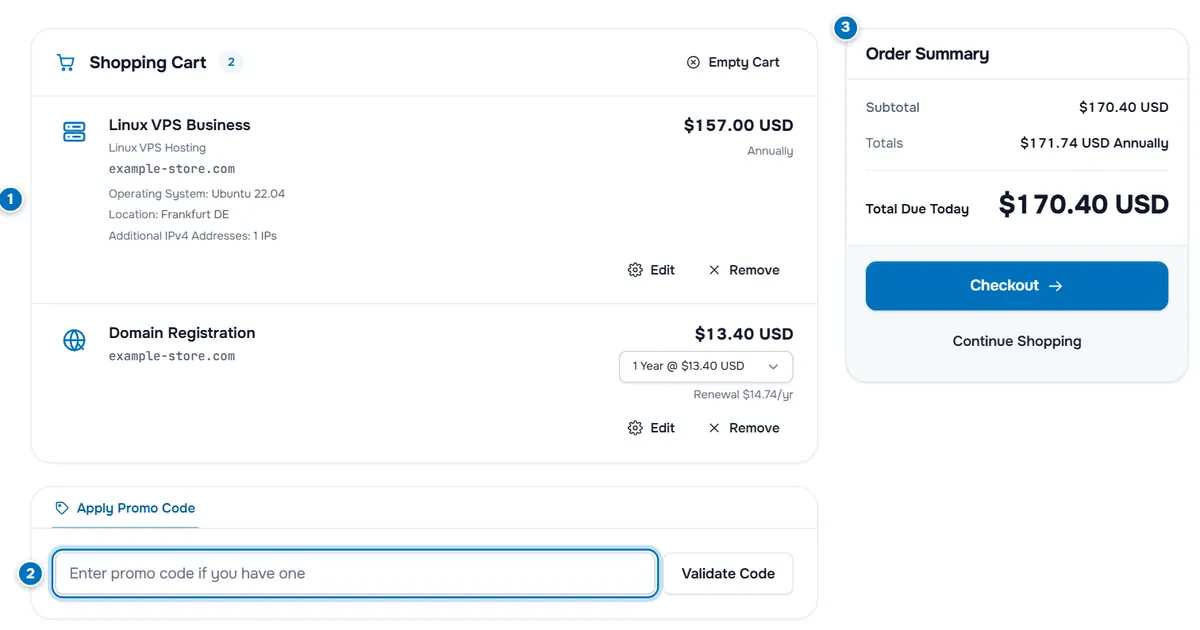
- Cart items — each plan with its group, domain and chosen options, and its price for the billing cycle. Edit and Remove sit under each item.
- Promo code — the Apply Promo Code box with the Validate Code button.
- Order Summary — Subtotal, Totals, Total Due Today and the Checkout button.
Under Shopping Cart, the badge shows how many items are in the cart. Check the configuration of each plan: operating system, location and extras are listed under its name. If a plan has a setup fee, it appears under the price as "+ … Setup Fee".
Verify: every plan, domain and addon you want is listed, and nothing you do not want.
Step 2: Edit or remove items
- Edit on a plan opens its configure page with your choices, so you can change the billing cycle or an option. Select Continue there to come back.
- Edit on a domain opens the domain configuration (EPP code, nameservers, extras).
- Remove takes an item out of the cart after you confirm "Are you sure you want to remove this item from your cart?".
- Empty Cart at the top removes everything after a confirmation.
Plans that can be ordered several times show a Qty field; enter the number and select Update.
Step 3: Set the domain registration period
Domain registrations with more than one period have a list such as "1 Year @ …". Choose the period you want; the price and the totals update straight away. The Renewal line under it shows what the domain costs when it renews. Transfers show their period without a list.
Step 4: Apply a promo code
- In Apply Promo Code, type the code into the field "Enter promo code if you have one".
- Select Validate Code.
Verify: "Promotion Code Accepted! Your order total has been updated." appears, the code is shown with its description, and the summary has a discount line.
To try another code, select Remove Promotion Code first; the cart takes one code at a time.
Step 5: Estimate taxes (if shown)
When taxes apply and you are not signed in, a second tab, Estimate Taxes, sits next to Apply Promo Code. Choose your Country (and State, if asked) and select Update Totals to see the tax lines in the summary. The final taxes follow the billing address you enter at checkout.
Step 6: Read the order summary and check out
- Subtotal — the sum of the items before discount and taxes.
- A discount line, when a promo code is applied, and tax lines, when taxes apply.
- Totals — the recurring amount for each billing cycle in your order, which is what renewals will cost.
- Total Due Today — the amount of the first invoice.
Select Checkout to continue to the Details step. Continue Shopping takes you back to the store to add more products; your cart is kept. On phones, a bar at the bottom shows Total Due Today with Checkout.
Troubleshooting
The promo code is rejected. Check the spelling, then the offer's conditions: the code may be limited to some products, billing cycles, new customers or dates, or it may have expired.
The discount disappeared after I changed the cart. If the item that qualified was removed or its billing cycle changed, the discount no longer applies. Restore the item or cycle the promotion asks for.
Total Due Today is different from the plan's price. It includes setup fees, options, domains, discounts and taxes. For some plans the first invoice also covers a partial period; the item then shows a "Pro Rata" date.
The cart is empty although I added a plan. "Your Shopping Cart is Empty" appears when the session expired or the cart was emptied. Add the plan again from its product page.
Next steps
- Sign in or create your account and pay: check out step by step.
- Change a plan's options: configure a server in the order form.
- Billing questions: billing FAQ.
Frequently asked questions
My promo code was accepted, but the price did not change. Why?
The code is applied, but none of the items in your cart qualify yet. Promotions can be limited to certain products, billing cycles or dates, so check the offer's conditions and adjust your cart.
Can I use more than one promo code?
The cart takes one code at a time. When a code is applied, the box shows it with Remove Promotion Code; remove it before you try another code.
What is the difference between Total Due Today and Totals?
Total Due Today is what the first invoice asks for now. Totals lists the recurring amounts per billing cycle, the cost of each renewal. They can differ, for example when a discount applies only to the first payment or a domain renews at another price.
Are taxes included in the prices?
If taxes apply to your order, they appear as separate lines in the order summary and follow your billing address. Before you sign in, Estimate Taxes (when shown) lets you preview them for a country.
How do I change the billing cycle or an option of a plan in the cart?
Select Edit on the plan. The configure page opens with your choices; change them and select Continue to return to the cart.