

Your servicesManaging services
Reinstall the operating system on your server
Start over with a clean system on your VPS, VDS or dedicated server: back up first, request the reinstall, then reconnect, restore your data and secure it.
- Intermediate
- 15 min read
- Updated
Tested on: HyperDC client area, Ubuntu 24.04 LTS, Ubuntu 26.04 LTS, Debian 12, Debian 13
On this page
Sometimes a fresh start is the fastest way forward: after a failed upgrade, to change to a newer release or after a security incident. A reinstall erases the server's disk and installs a clean image. This guide shows you how to prepare, request it and get back to work.
Before you start
- List what you need to keep: website files, databases, configuration files (
/etcon Linux), SSL certificates, cron jobs, user accounts and SSH keys. - Choose the new image. For a new installation pick a current long-term release, such as Ubuntu 26.04 LTS, Ubuntu 24.04 LTS or Debian 13, unless your software needs an older one.
- Plan downtime. The server is offline during the reinstall; lower the TTL of your DNS records if you may move to another server instead.
Step 1: Back up your data
Copy your data to your own computer or another server. On Linux, for example:
Pack the configuration and website files on the server:
sudo tar -czf /root/backup-etc.tar.gz /etc
sudo tar -czf /root/backup-www.tar.gz /var/www
Export all databases:
MySQL
sudo mysqldump --all-databases --single-transaction --routines --triggers > /root/all-databases.sqlMariaDB
sudo mariadb-dump --all-databases --single-transaction --routines --triggers > /root/all-databases.sqlThen pull the files to your own computer (run this on your computer):
rsync -avz -e ssh root@203.0.113.10:/root/backup-etc.tar.gz :/root/backup-www.tar.gz :/root/all-databases.sql ./server-backup/Verify: the files exist on your computer and are not empty, for example with ls -lh server-backup and tar -tzf server-backup/backup-www.tar.gz | head.
On Windows servers, copy your data folders and database backups to another location, or take a snapshot where your plan offers one (Windows VPS plans include free snapshots).
Step 2: Request the reinstall
- Go to Services › My Services and select Manage next to the server.
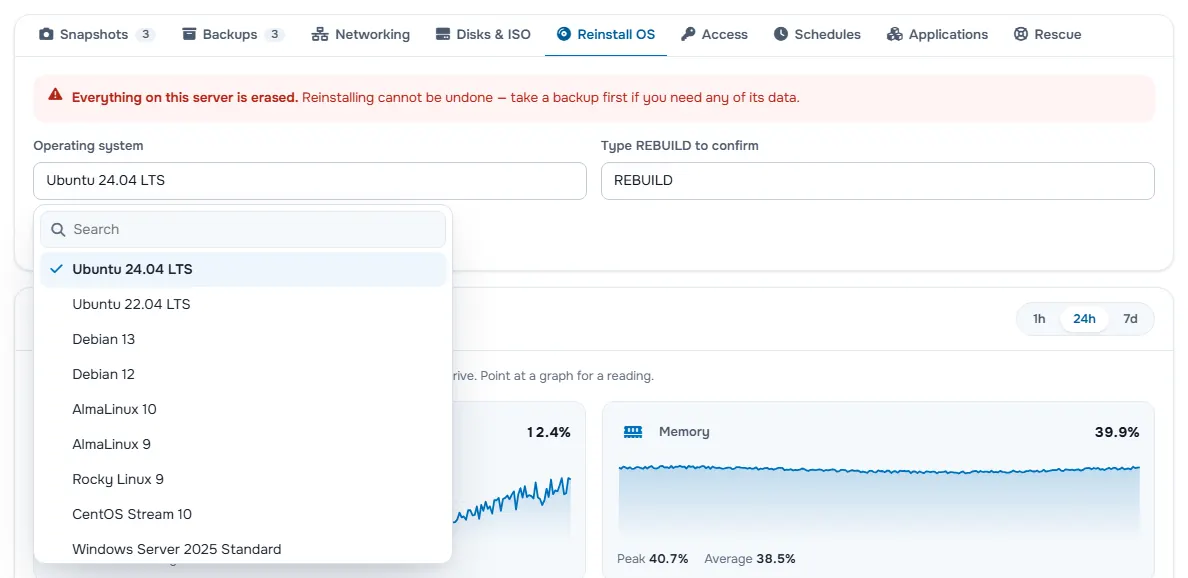
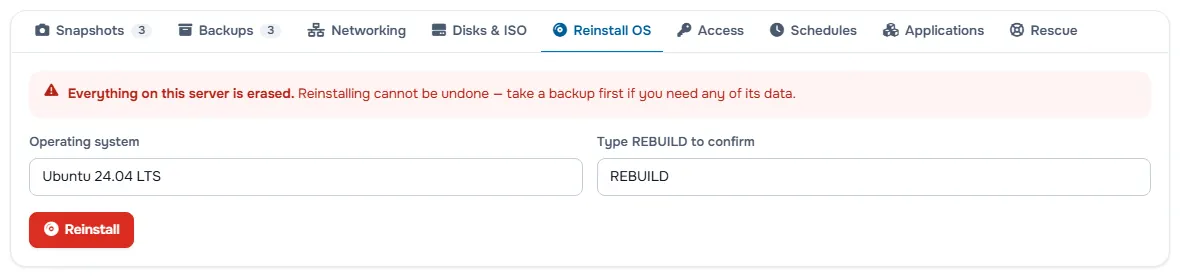
- Open the Reinstall OS tab, or select Reinstall the OS under Quick actions. The red notice says once more that everything on the server is erased.
- Choose the new image in the Operating system list. It shows the images of your plan; type in Search to find one quickly.
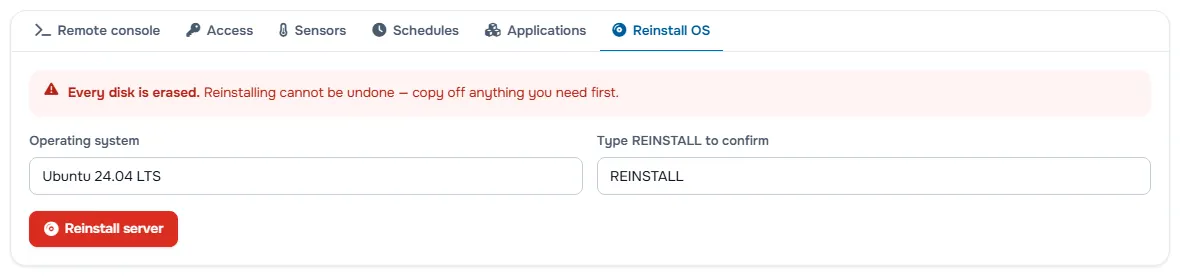
- Type the confirm word in capital letters:
REBUILDon a VPS or VDS, GPU plans included, and on a nested dedicated server;REINSTALLon a dedicated server. The button stays inactive until the word matches. - Select Reinstall, or Reinstall server on a dedicated server. The server goes offline shortly afterwards.
If your service page has no Reinstall OS tab, as on a macOS server, Open Ticket, choose the server under Related Service and write which operating system image you want. State clearly that the disk may be erased.
Verify: the status in the head of the service page is Running again, and Operating system under Configuration (Server information on a dedicated server) shows the new image.
Step 3: Reconnect
The fresh system has new SSH host keys, so your computer will warn that the host identification has changed. Remove the old key and connect again:
ssh-keygen -R 203.0.113.10
ssh root@203.0.113.10
Log in with the details on the Access tab: Show Password shows the password after a security check, and every view is recorded. Change it with passwd and keep the new one safe, because the one on the Access tab then no longer works. On a VPS or VDS, SSH keys you added on the Access tab are put back after the reinstall. On Windows, connect with Remote Desktop and change the Administrator password; see first steps on a Windows server.
Step 4: Secure, then restore
Secure the fresh server before you restore data and open it to the internet: updates, your own sudo user, SSH keys, a firewall. Follow secure a new Linux server.
Then copy the backup back, install the software your site needs and restore:
rsync -avz -e ssh ./server-backup/ alex@203.0.113.10:/home/alex/restore/Restore website files to their folder, import databases (mysql or mariadb with the dump file) and copy over only the configuration you understand. Configuration files from an older release may not fit a newer one; compare them rather than overwriting the new defaults.
Verify: your site loads, scheduled tasks run, and sudo ss -tulpn lists only the services you expect.
Troubleshooting
WARNING: REMOTE HOST IDENTIFICATION HAS CHANGED! Expected after a reinstall. Run ssh-keygen -R with the server's address, as in Step 3.
The password does not work. Copy it again from the Access tab, without spaces. If you changed it inside the server, the one shown there no longer works. If it still fails, open a ticket.
The reinstall seems stuck. Installing an image takes a while, on dedicated servers longer than on virtual servers. If the status does not return to Running and the server stays unreachable, look at its screen with Console › Web console, or KVM console on a dedicated server, then open a ticket with the service name.
Old configuration breaks the new system. Restore configuration files one service at a time and test after each.
Next steps
- Set up regular backups so the next reinstall is painless: backup strategy.
- Reinstalling after an attack? Read what to do if your server is hacked.
Frequently asked questions
Does a reinstall delete my data?
Yes. The disk is erased and a fresh image is installed. Copy everything you want to keep to another place before you start; files on the server cannot be recovered afterwards.
Will my IP address change?
A reinstall keeps the same service, so the IP addresses normally stay the same. If anything changes, the service page shows the new address in its head and on the Access tab.
Can I switch from Linux to Windows with a reinstall?
A reinstall uses the images of your plan. Linux and Windows servers are separate product lines: to move from one to the other, order a server of the line you need, move your data and cancel the old service.
Why does SSH warn that the host identification has changed?
A fresh installation creates new host keys. Remove the old key from your computer with ssh-keygen -R and the address, then connect again and accept the new key.
Should I reinstall after a security incident?
Usually yes: a clean installation is the safest way to remove an intruder. Follow our guide for compromised servers first, so you keep evidence and restore only clean data.