






Your servicesManaging services
Log in to your hosting control panel
Open cPanel or Plesk from your hosting service page in one click, change the control panel password, and find the server name, IP and nameservers you need.
- Beginner
- 5 min read
- Updated
Tested on: HyperDC client area
On this page
Our Linux web hosting, WordPress hosting and reseller hosting are managed in cPanel, and Windows web hosting in Plesk. You do not need to remember the control panel password: the service page in the client area signs you in with one click. This guide also shows how to change the control panel password and where to find the server details.
Before you start
- A hosting service with the status Active. The sign-in button works only while the service is active.
- A browser that allows pop-ups for our website, because the control panel opens in a new tab.
- If you are an invited user of someone else's client account, you need the permission Perform Single Sign-On to use the button and View & Modify Product Passwords to change the password. The account owner sets them; see users and contacts.
Step 1: Open the hosting service
Go to Services › My Services and select Manage next to the hosting service, or select its name. See manage your services for the rest of the page.
Step 2: Sign in with one click
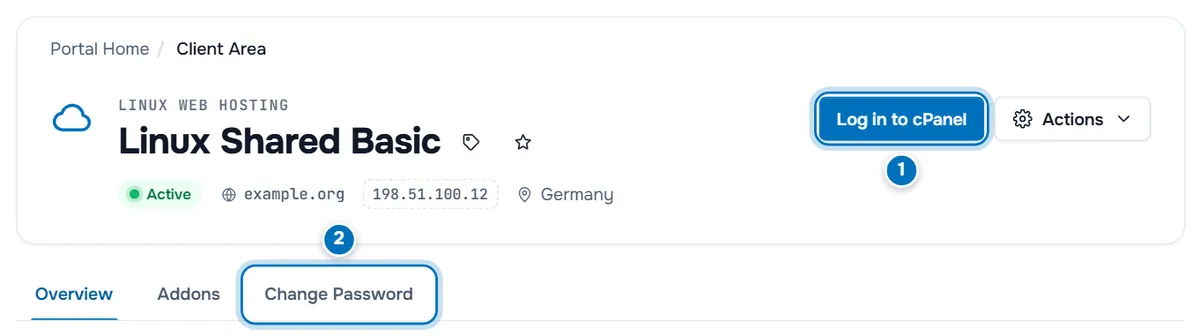
- Log in to cPanel — select it to open cPanel, already signed in to this hosting account, in a new tab. On Windows hosting the button reads Log in to Plesk. The same entry is also in the Actions menu. Some hosting services also show Log in to Webmail, which opens your mailbox in the browser.
- Change Password — the tab to set a new control panel password, described in Step 4.
Verify: the control panel opens in a new tab and shows your domain and the resources of your plan.
Step 3: Find the details for DNS and direct sign-in
The Overview tab of a hosting service shows Hosting Information, where the service provides it:
- Domain — the main domain of the hosting account, with Visit Website to open it.
- Username — the control panel user name, with a copy button. You need it to sign in directly and for FTP.
- Server Name and IP Address — the server your account runs on. Point your domain's A record to this address if you keep your DNS elsewhere.
- Nameservers — the nameservers to set for your domain if you want the control panel to manage all DNS records, including email.
To use these values, see point a domain to your server and change domain nameservers. Below the hosting details, Resource Usage shows Disk Space and Bandwidth when the account reports them.
To sign in without the client area, open the control panel address from your welcome email and enter the Username and the control panel password.
Step 4: Change the control panel password
Open the Change Password tab of the hosting service.
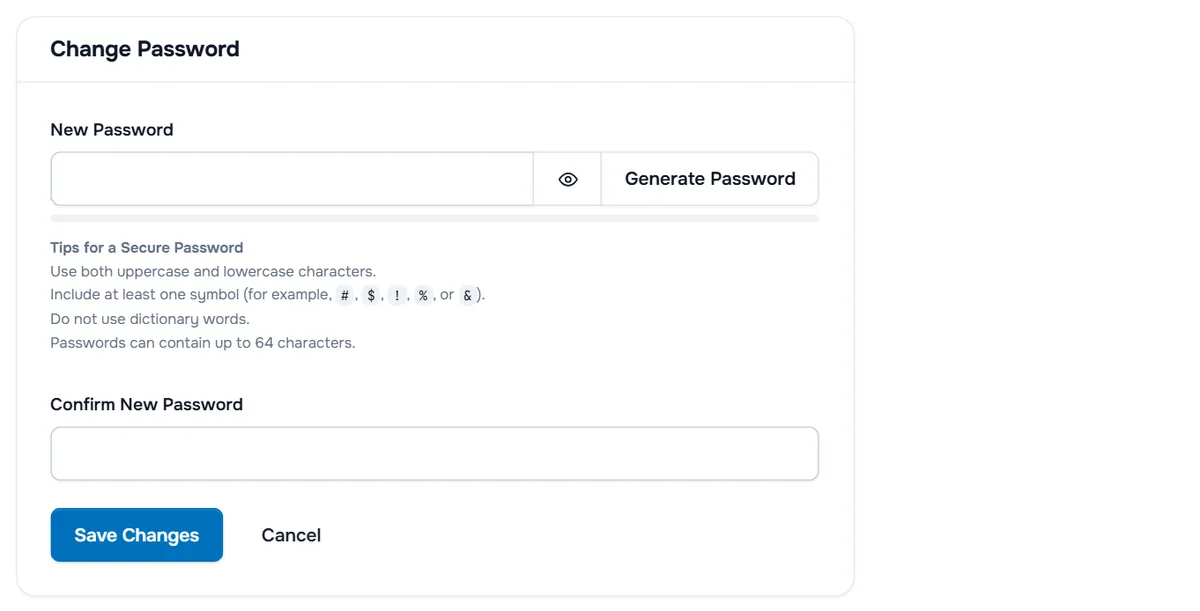
- Type a password in New Password, or select Generate Password to create a strong one. The eye button shows what you typed, and the bar below rates its strength.
- Follow the Tips for a Secure Password under the field: upper- and lowercase letters, at least one symbol, no dictionary words, and no more than the maximum length shown.
- Repeat the password in Confirm New Password.
- Select Save Changes.
Verify: a confirmation message appears at the top of the tab. Sign in to the control panel directly with the new password to make sure it works.
Troubleshooting
Nothing happens when I select the sign-in button. The browser blocked the new tab. Allow pop-ups for our website, then select the button again.
The sign-in button is missing or greyed out. The service is not active, for example because it is still Pending or is Suspended: pay the open invoice under Billing › My Invoices. As an invited user, you may also lack the permission Perform Single Sign-On.
An error message appears instead of the control panel. Wait a minute and try again. If it keeps happening, open a ticket with the service name and the time.
The new password is refused. Use Generate Password, or make the password longer and add a symbol. Both password fields must match.
There is no Change Password tab. The product does not allow password changes from the client area, or your user lacks View & Modify Product Passwords. Open a ticket if you need a new password.
Next steps
- First steps in cPanel: Linux and WordPress hosting with cPanel.
- First steps in Plesk: Windows web hosting with Plesk.
- Connect your domain: point a domain to your server.
Frequently asked questions
Do I need my cPanel or Plesk password to use the button?
No. The button signs you in to the control panel of this hosting account directly. You only need the password when you sign in to the panel yourself, for example from a bookmark or an FTP client.
Is the control panel password the same as my client area password?
No, they are separate. The Change Password tab of a hosting service changes only the control panel password of that account. Your client area password is changed in the account menu.
Why does the control panel open in a new tab?
So that the client area stays open next to it. If nothing happens when you select the button, your browser blocked the new tab: allow pop-ups for our website and try again.
Where do I find the nameservers for my domain?
On the Overview tab of the hosting service, under Hosting Information › Nameservers, where the service shows them, and in the welcome email of the hosting account.
Can a colleague open the control panel without knowing the password?
Yes. Invite them as a user of your client account and give them the permission Perform Single Sign-On together with View Products & Services. They can then use the sign-in button on the service page.