

Linux VPS at HyperDC: what you get and how to start
What a HyperDC Linux VPS includes: your own kernel, root access, a dedicated IPv4 address, current Linux images and optional panels, and first steps.
- Beginner
- 10 min read
- Updated
Tested on: Ubuntu 24.04 LTS, Ubuntu 26.04 LTS, Debian 12, Debian 13
On this page
A HyperDC Linux VPS is a virtual private server: your own Linux system with full root access, a dedicated IPv4 address and the resources your plan allocates. This guide explains what is included, how to choose the image and what to do in the first hour. Compare plans on the Linux VPS page.
What you get
- Full virtualization. Your server boots its own kernel. You can install any software the distribution supports, load kernel modules and run containers.
- Full root access over SSH.
- One dedicated IPv4 address, so you can point domains and certificates at it directly.
- SSD storage and the CPU and memory listed for your plan.
- Free weekly and monthly backups. Keep your own off-site copies as well; see backup strategy.
- A choice of locations. The order form lists the data centers for each plan; see choose a data center location.
- Outbound port 25 is closed by default. For services bought for a term of 3 months or longer, it is opened on request when you open a support ticket. Until then, send mail through a relay on port 587.
A VPS does not offer nested virtualization. If you need to run your own virtual machines or emulators, choose a VDS.
Choose the image
Pick a current long-term support release for a new server:
| Distribution | Notes |
|---|---|
| Ubuntu 26.04 LTS | Standard support until May 2031 |
| Ubuntu 24.04 LTS | Widely documented, standard support until May 2029 |
| Debian 13 | Standard support until August 2028, Debian LTS until June 2030 |
| AlmaLinux 10 / Rocky Linux 10 | RHEL-compatible, security updates until May 2035 |
Older images, such as CentOS 7, Ubuntu 18.04 or Debian 10 and 11, no longer receive free security updates. Use them only when existing software requires it.
Control panels
You can run the server without a panel, or choose one in the order form. HestiaCP, CyberPanel and aaPanel are free options; cPanel, cPanel with CloudLinux and Plesk are paid options whose price the order form shows. Choosing a panel at order time saves you installing it yourself; some panels are also offered as ready-made images. Later, the Applications tab of your service page installs a panel as well; see below.
From order to a secured server
- Order and pay the first invoice: create an account and order.
- Find the login details on the Access tab of your service page: the address, the user name
rootand Show Password. - Connect over SSH: connect to your Linux server.
- Secure the server in the first hour: secure a new Linux server.
- Point your domain at the server: point a domain to your server.
Your server in the client area
Open Services › My Services and choose your server. The head of the page shows its status, location and IP address, with Restart, Stop and Console. Performance shows live CPU, memory, disk and network figures, Configuration lists the system and your plan's resources, and Quick actions take a snapshot, start a backup or open the reinstall.
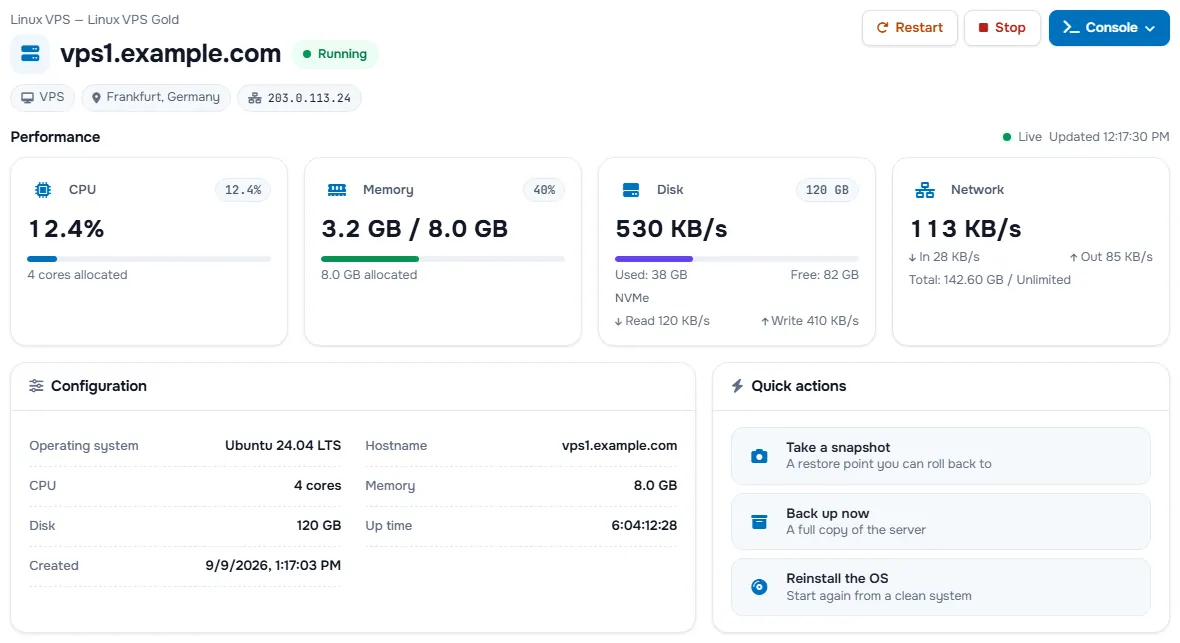
Console opens the Web console, the server's own screen in your browser, or an SSH terminal. The web console works even when the server cannot be reached over the network.

The tabs under these cards hold everything else.
Snapshots
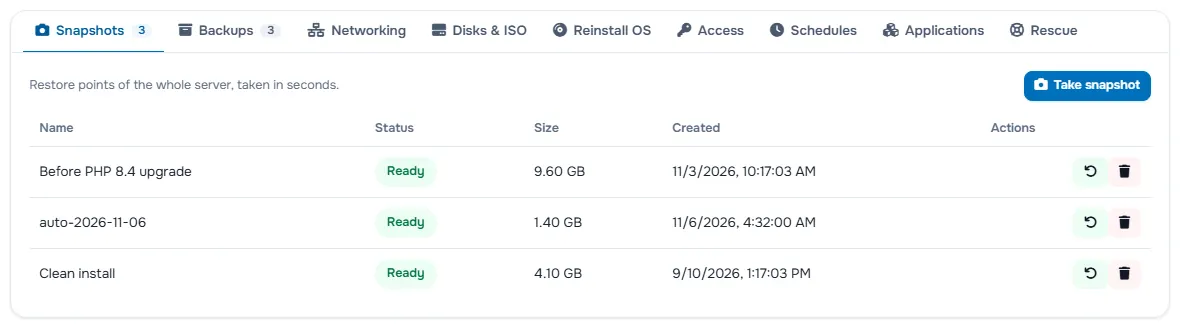
Restore points of the whole server, taken in seconds. Select Take snapshot and give it a name; the server keeps running meanwhile. The buttons in each row roll the server back to that point or delete the snapshot.
Backups
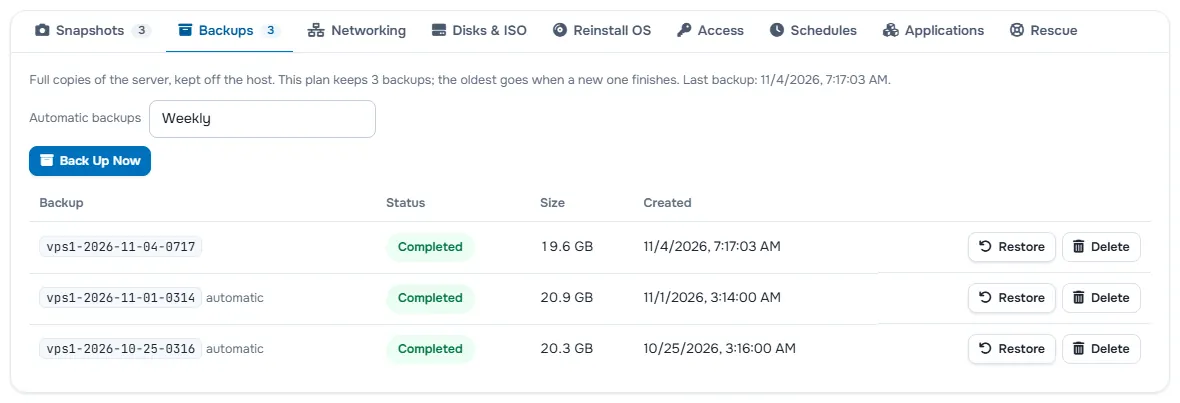
Full copies of the server, kept off the host. The plan keeps a set number of backups, and the oldest goes when a new one finishes. Choose Daily, Weekly or Monthly under Automatic backups, or select Back Up Now. Restore stops the server and replaces everything on it with the backup, so anything saved after the backup is lost.
Networking
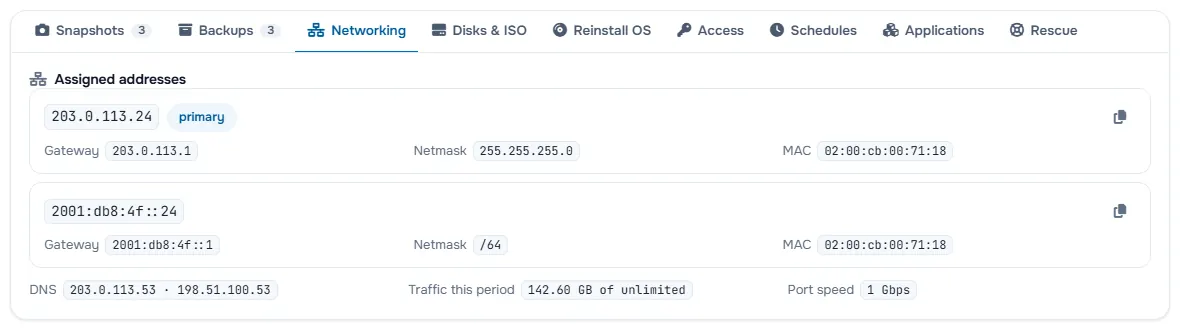
Every address of the server with its gateway, netmask and MAC address, then the DNS servers, the traffic of this period and the port speed.
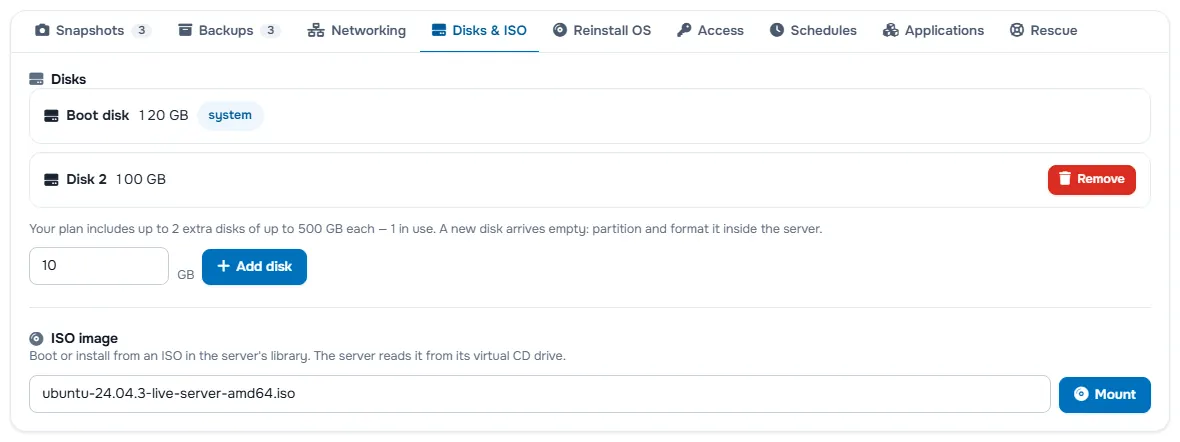
Disks & ISO
The boot disk and any extra disks. If your plan includes extra disks, enter a size and select Add disk. A new disk arrives empty: partition and format it inside the server. Remove deletes a disk with everything on it. Under ISO image, choose an ISO from the library, select Mount and restart the server to boot from it.
Reinstall OS
Erases the server and installs a fresh image: choose the Operating system, type REBUILD and select Reinstall. Read reinstall the operating system first.
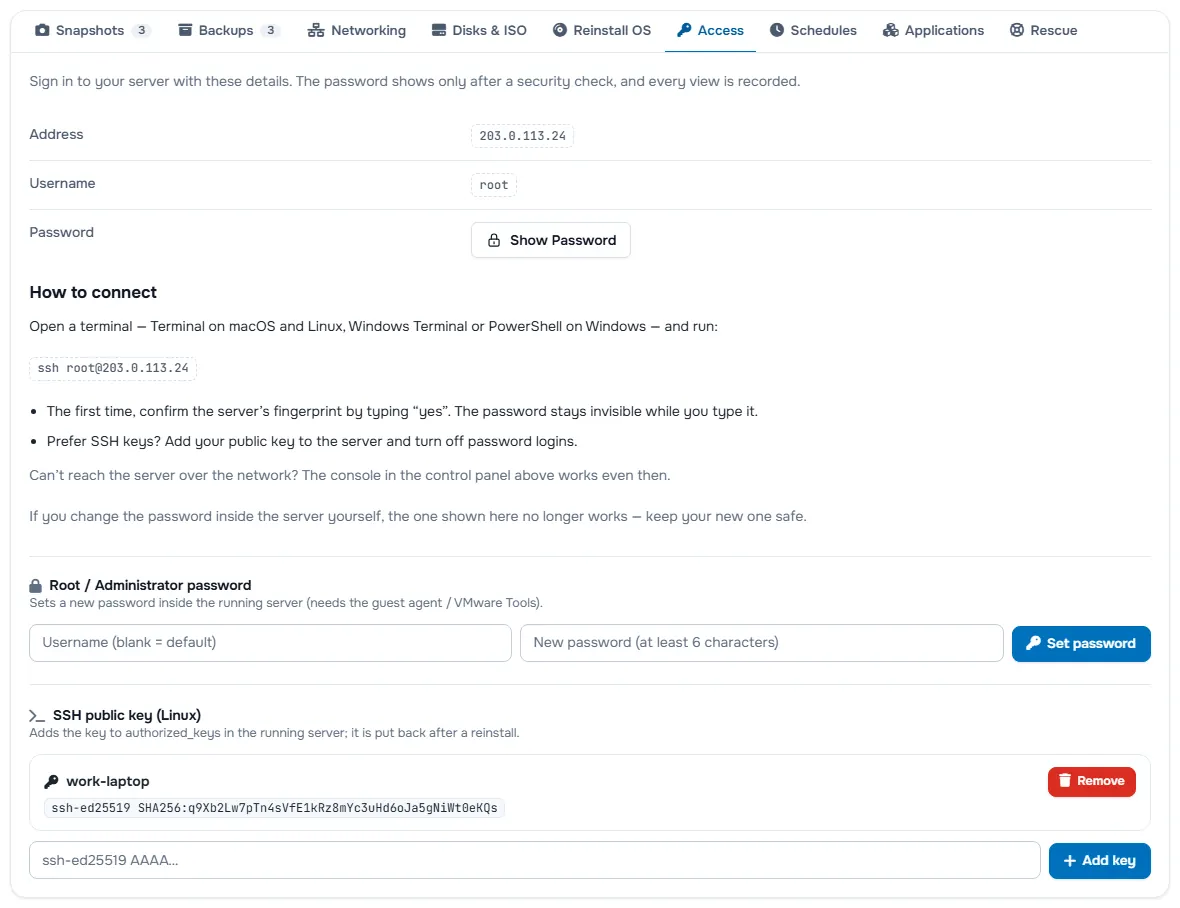
Access
The address, the user name and Show Password: the password appears only after a security check, and every view is recorded. How to connect gives the ssh command for your server. Root / Administrator password sets a new password inside the running server, and SSH public key (Linux) adds your key to authorized_keys; the key is put back after a reinstall. If you change the password inside the server yourself, the one shown here no longer works.
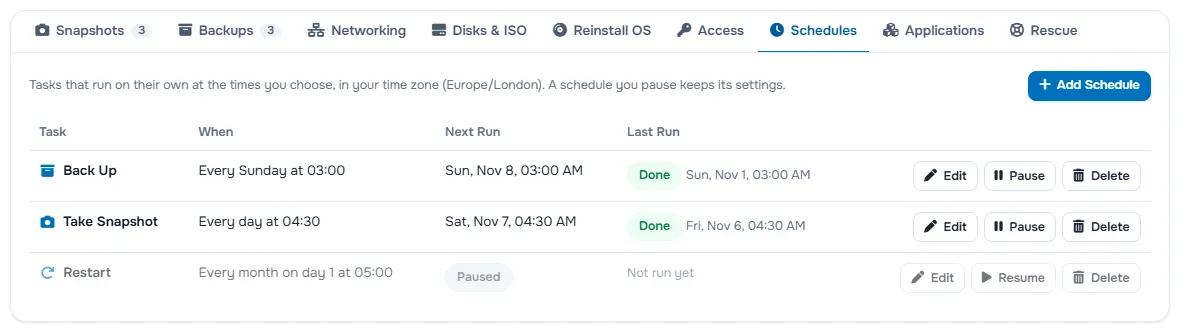
Schedules
Tasks that run on their own at the times you choose, in your time zone, such as Back Up, Take Snapshot and Restart. Select Add Schedule to make one. Pause stops a schedule and keeps its settings.
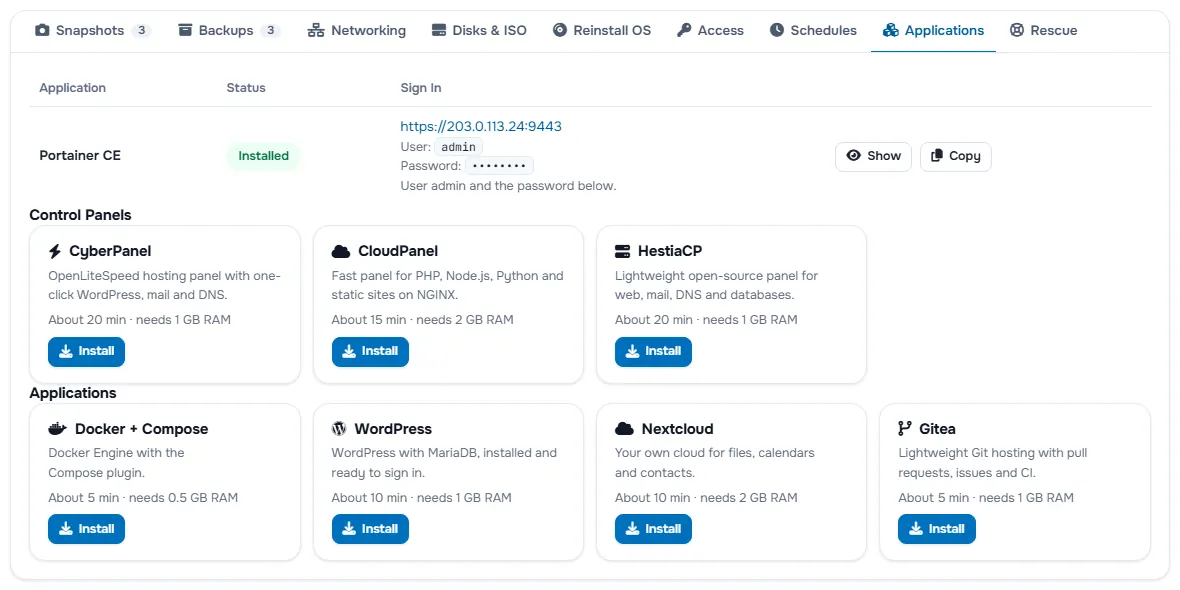
Applications
Control panels, such as CyberPanel, CloudPanel and HestiaCP, and applications, such as Docker with Compose, WordPress, Nextcloud and Gitea. Each card shows about how long the installation takes and how much memory it needs; select Install to start it. An installed application shows its sign-in address and user, and its password only when you select Show.
Rescue
Start rescue mode restarts the server into a rescue system, so you can repair it without losing data. Leave rescue mode restarts it into its own operating system.

Usage
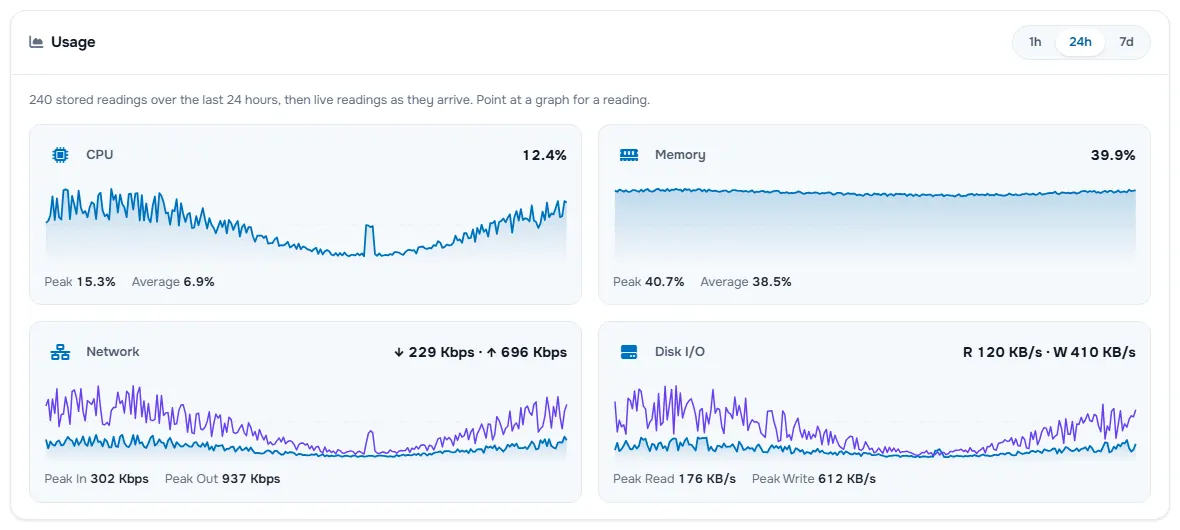
Under the tabs, Usage draws CPU, memory, network and disk activity over the last hour, 24 hours or 7 days, with the peak and the average, then adds live readings. Point at a graph for a reading.
Check your resources
Once logged in, confirm what the server has:
nproc
free -h
lsblk
df -h /
ip -brief address
Verify: nproc shows the number of vCPUs, free -h the memory, lsblk the disk, and ip -brief address your public IPv4 address, matching the primary address on the Networking tab.
Common next steps
- Containers: install Docker from Docker's official repository: install Docker on Ubuntu.
- Firewall: UFW firewall.
- Automatic security updates: automatic updates.
- Reverse DNS for a mail server: reverse DNS (PTR).
Growing
Move to a bigger plan from the client area when you need more CPU, memory or disk: upgrade or downgrade a service. Disks cannot be made smaller, so moving to a plan with a smaller disk means a new server and a restore. Moving to a VDS or a dedicated server is a migration to a new server.
Troubleshooting
I cannot connect after the order. Check that the invoice is paid and the service is Active, then see SSH connection problems. Console › Web console reaches the server even when SSH does not.
The server feels slow. Measure first: the Usage graphs on the service page, then high CPU or memory usage.
The disk is full. See disk full.
Next steps
- Compare lines: VPS vs VDS vs dedicated server.
- Moving from another host? Move a website without downtime.
Frequently asked questions
Does a Linux VPS run its own kernel?
Yes. A Linux VPS is a full virtual machine: each server runs its own Linux kernel, so you can load kernel modules, run Docker and configure the system as on any Linux machine.
Is a dedicated IPv4 address included?
Yes. Every Linux VPS plan includes one dedicated IPv4 address. If your project needs more addresses, contact us before you order.
Which Linux distribution should I choose?
A current long-term release: Ubuntu 26.04 LTS or 24.04 LTS, Debian 13, AlmaLinux 10 or Rocky Linux 10. Choose an older image only when existing software requires it, and plan an upgrade.
Are backups included?
Yes. Free weekly and monthly backups are included. For data that changes often, also keep copies of your own off the server, so you can restore exactly the version you need.
Can I run Docker or my own virtual machines?
Docker, yes: it runs like on any Linux machine. Your own virtual machines need nested virtualization, which VPS plans do not offer; choose a VDS for that.