






Use new disk space on a Linux server after an upgrade
Added disk space or moved to a bigger plan? Grow the partition and file system with growpart, resize2fs, xfs_growfs or LVM, or mount a new disk safely.
- Intermediate
- 15 min read
- Updated
On this page
When you add disk space in the order form or move to a plan with a bigger disk, the extra space arrives as raw storage. Linux does not hand it to your file systems on its own: df -h keeps showing the old size until you grow the partition and the file system, or until you format and mount a new disk. This guide shows both cases on Ubuntu, Debian, AlmaLinux and Rocky Linux.
Before you start
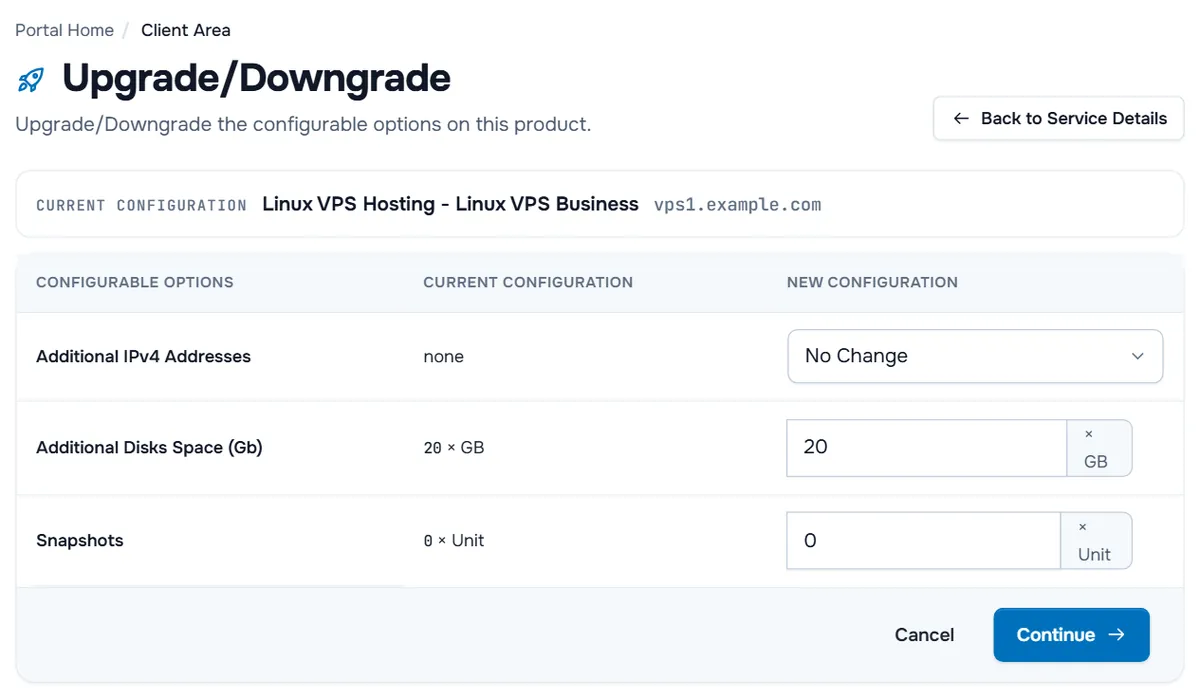
- Order the space first. In the client area open the server under Services › My Services, then Actions › Upgrade/Downgrade Options for extra disk space, or Upgrade/Downgrade for a bigger plan; see upgrade or downgrade a service.
- Back up what you cannot lose. Growing a file system is routine, but a wrong device name is not; see backup strategy.
- You need
sudoor root on the server.
Step 1: See what changed
Run lsblk with file system details and compare it with what df reports:
lsblk -f
df -hT
Read the output like this:
- The system disk is bigger, but its last partition is not. For example,
sdashows 80G whilesda1still shows 40G. Follow Case A. - A new, empty disk appeared, such as
sdborvdbwithout partitions or a file system. Follow Case B. - Nothing changed. The server has not seen the new size yet. Reboot once with
sudo rebootand runlsblkagain.
Note the file system type in the FSTYPE column: ext4 (Ubuntu and Debian default) and xfs (AlmaLinux and Rocky Linux default) are grown with different commands. If the root file system sits on LVM, lsblk shows a LVM2_member partition with a …-root volume under it.
Case A: the system disk grew
Step 2: Install growpart
growpart moves the end of a partition to the end of the disk. It is part of the cloud utilities:
Ubuntu and Debian
sudo apt update
sudo apt install cloud-guest-utils
AlmaLinux and Rocky Linux
sudo dnf install cloud-utils-growpartStep 3: Grow the partition
growpart takes the disk and the partition number, separated by a space. Test first with --dry-run, then run it for real. In this example the root file system is on partition 1 of /dev/sda:
sudo growpart --dry-run /dev/sda 1
sudo growpart /dev/sda 1
Use the names from your own lsblk output: on NVMe disks the disk is /dev/nvme0n1 and partition 1 is still given as 1. If the last partition is not the one you want to grow (for example a swap partition follows it), stop here and ask us in a ticket rather than deleting partitions.
Verify: lsblk shows the partition at the new size.
Step 4: Grow the file system
ext4
sudo resize2fs /dev/sda1XFS
sudo xfs_growfs /LVM
sudo pvresize /dev/sda3
sudo lvextend -r -l +100%FREE /dev/mapper/ubuntu--vg-ubuntu--lvresize2fstakes the partition; without a size it grows the file system to fill it.xfs_growfstakes the mount point of a mounted XFS file system.- With LVM, grow the physical volume on the partition you grew in Step 3 (on Ubuntu's default LVM layout that is often partition 3, so Step 3 was
sudo growpart /dev/sda 3), then extend the logical volume into the free space.-rresizes the file system on it in the same step. Take the exact names fromlsblk,sudo pvsandsudo lvs.
Verify: df -hT / shows the new size.
Case B: a new disk appeared
A new disk is empty. You give it a partition table, a file system and a place in the folder tree.
Step 2: Partition and format
In this example the new disk is /dev/sdb:
sudo parted --script /dev/sdb mklabel gpt mkpart data ext4 0% 100%
sudo mkfs.ext4 -L data /dev/sdb1
On AlmaLinux and Rocky Linux you can use sudo mkfs.xfs -L data /dev/sdb1 instead.
Step 3: Mount it permanently
Create the folder, find the file system's UUID and add it to /etc/fstab:
sudo mkdir -p /data
sudo blkid /dev/sdb1
Open /etc/fstab with sudo nano /etc/fstab and add one line with the UUID that blkid printed:
UUID=0a1b2c3d-1111-2222-3333-444455556666 /data ext4 defaults,nofail 0 2The nofail option lets the server boot even if this disk is ever missing, instead of stopping in emergency mode. Check the file and mount everything it lists:
sudo findmnt --verify
sudo systemctl daemon-reload
sudo mount -a
df -hT /data
Verify: findmnt --verify reports no errors and df lists /data with the new size. Give your user access with sudo chown youruser: /data if the application does not run as root.
Troubleshooting
NOCHANGE: partition 1 is size … it cannot be grown. The partition already reaches the end of the disk, or another partition follows it. Check lsblk again; if the disk itself still has the old size, reboot first.
resize2fs: Bad magic number in super-block. You ran resize2fs on an XFS or LVM device. Check FSTYPE in lsblk -f and use the matching tab.
xfs_growfs: … is not a mounted XFS filesystem. Pass the mount point (/, /data), not the device.
The server stops at boot with "You are in emergency mode". An /etc/fstab line points to a disk or UUID that does not exist. Fix the line from the console and add nofail; see Linux server does not boot.
The disk is still full after growing. Check that you grew the file system where the data lives (df -hT per mount point), then see disk full.
Next steps
- Keep an eye on usage before it becomes urgent: disk full.
- Back up the new data disk as well: backup strategy.
Frequently asked questions
Do I have to reboot after adding disk space?
Only if the server does not see the new size yet. Run lsblk: if the disk still shows its old size, reboot once and check again. Growing a mounted ext4 or XFS file system itself works without a reboot.
Can I make the disk smaller again later?
No. Disks cannot be made smaller in place. To move to a smaller disk, back up your data, order the smaller plan and restore the data there.
Is it safe to grow the root file system while the server is running?
Yes. ext4 and XFS support growing while mounted, and growpart only moves the end of the partition. Take a backup first anyway: a typo in the device name is the real risk.
Why does df show less space than the plan lists?
File systems reserve space for their own metadata, ext4 reserves a share for the root user by default, and disk makers count gigabytes in powers of ten while df -h uses powers of two.
Should I use the new disk for /var or /home?
Mount it on a new folder such as /data and point the application there. Moving /var or /home onto a new disk is possible but needs a maintenance window and careful copying.