

Dedicated servers at HyperDC: what you get and first checks
What a HyperDC dedicated server includes, how to use remote management where your plan has it, and how to check disks, RAID and network after delivery.
- Intermediate
- 15 min read
- Updated
Tested on: Ubuntu 24.04 LTS, Ubuntu 26.04 LTS, Debian 12, Debian 13
On this page
A dedicated server is a physical machine that serves you alone: every core, all memory, the full disk and network throughput. This guide explains what is included, what your service page offers, including the KVM console, and which checks to run when the server is delivered. Compare configurations on the dedicated servers page.
What you get
- The whole machine with full root (Linux) or Administrator (Windows) access.
- A choice of systems: Ubuntu, Debian, AlmaLinux, Rocky Linux, FreeBSD, Windows Server or a hypervisor such as Proxmox VE or XCP-ng, plus rescue and diagnostic images.
- IPv4 addresses, and an "Additional IPv4 Addresses" option in the order form on most servers.
- IPv6: named in the features of each server that includes it; ask us if you need it. See IPv6 setup.
- DDoS protection on many configurations, as listed in the server's features.
- Locations around the world (North and South America, Europe, Asia, Oceania and Africa), listed per configuration; see dedicated server locations.
Need virtual machines with dedicated resources but not a whole machine? Look at nested dedicated servers and VDS.
Your server in the client area
Open Services › My Services and choose your server. The head of the page shows its status, location and IP address, with Reset, Power off and KVM console. Hardware shows the processor, memory, storage and power state, Server information lists the hostname, operating system and up time, and Quick actions open the KVM console, the hardware sensors or the reinstall.
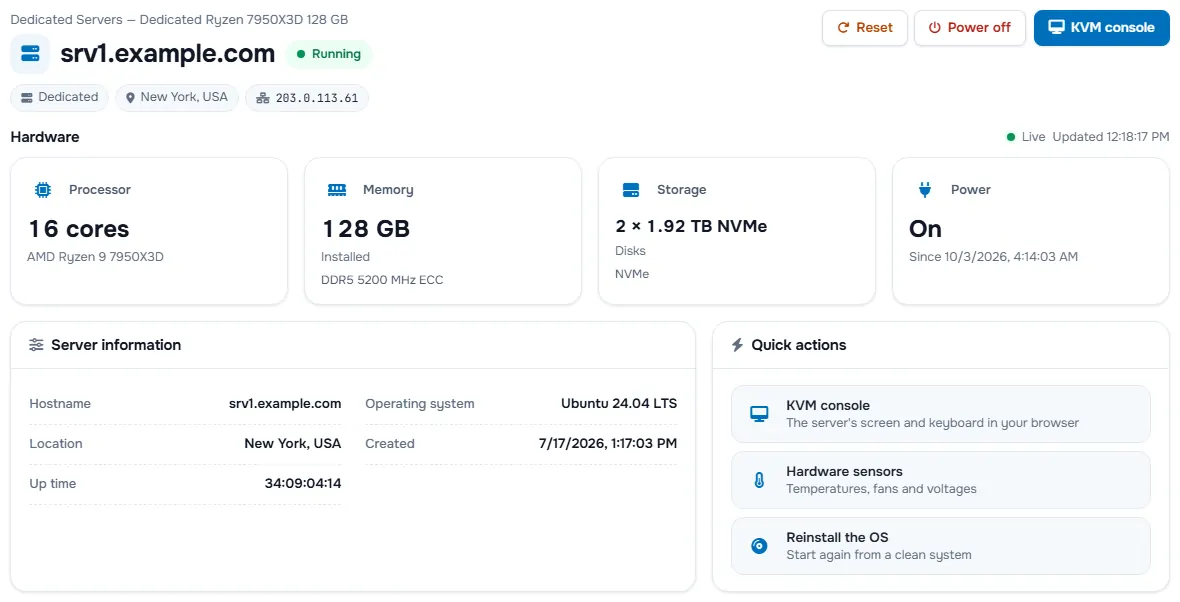
The tabs under these cards hold everything else.
Remote console
Open KVM console shows the server's own screen and keyboard in your browser, through its management controller (IPMI). It works even when the operating system does not, so use it to repair a server that does not start and in emergencies. Select Reset the management controller only if the console stops responding: the console and the sensors are unavailable for a minute or two, and the server keeps running.

If your service page has no Remote console tab, open a ticket when you need a console in an emergency.
Access
The address, the user name and Show Password: the password appears only after a security check, and every view is recorded. How to connect gives the ssh command for your server. If you change the password inside the server yourself, the one shown here no longer works.
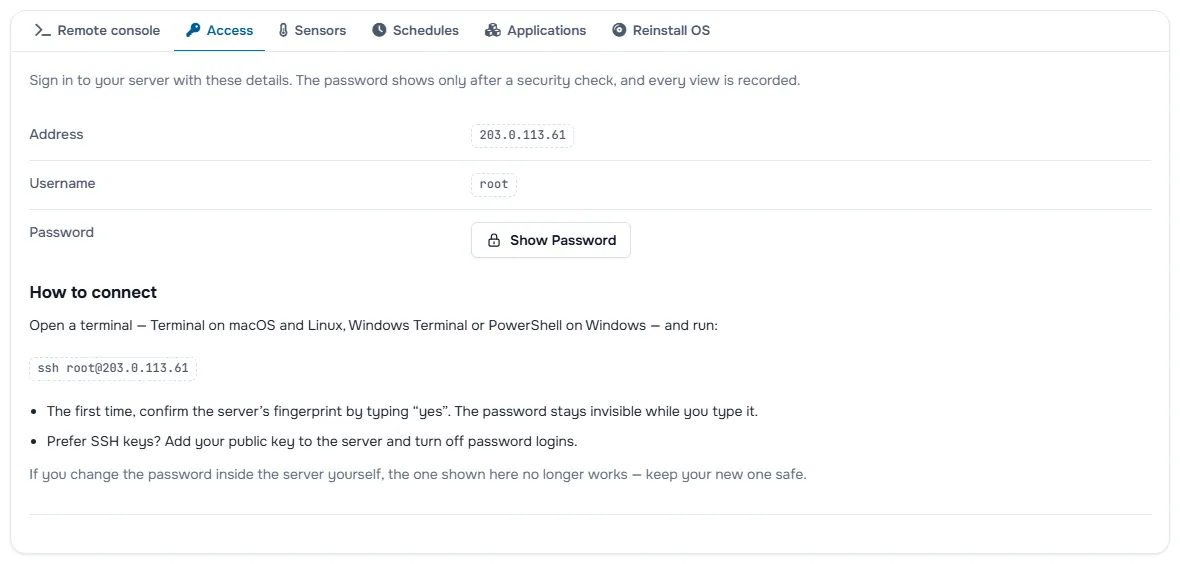
Sensors
Temperatures, fan speeds, voltages and power draw, read from the management controller, each with its limit where it has one. Select Refresh for new readings.
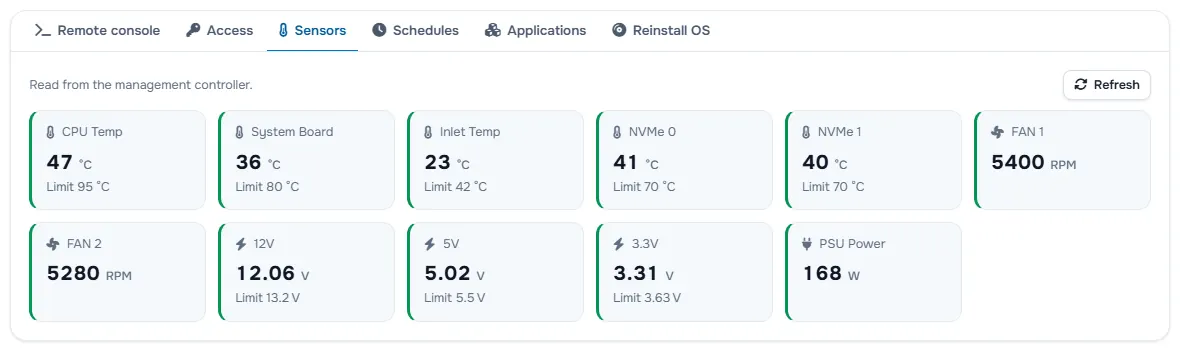
Schedules and Applications
Schedules runs tasks on their own at the times you choose, in your time zone. Applications installs control panels, such as CyberPanel, CloudPanel and HestiaCP, and applications, such as Docker with Compose, WordPress, Nextcloud and Gitea; each card shows about how long the installation takes and how much memory it needs. An installed application shows its sign-in address and user, and its password only when you select Show.
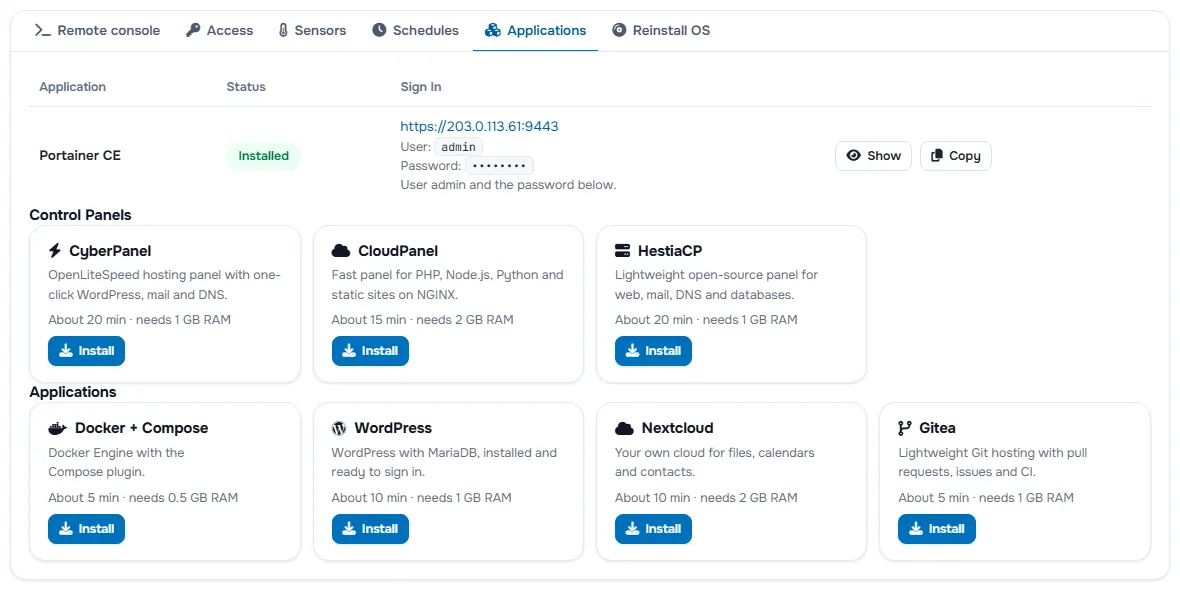
Reinstall OS
Erases every disk and installs a fresh system: choose the Operating system, type REINSTALL and select Reinstall server. Read reinstall the operating system first.
Day-one hardware checks
The Hardware cards on the service page show the processor, memory and storage. Log in and confirm that the hardware matches your order:
nproc
free -h
lsblk -o NAME,SIZE,TYPE,MODEL,ROTA
ip -brief address
ROTA 0 means a solid-state disk. Verify: CPU count, memory, disks and IP addresses match the configuration you ordered.
Software RAID
If the server uses Linux software RAID, check its state:
cat /proc/mdstat
sudo mdadm --detail /dev/md0
Verify: [UU] in /proc/mdstat (or State : clean in mdadm) means all mirrors are in sync. [U_] means a disk is missing or failed.
Disk health
sudo apt install smartmontools
sudo smartctl -H /dev/sda
sudo smartctl -a /dev/nvme0
PASSED in the health check is the minimum. Watch reallocated or pending sectors on hard disks and the percentage used on NVMe drives. Set up smartd to warn you by email when values change.
Running your own hypervisor
A dedicated server can run Proxmox VE, XCP-ng or the Hyper-V role directly on the hardware, without nested overhead. Plan the network first: how your virtual machines get public addresses (additional IPv4 addresses, your IPv6 block or NAT behind the host) decides the setup. See ports and port forwarding for NAT.
Upgrades and hardware problems
- More memory or storage: open a ticket; most configurations are upgradable.
- A failed disk: open a ticket with the output of
smartctland/proc/mdstat, and the serial number of the disk (lsblk -o NAME,SERIAL). Make sure your backups are current before a disk is replaced. - Bigger platform: a different processor or chassis means moving to another server.
Troubleshooting
The server does not come back after a reboot. Select Open KVM console on the Remote console tab and read what the screen shows; without that tab, open a ticket. See server unreachable.
One RAID member is missing. Do not reboot repeatedly. Back up, note mdadm --detail and open a ticket.
Fewer disks or less memory than ordered. Open a ticket with the output of the checks above.
Next steps
- Secure the operating system: secure a new Linux server.
- Back up off the server: backup strategy.
- Housing your own hardware instead? See co-location.
Frequently asked questions
How long does setup take?
It depends on the configuration and location. When a server lists a delivery time, expect that; otherwise we prepare it after the invoice is paid. The service page shows the progress meanwhile, and the login details are on its Access tab when the server is ready. If you have a deadline, contact us before ordering.
Which operating systems can I install?
The systems listed for the server, such as Ubuntu, Debian, AlmaLinux, Rocky Linux, FreeBSD, Windows Server, and hypervisors like Proxmox VE or XCP-ng. The order form also holds rescue and diagnostic images.
Do dedicated servers include IPv6?
Whether a server includes IPv6 depends on the server: it is named in that server's features. Ask us before you order if you need it.
Can I add memory or disks later?
Most configurations are listed as upgradable: open a support ticket to ask for more memory or storage. Changes that need a different processor or platform usually mean moving to another server.
Is DDoS protection included?
Many configurations include it; it is named in the features of each server. If protection matters for your project, choose a server that lists it, or ask us which options fit.