






Website & orderingBrowsing the website
Browse plans and prices on our website
Find a plan on the HyperDC website: open the header menus, switch billing cycles to compare prices, change language or currency and open the order form.
- Beginner
- 6 min read
- Updated
Tested on: HyperDC website
This guide is not available in your language yet, so it is shown in English.
On this page
Our website lists every HyperDC product with its plans and current prices. This guide shows how to find the right product page, read its pricing table, compare billing cycles and start an order, and where to look for our data centers, current offers and contact options.
Before you start
- Know roughly what you need: web hosting, a server (VPS, VDS or dedicated), a domain or a security product. If you are choosing between server lines, read VPS vs VDS vs dedicated server first.
- Think about where your users are. You pick the location later in the order form; choose a data center location explains how to decide.
- No account is needed to browse. You can fill the cart as a visitor and sign in or create an account at checkout.
Step 1: Open a product family from the header
The header groups our products by family: Hosting, VPS & VDS, Dedicated, Domains, Security, Solutions, Services and Company. Select a name to open its menu panel. Each panel lists the product lines in groups, each with a short description, shows a featured card with a Starting at price and a button to the plans, and ends with a strip of links such as Talk to us and Network status.
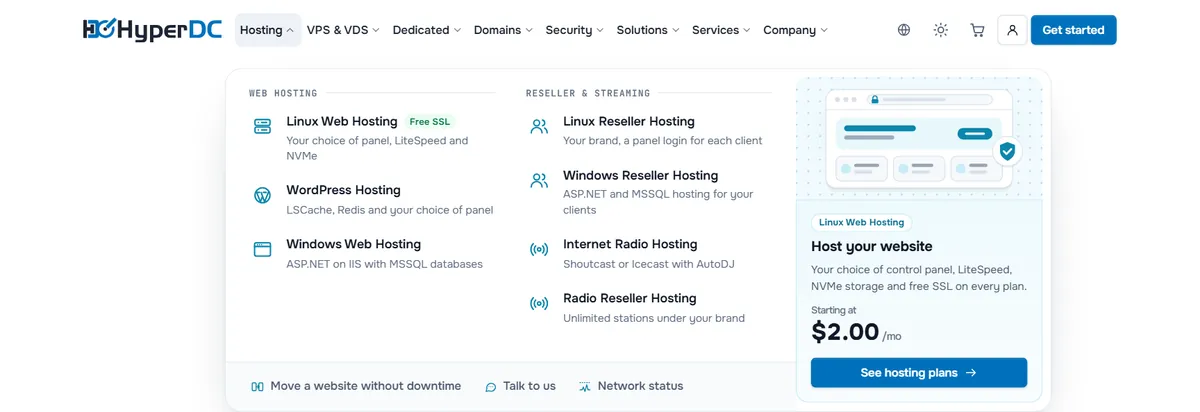
The other menus open the same way, each with the lines of its family.
When the window is narrow, menus that do not fit move into More. On phones and small tablets, the menu button at the top right opens every menu in a side drawer.
Verify: the product page you chose opens, with the product line's name at the top.
Step 2: Read the pricing table
Product pages show their plans as cards with the price, the main specs and an order button.
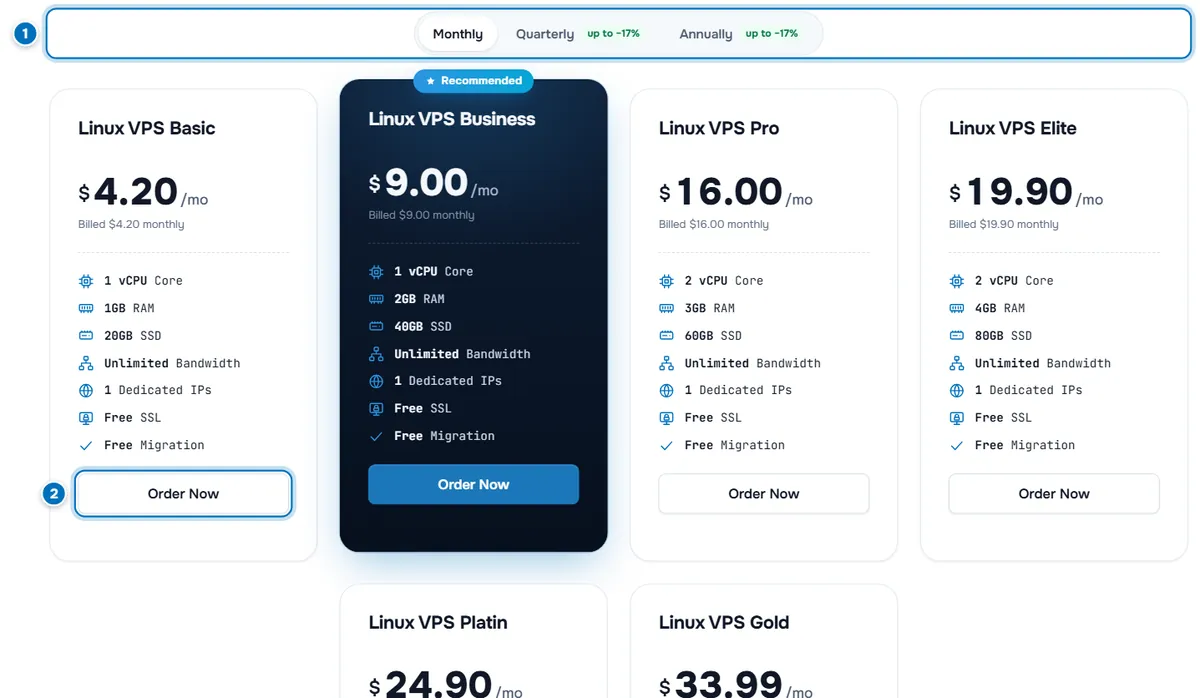
- Billing cycle switch — choose how often you want to pay, from monthly to longer terms. A green badge next to a cycle shows the largest saving that cycle offers on this page.
- Order Now — opens the order form for that plan with the billing cycle you selected.
Each card shows the price per month and, under it, the amount billed for the selected cycle (for example "Billed … every year"). A card marked Recommended is the plan we highlight for most projects. The list under the price shows the plan's specs, such as CPU cores, memory, storage, bandwidth and IP addresses, and what is included.
A few notes you may see on a card:
- Not offered for this billing cycle; the price shown is for its default cycle. — the plan cannot be billed on the cycle you picked; the order form offers its available cycles.
- Sold out — the plan cannot be ordered right now.
- Only … left — a few units of this plan remain.
Some pages also show a comparison table with the plans as columns and their features as rows; the billing cycle switch above it updates its prices too.
Verify: when you switch the billing cycle, every card updates its price and the billed amount.
Step 3: Compare and pick a plan
Read the specs line by line rather than comparing prices alone: memory, storage and the number of IP addresses usually decide whether a plan fits. Start with what your project needs today. Server plans can move to a bigger plan later from the client area, see upgrade or downgrade a service. The operating system, location and extras are chosen in the next step, in the order form.
Looking for a domain? Search a name on register a domain, or compare extensions on domain prices.
Step 4: Change language and currency
Select the globe icon in the header to open the language and currency menu.
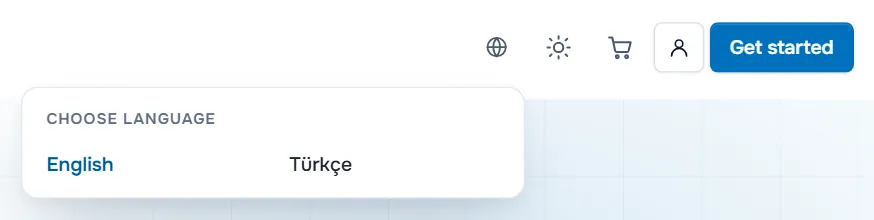
- Choose language switches the website between English and Türkçe.
- Choose Currency appears when more than one currency is offered and you are not signed in. Prices on the page are then shown in the currency you pick.
Once you are signed in, prices and invoices follow the currency of your account. The sun icon next to the globe switches the site between light and dark mode.
Step 5: Use the cart and start an order
- Order Now on a plan opens the order form at the Configure step. Continue with configure a server in the order form.
- Get started in the header opens our store with every product group.
- The cart icon shows how many items are in your cart and opens Review & Checkout, see review your cart and apply a promo code.
- The person icon opens the sign-in page. When you are signed in, a Client Area button takes its place.
Find data centers, offers and contact
- Data centers: HyperDC servers run in 24 data center locations; the page lists them with the services available in each.
- Promotions: current offers and best-value plans. Each offer has its own conditions, such as eligible plans, billing cycles or dates.
- Contact us: questions before you order. The Talk to us link in the menus leads there too.
- Network status: the link in the menus shows current incidents and planned maintenance, see network status and announcements.
Troubleshooting
A menu I expect is missing from the header. On narrower screens it has moved into More, or into the side drawer behind the menu button on phones.
Prices are in the wrong currency. Pick the currency in the globe menu before you sign in. Signed-in accounts see their account's currency; if you need a different currency for your account, open a support ticket.
The plan I want shows Sold out. Choose a similar plan of the same line, or ask our team on the contact page which plan fits your project.
A promotion's price does not appear on the plan. Some offers apply only to certain plans, cycles or new orders, or need a promo code in the cart. Check the conditions on the promotions page.
Next steps
- Configure your plan: configure a server in the order form.
- Add a domain to a hosting order: add a domain to your order.
- The whole journey at a glance: create an account and place your first order.
Frequently asked questions
Why does the price change when I switch the billing cycle?
Prices are shown per month. Longer cycles are billed as one amount for the whole term and often cost less per month. The green badge on the switch shows the largest saving of that cycle, and the line under each price shows the amount billed for the cycle.
Can I see prices in another currency?
Yes, when more than one currency is offered. Open the globe menu in the header and pick a currency under Choose Currency. The choice is offered before you sign in; once you are signed in, prices follow your account's currency.
What does Sold out mean on a plan?
The plan cannot be ordered at the moment. Choose a similar plan of the same line, or ask our team through the contact page which plan fits your project.
Which plan should I start with?
The one that covers what your project needs today. Server plans can move to a bigger plan later from the client area, and the guide VPS vs VDS vs dedicated server explains the differences between the server lines.
Where can I see current offers?
On the promotions page. Each offer lists its own conditions, such as the plans, billing cycles or dates it applies to.