

Pay your first invoice
Find your first invoice in the HyperDC client area, choose a payment method, pay by card or with crypto through HyperDC Pay and download the receipt as a PDF.
- Beginner
- 5 min read
- Updated
Tested on: HyperDC client area
On this page
Each order at HyperDC creates an invoice, and your service is set up once that invoice is paid. This guide shows where to find your first invoice, how to pay it by card or with crypto, and how to keep the receipt. For every detail of the invoice pages, see pay an invoice.
Before you start
- Sign in to the client area with the account you ordered with.
- Have your payment method ready: a card or a crypto wallet. The methods offered depend on your account and invoice.
- Check your billing details under the account menu › Account Details. Invoices show the name, company and address saved there.
Step 1: Open the invoice
You can reach your invoice in three ways: the Invoice #… button on the order confirmation page, the link in the invoice email, or Billing › My Invoices in the client area.
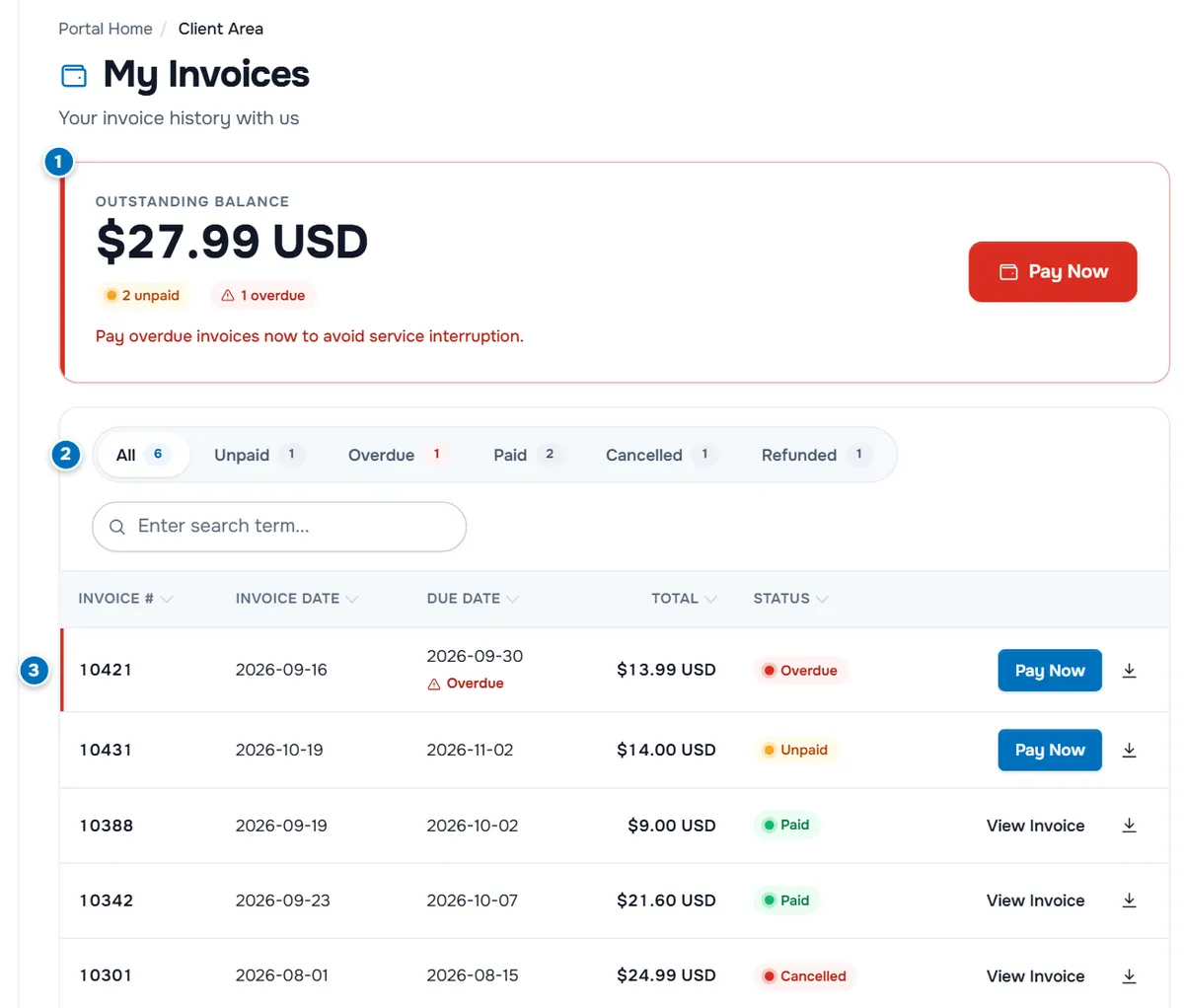
- Outstanding Balance — the amount still open, with the number of unpaid and overdue invoices, and Pay Now for the open invoice.
- Status filter — All, Unpaid, Overdue, Paid, Cancelled and Refunded.
- Invoice rows — number, invoice date, due date, total and status. Open invoices have Pay Now, the others View Invoice; the arrow downloads the PDF.
Verify: the invoice shows the items you ordered, the amount due and a due date.
Step 2: Choose a payment method
An unpaid invoice has a payment box at the top.
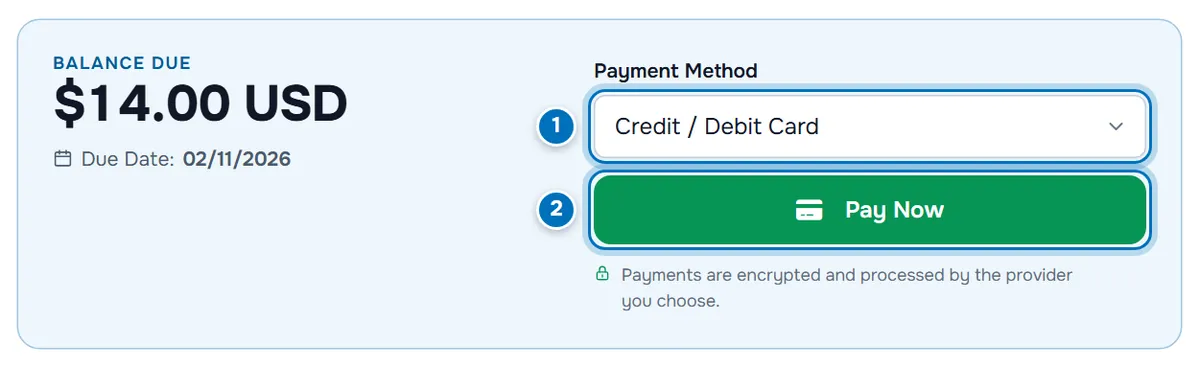
- Payment Method — the methods available for this invoice, for example card payments or crypto with HyperDC Pay. Choosing another method updates the box.
- Pay Now — starts the payment with the method you chose.
Balance Due shows the amount and Due Date the date by which it should be paid. If your account has credit, an Apply Credit box on the invoice lets you use it first.
Step 3: Pay
By card. Select Pay Now and enter your card details, or choose a saved card. Some card payments ask your bank to confirm the payment in its app or with a code. Do not close the window while the payment is processed.
With crypto through HyperDC Pay. Choose the crypto method in Payment Method. The Pay with crypto panel appears on the invoice.
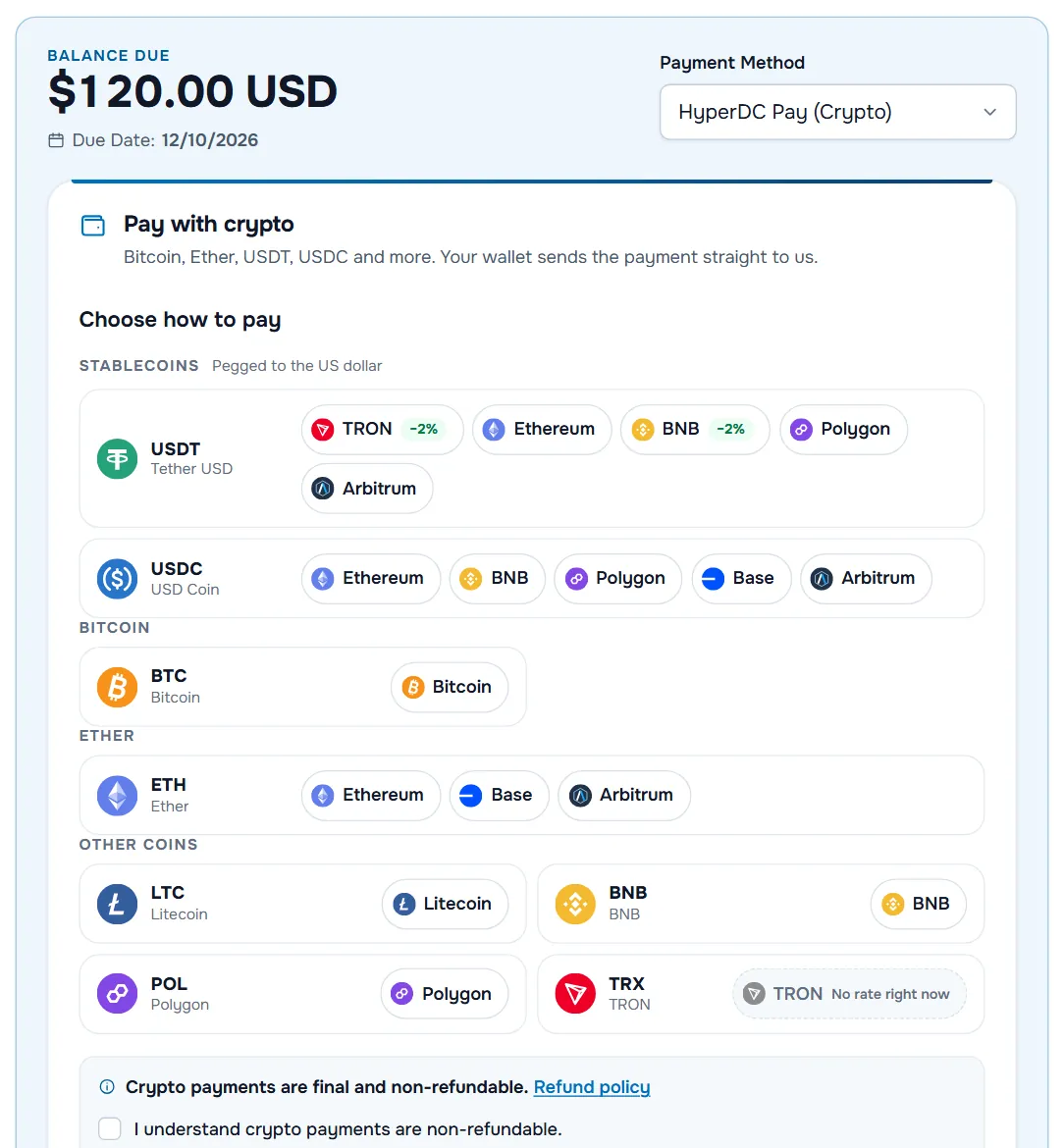
Choose a coin and its network, tick "I understand crypto payments are non-refundable." and select Continue. Send the exact amount shown, in one transaction, on the network you chose, then wait for the confirmations. The full walkthrough is in pay an invoice with crypto.
Verify: the invoice status changes to Paid and a payment confirmation email arrives. The setup of your order starts now, and the welcome email follows when the service is ready, see what happens after you order.
Step 4: Keep the receipt
Open the paid invoice and select Download PDF to save it, or Print to print it. All invoices stay under Billing › My Invoices, so you can download them again at any time, see view and download invoices.
Troubleshooting
The payment failed or was declined. Check that the card is valid and allowed for online payments, and approve the payment in your bank's app if it asks. Then try again or choose another method. Your bank can tell you why it declined a payment; we cannot see the reason.
I paid, but the invoice still shows Unpaid. Card payments are usually recorded at once; refresh the page after a minute. Crypto payments are recorded after the network confirmations shown on the payment panel. If an invoice stays unpaid after a successful payment, open a ticket with the invoice number and the payment reference.
The invoice is overdue. "Pay overdue invoices now to avoid service interruption." Pay it as soon as you can, see renewals and overdue invoices.
The billing address on the invoice is wrong. Update Account Details, and open a ticket if an invoice that has already been issued needs a correction.
Next steps
- Every option of the invoice page: pay an invoice.
- Crypto payments step by step: pay an invoice with crypto.
- All billing features in one place: invoices and payment methods.
Frequently asked questions
Where do I find my invoices?
In the client area under Billing › My Invoices. Every invoice is also emailed to you when it is created, with a link that opens it.
Can I change the payment method on an invoice?
Yes, while the invoice is unpaid. Open it and choose another method in the Payment Method list before you select Pay Now.
When is my service set up after I pay?
The order is processed once the payment is recorded. Card payments are usually recorded at once; crypto payments are recorded when the network has confirmed them. The welcome email follows when the service is ready.
Can I get a receipt for my accounting?
Yes. Open the paid invoice and select Download PDF. Your billing address and company details come from Account Details, so update them before paying if they should appear on the invoice.
Are crypto payments refundable?
No. Crypto payments are final and non-refundable. The refund policy explains which services are covered when you pay with other methods.