






Billing & paymentsPaying invoices
Pay an invoice with crypto (HyperDC Pay)
Pay a HyperDC invoice with Bitcoin, Ether, USDT, USDC and more: choose the coin and network, send the exact amount, follow the confirmations, fix problems.
- Beginner
- 8 min read
- Updated
Tested on: HyperDC client area
On this page
HyperDC Pay is our built-in way to pay invoices with cryptocurrency. Your wallet sends the payment straight to our own wallets, without a third-party payment processor. This guide takes you through a payment on the invoice page and explains every status you may see. How HyperDC Pay works in general: HyperDC Pay.
Before you start
- An unpaid invoice. Find it under Billing › My Invoices.
- A wallet or exchange account with enough funds for the invoice amount plus the network fee.
- Know your network. Many coins exist on several networks; USDT on TRON and USDT on Ethereum are different. Your wallet or exchange shows which network it sends on.
Step 1: Choose HyperDC Pay on the invoice
- Open the invoice with Pay Now.
- In Payment Method, choose HyperDC Pay (Crypto). The page reloads and the Pay with crypto panel appears under Balance Due.
If the panel says Crypto payments are not available in your region, choose another payment method on the same invoice. If no coin can be chosen, the panel says Crypto payments are not available for this invoice right now.
Step 2: Choose the coin and network
Under Choose how to pay, the coins are grouped as Stablecoins (pegged to the US dollar), Bitcoin, Ether and Other coins. Each coin shows the networks you can use as chips.
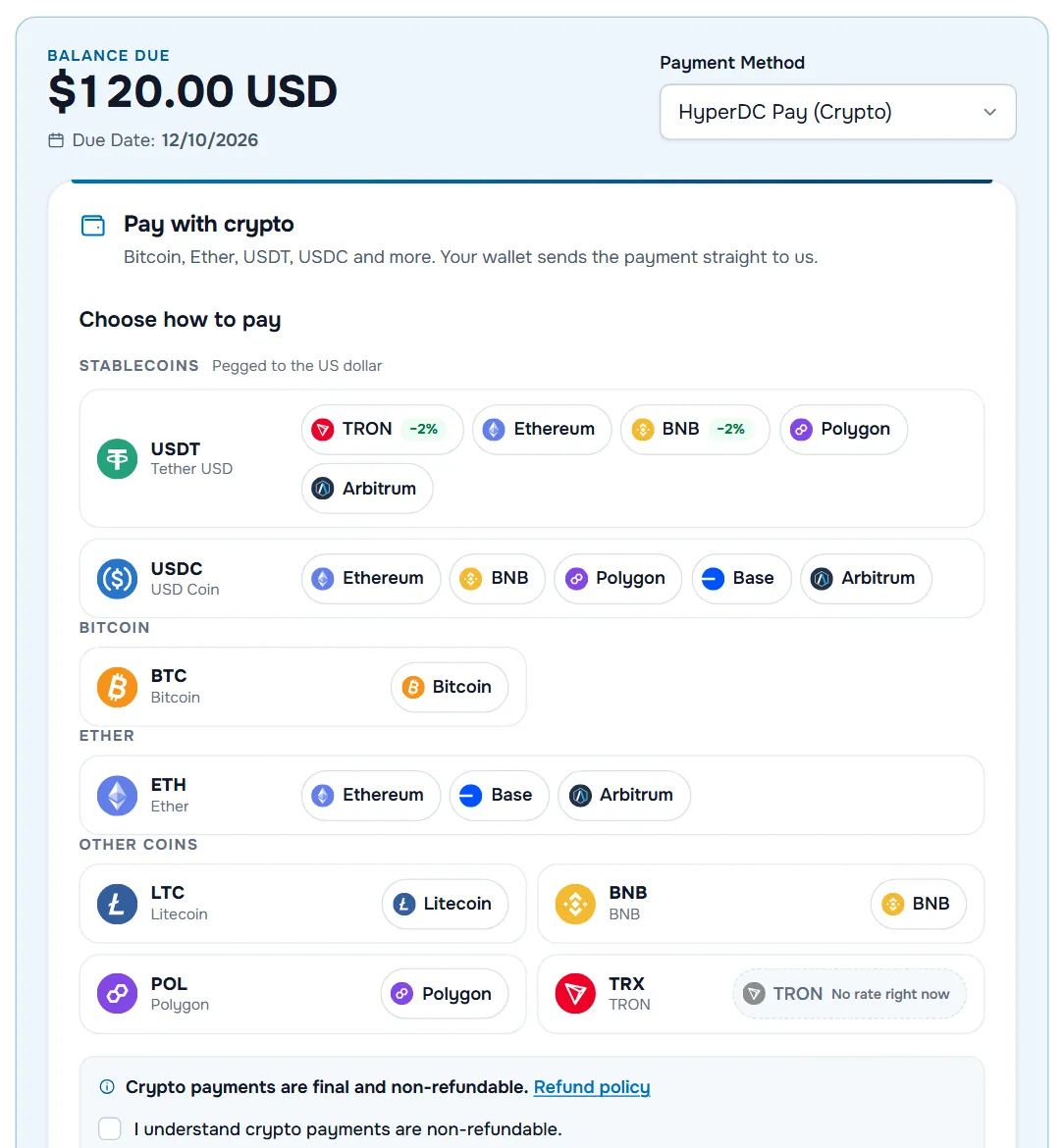
- Select the chip of the network your wallet or exchange sends on, for example TRON under USDT or Bitcoin under BTC.
- Some chips carry a badge: a percentage with a minus sign is a discount for that coin and network, one with a plus sign a surcharge. A greyed-out chip shows why it cannot be used, for example No rate right now or Below minimum.
- Read Crypto payments are final and non-refundable., tick I understand crypto payments are non-refundable. and select Continue.
Verify: the panel says Preparing your payment details… and then shows Send your payment. The line under Continue tells you for how many minutes the exchange rate is locked.
Step 3: Send the payment
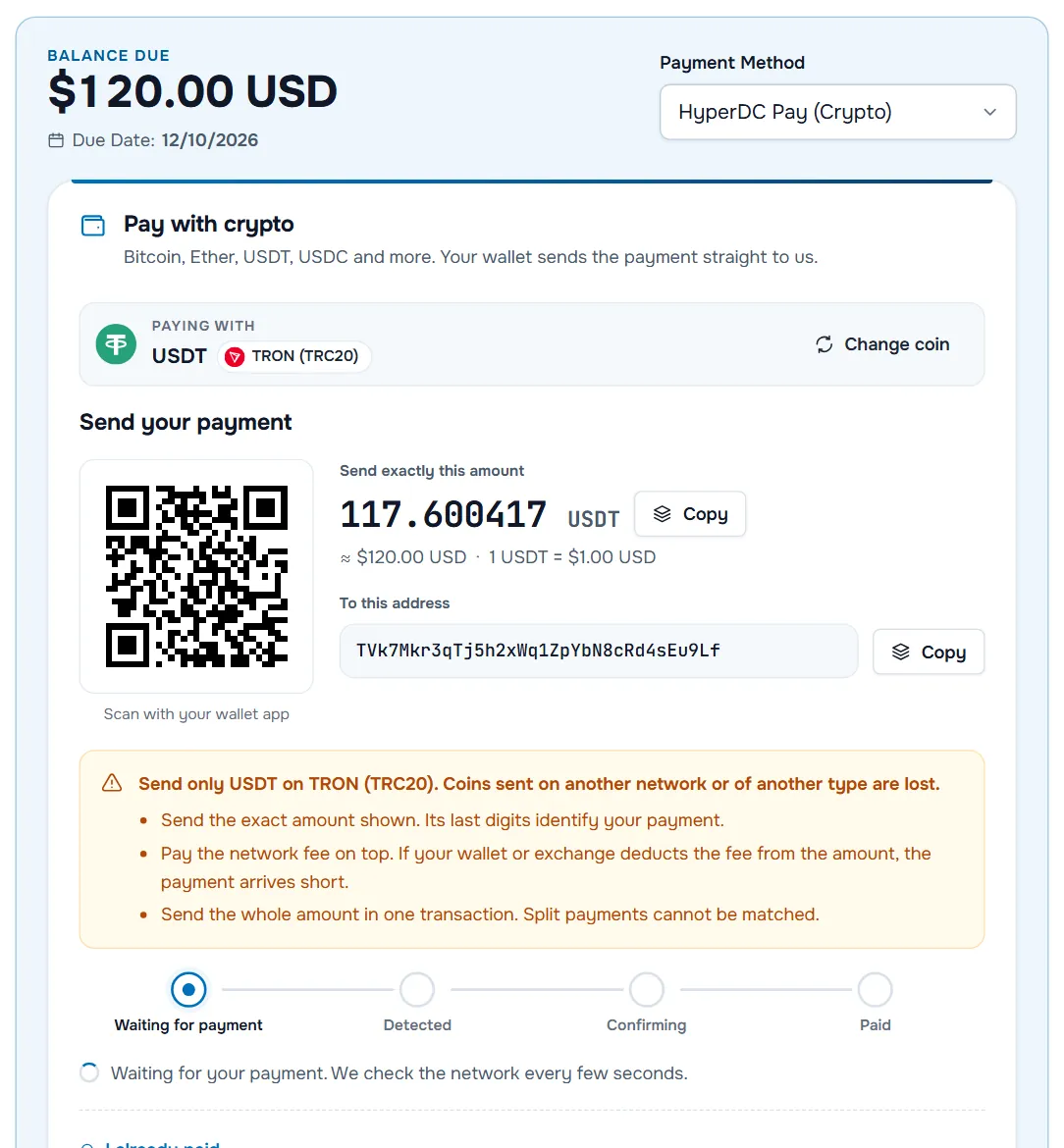
- Paying with shows the coin and network you chose. Change coin lets you pick another one as long as nothing has been sent.
- Send exactly this amount with Copy. Below it you see the value in your invoice currency and the rate. The last digits of the amount identify your payment, so do not round it.
- To this address with Copy, or scan the QR code (Scan with your wallet app). For Bitcoin, Litecoin and the Ethereum-compatible networks, Open in wallet opens a wallet app installed on your device with the details filled in.
- Memo / tag appears only on networks that use one. Include it, or the payment cannot be matched.
- Rate locked until shows how long the locked rate is valid.
Before you confirm in your wallet, check the warning box:
- Network: the line Send only … on … names the only network you may use.
- Amount: pay the network fee on top. If your wallet or exchange deducts the fee from the amount, the payment arrives short.
- One transaction: send the whole amount at once. Split payments cannot be matched.
Step 4: Follow the confirmations
Keep the page open or come back later; the status updates by itself.
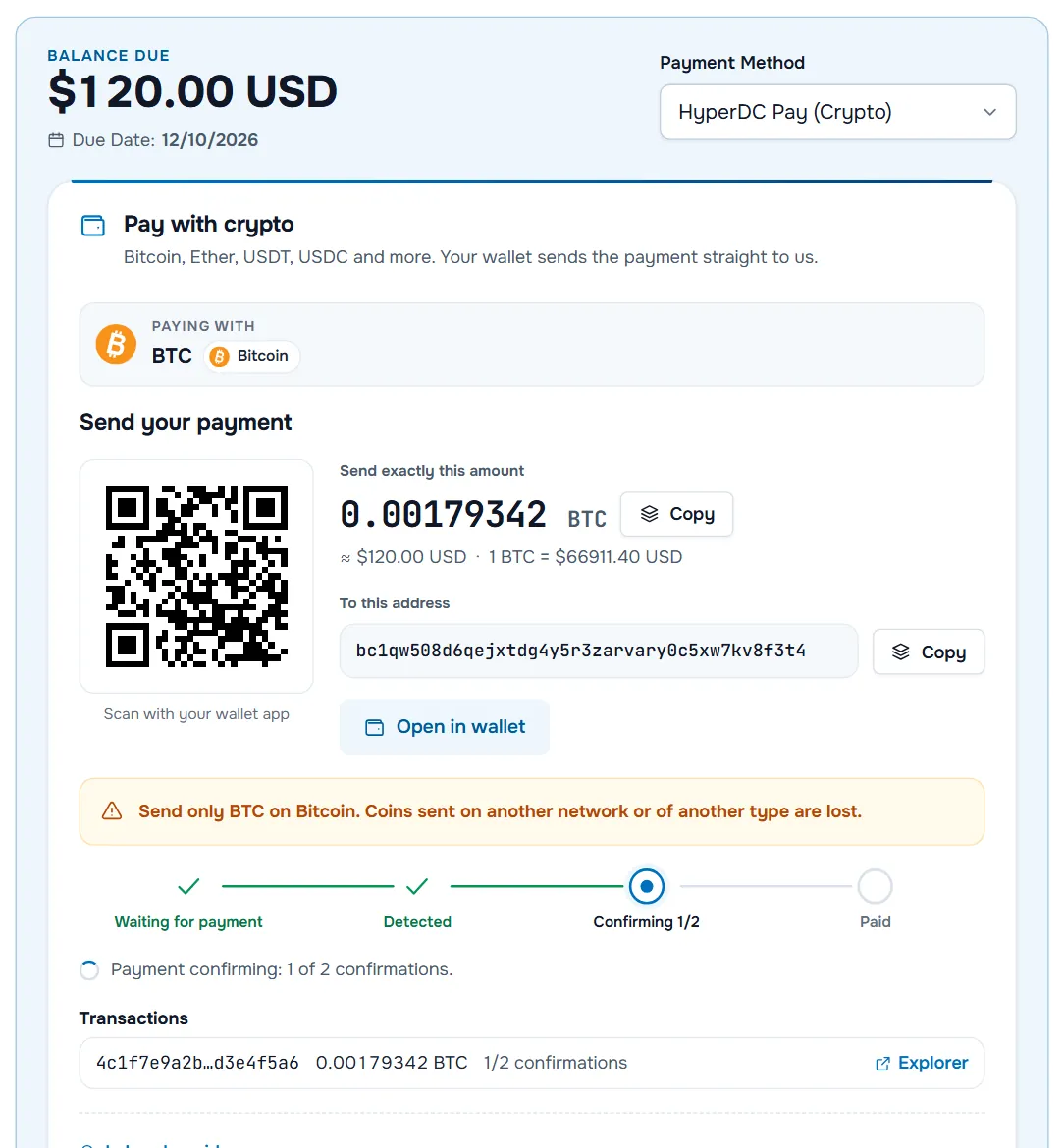
| Step | What it means |
|---|---|
| Waiting for payment | We check the network every few seconds for your payment. |
| Detected | Your transaction is on the network and waits for its first confirmation. |
| Confirming | Confirmations are counting up, for example Confirming 1/2. |
| Paid | Payment received; the invoice is marked paid. |
Under Transactions you see your transaction with its amount and confirmations, and Explorer opens it on a block explorer. If the panel says Our network check is running late., your payment is safe; the status updates as soon as the check catches up.
Step 5: Check the result
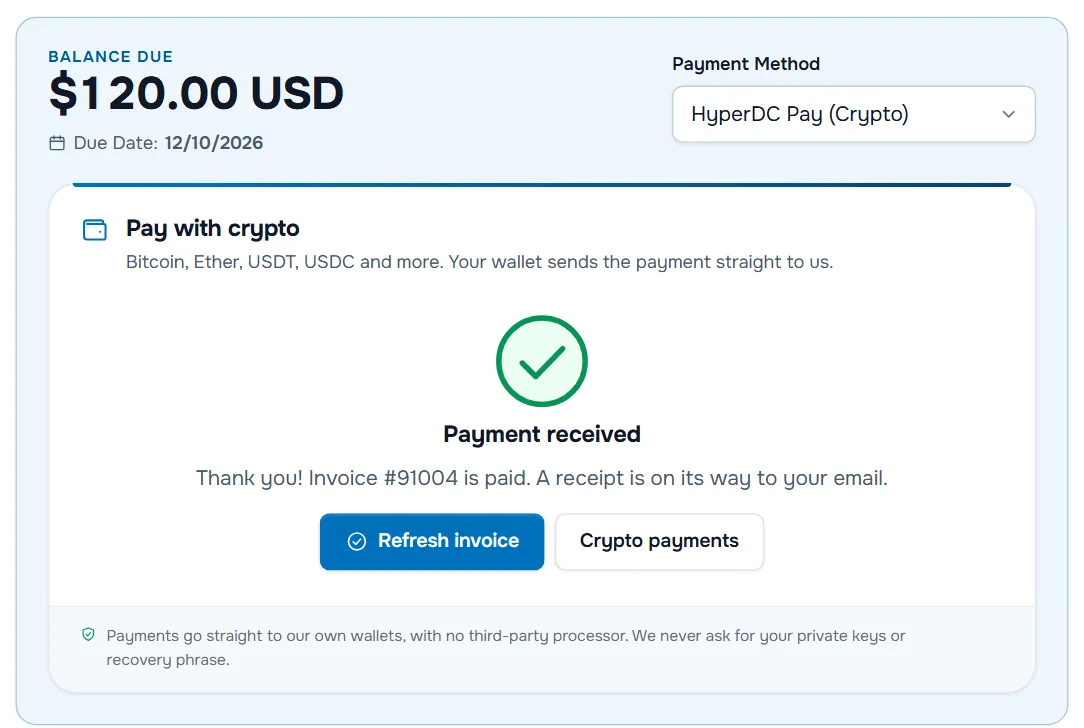
Payment received confirms that the invoice is paid; a receipt follows by email. Select Refresh invoice to see the invoice with the status Paid. Crypto payments opens the list of all your crypto payments, each with its coin, amount, status and transaction. The same list is linked from My Invoices and from the quick actions on your dashboard.
Special cases
Partial payment received. Less arrived than the amount due, usually because a fee was deducted. The received amount is credited; select Pay the remaining balance to get new payment details for the rest, or Use another coin.
Overpaid. You sent more than the invoice total. The invoice is paid and the panel says the difference was added to your account credit.
This payment window has expired. Select Get a new quote to lock a fresh rate. If you already sent the payment, it is still credited when it arrives, at the rate of that moment.
I already paid, but nothing shows. Open I already paid, paste the Transaction ID (hash) from your wallet or a block explorer (64 characters, 66 with 0x) and select Check transaction. If we find it, it is credited or passed to our team for confirmation.
Your payment is being reviewed. We received the payment and are checking it. You do not need to do anything else; we email you when it is done.
Troubleshooting
"We could not find this transaction on the network yet." Check that you copied the full transaction ID and that it was sent on the network you chose. Exchanges sometimes delay withdrawals; wait until the exchange shows the withdrawal as completed.
"This transaction sent a different coin or token than the one in this quote." For example a bridged or look-alike token, or the wrong network. Open a ticket with the transaction ID; such funds cannot be credited automatically.
"This transaction was sent before this quote was created, so it cannot be used for it." Each payment request only accepts transactions sent after it was created. Open a ticket with the transaction ID if you believe it belongs to the invoice.
"A payment for this invoice is already on its way." A payment was detected and is confirming. Wait until it is confirmed before you send anything else.
"Exchange rates are temporarily unavailable." Wait a few minutes or choose another coin.
Next steps
- How HyperDC Pay works and keeps your payment safe: HyperDC Pay.
- Other ways to pay: pay an invoice.
- Refund rules: the refund policy.
Frequently asked questions
Which coins and networks can I use?
The pay panel lists the coins and networks available for your invoice, for example Bitcoin, Litecoin, Ether, USDT and USDC on networks such as Ethereum, BNB Smart Chain, Polygon, Base, Arbitrum One or TRON. Choose the network your wallet or exchange sends on.
How long does a crypto payment take?
The payment is detected soon after it is broadcast and credited once the network has confirmed it. That takes a few minutes on most networks and can take longer for Bitcoin when the network is busy.
I sent the wrong amount. What happens?
If you sent less, the received amount is credited and the panel offers to pay the remaining balance. If you sent more, the invoice is paid and the difference is added to your account credit.
Can I get a refund of a crypto payment?
No. Crypto payments are final and non-refundable, because exchange rates change all the time. The panel asks you to confirm this before it shows the payment details.
Do you ever need my private key or recovery phrase?
Never. Payments go straight from your wallet to our own wallets. Anyone who asks for your private key or recovery phrase, in our name or otherwise, is trying to steal your funds.