






Account & securitySign-in & access
Sign in to the client area and reset your password
Sign in to your HyperDC client area, use Remember Me safely and reset a forgotten password with the emailed link, the security question and a new password.
- Beginner
- 4 min read
- Updated
Tested on: HyperDC client area
On this page
The client area is where you manage your services, invoices and tickets. This guide covers signing in, resetting a forgotten password and signing out. If you do not have an account yet, start with create your HyperDC client account.
Before you start
- Know the email address of your login. It may differ from the address that receives invoices for a company account.
- Keep your authenticator app at hand if you turned on two-factor authentication.
- Open our website by typing the address yourself or from a bookmark, not from a link in an unexpected email.
Step 1: Open the sign-in page
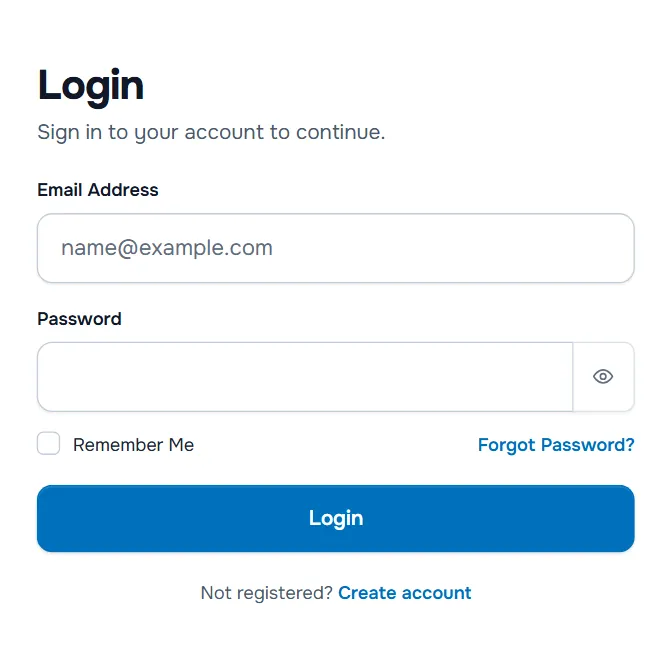
On our website, select Login at the top right. The Login page opens with "Sign in to your account to continue."
Step 2: Enter your email address and password
- Type your Email Address and Password. The eye button next to the password shows what you typed, which helps with typing mistakes.
- Tick Remember Me only on your own device.
- If a verification check (captcha) is shown, complete it.
- Select Login.
Verify: your dashboard opens and your name appears at the top right.
Step 3: Confirm the second step, if asked
- Two-factor authentication on: the Two-Factor Authentication page asks for the current code from your authenticator app. If you cannot use your app, sign in with your backup code, see two-factor authentication.
- Access to several client accounts: the Choose Account page lists them. Select the one you want to work in, see switch between client accounts.
Step 4: Request a password reset
If you forgot your password:
- On the Login page, select Forgot Password?.
- The Lost Password Reset page asks: "Forgotten your password? Enter your email address below to begin the reset process."
- Enter the Email Address of your login and select Submit. After several attempts, a verification check (captcha) may be added to this form.
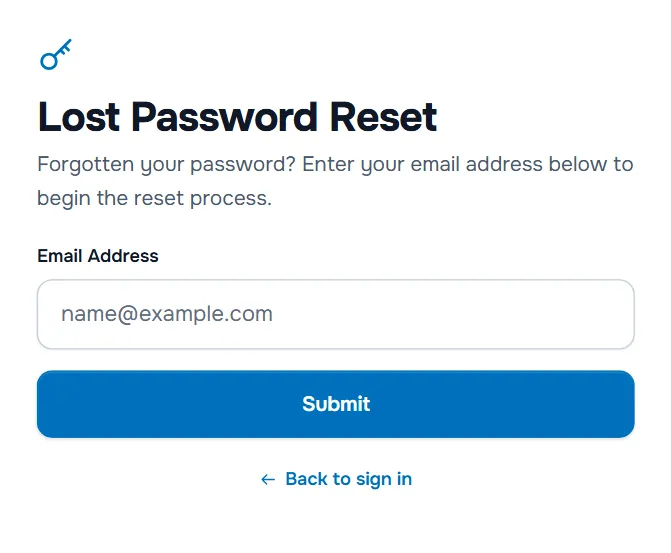
The page then says: "If the email address you entered matched an existing account, please check your email for instructions on what to do next." The same message appears for any address, so the page does not reveal which addresses have an account.
Verify: a password reset email arrives in your mailbox. Check the spam folder if it does not.
Step 5: Open the link and answer the security question
Select the link in the email. If you set a security question, the page says "As you have a security question setup on your account, you must enter the answer to this question below." Type the answer and select Submit.
Step 6: Choose a new password
The page asks "Please enter your desired new password below."
- Type the password in New Password, or select Generate Password and save the result in your password manager.
- Repeat it in Confirm New Password. The Password Strength bar should show Strong.
- Select Save Changes.
Verify: you can sign in with the new password. If two-factor authentication is on, it is still required.
Sign out
Open the account menu (your name at the top right) and select Logout. Always sign out on shared computers, and do not tick Remember Me there.
Troubleshooting
"Login Details Incorrect. Please try again." Check the email address and that Caps Lock is off, and use the eye button to see what you typed. If it still fails, reset the password.
"You cannot request a password reset when logged in. Please logout to begin." You are still signed in. Change the password under Change Password in the account menu, or sign out first.
"The reset link you have followed has expired. Please try again." Request a new link with Forgot Password? and use the link in the newest email.
No reset email. Check the spam folder. Make sure you entered the address of your login, not another mailbox of your company. If a colleague invited you to their account, ask them which address the invite went to.
A page says "Your IP" followed by your address and "has been banned". Sign-ins from your IP address are blocked for a while; the page shows Ban Reason and Ban Expires. Wait until the time shown, or contact us if you need help sooner.
Next steps
Frequently asked questions
Is my client area password the same as my server or control panel password?
No. The client area login only opens our client area. Your servers, cPanel or Plesk accounts and other services have their own passwords, which are sent in their welcome emails and changed on the service itself.
What does Remember Me do?
It keeps you signed in on this browser after you close it. Use it only on your own device, never on a shared or public computer.
How long is the reset link valid?
For a limited time. If the page says the reset link has expired, start again with Forgot Password? and use the link in the newest email.
Can I reset my password while I am signed in?
No. While you are signed in, change it under Change Password in the account menu. The reset process is for when you cannot sign in.
Which email address do I sign in with?
The email address of your user login, shown under Your Profile in the account menu. If you were invited to someone else's account, it is the address you accepted the invite with.