






Account & securityAccount security
Change your password and security question
Change your HyperDC client area password, set or change your security question and review Account Security with the Single Sign-On switch for third-party apps.
- Beginner
- 4 min read
- Updated
Tested on: HyperDC client area
On this page
Your password and your security question belong to your user login. Changing them affects how you sign in to every client account you can open, and nobody else. The Account Security page belongs to the client account and shows how well it is protected. This guide covers all three.
Before you start
- Your current password. If you forgot it, sign out and reset it, see sign in and reset your password.
- A password manager to generate and store the new password.
Step 1: Open Change Password
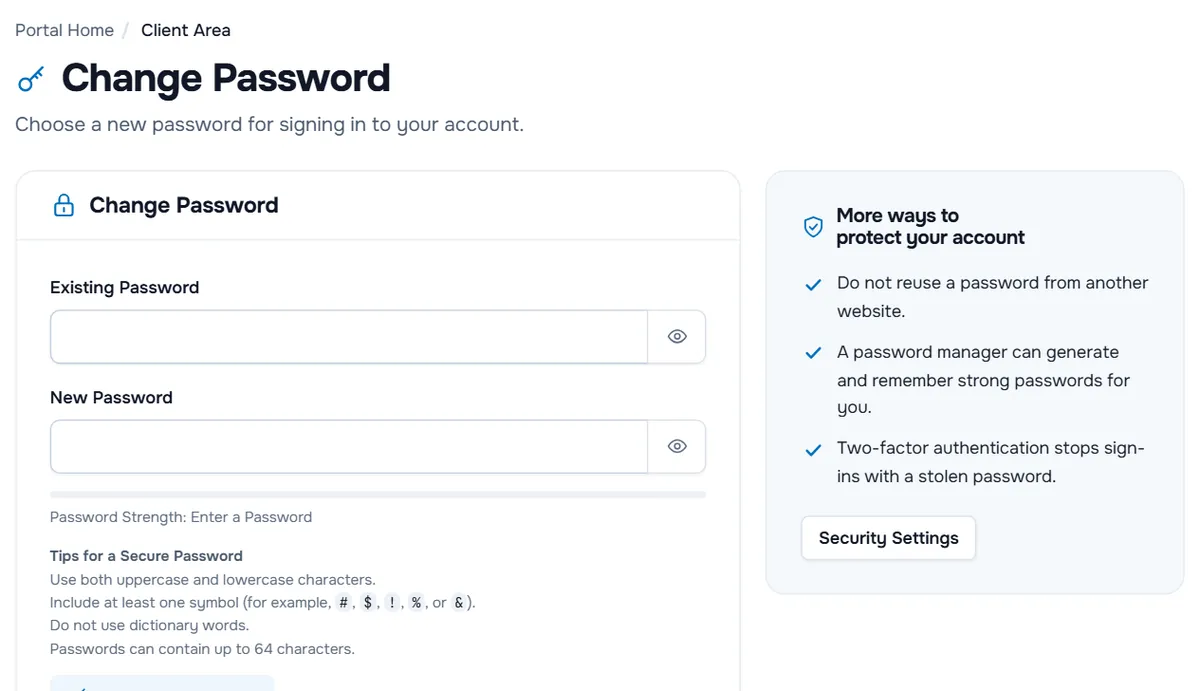
Open the account menu (your name at the top right) and select Change Password, or select Change Password on the Password card of Security Settings. The page says "Choose a new password for signing in to your account."
Step 2: Choose and save the new password
- Type your current password in Existing Password.
- Type the new password in New Password, or select Generate Password to fill in a random one, and save it in your password manager.
- Watch the Password Strength bar and the "Tips for a Secure Password". The tips also show the maximum length. Aim for Strong.
- Repeat the password in Confirm New Password.
- Select Save Changes. Cancel clears the form.
The panel More ways to protect your account next to the form repeats the essentials and links to Security Settings.
Verify: a confirmation appears at the top of the page. Sign out and sign in with the new password.
Step 3: Set or change the security question
Open Security Settings from the account menu and scroll to Change Security Question. The badge shows Set or Not set.
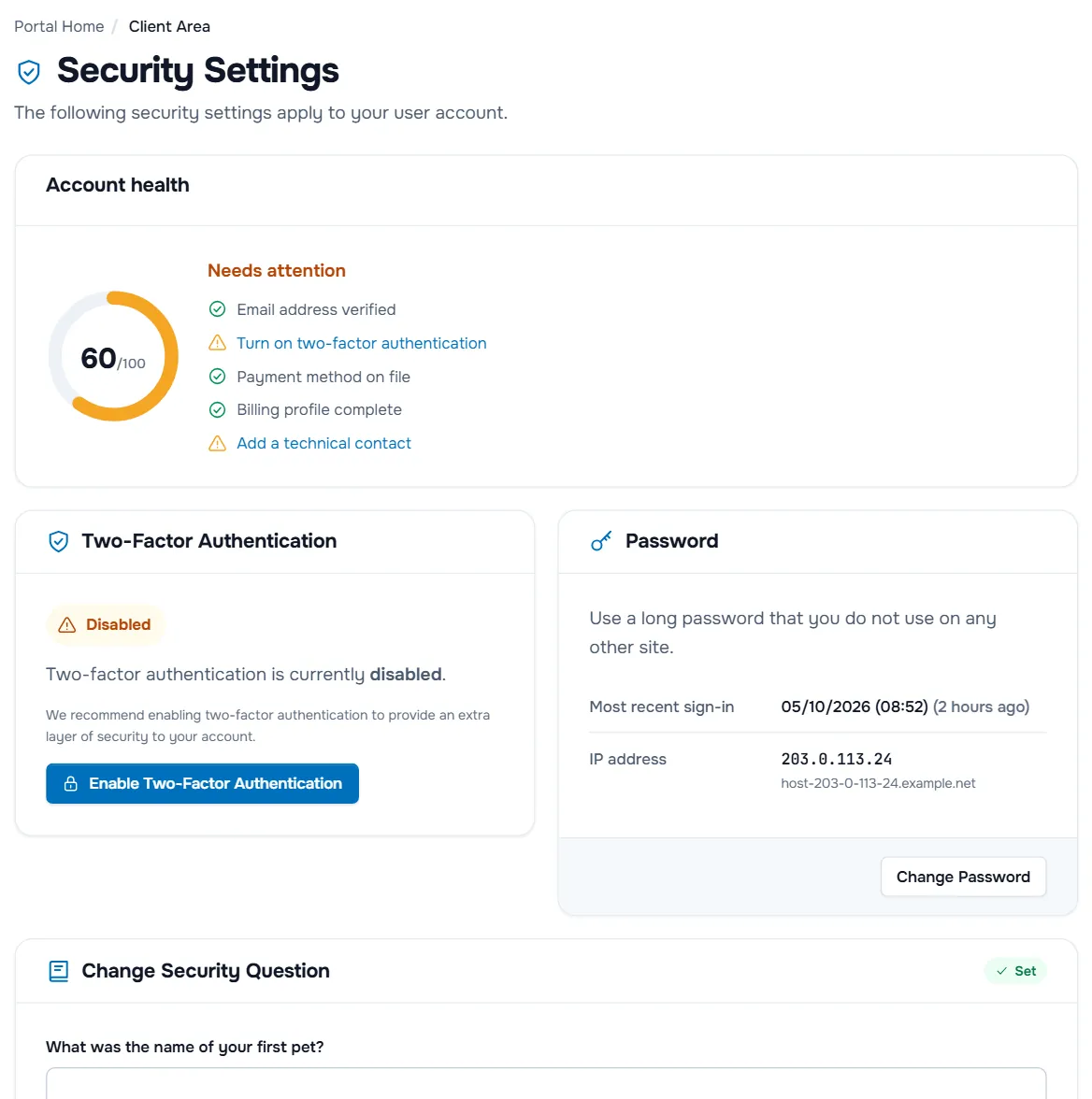
- If a question is already set, it appears as the first field. Type its answer: "Answer your current question to change it."
- Choose a question in Please choose a security question.
- Type the answer in Please enter an answer and again in Please confirm your answer.
- Select Save Changes.
The answers are hidden like passwords. Treat the answer like one: choose something that cannot be found online, and store it in your password manager.
Verify: the badge shows Set. The next password reset asks this question before you can choose a new password.
Step 4: Review Account Security
The Account Security page, "Settings that protect this client account and how you sign in to it.", applies to the client account. Open it from the account menu, or with Account Security on the Single Sign-On card of Security Settings when that card is shown.
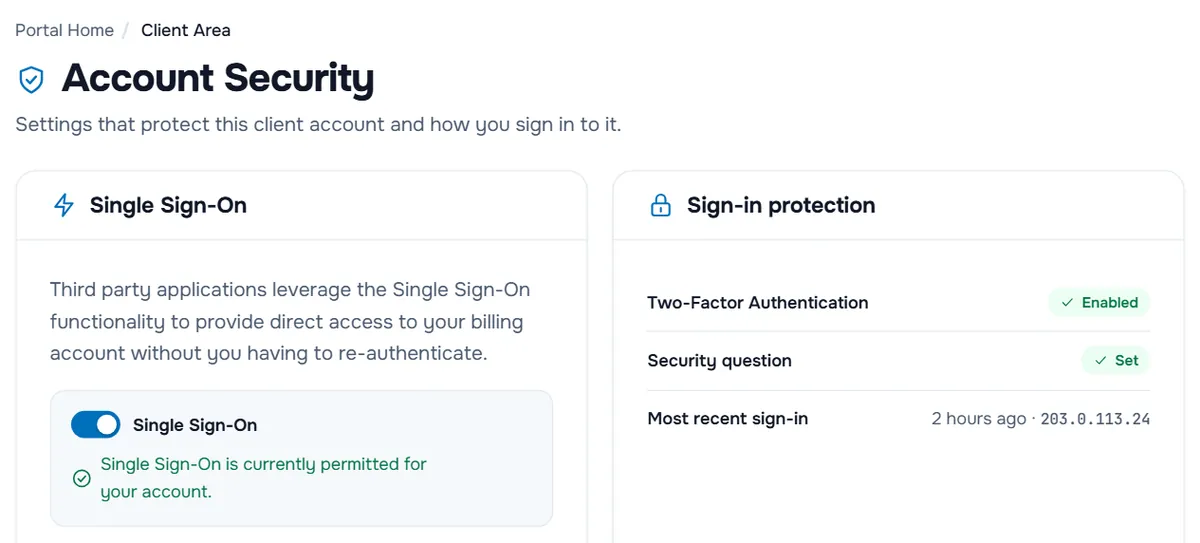
- Single Sign-On, when shown: "Third party applications leverage the Single Sign-On functionality to provide direct access to your billing account without you having to re-authenticate." The switch shows "Single Sign-On is currently permitted for your account." when it is on. Switch it off if you give people access to such applications and they should not reach your billing account. Your normal sign-in with email address, password and two-factor code stays the same either way.
- Sign-in protection summarises your login: Two-Factor Authentication (Enabled or Disabled), Security question (Set or Not set) and Most recent sign-in with the IP address. Security Settings and Change Password take you to the pages above.
Verify: Two-Factor Authentication shows Enabled. If not, turn it on, see two-factor authentication.
Troubleshooting
The existing password is refused. Check Caps Lock and use the eye button. If you no longer know it, sign out and use Forgot Password? on the sign-in page.
"The passwords entered do not match". Type the new password again in both fields, or use Generate Password, which fills both.
The new password is refused. A password the bar rates Weak may not be accepted, and it must not be longer than the tips allow. Make it longer, mix capitals, numbers and symbols, or generate one.
There is no Change Security Question card. Security questions are not offered for your account. Two-factor authentication protects your login much better anyway.
I need to change a server or hosting password. That is done on the service, not here, see manage your services.
Next steps
Frequently asked questions
Does changing my client area password change my server passwords?
No. Server, cPanel, Plesk and other service passwords are separate. Change them on the service itself; for hosting accounts, the service page in the client area has a Change Password tab where available.
How often should I change my password?
There is no need to change a strong, unique password on a schedule. Change it at once if it may have been exposed: after a leak at another website, on a shared computer or when someone else may have seen it.
What is the security question used for?
When you reset a forgotten password, we ask for the answer before you can set a new one. Choose an answer that others cannot find out, and store it in your password manager.
Should I switch off Single Sign-On?
Leave it on if you use an application that opens your billing account directly. Switch it off if you give people access to such applications and do not want them to reach your billing account.