






Manage your domains in the client area
Find your domains in the client area, read the domain page and its tabs, and jump to nameservers, renewal, lock, EPP code, contacts and private nameservers.
- Beginner
- 6 min read
- Updated
Tested on: HyperDC client area
On this page
Every domain you register or transfer to HyperDC appears in your client area, under Domains › My Domains. From the list you see at a glance which domains renew soon and which renew automatically; each domain also has its own page with all its settings. This guide is the map: it explains both pages and links to a step-by-step guide for every task.
Before you start
- Sign in to the client area. If you can access several client accounts, make sure you are in the account that owns the domains.
- Know where the DNS of your domain is hosted: with your hosting plan, with a DNS provider such as Cloudflare, or on our default nameservers. If you are unsure, read DNS basics for a new domain.
Step 1: Open My Domains
Choose Domains › My Domains. The list shows every domain in your account.
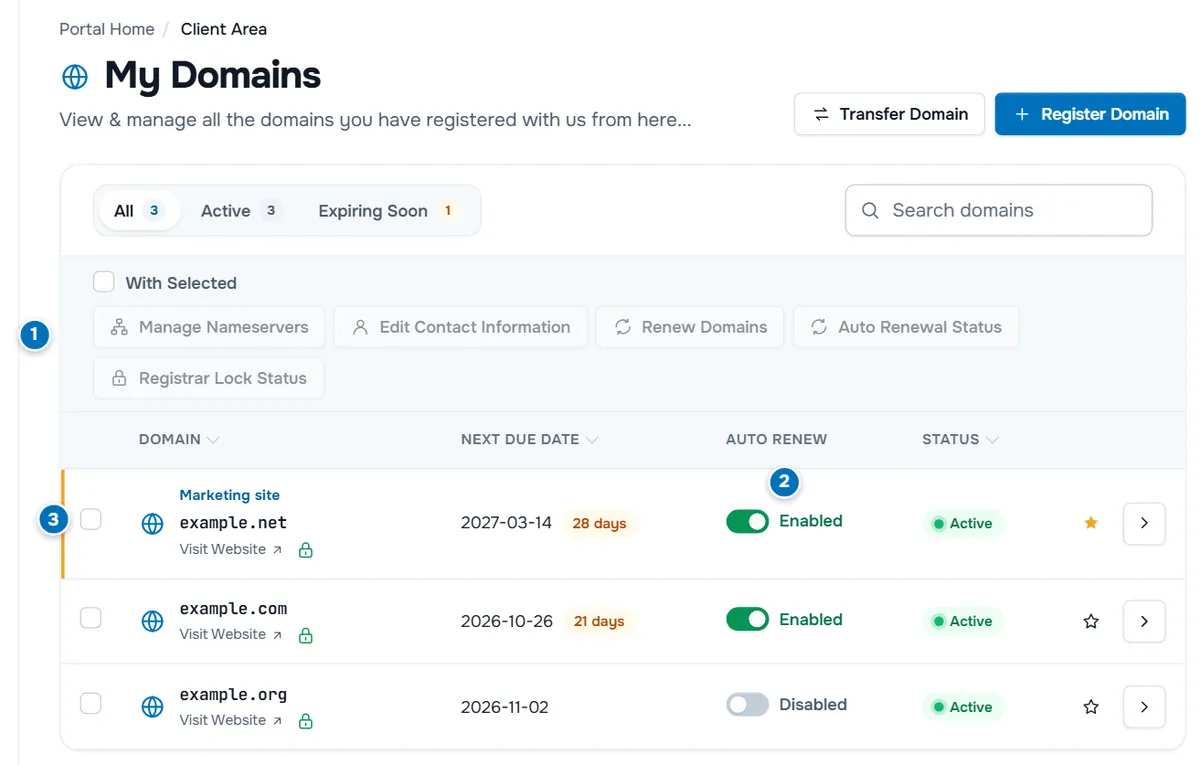
- With Selected: tick the domains you want to change together, then choose an action such as Manage Nameservers or Renew Domains. See bulk domain management.
- Auto Renew: the switch turns automatic renewal on or off for this domain, without opening it. It shows Enabled or Disabled.
- A domain row: the checkbox for bulk actions, the nickname if you gave one, the domain name with Visit Website, the Next Due Date with the number of days left, and the Status. The star pins the domain to your dashboard, and the arrow opens the domain page.
Above the list, the status buttons (All, Active, Expiring Soon and the other statuses your domains have) filter the list, and Search domains finds a domain by name. Register Domain and Transfer Domain at the top start a new order.
Step 2: Open the domain page
Select the domain name. The domain page opens.
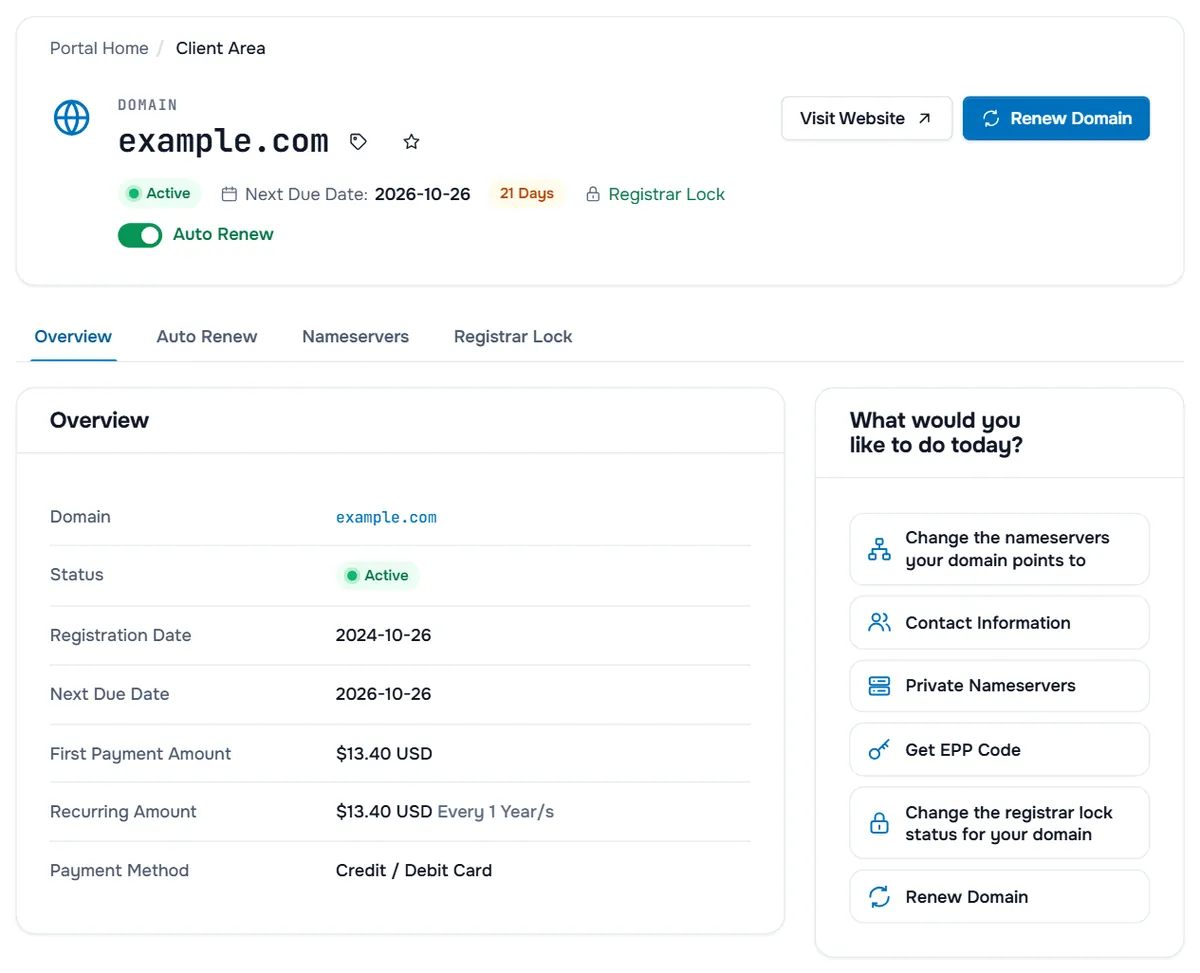
The header shows:
- the status, for example Active, and the Next Due Date with the days left;
- Registrar Lock when the domain is locked against transfers, or Domain Currently Unlocked! when it is not;
- the Auto Renew switch;
- Visit Website and Renew Domain;
- a tag icon to give the domain a nickname and a star to pin it to your dashboard.
Below the header are the tabs Overview, Auto Renew, Nameservers and Registrar Lock. Depending on the extension, you may also see Addons, and for extensions that move by a registrar tag instead of a code, Release Domain. The Overview card lists the Registration Date, the Next Due Date, the First Payment Amount, the Recurring Amount with its period and the Payment Method.
Notices can appear above the tabs:
- an unpaid renewal invoice, with Pay Invoice;
- "This domain is not currently active. Domains cannot be managed unless active." while a registration or transfer is pending, or after expiry;
- Domain Currently Unlocked! with the advice to enable the lock unless you are transferring the domain.
Step 3: Choose what you want to do
The What would you like to do today? box on the right lists the actions your domain offers. The table shows where each task lives and which guide explains it.
| Task | Where | Guide |
|---|---|---|
| Point the domain to another DNS host | Nameservers tab, or Change the nameservers your domain points to | Change domain nameservers |
| Renew now or renew automatically | Renew Domain, Auto Renew tab | Domain renewal and auto renew |
| Lock the domain or move it away | Registrar Lock tab, Get EPP Code | Registrar lock and EPP code |
| Update the owner and contacts | Contact Information | Domain contact information |
| Run nameservers under your own domain | Private Nameservers | Private nameservers |
| Edit records or forward email | DNS Management, Email Forwarding (where available) | DNS management and email forwarding |
| Change many domains at once | With Selected in My Domains | Bulk domain management |
| Add another domain | Register Domain, Transfer Domain | Register a domain, transfer a domain to us |
The box only shows actions the extension of your domain supports, so the list can differ from domain to domain.
Where your DNS records live
The domain page decides which nameservers answer for your domain. The records themselves, such as A, MX and TXT, live at the DNS host those nameservers belong to:
- Your hosting plan: manage the records in the control panel of the plan.
- A DNS provider such as Cloudflare: manage them there, see Cloudflare in front of your site.
- Our default nameservers: use DNS Management where it is available for your domain.
To connect a domain to a server, follow point a domain to your server.
Troubleshooting
I cannot change anything on the domain page. The domain is not Active yet, or it has expired. Check Billing › My Invoices for an unpaid invoice, and look for a verification email to the registrant.
A tab or an action is missing. Not every extension supports every setting; the domain page shows the ones your extension offers. For a change you cannot make there, open a ticket with the domain selected.
The domain is not in the list. It is registered with another registrar, or it belongs to another client account. Transfer it to us, or switch to the right account.
The domain stopped working. The nameservers or records changed, or the domain expired. See DNS not resolving.
Next steps
- Change where the domain points: change domain nameservers.
- Make sure it never expires by accident: domain renewal and auto renew.
- Learn the life of a domain at HyperDC: domains at HyperDC.
Frequently asked questions
Why is a domain missing from My Domains?
My Domains lists the domains registered with or transferred to HyperDC in the account you are signed in to. A domain at another registrar does not appear there. If you can access several client accounts, switch to the account that ordered it.
Why can I not change anything on the domain page?
Most settings are only available while the domain is Active. The page then says that domains cannot be managed unless active. Pending registrations, pending transfers and expired domains show this notice.
Why do I not see DNS Management or Email Forwarding?
The tools on the domain page depend on what the extension offers. DNS Management and Email Forwarding appear only where they are available for your domain. Otherwise manage your records where your nameservers point.
What does the number of days next to the date mean?
It counts the days until the next due date of the domain, the day its renewal is due. Turn on auto renew so a renewal invoice is created in time.
Can I give a domain a name I recognise?
Yes. The tag icon next to the domain name on its page lets you set a nickname, and the star pins the domain to your dashboard. The nickname is shown only in the client area; it does not change the domain.