






DNS management and email forwarding for your domain
Where your domain offers them, edit DNS records and forward email in the client area. If it does not, manage DNS where your nameservers point instead.
- Beginner
- 7 min read
- Updated
Tested on: HyperDC client area
On this page
Your domain page can offer two optional tools: DNS Management, to edit the records of the domain, and Email Forwarding, to forward mail sent to addresses at the domain to another mailbox. They are offered per extension and are not available for every domain. This guide shows how to check whether your domain has them, how to use them and where to manage DNS when it does not.
Check whether your domain has them
Open the domain under Domains › My Domains and look in three places:
- What would you like to do today? lists DNS Management and Email Forwarding when they are active for the domain.
- The Addons tab, if present, lists DNS Host Record Management and Email Forwarding under "The following addons are available for your domain(s)...". An add-on that is not active yet shows Buy Now for with its price; an active one shows Manage.
- When you order a domain, Domains Configuration shows them as options if the extension offers them.
Step 1: Open DNS Management
Select DNS Management on the domain page. The page lists the records of the domain; Manage Domain at the top takes you back.
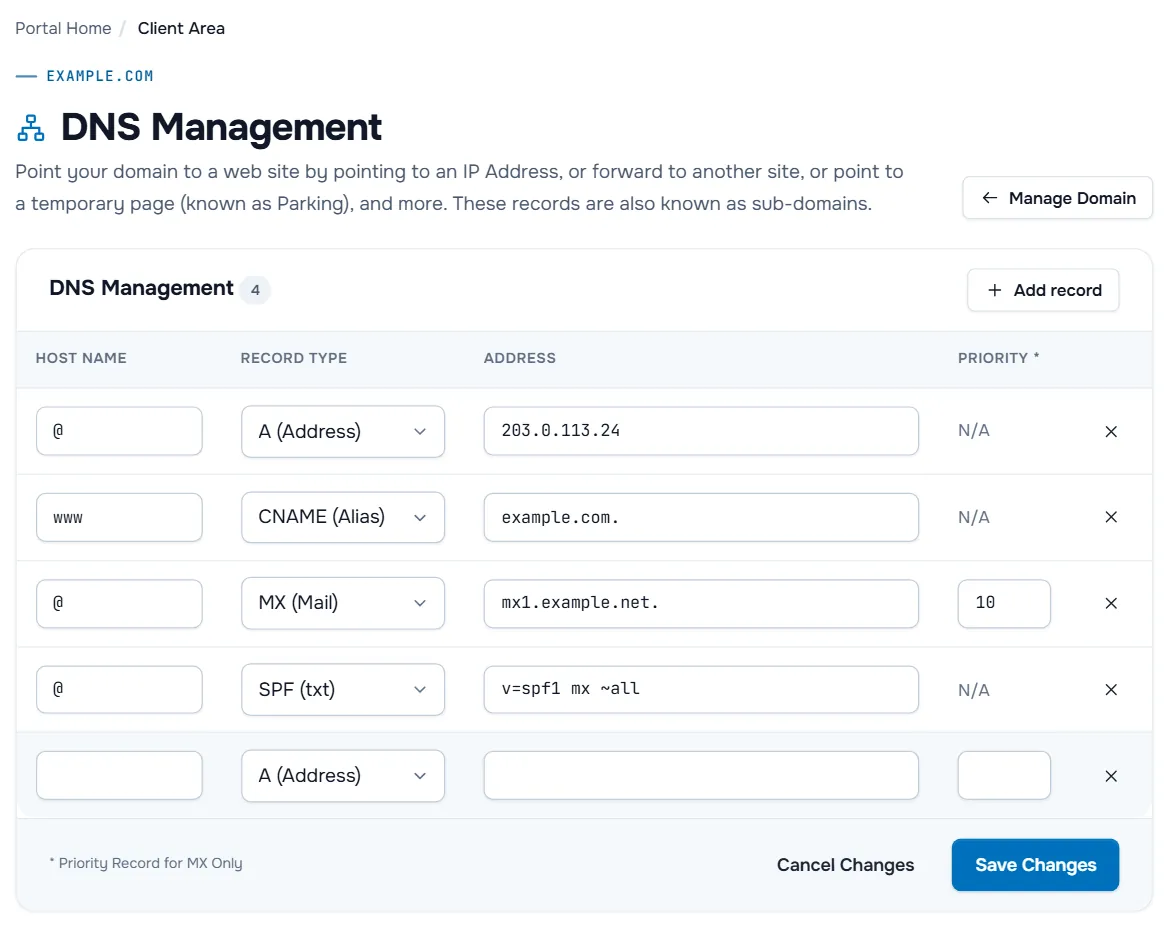
- Host Name is the part in front of your domain, such as
wwwormail. The example uses@for the domain itself. - Record Type offers A (Address), AAAA (Address), MXE (Mail Easy), MX (Mail), CNAME (Alias), SPF (txt), URL Redirect and URL Frame.
- Address is the target: an IPv4 or IPv6 address, a host name, or the text of a TXT record.
- Priority is used only for MX records, as the note under the table says: "Priority Record for MX Only". A lower number is tried first.
Step 2: Add, change or remove records
- Select Add record for a new row, or use the empty row at the bottom.
- Enter the Host Name, choose the Record Type and enter the Address. For MX (Mail), also enter a Priority, for example
10. - To delete a record, select the cross at the end of its row; select it again to restore the record before you save.
- Select Save Changes. Cancel Changes discards what you have not saved.
Common records:
| Purpose | Host Name | Record Type | Address |
|---|---|---|---|
| Website on your server | @ | A (Address) | your server's IPv4 address |
www as an alias | www | CNAME (Alias) | your domain |
| Mail server | @ | MX (Mail) | the mail server's host name, with a priority |
| SPF, DKIM, DMARC, verifications | as your provider says | SPF (txt) | the text your provider gives you |
URL Redirect sends visitors of a name to another web address, and URL Frame shows another address under your domain. Use A (Address) or CNAME (Alias) when the site runs on your own server or hosting plan.
Verify: after a few minutes, ask a public resolver:
dig www.example.com A +short @1.1.1.1
dig example.com MX +short @1.1.1.1
On Windows use Resolve-DnsName www.example.com -Type A -Server 1.1.1.1.
Step 3: Set up email forwarding
Select Email Forwarding on the domain page.
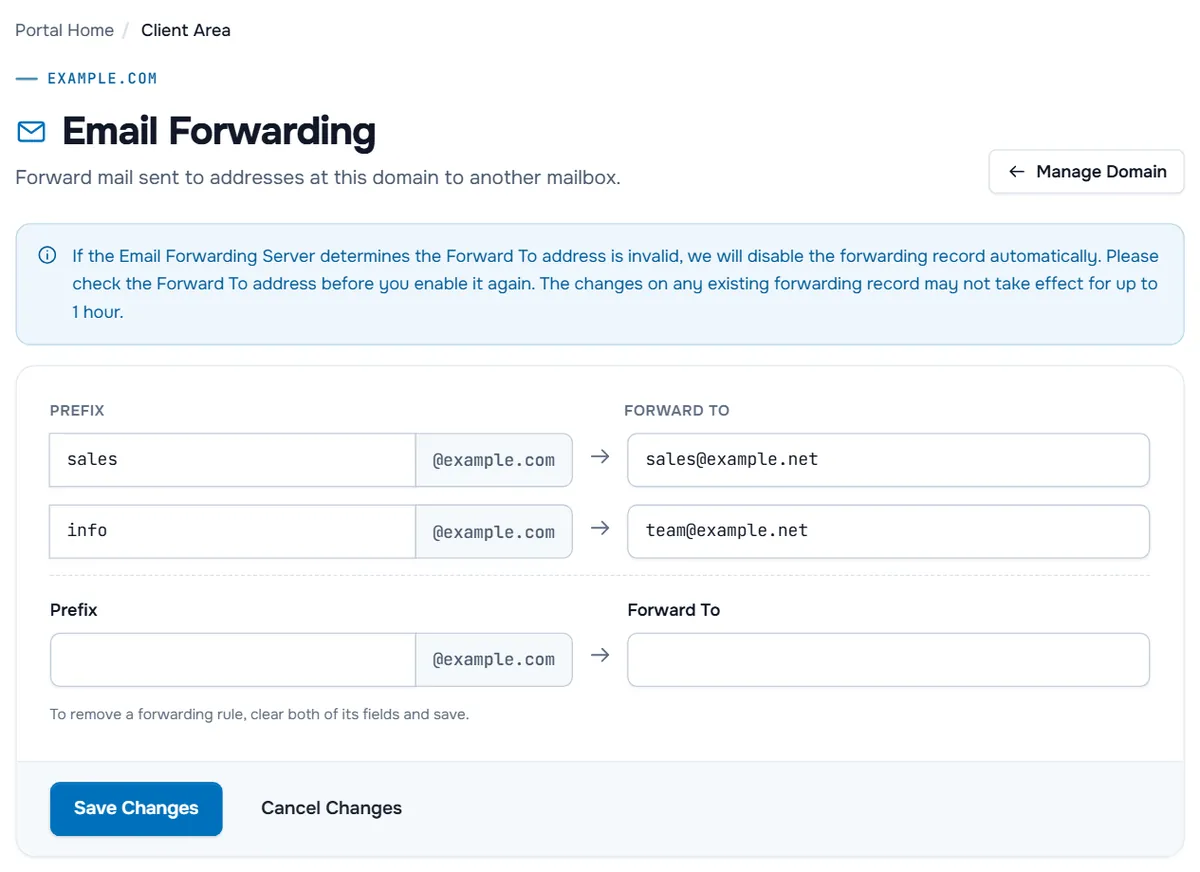
- In the empty row, enter the Prefix, the part before
@, for exampleinfo. - In Forward To, enter the address that should receive the mail, for example a mailbox at another provider.
- Select Save Changes.
To remove a rule, clear both of its fields and save, as the page notes. The information box adds two points: if the forwarding service finds the Forward To address invalid, it disables the rule automatically, and changes to an existing rule may take up to 1 hour.
Forwarding only works while the domain's MX records point to the forwarding service. If the mail of your domain is hosted elsewhere, for example with your hosting plan, create forwarders there instead.
Verify: from another email account, send a message to the forwarded address and check that it arrives at the target mailbox, including its spam folder.
Manage DNS where your nameservers point
When your domain does not offer these tools, or you prefer another DNS host, set the domain's nameservers to that host and manage the records there:
- Hosting plan: use the nameservers from the welcome email and manage records and mail forwarders in the control panel of the plan.
- Cloudflare: see Cloudflare in front of your site.
- Your own server: see private nameservers.
Change the nameservers as described in change domain nameservers, then add the records as in point a domain to your server.
Troubleshooting
Saved records do not resolve. Check which nameservers the domain uses with dig NS example.com +short. If they are not the nameservers of this DNS service, edit the records at the DNS host that answers, or switch the domain back.
Forwarded mail does not arrive. Check that the rule is still there and the Forward To address is correct, look in the spam folder of the target mailbox, and make sure the domain's MX records point to the forwarding service.
The Priority field is greyed out. It is only used for MX (Mail) records; other types show N/A.
Next steps
- Understand the records you edit: DNS basics for a new domain.
- Make mail from your domain trusted: email deliverability.
- Back to the domain overview: manage your domain.
Frequently asked questions
Why is there no DNS Management on my domain page?
These tools are offered per extension and are not available for every domain. When they are missing, manage the records at the DNS host your nameservers point to, such as your hosting control panel or Cloudflare.
Do records I save here work with custom nameservers?
No. The records are served by the nameservers that belong to this DNS service. If your domain points to other nameservers, those answer instead, and changes here have no effect.
Can I add TXT records for SPF, DKIM or verifications?
Yes, with the record type SPF (txt): it saves a TXT record, so you can use it for SPF, DKIM, DMARC or verification values.
How long until a forwarding change works?
The Email Forwarding page notes that changes to an existing forwarding record may take up to 1 hour to take effect.
Does email forwarding give me a mailbox?
No. It forwards mail sent to an address at your domain to another address. To send mail from your domain or keep a mailbox, use the email of a hosting plan or a mail provider.