






DomainsRenewal, lock & contacts
Registrar lock and EPP code: protect or move your domain
Keep your domain locked against unwanted transfers, unlock it when you move it, get the EPP code in the client area and transfer the domain to a new registrar.
- Beginner
- 6 min read
- Updated
Tested on: HyperDC client area
On this page
Two settings decide who can move your domain to another registrar. The registrar lock blocks transfers altogether, and the EPP code (also called auth code or authorisation code) is the password that authorises a transfer. Keep the lock on and the code private, and nobody can move the domain without you. This guide shows both settings and how to transfer a domain away when you want to.
Step 1: Check or change the registrar lock
Open the domain under Domains › My Domains and select the Registrar Lock tab, or Change the registrar lock status for your domain under What would you like to do today?.
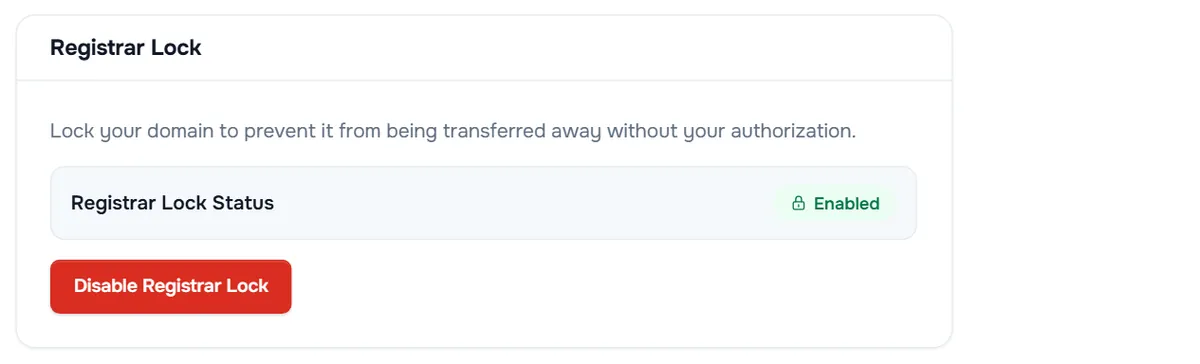
The tab explains: "Lock your domain to prevent it from being transferred away without your authorization." Registrar Lock Status shows Enabled or Disabled:
- Disable Registrar Lock turns the lock off, only when you are about to transfer the domain away.
- Enable Registrar Lock turns it on again.
Verify: the tab shows Changes Saved Successfully!. The header of the domain page shows Registrar Lock while the domain is locked, and Domain Currently Unlocked! when it is not, with the advice "You should enable the registrar lock unless you are transferring the domain."
If the domain page has no Registrar Lock tab, the extension does not offer a lock you can change here. To set the lock for many domains at once, use Registrar Lock Status in bulk domain management.
Step 2: Get the EPP code
Select Get EPP Code under What would you like to do today?.
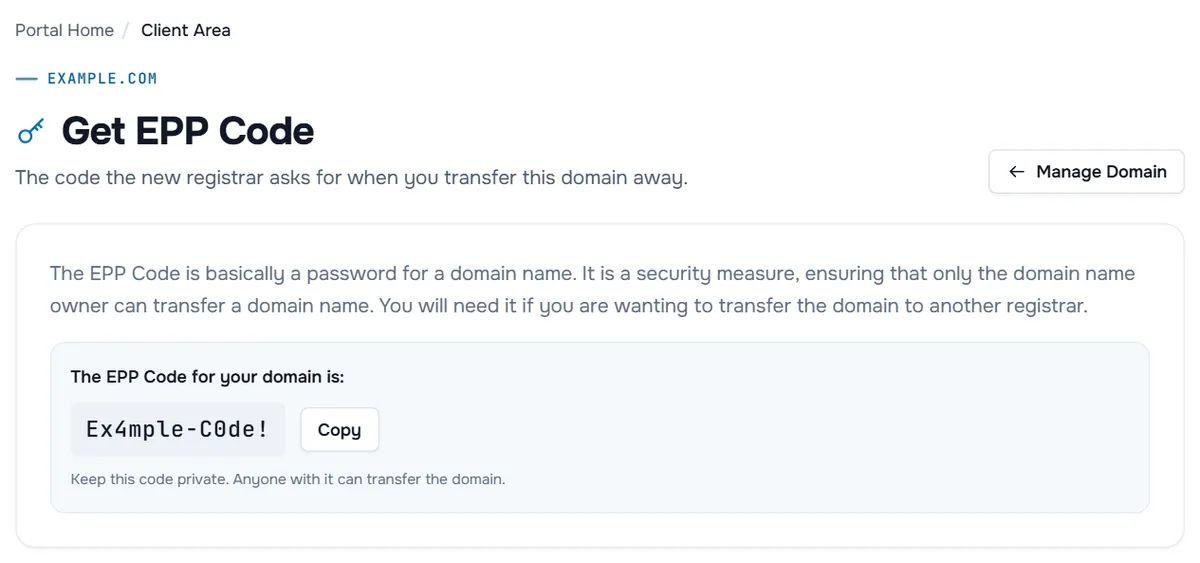
The page explains that "The EPP Code is basically a password for a domain name". What happens next depends on the extension:
- The code is shown under "The EPP Code for your domain is:". Select Copy. As the page says: "Keep this code private. Anyone with it can transfer the domain."
- The code is emailed. The page says "The EPP Code request was successful! It has been sent to the registrant email address for your domain." Check that mailbox, including its spam folder.
- The request fails. The page shows "There was an error in requesting the EPP Code:" followed by the reason. Fix the cause, for example an inactive domain, or open a ticket.
Transfer a domain away from HyperDC
- Check the domain. It must be Active. For generic domains, ICANN's Transfer Policy usually blocks transfers within 60 days of the registration or of a previous transfer, and a recent change of the registrant can lock it for 60 days too.
- Check the registrant email. Open Contact Information and make sure the registrant email address works: confirmations and the code may go there. See domain contact information.
- Unlock the domain with Disable Registrar Lock.
- Get the EPP code with Get EPP Code.
- Start the transfer at the new registrar and enter the code there.
- Approve the transfer if you receive an email asking you to confirm it.
When the transfer is complete, the domain shows the status Transferred Away in My Domains.
Some extensions move to another registrar with a registrar tag instead of an EPP code. For those, the domain page shows a Release Domain tab: enter the New Registrar Tag your new registrar gives you and select Release Domain.
Troubleshooting
No code is shown and no email arrives. The code went to the registrant email address. Check that it is correct in Contact Information and look in the spam folder. If it still does not arrive, open a ticket with the domain name.
The new registrar says the code is invalid. Copy the code with Copy instead of typing it; codes are case-sensitive. If it still fails, request a new code.
The transfer is rejected as locked. Check Registrar Lock Status on the domain page. If it shows Disabled and the transfer is still refused, a 60-day lock may apply; the new registrar tells you the reason.
The header says Domain Currently Unlocked! but you did not unlock it. Select Enable Registrar Lock right away, and change your client area password if you suspect someone else has access.
Next steps
- Move a domain to us instead: transfer a domain to us.
- Keep the owner details correct: domain contact information.
- Protect your client account too: two-factor authentication.
Frequently asked questions
Should the registrar lock be on?
Yes, unless you are transferring the domain to another registrar right now. The lock stops transfers you did not approve. Turn it on again if you change your mind.
Is the EPP code shown on the page or emailed?
That depends on the extension. Either the page shows the code with a Copy button, or it confirms that the code has been sent to the registrant email address of the domain.
How long is an EPP code valid?
That depends on the registry. If the new registrar says the code is invalid, request a new one with Get EPP Code and use it right away.
Can I transfer a domain I registered recently?
For generic domains, usually not within 60 days of the registration or of a previous transfer, under ICANN's Transfer Policy. A change of the registrant's name, organisation or email can start a 60-day lock as well. Country-code domains follow their own rules.
Do I lose the remaining time when I transfer away?
For generic domains, a transfer normally adds a year at the new registrar on top of the remaining registration. Ask the new registrar what its transfer includes for your extension.