






A tour of your client area
Find your way around the HyperDC client area: the left menu, search, the top bar, the dashboard tiles and the widgets for setup, account health and renewals.
- Beginner
- 6 min read
- Updated
Tested on: HyperDC client area
This guide is not available in your language yet, so it is shown in English.
On this page
Your client area is where you manage everything you have with HyperDC: services, domains, invoices, support tickets and your account. This tour explains each part of the screen, so you know where to look before you need it.
Before you start
- Sign in to the client area. If you have no account yet, see register an account; if you cannot sign in, see sign in and reset your password.
- The screenshots show a wide screen. On a phone, the menu moves into a drawer and a bar appears at the bottom, see personalise your client area.
The dashboard at a glance
After signing in you land on the Dashboard.
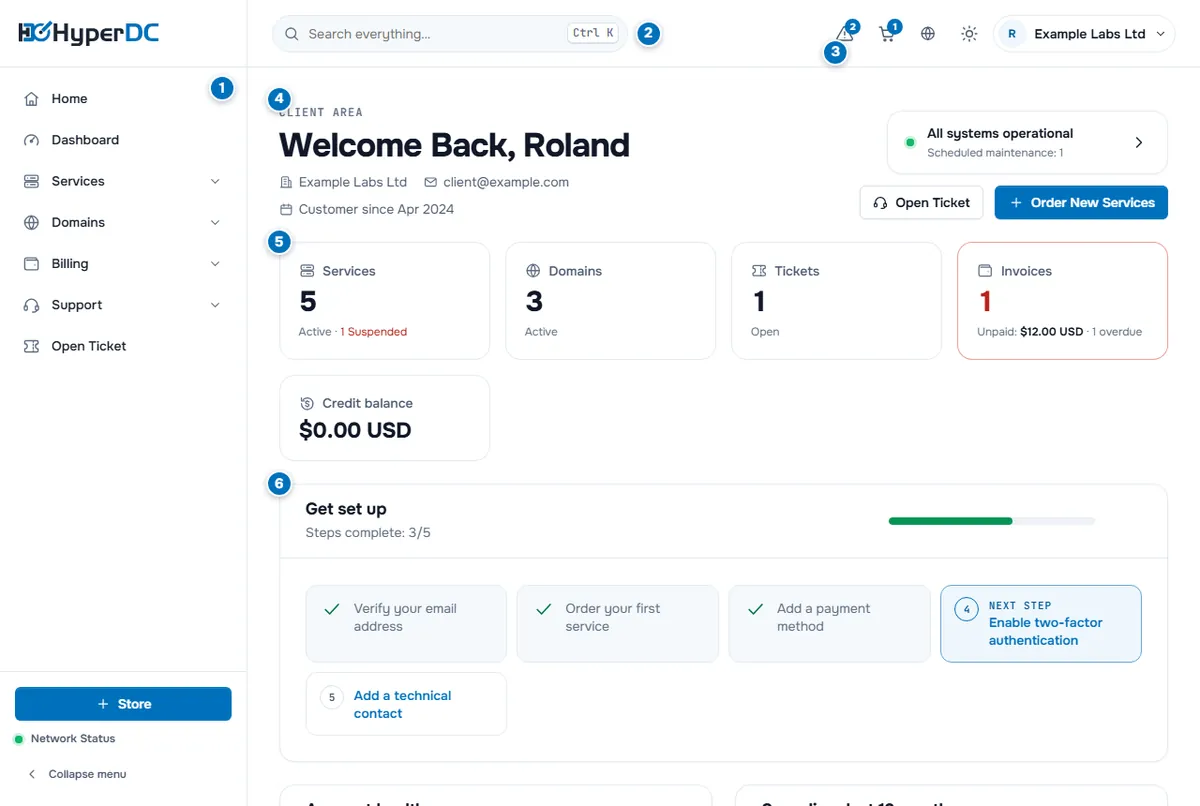
- Left menu — every page of the client area, grouped by topic. Explained below.
- Search — Search everything… opens the search and quick actions, also with Ctrl K. See search and keyboard shortcuts.
- Top bar — notifications, the shopping cart, language, light or dark theme and your account menu.
- Welcome area — Welcome Back with your name, company, email address and Customer since. The status card next to it shows the state of our network, for example All systems operational, and links to the status page. Open Ticket and Order New Services are one click away.
- Tiles — Services (active, and suspended if any), Domains, Tickets (open), Invoices (unpaid amount and overdue count) and the Credit balance. Select a tile to open that list.
- Widgets — the set-up checklist, account health, spending and upcoming renewals, described below.
The left menu
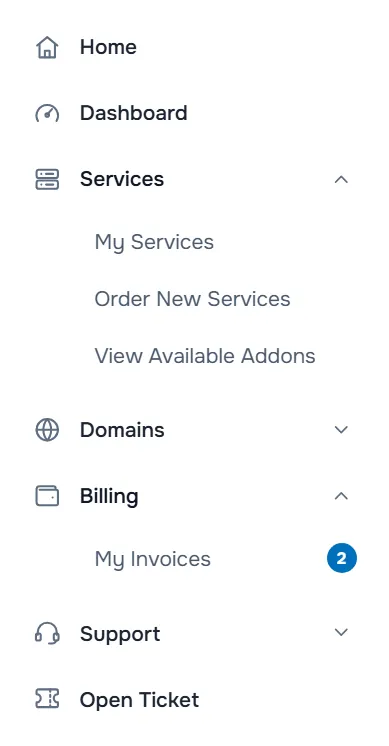
- Home opens our website; Dashboard opens the start page of the client area.
- Services: My Services, Order New Services and View Available Addons.
- Domains: your domains and the pages to renew, register and transfer domains.
- Billing: My Invoices. My Quotes, Mass Payment and Add Funds appear here only when they are available for your account.
- Support: Tickets, Announcements, Knowledgebase and Network Status.
- Open Ticket starts a new support request.
At the bottom, Store opens our order form, Network Status shows a coloured dot with the state of our network, and Collapse menu shrinks the menu to icons.
The menu shows the pages that apply to your account. If the account owner invited you as a user, you see only what your permissions allow.
The top bar
From left to right, after the search field:
- Notifications — the icon with a number. It lists notices about invoices, tickets, services and domains; see notifications in the client area.
- Shopping cart — with the number of items you have not ordered yet.
- Language — the globe icon, to switch the language of the client area.
- Theme — the sun or moon icon switches between light and dark mode.
- Account menu — your name or company. It shows Logged in as with your name and opens your account pages, for example Account Details, User Management, Payment Methods, Contacts and Email History, and Logout.
The dashboard widgets
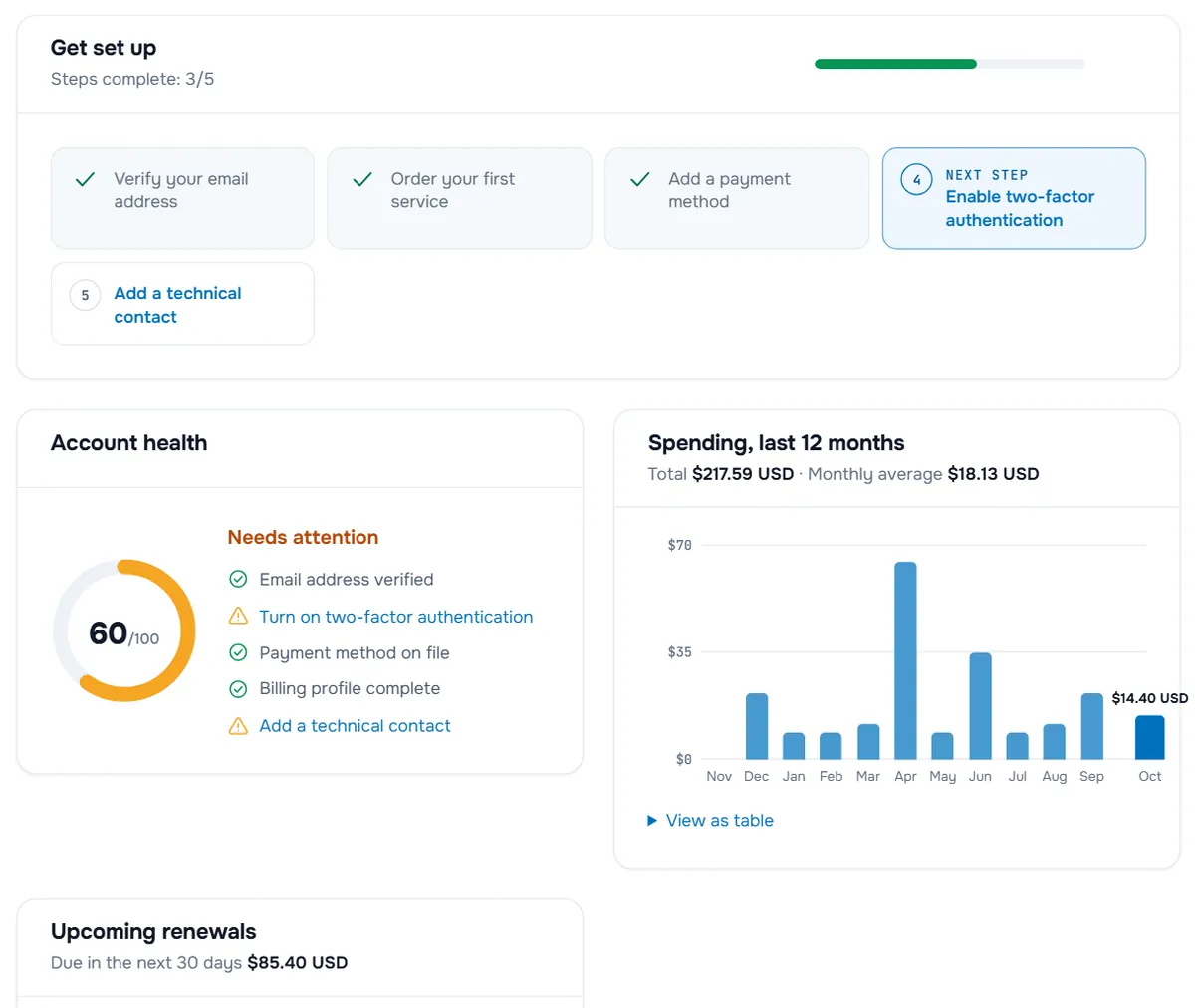
- Get set up — a checklist for new accounts, with Steps complete and the Next step highlighted. It appears while your account is new or still has open steps.
- Account health — a score out of 100 with Well protected, Needs attention or At risk, and the checks behind it. Select an open item to fix it, for example to turn on two-factor authentication (two-factor authentication).
- Spending, last 12 months — what you paid per month, with the Total and the Monthly average. View as table shows the numbers as a list.
- Upcoming renewals — invoices and services that are due soon, with Due in the next 30 days, each amount and the days left, or Overdue. See renewals and overdue invoices.
- Pinned — services and domains you starred, for quick access.
Each widget has an x button, Hide this widget. Hidden widgets are listed under Hidden widgets at the bottom of the dashboard; select one to show it again.
Further down the dashboard
- Quick actions — shortcuts such as Order New Services, Register a New Domain, Transfer Domains to Us, Make Payment when invoices are unpaid, and Open Ticket. The search How can we help today? looks in our knowledgebase.
- Guides for your services — guides picked for the products you have, with View all.
- Panels with recent account activity, such as Recent Support Tickets.
Troubleshooting
A widget I used to see is gone. It may be hidden: look for Hidden widgets at the bottom of the dashboard. Get set up disappears once your account no longer needs it, and Pinned shows only when you have pinned something.
A menu item is missing. Some pages appear only when they are available for your account. If you are an invited user, ask the account owner for the permission under User Management, see users and contacts.
The numbers in a tile look wrong. Tiles count active services and domains, open tickets and unpaid invoices. Cancelled or paid items are listed on the full pages, for example under Services › My Services.
Next steps
- Work faster with search and keyboard shortcuts.
- Pin, rename and arrange things in personalise your client area.
- Manage what you ordered: manage your services and invoices and payment methods.
Frequently asked questions
What is the difference between Home and Dashboard in the menu?
Home opens our website. Dashboard opens the start page of your client area with your tiles and widgets.
Why do I not see Add Funds, Mass Payment or My Quotes?
These pages appear in the Billing menu only when they are available for your account. If they are not shown, you do not need them to pay or manage your services.
Can I hide dashboard widgets I do not need?
Yes. Each widget has an x button, Hide this widget. Hidden widgets are listed under Hidden widgets at the bottom of the dashboard, where you can show them again.
What does the Account health score measure?
A checklist of protective steps for your account, such as a verified email address, two-factor authentication, a payment method on file, a complete billing profile and a technical contact. Each open item links to the page where you can fix it.