






Billing overview: invoices, payment methods and credit
A map of billing in the HyperDC client area: the Billing menu, invoice statuses, ways to pay, saved payment methods, account credit, quotes and renewals.
- Beginner
- 6 min read
- Updated
Tested on: HyperDC client area
On this page
Every order and every renewal at HyperDC creates an invoice. This page is the map of billing in your client area: where each billing page is, what the invoice statuses mean and which guide explains each task in detail.
Before you start
- Sign in to the client area. If you handle billing for a company, the account owner can invite you under User Management with the View & Pay Invoices permission. See users and contacts.
- Check your billing details in the account menu (your name at the top right) › Account Details. The name, company, address and tax details saved there appear on every new invoice.
The Billing menu
Open Billing in the left menu. It always contains My Invoices; the number next to it counts your unpaid invoices.
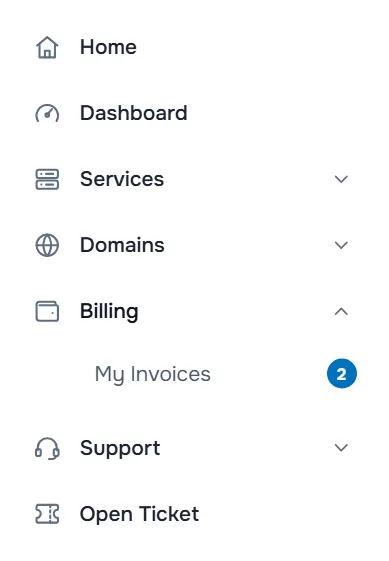
Depending on your account, the Billing menu can also show:
- Mass Payment to pay all unpaid invoices in one payment. See mass payment.
- Add Funds to pay an amount into your account credit in advance. See account credit and Add Funds.
- My Quotes with offers we prepared for you. See quotes.
Two more billing pages are in the account menu: Payment Methods for saved cards and bank accounts (see saved payment methods) and Email History, which keeps a copy of every invoice email we sent you.
Your invoices at a glance
Billing › My Invoices starts with a summary of what is still due, followed by the list of all your invoices.
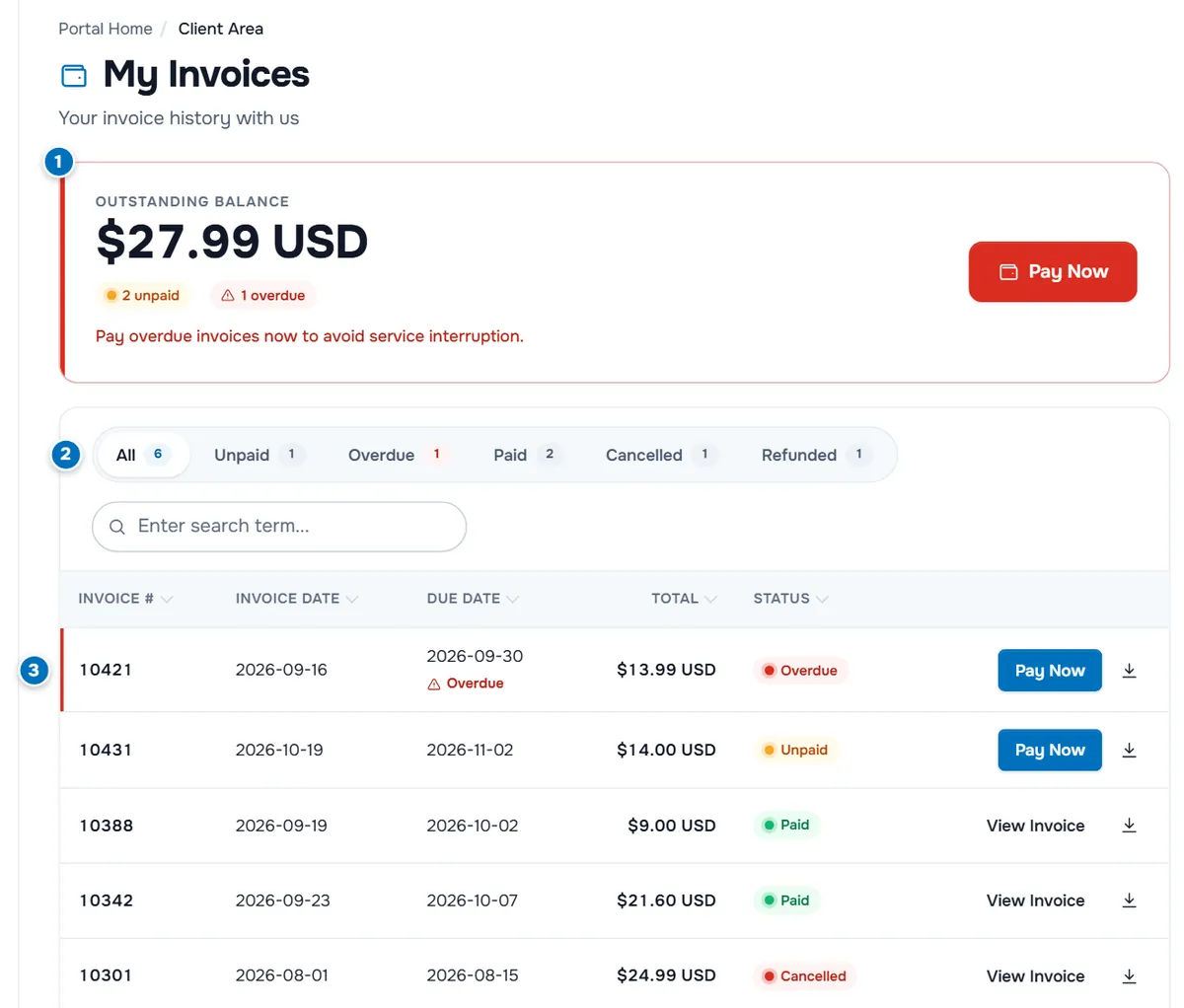
- Outstanding Balance shows the total still due, how many invoices are unpaid and overdue, and a button to pay. If you have account credit, the card also shows your Available Credit Balance.
- Status filters show only the invoices with one status. The number on each filter counts them.
- Each invoice row shows the number, invoice date, due date, total and status, with Pay Now for open invoices, View Invoice for the others and a download button for the PDF.
How to search, sort, open and download invoices: view and download invoices.
Invoice statuses
| Status | What it means |
|---|---|
| Unpaid | Waiting for payment. Pay it before the due date. |
| Overdue | Still unpaid after the due date. Pay it as soon as you can. |
| Paid | Paid in full. Keep the PDF for your records. |
| Payment Pending | A payment was started and is waiting for confirmation from the payment provider. |
| Cancelled | No longer valid, for example after an order was cancelled. |
| Refunded | The payment was refunded, in full or in part. |
Open invoices are listed first, the overdue ones at the top. Unpaid invoices also show up on your dashboard, in the Invoices tile, and on the page of the service they belong to.
Ways to pay
The methods you can choose are the ones available for your account and the invoice, for example card payments, your account credit or crypto with HyperDC Pay. Pick the guide that fits:
- One invoice by card or another listed method, or with credit: pay an invoice.
- Bitcoin, Ether, USDT, USDC and other coins: pay an invoice with crypto. Crypto payments are final and non-refundable.
- Several invoices at once, if your Billing menu shows Mass Payment: mass payment.
Credit, quotes and renewals
- Account credit is a balance on your account that can pay invoices in full or in part: account credit and Add Funds.
- Quotes are offers for custom setups that you can accept in the client area: quotes.
- Renewal invoices are created before a service's next due date. What happens when one is not paid in time: renewals and overdue invoices.
Who receives billing emails
The account owner receives every invoice email. To send copies to a colleague, for example your accounting team, open the account menu › Contacts, add the person as a contact and tick Invoice Emails under Email Preferences. People who should also sign in and pay are invited as users under User Management. See contacts and email preferences.
Troubleshooting
I cannot see Billing or My Invoices. You are signed in as a user without access to invoices. Ask the account owner to give you View & Pay Invoices under User Management.
The payment method I want is not offered. The invoice lists only the methods available for your account and that invoice. Choose another one, or open a ticket before the due date.
I paid twice. The extra amount usually becomes account credit, which is used for your next invoices. Open a ticket with both payment references if you need help.
My invoice shows the wrong company or tax details. Update Account Details for future invoices, and open a ticket if an issued invoice needs a correction.
Next steps
- Pay step by step: pay an invoice.
- Common questions: billing FAQ and refunds FAQ.
- The binding rules: the terms of service and the refund policy.
Frequently asked questions
Where do I find my invoices?
In the client area under Billing › My Invoices. Every new invoice is also emailed to you, and a copy stays in Email History in the account menu.
When is a renewal invoice created?
Automatically, before the service's next due date, and it is emailed to you. Pay it before the due date to keep the service running without interruption.
Which payment methods can I use?
The methods available for your account and the invoice. They can include card payments, your account credit and crypto payments with HyperDC Pay. The invoice page lists them.
Can someone else pay or receive my invoices?
Yes. Invite a user with the View & Pay Invoices permission under User Management, or add a contact that receives invoice emails under Contacts.
What happens if I pay late?
You receive reminders, and services with overdue invoices can be suspended. Paying the invoice normally reactivates them. Contact us before the due date if you expect a problem.