






Support & helpStatus & self-help
Search the guides and find help yourself
Use HyperDC Docs: search with instant suggestions, browse sections and topics, find guides for your services, share or print a guide and tell us if it helped.
- Beginner
- 5 min read
- Updated
Tested on: HyperDC website
This guide is not available in your language yet, so it is shown in English.
On this page
Many questions are answered faster by a guide than by a ticket. HyperDC Docs collects our tutorials, product docs and fixes for common problems in English and Turkish. This guide shows how to search them, find the ones for your services and tell us when something is missing.
Step 1: Open the guides
- On our website, open the menu Company and select Guides & docs in the Resources column, or use the Guides & docs link in the footer. The address is /guides.
- In the client area, the dashboard shows Guides for your services with a View all link, and the Overview tab of a service lists guides for that product line.
- The Knowledgebase page (Support › Knowledgebase) has a Guides & docs box with Open the docs.
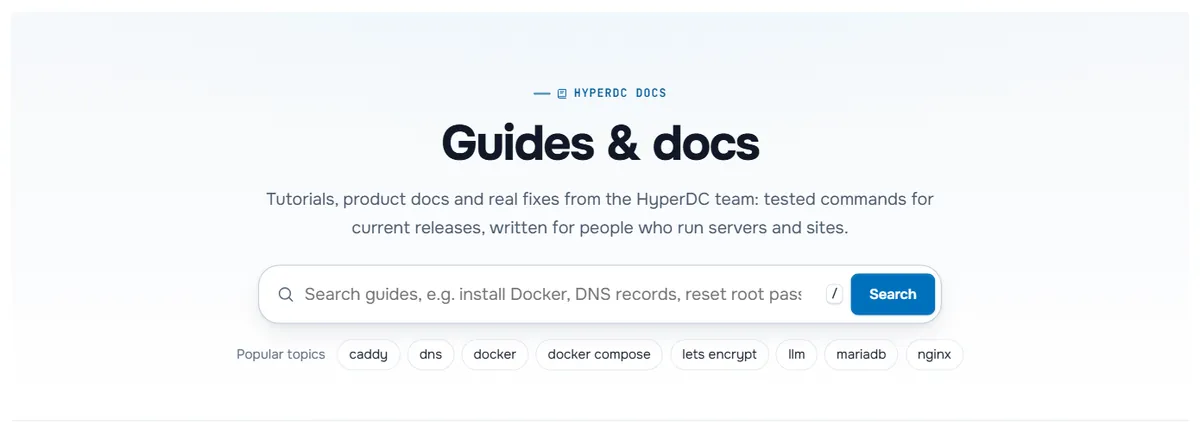
Step 2: Search
- Click the search field, or press / anywhere on a guides page.
- Type at least two letters. Suggestions appear as you type and tolerate small typing mistakes. Use the arrow keys and Enter to open one.
- Press Enter, or select See all results for …, to open the results page.
- Narrow the results with Section, Product and Level, then Apply filters. Clear filters removes them again.
If the results page asks Did you mean …?, select the suggestion to search again with the corrected word. When nothing matches, the page shows No guides match your search with buttons to open a ticket or the knowledgebase.
Step 3: Browse sections and topics
Below the search, the home page offers several ways in:
- Popular topics: short tags such as a technology or a task.
- Browse by section: each section with its number of guides, its most read guides and its categories. View all opens the whole section.
- Popular guides and Recently updated, with an RSS feed for new and updated guides.
- Docs by product: guides grouped by product line.
On every guides page, the Sections list on the side takes you back to All guides, to a section or to Topics.
Step 4: Find guides for your services
When you are signed in, select For your services. The page lists guides picked for the product lines of your active services, including guides written only for HyperDC clients. If you are not signed in, it asks you to sign in first.
Step 5: Read, share and print a guide
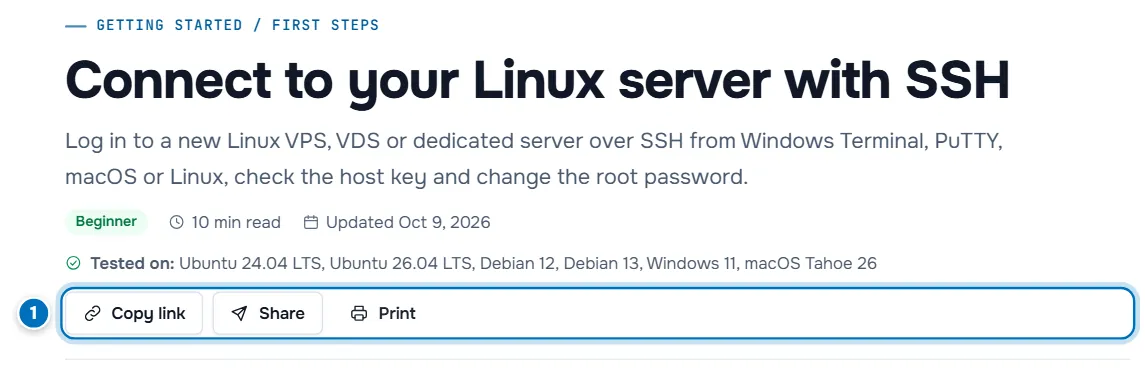
- Copy link, Share and Print — copy the address of the guide, share it with your device's share menu where available, or print it.
The header also tells you what to expect: the section and category, the title and a short summary, the level (Beginner, Intermediate or Advanced), the reading time, the Updated date and, where it matters, Tested on with the systems the steps were checked on.
While you read, On this page jumps to a heading. At the end you find Frequently asked questions, Related guides and links to the Previous guide and Next guide of the section.
Step 6: Tell us whether it helped

At the end of every guide, answer Was this guide helpful? with Yes or No. If a comment box What was missing or wrong? (optional) appears, add a sentence and select Send feedback. Do not include passwords or personal data; for help with a service, open a ticket instead.
Verify: the box thanks you: Thank you. Your feedback helps us improve this guide.
Still need help?
The guides home page and every guide end with Still need help? and three buttons: Open Ticket (see open a support ticket), Network Status (see network status and announcements) and Contact Us. If you are not a customer yet, use our contact form for questions before you order.
Troubleshooting
A guide says Sign in to read this guide. It is written for HyperDC clients. Sign in to the client area and open the link again. If it says This guide is not available for your account, it belongs to a product line you do not have.
My search finds nothing. Use fewer or other words, remove a filter, or try the English term for a technical word. Then try the knowledgebase or open a ticket.
The guide is shown in English. The note at the top says This guide is not available in your language yet, so it is shown in English.
Next steps
- Ask our team: open a support ticket.
- Get around the client area: client area tour.
- What to expect from support: support FAQ.
Frequently asked questions
Do I need an account to read the guides?
No, most guides are public. Some are written for HyperDC clients only; they ask you to sign in, and a few are shown only to clients with a matching active service.
What is the difference between the guides and the knowledgebase?
The guides at /guides are our step-by-step tutorials and product docs. The knowledgebase in the client area holds shorter help articles and links to the guides. Search both if you do not find an answer in one.
Can I suggest a new guide?
Yes. Answer No under Was this guide helpful? and describe what was missing, if the comment box is offered. A search without results also tells us which guide to write next.
Why is a guide shown in English on the Turkish site?
Not every guide is translated yet. The page then says so at the top and shows the English version.