






Chat with us live
Start a live chat with the HyperDC team from any page: choose a department, wait in the queue, leave a message when nobody is online, end the chat and rate it.
- Beginner
- 5 min read
- Updated
Tested on: HyperDC website, HyperDC client area
On this page
The live chat lets you ask our team a question from any page of our website and the client area, without opening a support ticket. This guide shows how to start a chat, what the queue and the offline form mean, and how to end and rate a chat.
Before you start
- Find the chat button. It sits at the bottom right of the page and reads Chat with us. On a phone in the client area, use Chat in the menu bar at the bottom of the screen. You can also press Ctrl K and choose Chat with us (see search and keyboard shortcuts).
- Have the details ready: the service or domain your question is about, and the exact error message if there is one.
- Never write passwords or card details into the chat. If our team needs access to a server, they will tell you how to give it safely.
Step 1: Open the chat
Select Chat with us. The chat window opens. Its header shows who answers and whether our team is online: Online, with the time our team typically takes to reply when there is enough data, or Offline, with the time we are back when the chat knows it.
On a computer you can move the window by its header and resize it from any edge. Minimise chat (the line icon) keeps the chat running in the background; the button then shows how many new messages arrived.
Step 2: Write your first message
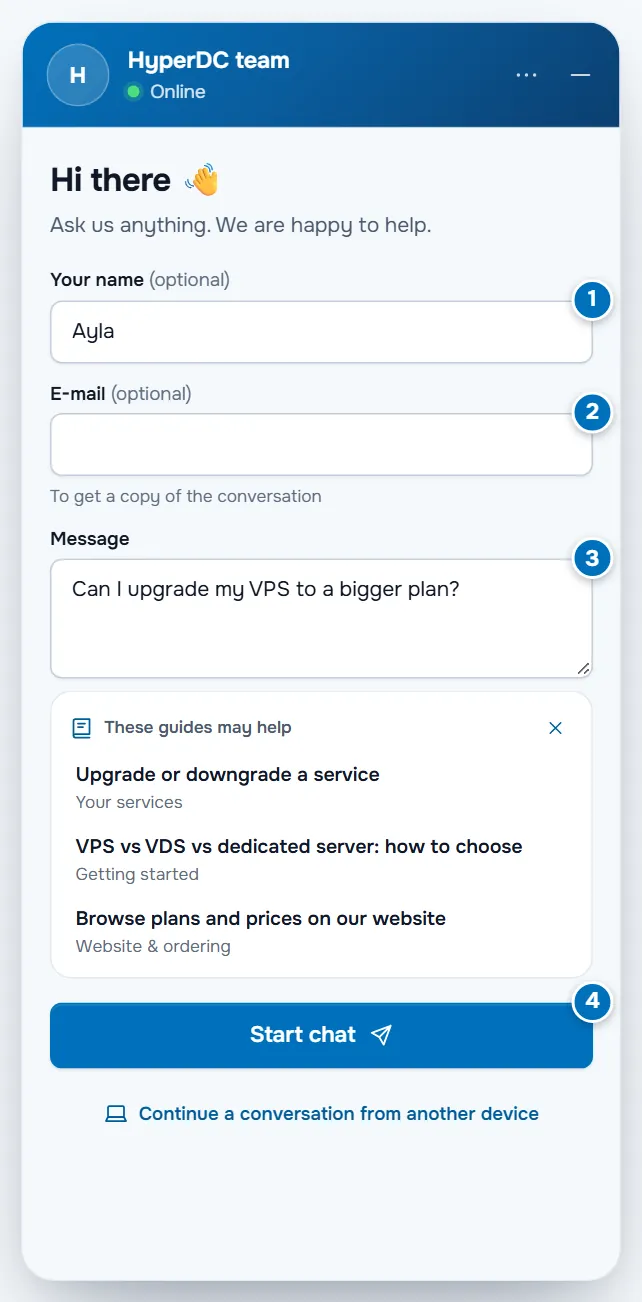
- Your name (optional) tells our team how to address you.
- E-mail (optional while we are online) gets you a copy of the conversation. Signed-in clients do not see these fields: the chat already knows you.
- Message: describe your question. While you type, the chat may suggest guides under These guides may help; they open in a new tab, so your text stays.
- Select Start chat or press Enter. Shift + Enter starts a new line.
If you are signed in, you can also choose the Related service, and if our site lists more than one team, choose the Department.
Verify: your message appears on the right side of the window.
Step 3: Wait for our team
If our team is busy, a banner shows your place in line and an estimate of the wait:
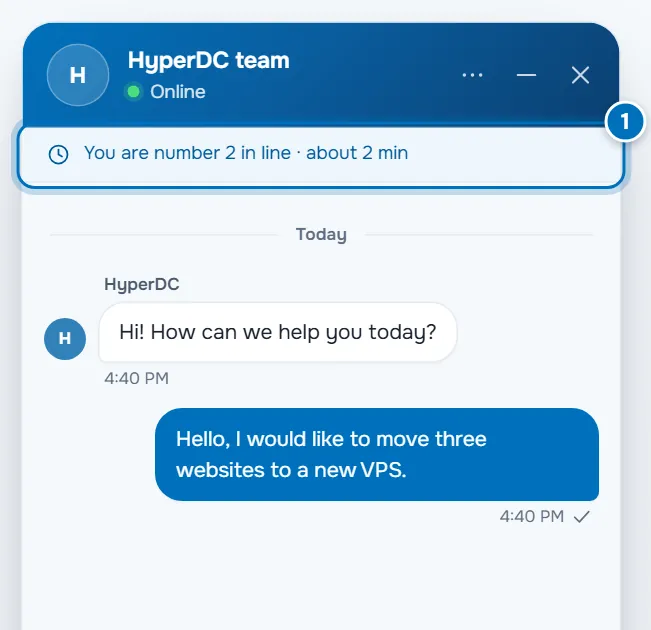
As soon as someone takes your chat, their name appears in the header. You can keep browsing our site: the chat stays open on every page. While the window is minimised, a sound and a number on the chat button tell you that a reply arrived; in another browser tab, the tab title blinks. Turn the sound off in the chat menu (⋯ › Notification sound).
Step 4: Chat
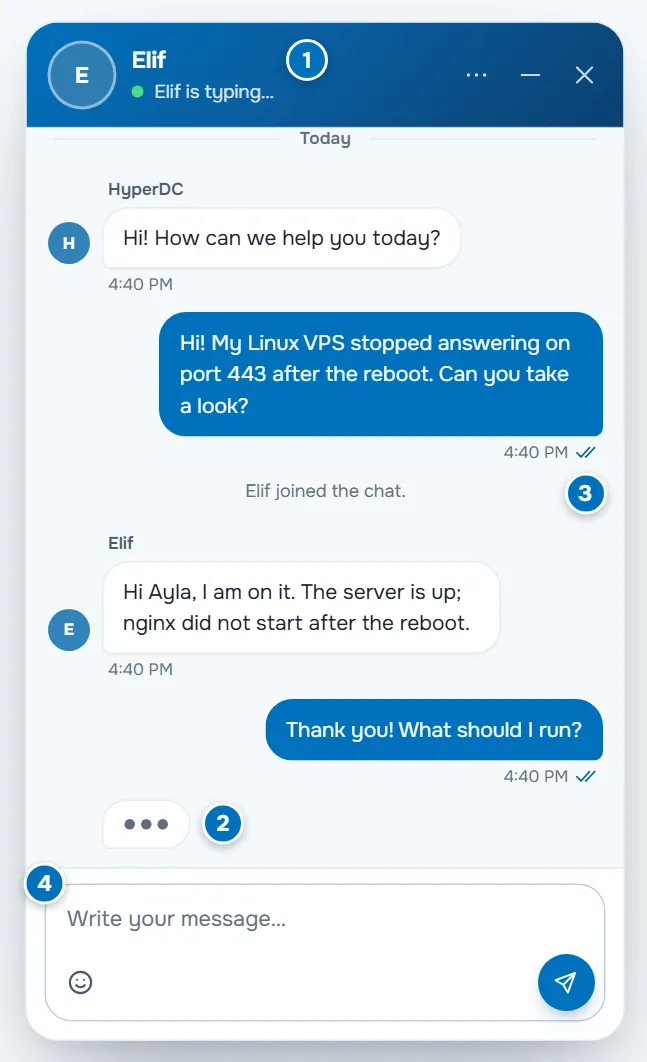
- Typing dots show that an agent is writing.
- Ticks under your messages: one tick means sent, two ticks mean our team read it.
- Helpful and Not helpful (thumbs next to an answer) tell us whether an answer helped.
- Insert emoji (the smiley) and, when sending files is allowed, Attach a file (the paperclip) sit under the message field. See send files and screenshots in chat.
- If our team moves your chat to a colleague, a short note in the conversation says so, and the new name appears in the header.
Step 5: Leave a message when nobody is online
When nobody from our team is online, the chat shows Leave us a message instead of the chat:
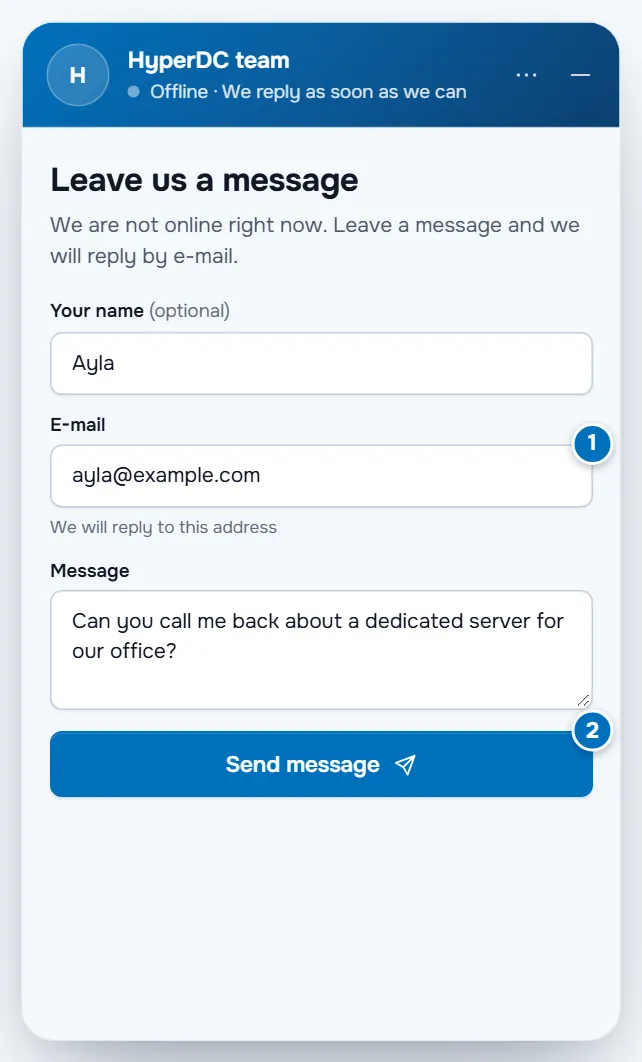
- Enter your E-mail (guests must give one: our reply goes there) and your message.
- Select Send message.
Verify: the chat shows Message received with a ticket number, and you receive the reply by e-mail. If you are signed in, the ticket also appears under My Support Tickets (see support tickets).
If you started a chat and nobody could answer for a while, the card Nobody could answer yet appears in the conversation. Select Leave a message to send your question as a message; the chat fills in what you already wrote.
Step 6: End the chat and rate it
Select End chat (the ✕ in the header, or ⋯ › End chat) and confirm. Our team can also close a chat when your question is answered.
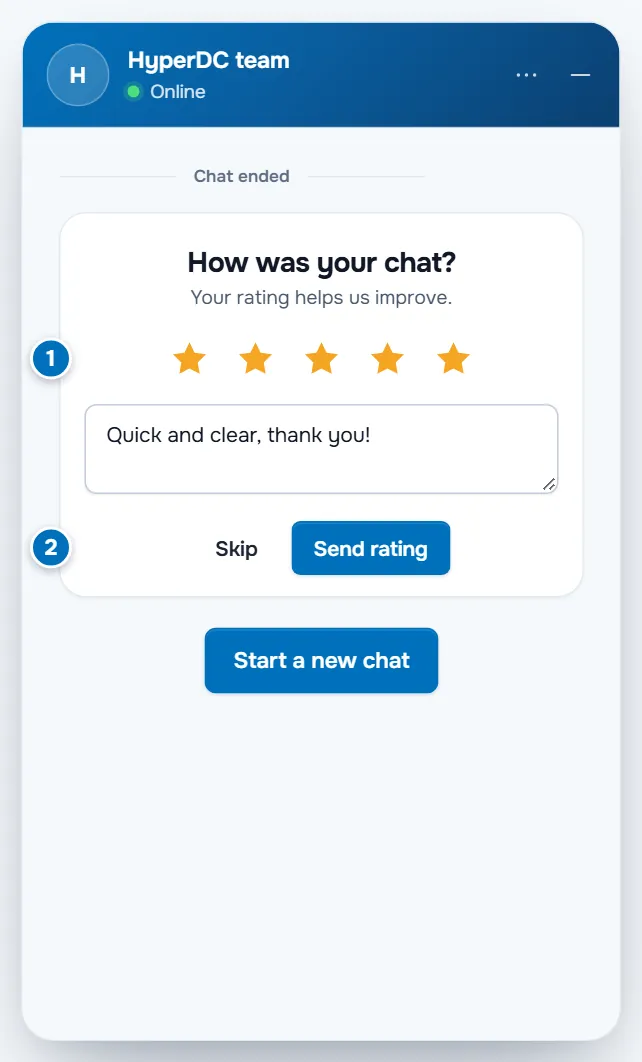
- Choose one to five stars under How was your chat? and add a comment if you like.
- Select Send rating, or Skip.
Verify: the chat shows Chat ended; Start a new chat opens an empty chat.
Troubleshooting
I do not see the chat button. The chat may be switched off on that page or for guests. Sign in to the client area and look again, or open a support ticket.
The chat says "Please sign in to chat with us". Our chat is open to signed-in clients only at the moment. Select Sign in.
The banner says "Connection problem. Trying again…". Your connection dropped. The chat retries by itself; messages that could not be sent show Not sent with Retry.
The banner says "Your session has expired". Select Reload. Your conversation is still there after the page loads.
Next steps
- Continue the same chat on your phone or another computer: continue a chat on another device.
- Send screenshots or log files: send files and screenshots in chat.
- For problems that need more time: open a support ticket.
Frequently asked questions
Do I need an account to chat?
Usually not: guests can chat from every page. If the chat asks you to sign in, sign in to the client area and open it again.
Do I have to give my e-mail address?
Only when you leave a message while nobody is online, so that we can reply. During a live chat it is optional; with it you can get a copy of the conversation.
What happens to my message when nobody is online?
It becomes a support ticket. The confirmation shows its number, and our reply comes by e-mail. Signed-in clients also find it under their support tickets.
Who answers me, a person or a bot?
People from our team. If our AI assistant answers a chat, its messages are marked AI assistant and you can select Talk to a person at any time.
Can I see an earlier chat again after I ended it?
No. Ending a chat clears it from the chat window on every device. Ask for a copy with E-mail me this conversation before you end it.