






Your servicesManaging services
Manage a service from its service page
A tour of the service page in the client area: status, IP address, the Actions menu, server information, billing overview, add-ons, upgrades and cancellation.
- Beginner
- 7 min read
- Updated
Tested on: HyperDC client area
This guide is not available in your language yet, so it is shown in English.
On this page
Every service you order has its own page in the client area: a server, a hosting account or any other product. It shows the service's status and addresses, the actions you can take, its billing and its add-ons. This guide walks through the page from top to bottom.
Before you start
- Sign in to the client area. If several people work on your account, each should sign in with their own user; see users and contacts.
- Keep the welcome email of the service at hand if you want to compare the details.
Step 1: Open the service
Go to Services › My Services and select Manage next to the service, or select its name. Pinned services can also be opened from your dashboard, and the search at the top of every page (Ctrl + K) finds a service by name, domain or IP address. See find your services in My Services.
Verify: the page header shows the product name of the service you wanted.
Step 2: Read the header
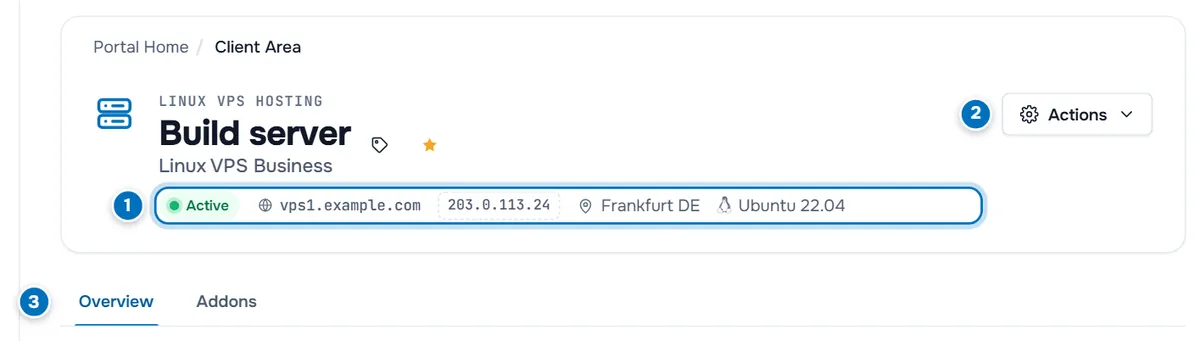
Above the name you see the product group, such as Linux VPS Hosting. If you gave the service a nickname, it is the large title and the plan name is shown below it. The tag icon (Rename this service) edits the nickname, and the star (Pin to dashboard) pins the service.
- Key facts — the status (for example Active), the domain or hostname, the IP address, and for servers the location and the operating system you chose when ordering. Select the IP address to copy it; the button briefly shows Copied.
- Actions — the menu with everything you can do with this service, described in Step 3.
- Tabs — Overview with the service details, plus Addons, Downloads and Change Password when they apply to the service. A service without these extras shows the overview without tabs.
Step 3: Use the Actions menu
Select Actions to open the menu.
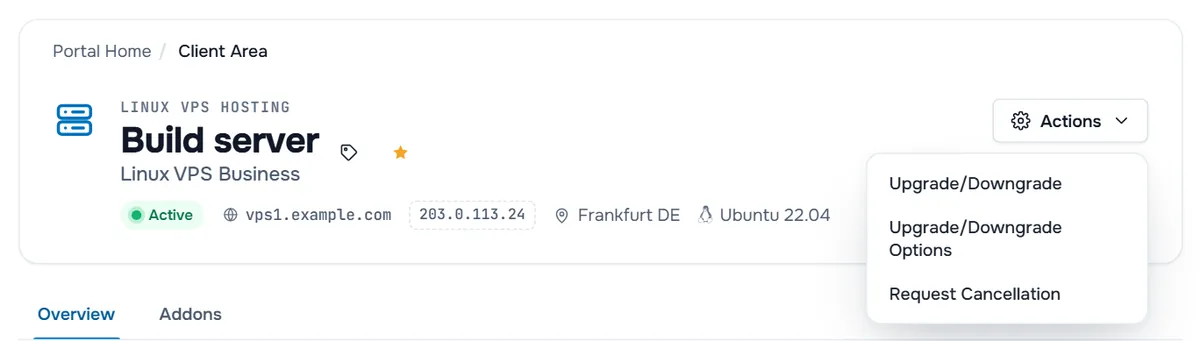
The standard entries are:
- Upgrade/Downgrade — move the service to another plan.
- Upgrade/Downgrade Options — change single options, such as additional IPv4 addresses or disk space.
- Request Cancellation — end the service; see cancel a service.
Which entries appear depends on the product: a service without other plans or changeable options has no upgrade entries. For some products, the menu also holds controls from the system that runs the product, and the first two of them appear as buttons next to Actions: for example Log in to cPanel on a hosting account (see log in to your control panel). Server controls such as power actions, a web console, a reinstall or reverse DNS are available only if your service page shows them; otherwise open a ticket and our team does it for you.
After an action, a message at the top of the page tells you the result: Action Completed Successfully! or Action Failed with the reason.
Step 4: Read the Overview tab
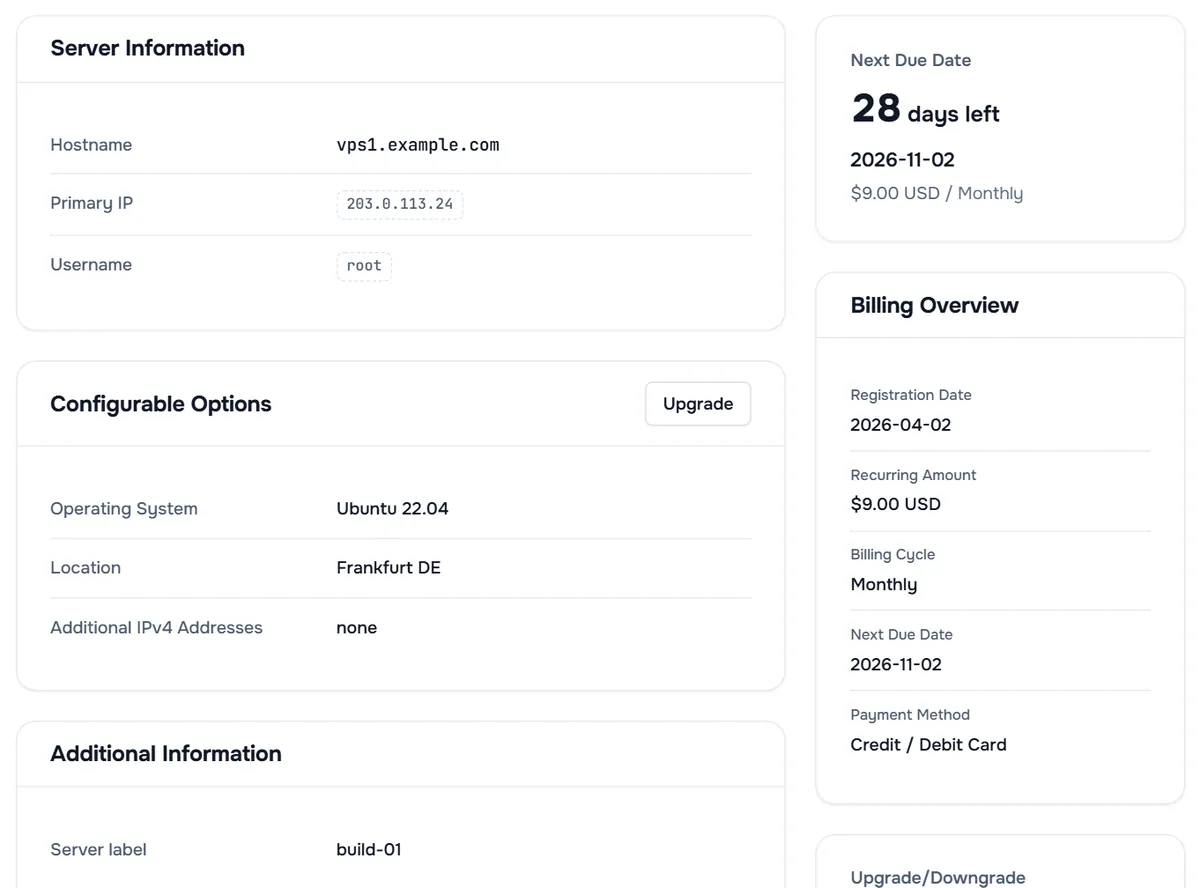
Left column
- Manage — for some products, a card with the product's own controls, for example shortcuts into a hosting control panel. It appears above the other cards when the product provides one.
- Server Information (servers) — Hostname, Primary IP, Assigned IPs if you have more addresses, Nameservers and Username, most with a copy button. Hosting accounts show Hosting Information instead, with Domain, Username, Server Name, IP Address, Nameservers and SSL Status, plus a Visit Website button and, for a domain registered with us, Manage Domain.
- Resource Usage — for hosting accounts that report it: Disk Space and Bandwidth with the time of the Last Updated reading.
- Configurable Options — the options of your plan, such as operating system, location and additional IPv4 addresses. The Upgrade button next to the title opens the option change, if the service allows it.
- Additional Information — details you entered when ordering, such as a server label.
Right column
- Next Due Date — the date and the recurring amount per billing cycle; when the date is near, also how many days are left. If an invoice is open, Pay Invoice appears here. If your service page shows Renew Service, you can pay the next term early; see renew a service early.
- Billing Overview — Registration Date, Recurring Amount, Billing Cycle, Next Due Date and Payment Method. First Payment Amount appears when it differs from the recurring amount, and Suspension Reason when the service is suspended.
- Upgrade/Downgrade — Upgrade and Request Cancellation buttons, when the product allows them. After a cancellation request, the button shows Cancellation Requested.
At the bottom, a Guides for … card links to guides for your product line, when we have guides for it.
Verify: the Primary IP matches the one in your welcome email. On a Linux server you can confirm it with ip -brief address.
Step 5: Use the other tabs
- Addons — the add-ons you ordered for this service, each with its status, Pricing, Registered date and Next Due Date. If more add-ons can be ordered, a note links to them.
- Downloads — files that belong to the product, with a Download button. Shown only when there are files.
- Change Password — for hosting accounts, sets a new password for the control panel login; see log in to your control panel.
Notices on the service page
- Unpaid invoice. A notice with a Pay Invoice button appears at the top while an invoice for the service is open, in red once it is overdue.
- Cancellation pending. "There is an outstanding cancellation request for this product/service" shows that a cancellation is registered.
Common tasks
| I want to … | Where |
|---|---|
| Connect to my server | Copy the Primary IP, then follow SSH, Remote Desktop or macOS first steps |
| Get more resources | Actions › Upgrade/Downgrade, see upgrade or downgrade a service |
| Start over with a fresh system | See reinstall the operating system |
| Set reverse DNS for my IP | See reverse DNS (PTR) |
| Pay or download invoices | Billing › My Invoices |
| Stop a service | Actions › Request Cancellation, see cancel a service |
| Ask for help with this service | Open Ticket and choose it under Related Service |
Troubleshooting
The service shows Pending. The order has not been set up yet, usually because the invoice is unpaid. Check Billing › My Invoices.
The service shows Suspended. Pay the overdue invoice; the service is reactivated after payment. If you think the suspension is a mistake, open a ticket.
An action shows Action Failed. Note the message and try again after a minute. If it keeps failing, open a ticket with the message and the time.
The Actions menu is missing. The service has no actions to offer right now, for example because it is not active. Open a ticket if you need a change.
The server does not respond. Check Support › Network Status for known incidents first, then see server unreachable.
Next steps
- Grow or shrink a plan: upgrade or downgrade a service.
- Sign in to a hosting control panel: log in to your control panel.
- Get help: support tickets.
Frequently asked questions
Where do I see the IP address of my server?
In the header of the service page, next to the status, and under Server Information as Primary IP. Select the address to copy it. If your service has more addresses, they are listed under Assigned IPs.
Why does my service page show different buttons than a colleague's?
The Actions menu and the Manage card depend on the product and on the system that runs it, so a VPS, a dedicated server and a hosting account show different controls. Some actions are only offered on certain plans.
Can I rename a service to find it more easily?
Yes. Select the tag icon next to the service name, type a nickname and save. The nickname is only for you; it does not change the hostname of the server or the domain.
What does a Suspended status mean?
The service is stopped, usually because an invoice is overdue. Pay the open invoice from the notice on the service page or under Billing › My Invoices, and the service is reactivated. The Billing Overview may show the Suspension Reason.
Where do I find the welcome email again?
Open the account menu and choose Email History. It lists every email we sent you, including the welcome email with the login details.