

Move your website to Windows hosting: backup restore and live migration
Move your website to HyperDC Windows hosting on your own: restore a cPanel or Plesk backup, fetch one from a web address, or copy a running server live.
- Beginner
- 20 min read
- Updated
On this page
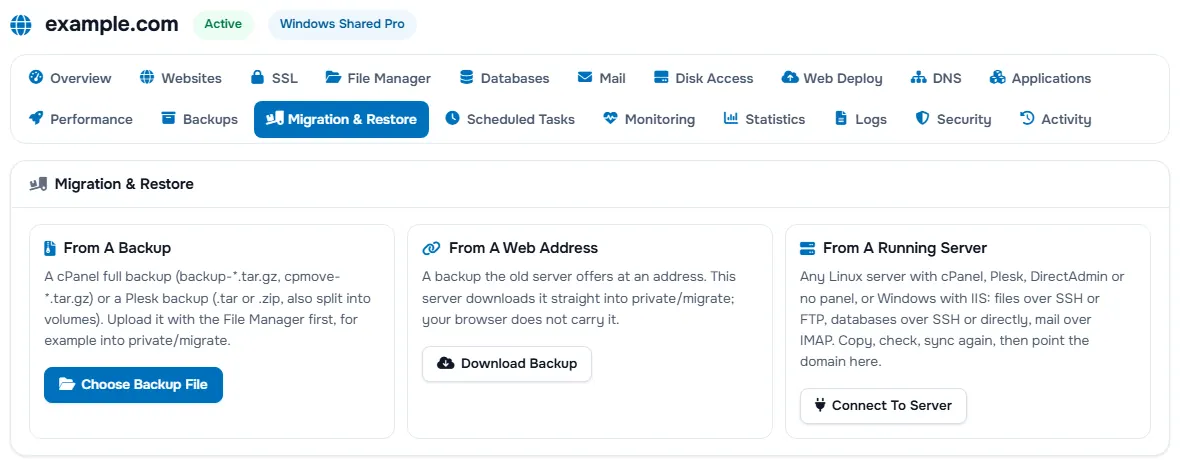
The Migration & Restore tab on your service page moves a website to your Windows hosting on your own, without a ticket. Choose one of three ways, depending on what you have.
| You have | Use |
|---|---|
| A cPanel or Plesk backup file on your computer | From A Backup |
| A backup file at a web address | From A Web Address |
| A server that still runs your site | From A Running Server |
Restore a backup file
- Upload the backup with File Manager, for example into
private/migrate. A cPanel full backup is namedbackup-*.tar.gzorcpmove-*.tar.gz; a Plesk backup is a.taror.zip, split volumes too. - Open Migration & Restore and select Choose Backup File on the From A Backup card.
- Pick the file. When the backup has been read, select Choose And Move in its row and choose what to bring over.
Large uploads are easier with Disk Access.
Fetch a backup from a web address
- Select Download Backup on the From A Web Address card.
- Enter the address of the backup file. Our server downloads it straight into
private/migrate. - Select Choose And Move in its row and choose what to bring over.
The address must be reachable from the internet: addresses inside private networks are refused.
Copy a running server live
From A Running Server copies a site from any Linux server (with cPanel, Plesk, DirectAdmin or no panel) or from a Windows server with IIS.
- Select Connect To Server. Under files, choose the connection (SSH, FTPS or FTP), enter the server name, port and user name, and sign in with a password or a private key. Under mail (IMAP), enter the mail server and its security (SSL/TLS on 993 or STARTTLS on 143). When you connect, the panel finds the databases over the same SSH connection or directly and lists them for you to choose.
- Let the first copy run, then check the site on your new hosting.
- While you keep working on the old server, select Sync Again as often as you need to bring over the latest changes.
- When everything is in place, point your domain to your new hosting. See first steps on Windows hosting.
Verify: your site, its databases and its mailboxes appear on your service page, and the site opens at your domain once it points to us.
After the move
- Give mailbox users their new passwords: mailboxes from a cPanel backup get new ones.
- Each site keeps its PHP version and its www preference. A site on a PHP version below 8.3 moves to 8.3, and the move report says so.
- Plesk domain aliases come along, and cPanel forwarders without a mailbox become forwarding addresses.
- Your
.htaccessfiles, redirects included, are converted to IIS rules automatically, without loops against the HTTPS and www rules of your hosting. Check the pages that depend on rewrites. - Delete the backup archive from
private/migrateto free your disk space.
Troubleshooting
The web address is refused. It must be a public address on the internet: an address inside a private network cannot be downloaded.
The backup does not fit. The archive counts against your plan's disk space. Delete old files, or move up to a larger plan.
Next steps
- Back up the moved site: backup and restore on Windows hosting.
- Check databases: databases on Windows hosting.
- Mail settings: mail on Windows hosting.
Frequently asked questions
Which backups can I restore?
A cPanel full backup (backup-.tar.gz or cpmove-.tar.gz) or a Plesk backup (.tar or .zip, split volumes too).
Do I need to open a ticket to move my site?
No. You run the move yourself in the Migration & Restore tab. Our team is there if you get stuck.
Do mailbox passwords come with the move?
Mailboxes from a cPanel backup get new passwords, because the old ones cannot be carried over. Give your users their new passwords after the move.
What happens to my .htaccess rules?
They are converted to IIS rules automatically, redirects included, so rewrites such as WordPress permalinks keep working and no redirect loops against the HTTPS and www rules.
Does the backup file use my disk space?
Yes. The archive in private/migrate counts against your plan's disk space until you delete it.