






Website & orderingCart & checkout
Check out step by step
Complete checkout on our website: sign in or create an account, enter your billing address, set a password, choose how to pay, accept the terms and order.
- Beginner
- 7 min read
- Updated
Tested on: HyperDC website
This guide is not available in your language yet, so it is shown in English.
On this page
- Before you start
- Step 1: Create a new account or sign in
- Step 2: Enter your personal details and billing address
- Step 3: Choose the domain registrant (orders with domains)
- Step 4: Protect your new account
- Step 5: Choose how to pay
- Step 6: Accept the terms and complete the order
- If a Fraud Check page appears
- Troubleshooting
- Next steps
Checkout is where your order becomes yours: you tell us who you are, where to send invoices and how you want to pay. The page has two numbered parts, Personal Information (the Details step) and Payment Details (the Payment step), with the order summary next to them. This guide goes through every field in order.
Before you start
- Review your cart first, see review your cart and apply a promo code. The Edit link in the checkout summary takes you back.
- Use an email address you read: invoices, the welcome email with your login details and security notices go there.
- Have your billing address ready as it should appear on invoices, and a company tax number if you need one on them.
Step 1: Create a new account or sign in
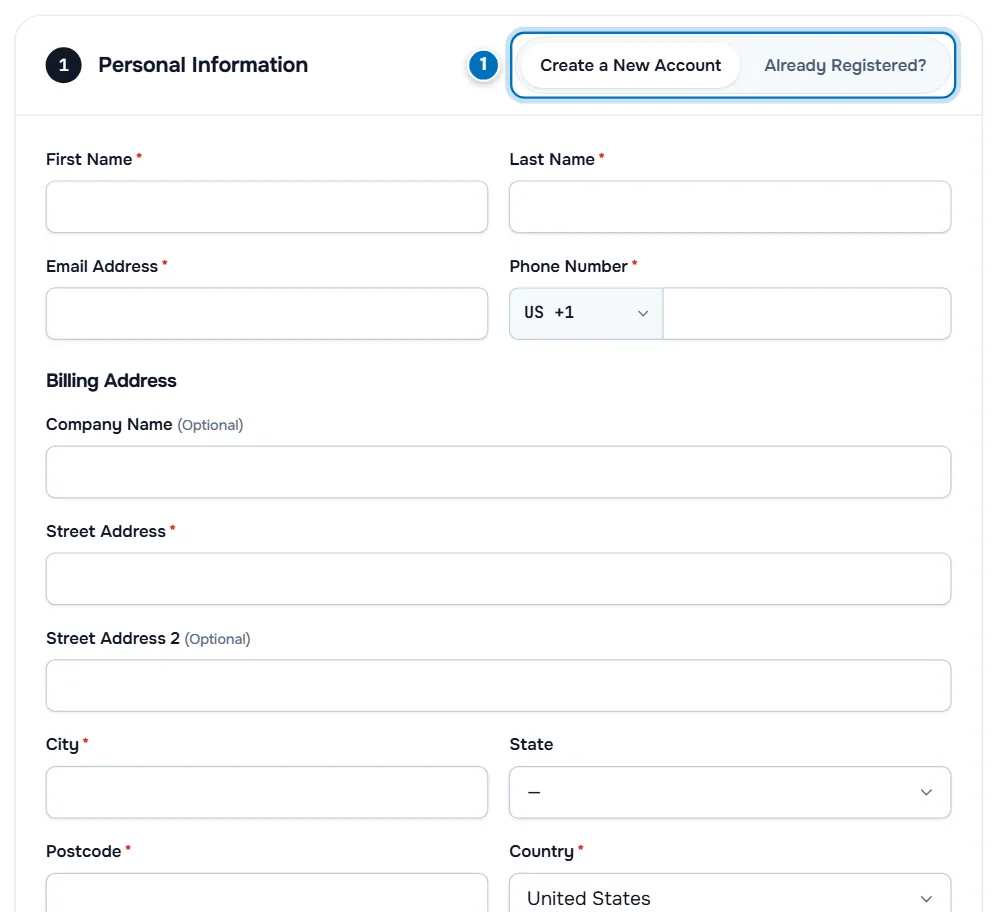
- Create a New Account / Already Registered? — choose whether you are new or already have an account.
- Already Registered? shows Existing Customer Login: enter your Email Address and Password and select Login. If two-factor authentication is on, enter the code from your app. Forgot Password? opens the password reset.
- When you are already signed in, the section is called Choose Account: pick the account the order belongs to, or Create a New Account.
Step 2: Enter your personal details and billing address
For a new account, fill in First Name, Last Name, Email Address and Phone Number (choose the country code in the list in front of the number). Fields marked with an asterisk are required.
Under Billing Address enter Company Name (optional), Street Address, Street Address 2 (optional), City, State, Postcode and Country. If the form shows a tax number field, enter your company's number there to have it on invoices. When taxes apply, the summary notes "Taxes follow your billing address and update when it changes."
Verify: the order summary on the right still shows your items and Total Due Today, now with any tax lines for your address.
Step 3: Choose the domain registrant (orders with domains)
If your order contains domain registrations or transfers, Domain Registrant Information appears. Leave Use Default Contact (Details Above) to register the domains in your name, or choose another contact. Add New Contact… opens fields for a different person or organisation, useful when you order on someone else's behalf.
Step 4: Protect your new account
For new accounts, Account Security asks for a Password and Confirm Password. The Password Strength bar rates your password as you type; Generate Password creates a strong one for you. Store it in a password manager. If the form asks for a security question, choose one and enter an answer you will remember.
If the page shows Continue to payment at this point, select it: the payment part opens once your account details pass the checks.
Step 5: Choose how to pay
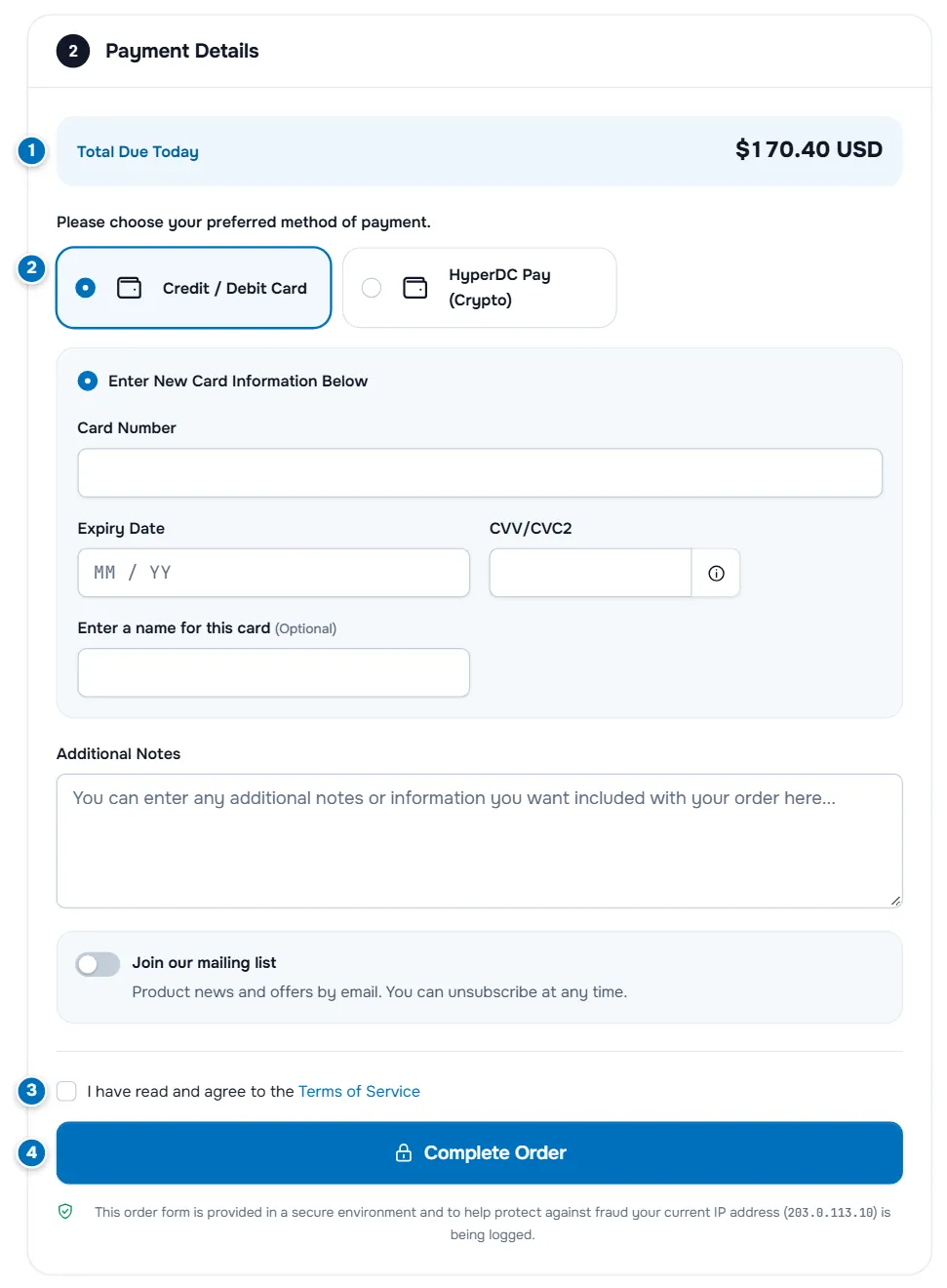
- Total Due Today — the amount of the first invoice.
- Payment methods — "Please choose your preferred method of payment." The list shows the methods available for your order, for example card payments or crypto with HyperDC Pay.
- Terms of Service — the checkbox you must tick to order.
- Complete Order — places the order.
For a card, use Enter New Card Information Below and fill in Card Number, Expiry Date and CVV/CVC2; Enter a name for this card is optional. If you are signed in and have saved cards, you can pick one instead. If Save card for faster checkout in future is shown, decide whether to keep the card for later payments.
If your account has credit, the section shows your available credit balance and lets you apply it to this order or pay the full amount with the selected method.
Step 6: Accept the terms and complete the order
- Additional Notes (when shown): anything we should know about the order.
- Join our mailing list: switch it on only if you want product news and offers by email.
- Read the terms of service and tick "I have read and agree to the Terms of Service".
- Select Complete Order.
Depending on the method, you then go through its payment steps (for example a confirmation in your bank's app) or straight to the Order Confirmation, where you can open the invoice. See what happens after you order.
If a Fraud Check page appears
Some orders are checked before we process them. In that case a Fraud Check page appears instead of the confirmation. Depending on the check, it asks you to Submit Documents through a secure form, or offers Submit a Ticket so our team can complete the check with you. Follow the instructions on the page; your order stays on hold until the check is complete.
Troubleshooting
"Please correct the following errors before continuing". The list at the top names each field to fix, such as a missing required field or an invalid email address.
"You must accept our Terms of Service". Tick the terms checkbox above Complete Order and try again.
The card is declined. Check the number, expiry date and CVV, and approve the payment in your bank's app if it asks. Then try again or choose another method. Your bank can tell you why it declined a payment.
I already have an account but chose Create a New Account. Switch to Already Registered? and sign in, so the order joins your existing account.
Next steps
- After the order: what happens after you order.
- Pay the invoice later: pay your first invoice.
- Crypto payments: pay an invoice with crypto.
Frequently asked questions
Do I need an account before I order?
No. Choose Create a New Account at checkout and the account is created with your order. If you already have one, choose Already Registered? and sign in, so the new service joins your existing services and invoices.
Which payment methods can I use?
Payment Details lists the methods available for your order, for example card payments or crypto with HyperDC Pay. Crypto payments are final and non-refundable.
Why does the checkout show my IP address?
The order form records the IP address of every order to help protect you and us against fraud. The note under Complete Order shows the address that is logged.
Can I register a domain in someone else's name?
Yes. When your order contains domains, Domain Registrant Information lets you pick another contact or add a new one for the registration. Skip it to use your own details.
What does a Fraud Check page after ordering mean?
Some orders are checked before they are processed. The page tells you what to do next, for example submit documents or open a support ticket. Follow it; the order is processed once the check is complete.