






Account & securityAccount security
Secure your client account with two-factor authentication
Turn on two-factor authentication for your HyperDC client account, keep the backup code safe, sign in with a code or backup code and recover a lost phone.
- Beginner
- 6 min read
- Updated
Tested on: HyperDC client area
This guide is not available in your language yet, so it is shown in English.
On this page
Your HyperDC client account controls your servers, domains, invoices and saved payment methods. If someone learns your password, two-factor authentication (2FA) still stops them: signing in then also needs a code from a device only you hold. This guide turns it on, explains the backup code and shows how signing in works afterwards.
Before you start
- A smartphone with an authenticator app, or a password manager that can generate time-based codes (TOTP).
- Your current client area password.
- A safe place for the backup code, such as your password manager.
Step 1: Open Security Settings
Sign in, open the account menu (your name at the top right) and choose Security Settings. The page says "The following security settings apply to your user account."
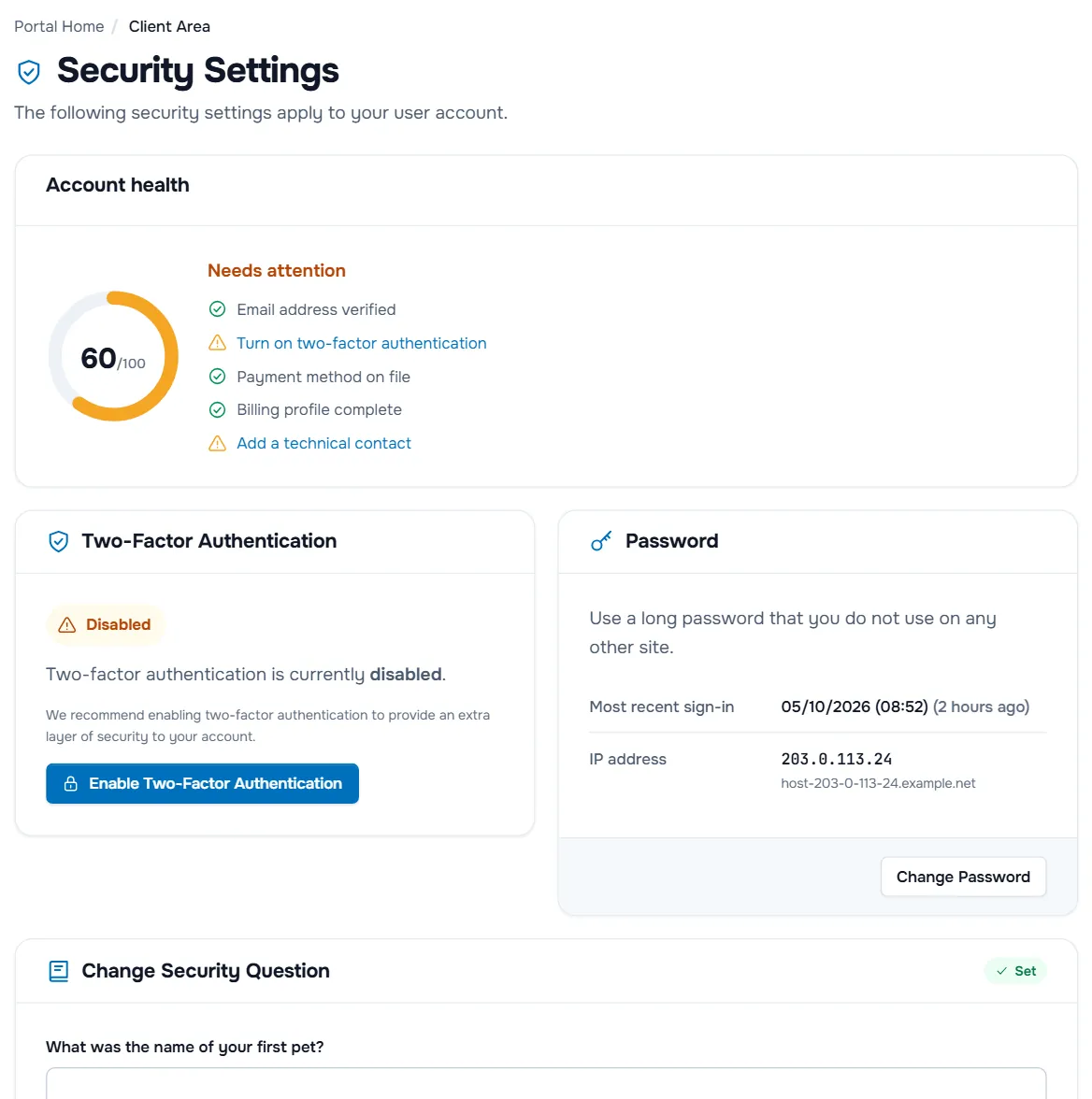
The page has these cards:
- Account health — a score and a checklist. Turn on two-factor authentication is listed until 2FA is on.
- Two-Factor Authentication — the current state, Disabled or Enabled, and the button to change it.
- Password — your Most recent sign-in with its IP address, and Change Password.
- Change Security Question — marked Set or Not set, see change your password and security question.
- Linked Accounts — shown only when signing in with another service is offered. Remove links you no longer use.
Step 2: Enable two-factor authentication
- In the Two-Factor Authentication card, select Enable Two-Factor Authentication.
- If more than one method is offered, choose Time Based Tokens ("Get codes from an app like Google Authenticator or Duo.") and select Get Started.
- Scan the QR code with your authenticator app. If you cannot scan it, type the secret key shown next to it into the app.
- Enter the six-digit code that the app shows and confirm.
If the card says "To ensure your account's security, you must configure two-factor authentication.", 2FA is required for your login and you need to complete these steps before you continue.
Step 3: Save the backup code
When setup is complete, the window says "Two-Factor Authentication is now enabled" and shows Your Backup Code is followed by the code. Save it now: "Treat the backup code the same as you would your password."
Verify: the card shows Enabled. Sign out and sign in again: after your password, you are asked for a code from the app.
Step 4: Sign in with a code
After your email address and password, the Two-Factor Authentication page says "Your second factor is required to complete login." Enter the current code from your app and select Login.
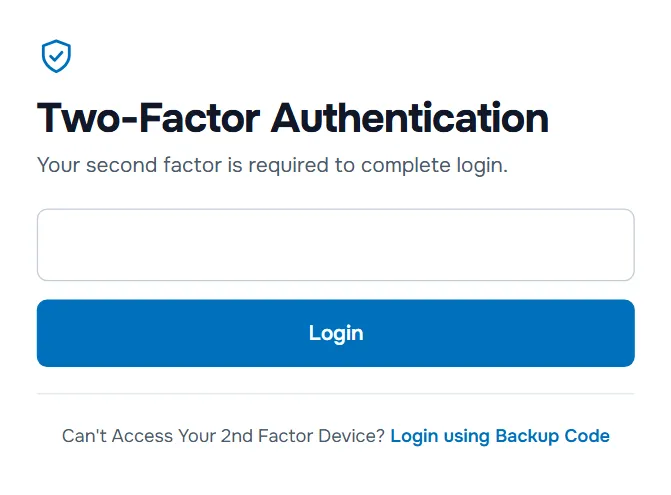
Codes change every 30 seconds, so make sure the clock on your phone is set automatically.
Step 5: Sign in with the backup code
If you cannot use the app:
- Select Can't Access Your 2nd Factor Device? Login using Backup Code.
- Type the code in Enter Your Backup Code to Login and select Login. Use your authentication device instead takes you back to the code field.
- The next page confirms "Login via Backup Code Successful. Backup Codes are valid once only. It will now be reset." Under Your New Backup Code is, select Copy, store the new code safely and select Continue.
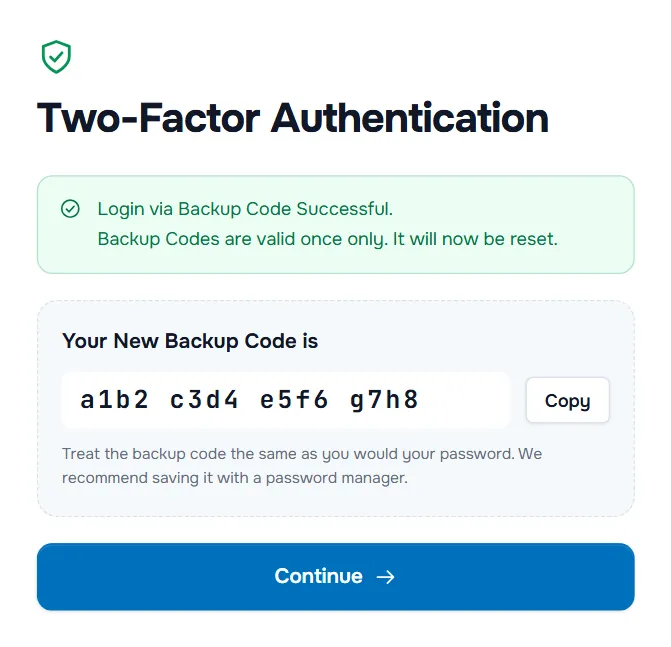
Then set up your authenticator again: on Security Settings, select Disable Two-Factor Authentication, confirm with your password and enable it again with the new phone.
Turn it off or move to a new phone
Disable Two-Factor Authentication asks you to confirm your password ("To disable Two-Factor Authentication please confirm your password in the field below."). Turn it off only to move to a new device, and enable it again right away.
If your authenticator app syncs or backs up your codes, you can restore them on the new phone instead and keep 2FA on.
Good habits
- One login per person. Invite colleagues under User Management instead of sharing your login, see users and permissions.
- Check before you click. Sign in by typing the address of our website yourself or from a bookmark. Never enter your password or codes on a page you reached from a message you did not expect.
- Keep your email account safe too. Password resets go to your email address, so protect that account with 2FA as well.
- Watch the most recent sign-in. If the time or IP address on Security Settings does not look like you, change your password at once and open a ticket.
Troubleshooting
The code is always rejected. The clock on your phone is probably wrong. Turn on automatic date and time, then try again.
I replaced my phone. Restore your codes if your app backs them up. Otherwise sign in with the backup code, then disable and enable two-factor authentication again to scan a new QR code.
I lost both my phone and the backup code. Contact us; we verify that the account is yours before we turn two-factor authentication off.
Next steps
- Change your password and security question: change your password and security question.
- Give colleagues their own access: users and permissions.
- Protect your servers too: secure a new Linux server and secure a Windows server.
Frequently asked questions
Which authenticator app should I use?
Any app that supports time-based one-time passwords (TOTP), such as the authenticator built into your password manager, Google Authenticator, Microsoft Authenticator or similar apps. The codes work offline.
What is the backup code for?
It lets you sign in if you cannot use your authenticator, for example after losing your phone. Each backup code works once; after you use it, a new one is shown. Store it in your password manager or another safe place.
I lost my phone and my backup code. How do I get back in?
Ask another user of the account to open a support ticket, or contact us through the contact form. We verify that you own the account before we turn off two-factor authentication, which takes some time by design.
Does two-factor authentication also protect my servers?
No. It protects your client area login. Servers have their own logins: protect them with SSH keys, strong passwords and a firewall.
Does it cover every client account I can open?
Yes. Two-factor authentication belongs to your login, not to one client account, so it is asked for whenever you sign in, whichever account you then open.
Should every user of my account turn it on?
Yes. Each user signs in with their own login and needs their own second factor. User Management shows 2FA on or 2FA off for every user, so the owner can check.