






DomainsRenewal, lock & contacts
Update the contact information of your domain
Keep the registrant, admin and tech contacts of your domain correct: use an account contact or enter details, save, and confirm the change by email if asked.
- Beginner
- 6 min read
- Updated
Tested on: HyperDC client area
This guide is not available in your language yet, so it is shown in English.
On this page
The registry keeps contact records for every domain: the registrant, who owns the domain, and further contacts such as Admin and Tech. These details decide who controls the domain and where important notices go. The client area warns: "It is important to keep your domain WHOIS contact information up-to-date at all times to avoid losing control of your domain." This guide shows how to update them and what happens after you save.
Before you start
- Know who the owner is. The registrant should be the person or organisation that really owns the domain, for example your company rather than an employee.
- Use real, current details. Registries expect accurate contact data; incorrect details can lead to the suspension of a domain.
- Use an email address you read. Approvals, renewal reminders and transfer confirmations go to the registrant's email address.
- Optional: to reuse the same details for several domains, add them as a contact of your account first, see contacts and email preferences.
Step 1: Open Contact Information
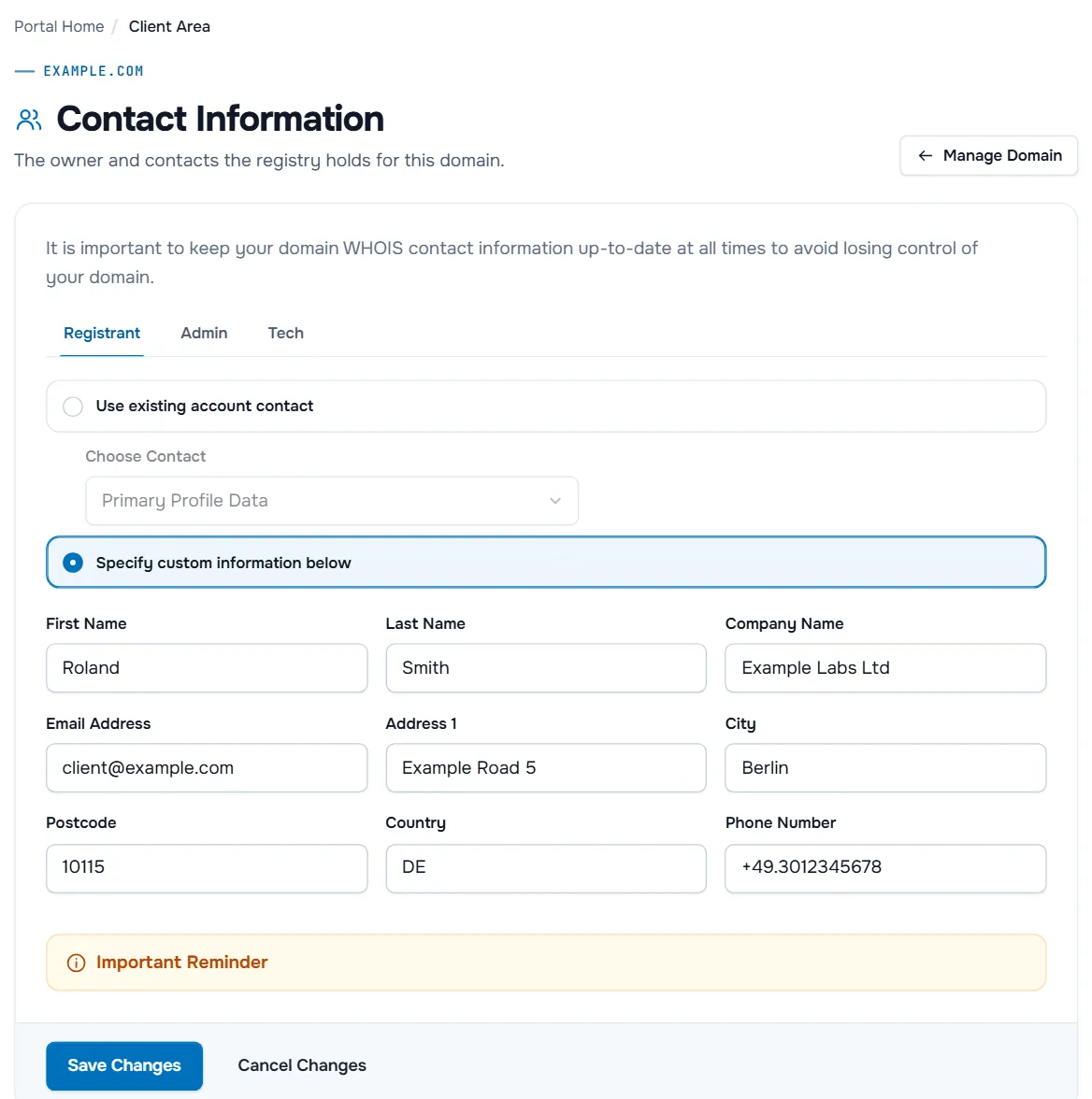
Open the domain under Domains › My Domains and select Contact Information under What would you like to do today?. The page shows "The owner and contacts the registry holds for this domain." Manage Domain takes you back.
Step 2: Choose the details for each contact
The tabs list the contact types the registry keeps for your extension, for example Registrant, Admin and Tech. In each tab, choose one option:
- Use existing account contact, then pick the contact in Choose Contact. Primary Profile Data uses the details of your client account; the other entries are the contacts of your account.
- Specify custom information below, then fill in the fields, such as First Name, Last Name, Company Name, Email Address, Address 1, City, Postcode, Country and Phone Number. The fields depend on the registry.
Enter the phone number in international format with the country code, as the existing value shows. Check every tab before you save: each contact type is saved separately.
Step 3: Save and confirm the change
- If you changed the registrant's details, open Important Reminder at the bottom. It says: "The changes you have made will enable the IRTP Transfer Lock for this domain." Where available, tick Opt-out of Transfer Lock (if available) and give a Reason for Opt-Out (Optional). Only opt out if you plan to transfer the domain soon.
- Select Save Changes. Cancel Changes discards what you entered.
What you see next:
- Changes Saved Successfully! The new details are in place.
- Contact Change Pending: "A request to change WHOIS information has triggered the contact verification process. An email has been sent to the registered domain owner to approve the changes." Open that email and approve the change.
- Verification Required: "An email has been sent to the registered domain owner. The verification must be completed to avoid suspension." This appears for new registrations; click the link in the email.
Keep the registrant email working
- Use an address on a different domain from the one you register, so you still receive mail if the domain stops working.
- Update the registrant email before you close or change that mailbox.
- Check the spam folder for approval and verification emails.
Privacy of your contact details
For generic domains, public registration data is published through RDAP, and personal details of the registrant can be redacted. Some extensions offer ID Protection. If the Addons tab of your domain lists it, its description explains that it protects your personal information and reduces the spam that reaches your inbox, and Buy Now for shows its price. Not every extension allows it.
To change the contacts of many domains at once, select them in My Domains and choose Edit Contact Information, see bulk domain management.
Troubleshooting
Saving fails with an error. A field does not meet the registry's rules. Check the country, the postcode and the phone number in international format, and fill every required field.
Contact Change Pending does not go away. The change is waiting for approval. Look for the email to the registered domain owner, including the spam folder. If the old email address no longer works, open a ticket with the domain name.
The page or a tab is missing. The domain is not Active, or the extension does not allow changes here. Open a ticket if you need to change the owner.
Next steps
- Lock the domain and manage transfers: registrar lock and EPP code.
- Make sure it renews on time: domain renewal and auto renew.
- Back to the domain overview: manage your domain.
Frequently asked questions
Who is the registrant?
The legal owner of the domain: a person or an organisation. The registrant decides about the domain and receives important notices, such as renewal reminders and transfer confirmations.
Why must I confirm a change by email?
When the owner details change, the registry process can ask the registered domain owner to approve the change by email. The page then shows Contact Change Pending until the change is approved.
What is the IRTP transfer lock?
For generic domains, ICANN's Transfer Policy can lock a domain against transfers to another registrar for 60 days after a change of the registrant's name, organisation or email. Where available, the page lets you opt out of that lock.
Are my contact details public?
For generic domains, public registration data is published through RDAP, and personal details of the registrant can be redacted. Where an extension offers ID Protection, it replaces your details in the public data.
Can I use the same contact for several domains?
Yes. Choose Use existing account contact and pick the contact, or change the contacts of many domains at once with Edit Contact Information in My Domains.