






Billing & paymentsRenewals & overdue invoices
Renewals and overdue invoices
How renewals work at HyperDC: when renewal invoices are created, the Upcoming renewals widget, automatic card payments and what happens to overdue invoices.
- Beginner
- 6 min read
- Updated
Tested on: HyperDC client area
This guide is not available in your language yet, so it is shown in English.
On this page
Services renew at the end of every billing period. Before the due date, a renewal invoice is created and emailed to you; paying it keeps the service running. This guide explains the timeline, where you see what is due and what happens when an invoice becomes overdue.
Before you start
- Keep your email address current under the account menu › Account Details, so renewal invoices and reminders reach you. Copies can also go to a colleague; see contacts and email preferences.
- If you pay by card, keep a valid card saved; see saved payment methods.
How a renewal works
- Before the due date, the renewal invoice is created and emailed to you. Its due date is the service's Next Due Date.
- Account credit, if you have some, is normally applied to the new invoice when it is created.
- Saved card: when the payment method of the invoice is a card and you have a saved card, the card can be charged automatically around the due date, where that payment method supports it.
- Otherwise you pay the invoice yourself, by card or another listed method (pay an invoice) or with crypto (pay an invoice with crypto).
- Once it is paid, the service keeps running and its next due date moves forward by one billing period.
- If it is not paid, you receive reminders by email. After the due date the invoice is overdue and the service can be suspended.
See what is due
On your dashboard, the Upcoming renewals widget lists what is due soon.
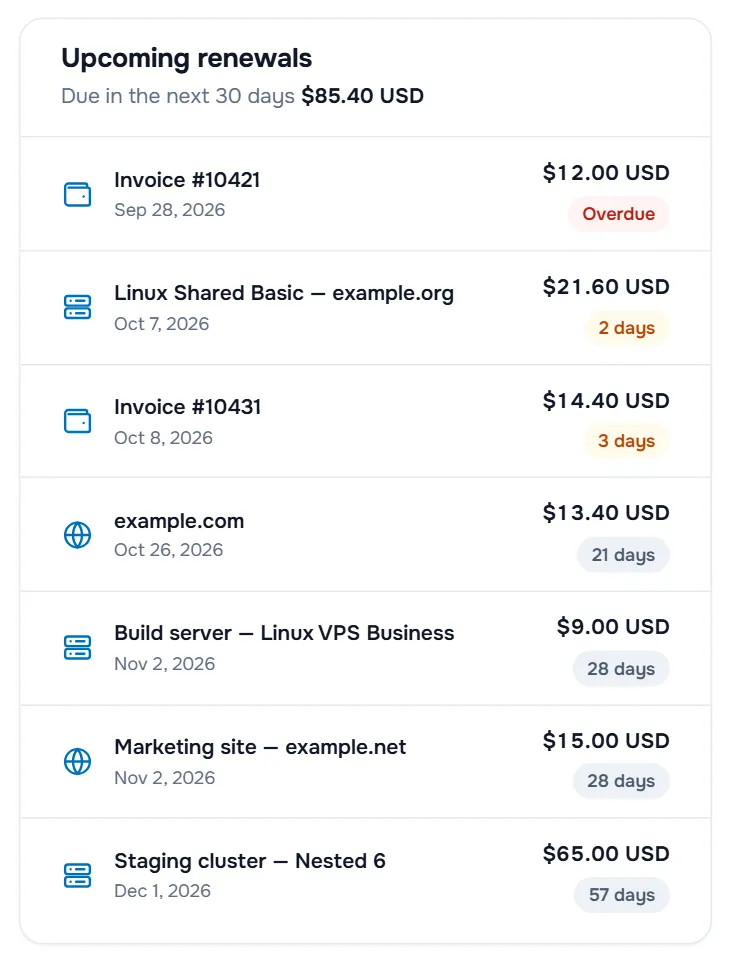
- The line Due in the next 30 days shows the total due in that time.
- Each entry is an open invoice, a service or a domain, with its date and amount. The badge shows the days left, Today or Overdue. Select an entry to open it.
- The same widget appears under the list on My Invoices. You can hide it with the close button (Hide this widget).
On each service page, the Next Due Date card shows the date, the days left and the recurring amount, with Pay Invoice while a renewal invoice is open. If it also shows Renew Service, you can renew early; see renew a service early.
When an invoice is overdue
An overdue invoice is marked in several places:
- On the service page, a red notice about the overdue invoice appears with Pay Invoice.
- In My Invoices, overdue invoices are listed first in red, with the number of days they are late, and the summary card says Pay overdue invoices now to avoid service interruption.
- The Invoices tile on your dashboard turns red and shows how many invoices are overdue.
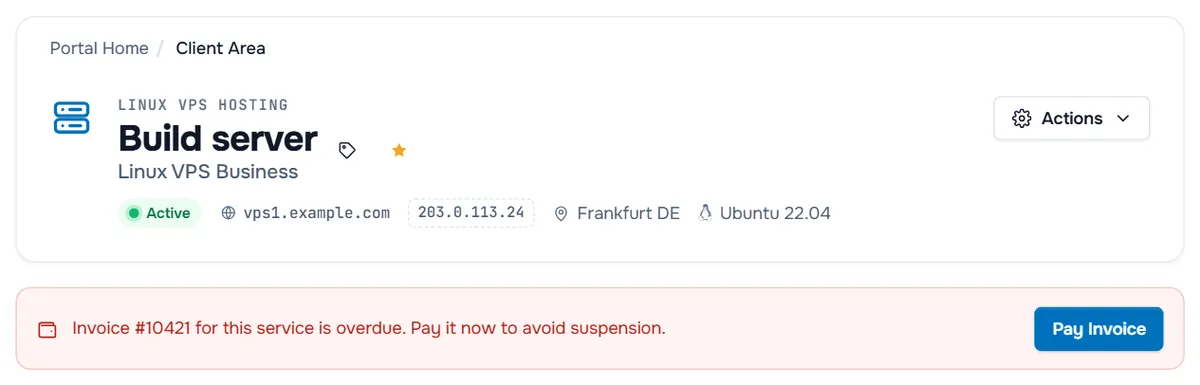
Services with overdue invoices can be suspended automatically. A suspended service shows the status Suspended under Services › My Services and is not available until the invoice is paid. How long a service can stay overdue or suspended, and the steps that follow, are set out in the terms of service.
Bring a suspended service back
- Select Pay Invoice in the notice on the service page, or open the overdue invoice from My Invoices.
- Pay the full balance with any listed method. Crypto payments are credited once the network has confirmed them.
- Wait a moment and reload My Services.
Verify: the invoice shows Paid and the service status is Active again. If the service stays suspended after the payment, open a ticket with the invoice number.
Domains renew separately
Domains have their own expiry date and renewal invoices, and each domain has its own auto-renew setting. A domain that is not renewed in time expires, and the website and email that use it stop working. See domain renewal and auto renew.
Troubleshooting
There is no renewal invoice yet. Renewal invoices are created before the due date. Check the service's Next Due Date, My Invoices and Email History in the account menu. If the due date is close and there is still no invoice, open a ticket.
The automatic card payment failed. The card may have expired or been declined. Update the card under Payment Methods and pay the invoice yourself with Pay Now.
I do not want the service to renew. Request its cancellation before the next due date; see cancel a service. For domains, turn off auto renew.
Several renewals fall due at once. Pay them together with Mass Payment if your Billing menu shows it; see mass payment.
Next steps
- Pay the renewal invoice: pay an invoice.
- Keep a card ready for renewals: saved payment methods.
- Common billing questions: billing FAQ.
Frequently asked questions
When is a renewal invoice created?
Before the service's next due date. It is emailed to you and listed under Billing › My Invoices, with the next due date as its due date.
Is my card charged automatically?
When the payment method of the renewal invoice is a card and you have a saved card, the card can be charged automatically around the due date, where that payment method supports it. Otherwise you pay the invoice yourself.
What happens if I pay late?
You receive reminders, and services with overdue invoices can be suspended. Paying the overdue invoice normally reactivates the service. The terms of service describe the further steps.
Can I renew before the invoice is created?
If the service page shows Renew Service, you can renew early from there. See the guide on renewing a service early.
Do my domains renew together with my services?
No. Each domain has its own expiry date, renewal invoices and auto-renew setting. See the guide on domain renewal and auto renew.