

Enshrouded server: order, connect, settings and admin
Set up your Enshrouded server at HyperDC: the order fields, what runs automatically, how players connect, the console, files, admin rights and common fixes.
- Beginner
- 12 min read
- Updated
On this page
This guide covers the Enshrouded server you rent from HyperDC. You manage it on its service page in the client area, under Services › My Services. There is no separate game panel. For the basics that apply to every game, see game servers: getting started.
Order your server
Choose a plan for Enshrouded and fill in the order form. These are the fields it asks for, under the names the form uses:
| Field | What to enter |
|---|---|
| Location | Pick the location closest to most of your players. Game servers are offered in 20 locations. |
| Additional Player Slots | The plan includes 4 players. Add more here, up to 16 in total. CPU, memory and disk grow with the player count. |
| Server Name | Shown in the game's server browser. 3 to 60 characters: letters, digits, spaces and - _ . ! ( ) [ ] # : , + ' *. |
| Admin Password | Joining with it gives admin rights (the Admin group in enshrouded_server.json). 8 to 32 characters: letters, digits and . _ -, not starting with -. |
| Additional RAM (GB), Additional Disk (GB), Additional CPU Cores | Optional extras on top of the plan. |
What happens automatically
- The game files are installed for you with SteamCMD (Steam app 2278520).
- The page shows the progress while the server is being set up. You can leave the page: the build carries on, and the controls appear when it is ready.
- Ports are assigned to your server and opened for you.
- Before every start the panel writes your server name and Admin Password into
enshrouded_server.json, so a change in the Settings tab reaches the game at its next start. - CPU, memory and disk follow the number of players you ordered.
Connect to your server
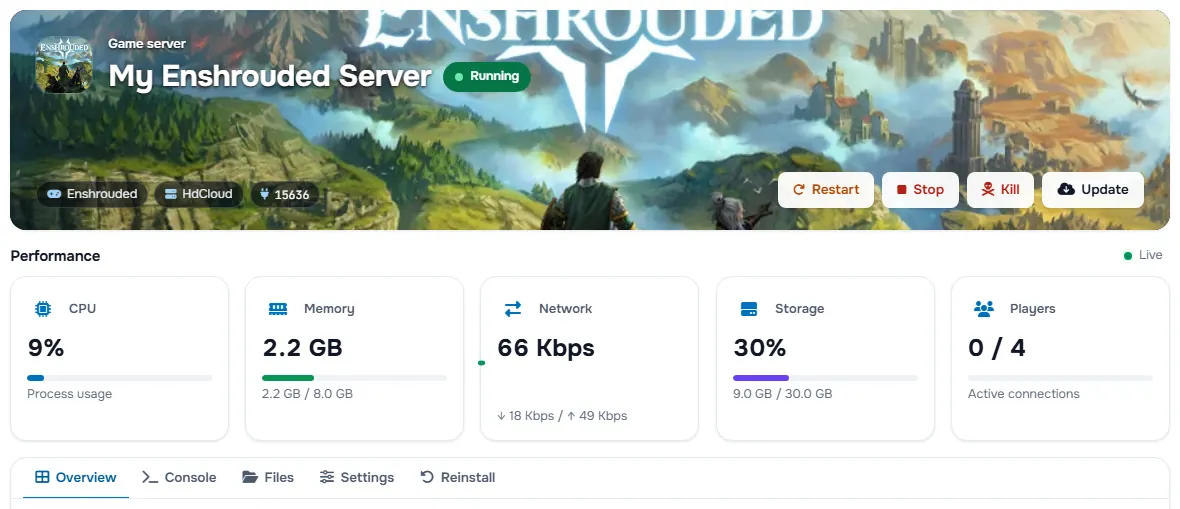
- Open Services › My Services and choose your game server.
- On the Overview tab, find the address under Connect and press the copy button.
- Choose Join in the main menu and find the server in the browser, or add it to your Steam favorites with its address and query port.
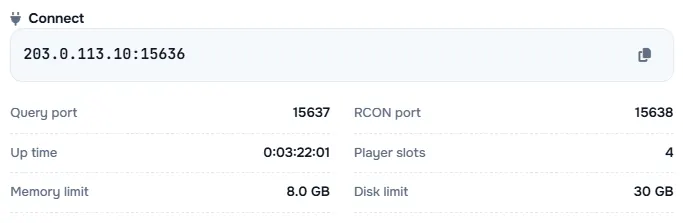
The panel assigns the ports, so your port can differ from the game's usual 15636: always use the one under Connect. The same box lists the Query port and RCON port.
Start, stop and update
The banner at the top of the service page has the Start, Restart, Stop and Kill buttons. Stop shuts the game down its own way and saves where the game can; use Kill only when the server no longer reacts.
Update stops the server if it is running, updates the game files with SteamCMD and starts it again. Players and server need the same version, so update after a game patch.
If your plan shows a Reinstall tab, it installs the game again from scratch. Every server file is deleted and this cannot be undone, so you must type REINSTALL to confirm.
Use the console
The Console tab shows what the server prints while it runs. Type a command in the Type a command… box and press Enter or the send button. Commands are the game's own.
Change the settings
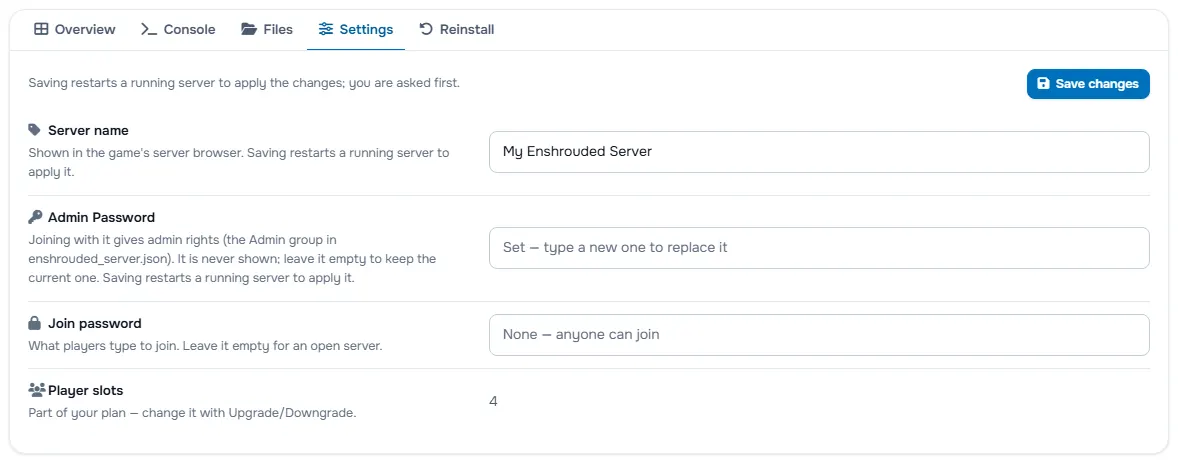
The Settings tab lists what you can change for this game, starting with Server name, Admin Password, Join password, Player slots. The player slots are part of your plan: change them with Upgrade/Downgrade.
Press Save changes. Saving restarts a running server to apply the changes, and you are asked first. A stopped server stays stopped and uses the new values at its next start.
Edit the game's files
The Files tab shows the server folder. You can edit text files and save them, upload files of up to 100 MB each, make folders and files, and right-click anything to rename, delete, compress, extract or download it.
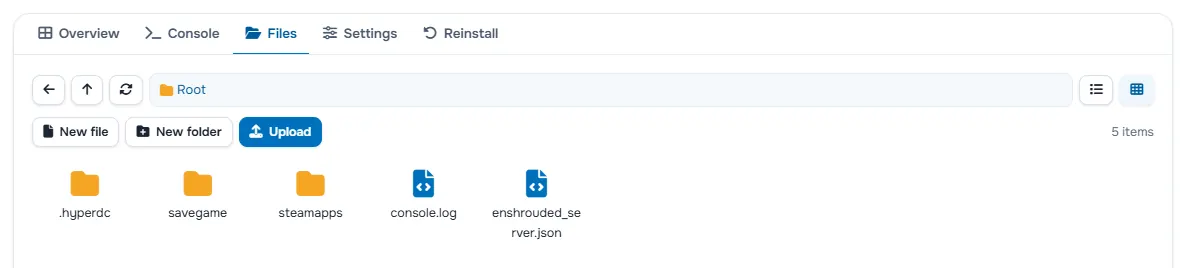
The game's own settings files:
| File | Settings it holds |
|---|---|
enshrouded_server.json | name, gamePort, slotCount, password, saveDirectory, logDirectory |
To change a file by hand:
- Press Stop. Many games rewrite their settings files when they shut down, so an edit made while the server runs can be lost.
- Open the file in the Files tab, change it and save it.
- Press Start.
Keep a copy of your world
Game servers have no automatic backups, so keep your own copy before big changes.
The world is in savegame.
- Press Stop, so the world is saved completely.
- In the Files tab, right-click the folder and choose Compress.
- Right-click the archive and choose Download.
To bring a world back, stop the server, upload the archive, right-click it, choose Extract and start the server. Uploads can be up to 100 MB per file.
Become an admin
The Admin Password from your order does this: Joining with it gives admin rights (the Admin group in enshrouded_server.json).
Good to know
enshrouded_server.jsonholdsuserGroups, each with its own password and rights. The Admin group gets your order's password, and the Guest group the join password.
Upgrade or switch game
Open the service page and choose Actions › Upgrade/Downgrade for another plan or game, or Upgrade/Downgrade Options for players, RAM, disk and CPU. You pay or receive the prorated difference through the normal upgrade invoice.
- Same game: your files stay. A running server restarts once to apply the change.
- Another game: the new game is installed first. Then the old server and all its files are deleted and no copy is kept. The address stays, the ports change, and the server name and password move to the new server. You must tick the confirmation box before checkout, so download your world first.
See upgrade or downgrade a service for the steps.
Common problems
Players cannot find the server in the list. Check that the banner shows the server as running and give the list a few minutes. Where the game allows a direct connection, use the address from the Overview tab.
Players are told the versions differ. Press Update to bring the server to the current version, and ask players to update their game.
A change in a settings file is gone after a restart. Stop the server before you edit the file, because many games rewrite it when they shut down. The server name and password always come from the Settings tab.
The server does not start after a change. Read the last lines in the Console tab, then undo the last file or mod you changed.
The server lags at busy times. Look at the CPU and Memory cards under Performance. If they are full, add Additional RAM (GB) or Additional CPU Cores with Upgrade/Downgrade Options.
The order form refuses the password. Use 8 to 32 characters: letters, digits and . _ -, not starting with -.
Next steps
- Basics for every game: game servers: getting started.
- Lower latency for your players: choose a data center location.
Frequently asked questions
What does the order form ask for a Enshrouded server?
Location, Server Name, Admin Password, and the optional extras for players, RAM, disk and CPU. The fields use the names in this guide.
How do players join my Enshrouded server?
Choose Join in the main menu and find the server in the browser, or add it to your Steam favorites with its address and query port. Use the address and port from the Overview tab.
How do I become an admin on Enshrouded?
The Admin Password from your order does this: Joining with it gives admin rights (the Admin group in enshrouded_server.json).
Are there automatic backups?
No. To keep a copy, compress the folder in the Files tab and download it.