






Transfer a domain to HyperDC
Move a domain from another registrar to HyperDC: unlock it, get the EPP code, start the transfer on our website, approve it and keep your DNS working.
- Beginner
- 8 min read
- Updated
Tested on: HyperDC client area
This guide is not available in your language yet, so it is shown in English.
On this page
A transfer moves the registration of a domain you already own from another registrar to HyperDC. Your website and email keep working, because the transfer changes who manages the registration, not where the domain points. This guide shows what to prepare at your current registrar, how to order the transfer on our website and what to check afterwards.
Before you start
Check these points at your current registrar first. Most failed transfers come from one of them.
- The domain is active. An expired domain, or one in a redemption period, must be renewed or restored at the current registrar first.
- The domain is unlocked. Turn off the transfer lock (also called registrar lock or theft protection).
- You have the authorization code. Request the EPP or auth code. Copy it exactly: it is case-sensitive.
- The registrant email works. Confirmation emails about the transfer go to the registrant's email address. If a privacy service hides it, ask the current registrar how you receive those emails, or switch the privacy service off for the transfer.
- No recent change blocks it. Under ICANN's Transfer Policy, a generic domain usually cannot move to another registrar within 60 days of its registration or of a previous transfer. A change of the registrant's name, organisation or email can start a 60-day lock too. Country-code domains follow their own rules.
- You know where the DNS is hosted. Look up the current nameservers:
dig NS example.com +shortOn Windows use Resolve-DnsName example.com -Type NS. If the answer shows nameservers of your current registrar, copy all records (website, www, MX, SPF, DKIM, DMARC, verifications) to the DNS host you will use after the transfer, such as your hosting plan or Cloudflare. A registrar's DNS service usually ends when the domain leaves it.
Step 1: Open the transfer form
Open domain transfer on our website. In the client area you can also use Domains › Transfer Domains to Us, or Transfer Domain at the top of Domains › My Domains. The page Transfer your domain to us opens. Its lead says "Transfer now to extend your domain by 1 year!*", and the note below the form explains that certain extensions and recently renewed domains are excluded.
Step 2: Enter the domain and the authorization code
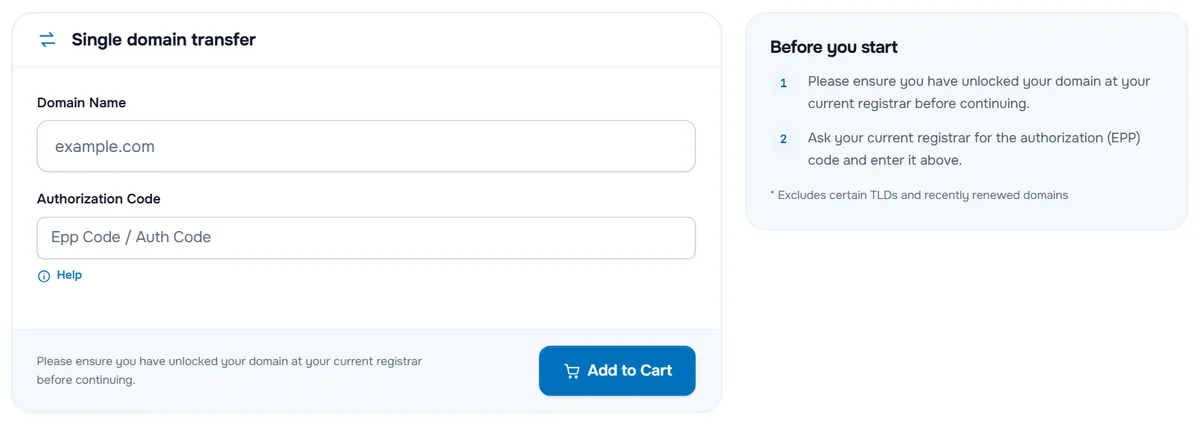
- In Domain Name, enter the domain without
www, for exampleexample.com. - In Authorization Code, paste the code from your current registrar. Help explains what the code is.
- Select Add to Cart.
If the domain can be transferred, the order form opens Domains Configuration. If not, the form tells you why: the Authorization Code field is marked Required when the extension needs a code, or a notice under the fields explains that the domain cannot be transferred.
Step 3: Check the configuration and the nameservers
On Domains Configuration, the card of the domain shows the EPP Code field with the code you entered; correct it here if needed.
The Nameservers section appears when the domain has no hosting in the same order. Enter the nameservers the domain uses today, the ones from the dig command above, so nothing changes during the transfer. Only switch to new nameservers once the transfer is complete and the new DNS host holds every record. See change domain nameservers.
Select Continue, check the cart and select Checkout.
Step 4: Complete the order and pay
On the checkout page, check Domain Registrant Information. Use Default Contact (Details Above) uses your account details as the registrant; choose another contact if the domain belongs to someone else. Choose a payment method, accept the terms of service and select Complete Order.
The transfer request is sent after the invoice is paid, see pay an invoice.
Verify: the domain appears under Domains › My Domains with the status Pending Transfer.
Step 5: Approve the transfer
While the transfer is pending:
- Watch the registrant mailbox. Your current registrar may email you to confirm the transfer, or to let you approve it early. Follow the instructions in that email.
- Do not change the nameservers, the contact details or the lock at your current registrar until the transfer is complete.
- Do not cancel the invoice or the order.
When the transfer is complete, the status changes to Active.
Step 6: Check the domain after the transfer
Open the domain under Domains › My Domains and check:
- Next Due Date shows when the next renewal is due. Turn on auto renew: domain renewal and auto renew.
- Nameservers lists the nameservers you expect.
- Registrar Lock is enabled: registrar lock and EPP code.
- Contact Information is correct: domain contact information.
Verify: for a generic domain, the registration data at lookup.icann.org shows the new registrar and the expiry date.
Troubleshooting
The form says the domain is not eligible, or the code is wrong. Check that the domain is unlocked and active at the current registrar, request a new code and paste it without spaces. If the domain was registered or transferred recently, wait until the 60-day period has passed.
The status stays Pending Transfer. Look for an email from your current registrar in the registrant mailbox, including the spam folder, and approve the transfer. If nothing arrives, ask the current registrar whether the transfer is waiting for them, then open a ticket with the domain name.
The transfer was rejected. Common reasons are a wrong or expired code, a lock that was turned on again, or a lock after a recent registrant change. Fix the cause and open a ticket so we can start the transfer again.
The website stopped working after the transfer. The DNS was hosted by the previous registrar. Set the nameservers of your new DNS host and add the records there, see DNS not resolving.
Next steps
- Explore the domain page: manage your domain.
- Point the domain at your HyperDC service: point a domain to your server.
- Prefer a new name instead? Register a domain.
Frequently asked questions
Will my website or email stop during the transfer?
No, as long as the nameservers and DNS records stay the same. A transfer moves the registration, not the DNS. The exception is DNS hosted by your current registrar: copy those records to another DNS host before the transfer.
Does a transfer add time to my domain?
Our transfer page says Transfer now to extend your domain by 1 year, with the note that certain extensions and recently renewed domains are excluded. The cart shows what the transfer includes for your extension.
Where do I get the EPP code?
From your current registrar, in its control panel or from its support. Our order form calls it Authorization Code; it is also known as EPP code or auth code and works like a password for the domain.
Why is my domain not eligible for transfer?
Common reasons: it was registered or transferred within the last 60 days, it is still locked, it has expired, or the code is wrong. Fix the cause at your current registrar and start the transfer again.
How long does a transfer take?
It depends on the extension and on your current registrar. For generic domains, ICANN's Transfer Policy gives the current registrar five days to approve or reject a transfer; many complete sooner when you approve the request. Country-code domains follow their own rules.