






Register a domain name
Search for a domain on our website, compare first-year, transfer and renewal prices, set nameservers and the registrant, then complete your order.
- Beginner
- 7 min read
- Updated
Tested on: HyperDC client area
This guide is not available in your language yet, so it is shown in English.
On this page
- Before you start
- Step 1: Search for the name
- Step 2: Read the results
- Step 3: Compare prices by extension
- Step 4: Add the domain to the cart
- Step 5: Configure the domain
- Step 6: Choose the period and check out
- Step 7: Enter the registrant and complete the order
- Step 8: Pay and confirm the registrant email
- Troubleshooting
- Next steps
A domain is the address of your website and your email. Registering one on our website takes a few minutes: you search for the name, add it to the cart, decide where it points and who owns it, and pay the invoice. This guide follows the order form step by step and tells you what to check on the way.
Before you start
- Have a few names ready. Short, easy to spell and free of hyphens is best. If your first choice is taken, a second extension or a variant often is not.
- Know where the domain will point. A hosting plan or server with us, another provider, or nowhere yet. You can change this later.
- Decide who the registrant is. The registrant is the legal owner of the domain: you, your company or a client. Important notices go to the registrant's email address.
- Read the terms that apply to domains: domain registration agreement.
Step 1: Search for the name
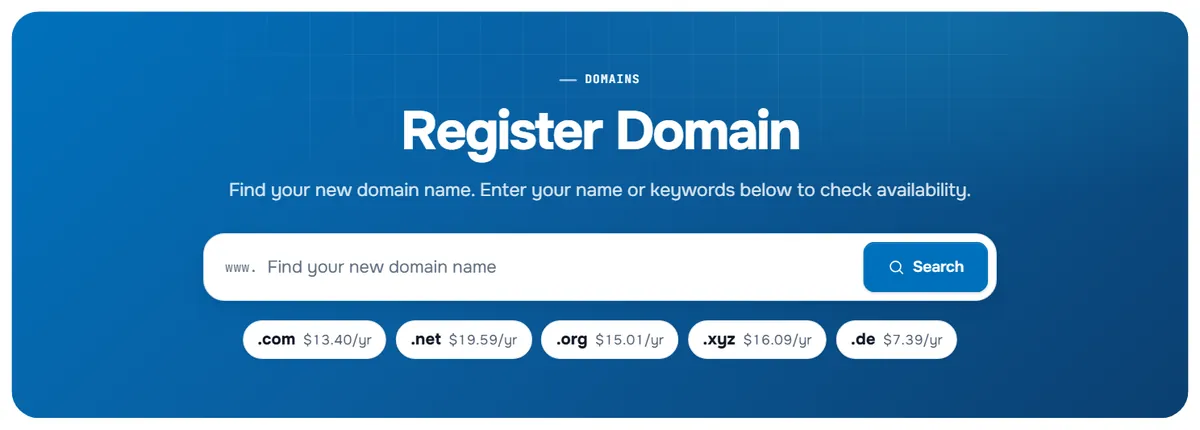
Open domain registration on our website, or in the client area choose Domains › Register a New Domain. The Register Domain page opens.
Type the name you want into the search box, with or without an extension, and select Search. The row of popular extensions below the box shows each extension with its first-year price. Type a name first and then select an extension in that row to search for the name with that extension.
Step 2: Read the results
The results appear below the search box:
- Exact Match shows the name you typed. If it is free, the result says the domain is available and shows its price with Add to Cart. If someone has already registered it, the result says it is unavailable. If the name is yours at another registrar, transfer it to us instead.
- More extensions of the same name follow, each with its price and Add, or Unavailable when they are taken.
- Suggested Domains lists alternatives. Select Give me more suggestions! for more. As the page notes, suggestions may not always be available: availability is checked again in real time when you add a name to the cart.
- For some names the result shows Contact Us or Contact Support to Purchase instead of a price. To order such a name, open a ticket with the name you want.
- For a name with letters outside a to z, such as ü or ş, the page asks you to Choose IDN Language: select the language of the name before you add it.
Step 3: Compare prices by extension
Further down, Browse extensions by category lists every extension we offer. Use the category buttons above the table or the Search extensions field to narrow the list.
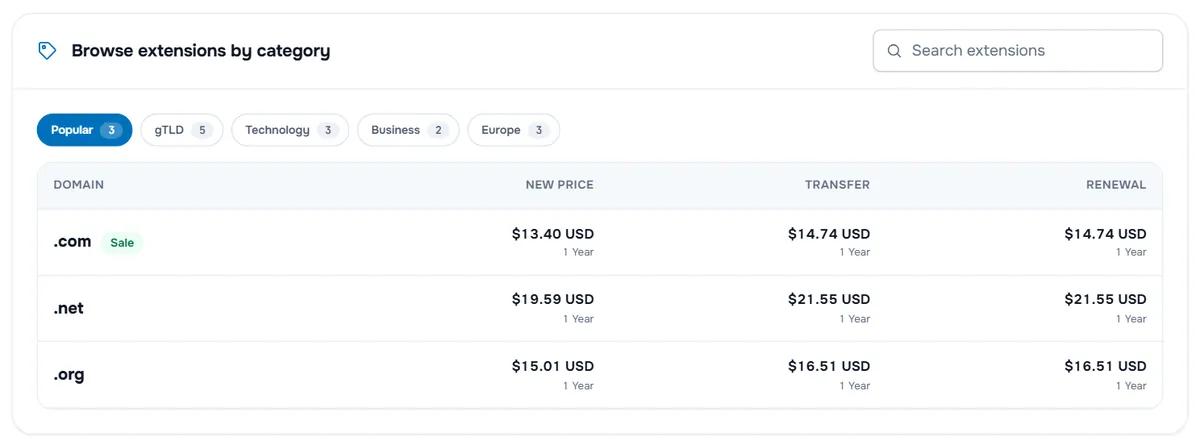
- New Price is the price of a new registration for the period shown under it.
- Transfer is the price of moving a domain with that extension to us.
- Renewal is what each further period costs. Labels such as Sale, New or Hot mark extensions with an offer or that are new.
The same prices are on our domain prices page.
Step 4: Add the domain to the cart
Select Add to Cart next to the name. The button changes to Checkout. Add more names if you like, then select Checkout. The order form opens Domains Configuration.
Step 5: Configure the domain
Domains Configuration shows one card for each domain in your cart.
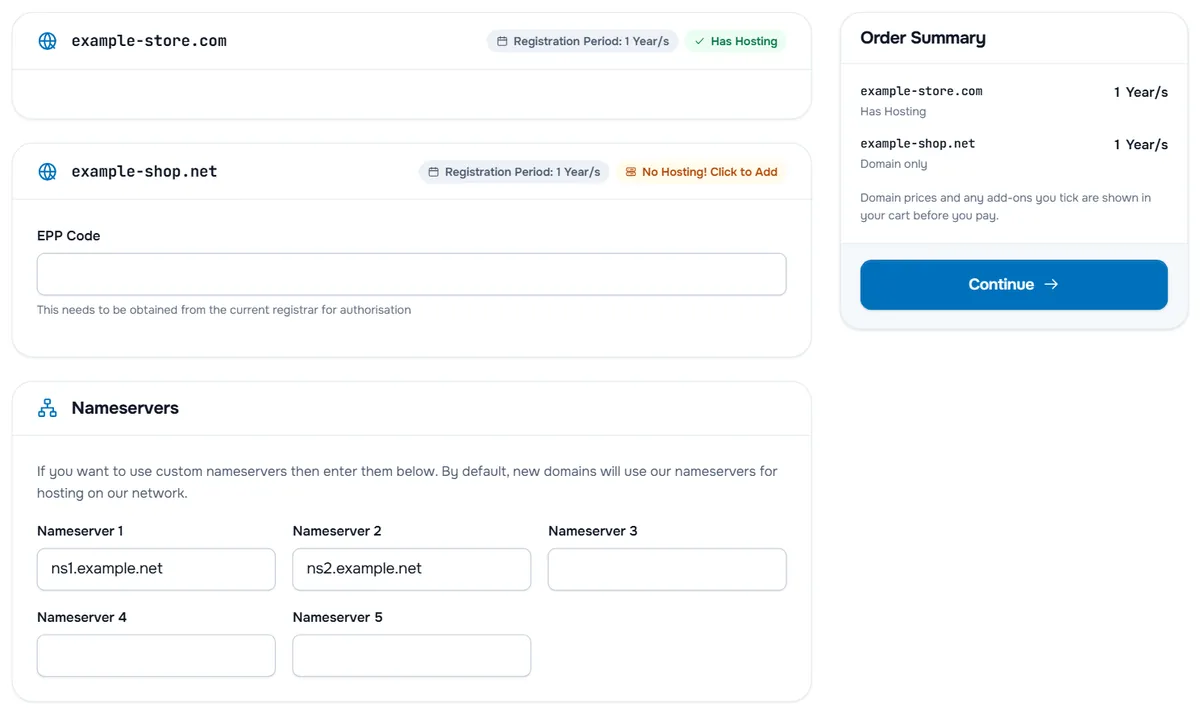
- Registration Period shows the period currently in the cart; you can change it in the next step.
- Has Hosting means a hosting plan in the same order uses the domain. No Hosting! Click to Add means the domain is ordered on its own; select it if you want to add a plan.
- EPP Code appears only for a domain you transfer in the same order.
- Some extensions ask for extra details the registry requires, for example about the registrant's company or country. Fill them in as they apply to the owner.
- If the extension offers add-ons such as DNS Management, ID Protection or Email Forwarding, they appear as options with their price. They are not available for every extension.
The Nameservers section appears when at least one domain has no hosting in the order. The page explains: "If you want to use custom nameservers then enter them below. By default, new domains will use our nameservers for hosting on our network." Keep the values that are filled in, or enter the nameservers of the DNS host you will use in Nameserver 1 and Nameserver 2 (up to five).
Check the Order Summary and select Continue.
Step 6: Choose the period and check out
The cart opens on Review & Checkout. Each domain is listed as Domain Registration. When the extension offers several periods, a menu next to the price lists them, for example "1 Year @" followed by the price: choose how many years you want. Renewal shows the price of each later year. Add a promotional code if you have one, then select Checkout. Details: review your cart.
Step 7: Enter the registrant and complete the order
On the checkout page, sign in or create your account, see checkout step by step. Then look at Domain Registrant Information:
- Use Default Contact (Details Above) registers the domain with the account details you entered on the same page.
- To register the domain in the name of another person or company, choose one of your account contacts, or Add New Contact… and enter the owner's details.
Choose a payment method, accept the terms of service and select Complete Order.
Verify: the confirmation page shows your order number, and an invoice for the order is created.
Step 8: Pay and confirm the registrant email
We register the domain once the invoice is paid, see pay an invoice. The domain then appears under Domains › My Domains, with the status Active when the registration is complete.
For many extensions, the registrant receives an email asking to confirm the email address. Click the link in it as soon as it arrives.
Troubleshooting
The search says "Invalid domain name provided". A domain must begin with a letter or a number and stay within the length the extension allows. Remove spaces and special characters and try again.
The name was available, but it is taken when I add it. Availability is checked again at the moment you add a name to the cart. Someone may have registered it in the meantime; pick another name or extension.
The domain stays Pending. Registration starts after payment. Check Billing › My Invoices for an unpaid invoice. If the invoice is paid and nothing changes, open a ticket with the domain name.
The new domain does not open my website. It has no records at the DNS host yet, or the registrant email is not verified. See point a domain to your server and DNS not resolving.
Next steps
- Point the domain to your server: point a domain to your server.
- Find every setting of your new domain: manage your domain.
- Never lose it by accident: domain renewal and auto renew.
- Learn the records you will set: DNS basics for a new domain.
Frequently asked questions
Which extension should I choose?
The one your visitors expect: often a generic extension such as .com, or the country code of your market. The price table under Browse extensions by category lists every extension we offer with its first-year, transfer and renewal price.
Why is the renewal price different from the first-year price?
Some extensions have a first-year offer, marked Sale in the price table. The Renewal column shows what the following years cost, so compare it before you decide.
For how many years can I register a domain?
That depends on the extension. In the cart, the period menu next to the domain lists the periods the extension offers with their prices. You can add more years later with Renew Domain.
Which nameservers should I enter?
With a hosting plan in the same order, keep the nameservers the order form fills in. For a domain on its own, keep our default nameservers or enter those of the DNS host you will use, such as your hosting plan or Cloudflare. You can change them later at any time.
Do I have to confirm anything after registering?
For many extensions, yes. The registrant receives an email asking to confirm the email address. Click the link in it promptly: the client area warns that the verification must be completed to avoid suspension.