






DomainsRenewal, lock & contacts
Manage several domains at once
Select domains in My Domains and change their nameservers, contacts, auto renew or registrar lock in one step, or renew them together in a single order.
- Beginner
- 5 min read
- Updated
Tested on: HyperDC client area
This guide is not available in your language yet, so it is shown in English.
On this page
When you manage more than a few domains, changing them one by one takes time. Domains › My Domains lets you tick several domains and apply one change to all of them: new nameservers, new contacts, auto renew, the registrar lock or a renewal. This guide shows how to select the domains, what each bulk action does and how to read the result.
Before you start
- Group domains that share a setting. A bulk change replaces the setting on every selected domain. For example, select only the domains that should use the same nameservers.
- Check the status. Domains that are not Active cannot be changed and are reported as errors.
- For nameserver changes, prepare the records at the new DNS host for every selected domain first, see change domain nameservers.
Step 1: Select the domains
- Go to Domains › My Domains.
- Narrow the list if needed with the status buttons (All, Active, Expiring Soon) or Search domains.
- Tick the checkbox at the start of each domain row. To select every domain on the page, tick With Selected.
The bulk buttons become active as soon as one domain is selected.
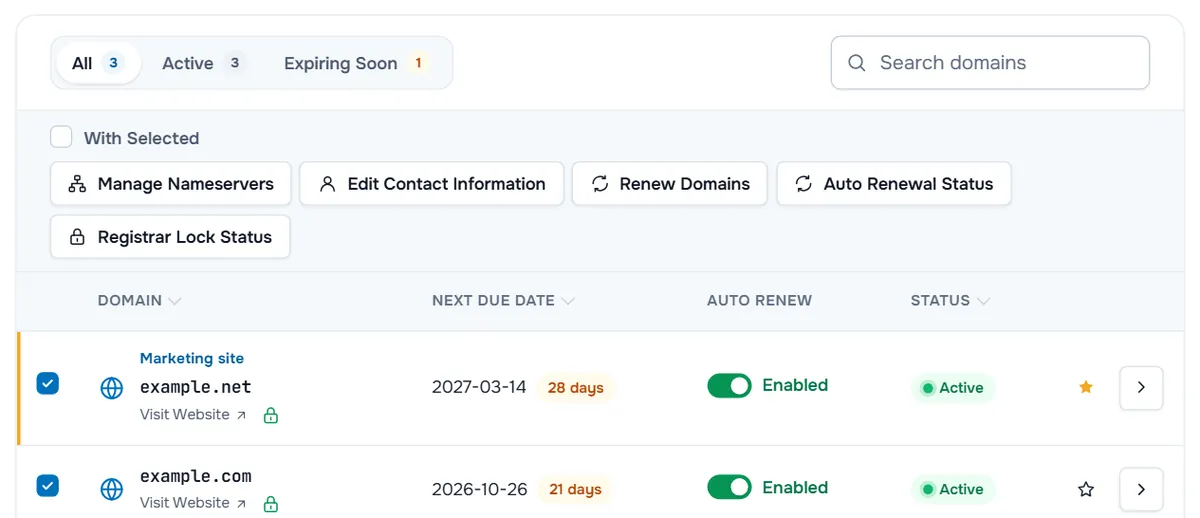
Step 2: Choose a bulk action
| Button | What it opens |
|---|---|
| Manage Nameservers | Change Nameservers for all selected domains |
| Edit Contact Information | The contact tabs, applied to all selected domains |
| Renew Domains | The Renew Domains page with the selected domains |
| Auto Renewal Status | Enable Auto Renew or Disable Auto Renew for all selected domains |
| Registrar Lock Status | Enable Registrar Lock or Disable Registrar Lock for all selected domains |
Each bulk page lists the domains it affects on the right, and My Domains at the top takes you back without changing anything.
Step 3: Change the nameservers of all selected domains
After Manage Nameservers, the page Change Nameservers opens with "One change, applied to every domain you selected."
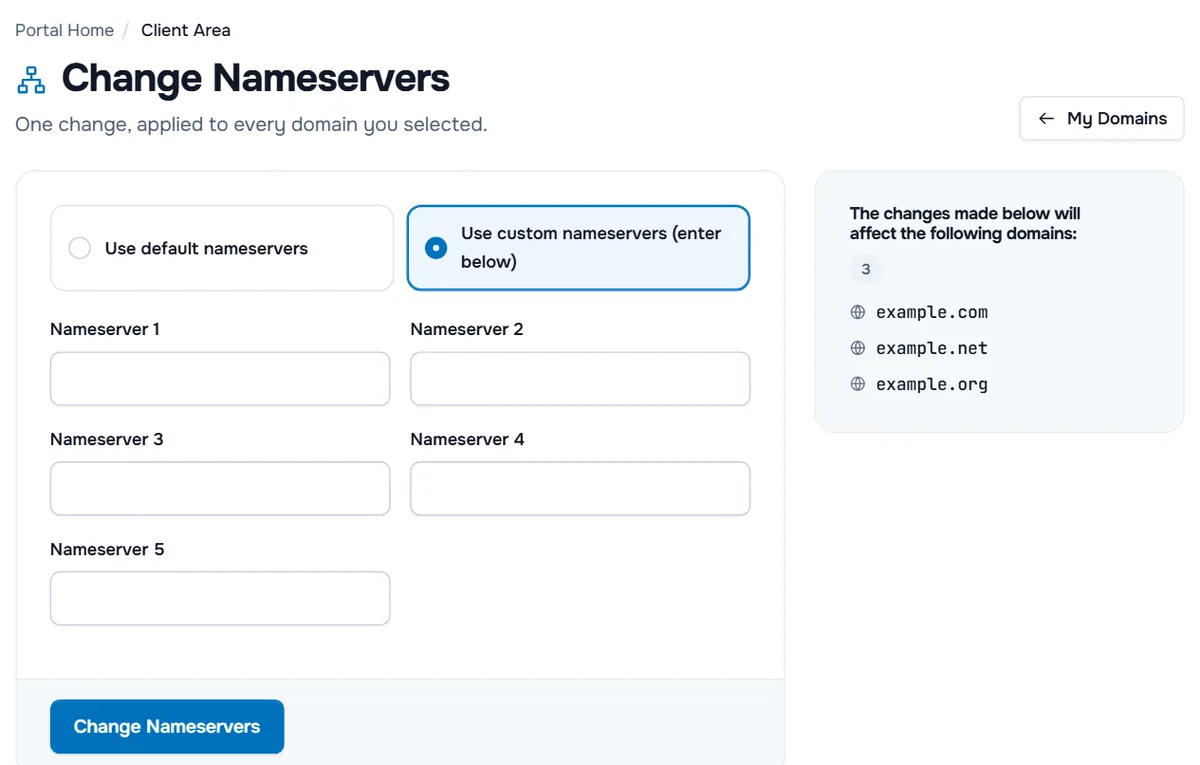
- Check the list under "The changes made below will affect the following domains:".
- Choose Use default nameservers, or Use custom nameservers (enter below) and enter at least Nameserver 1 and Nameserver 2.
- Select Change Nameservers.
Verify: the page shows Changes Saved Successfully!, or "The following errors occurred:" with one line for each domain that could not be changed. The other domains are changed. Check a few with dig NS example.com +short.
Auto renew and registrar lock in bulk
- Auto Renewal Status explains: "When enabled, we will automatically send you a renewal invoice a few weeks before your domain expires, and renew the domain should payment be successful." It adds: "We recommend keeping auto renew enabled to avoid losing your domain." Select Enable Auto Renew or Disable Auto Renew.
- Registrar Lock Status explains that the lock "secures your Domain from unauthorized transfers" and recommends keeping it enabled, except when transferring the domain away. Select Enable Registrar Lock or Disable Registrar Lock.
Both pages list the selected domains under "This change will apply to the following domains:".
Contacts and renewals in bulk
- Edit Contact Information opens the same tabs as on a single domain: for each contact type, choose Use existing account contact or Specify custom information below, then select Save Changes. A change of the registrant can start a transfer lock and an approval email, see domain contact information.
- Renew Domains opens the Renew Domains page with your selection, for example "Showing 2 of 3 domains". Choose a period for each domain, select Add to Cart, then View Cart. See domain renewal and auto renew.
Troubleshooting
The buttons do not react. No domain is selected. Tick at least one domain row.
Some domains show errors after saving. Read each line under "The following errors occurred:". Typical causes are a domain that is not active or an extension that does not support the change. Fix those domains one by one from their domain page.
Renew Domains is not in the bar. Open Domains › Renew Domains instead; it lists every domain you can renew.
Next steps
- Manage one domain in detail: manage your domain.
- Switch DNS hosts safely: change domain nameservers.
- Keep every domain locked: registrar lock and EPP code.
Frequently asked questions
Why are the bulk buttons greyed out?
They become active once at least one domain is ticked. Tick the domains in the list, or tick With Selected to select every domain on the page.
Can I select domains that use different extensions?
Yes. The change is sent for each domain separately. If an extension does not support it, that domain is listed under The following errors occurred, and the others are changed.
Will the bulk change overwrite settings I made on one domain?
Yes, for the setting you change. New nameservers or contacts replace the current ones on every selected domain, so select only the domains that should share them.
Can I renew several domains in one invoice?
Yes. Select them and choose Renew Domains: they open together on the Renew Domains page, where you add each one to the cart and check out once.