






Personalise your client area
Pin services and domains, add nicknames, choose list or grid view, hide dashboard widgets, use dark mode, change the language and use the phone layout.
- Beginner
- 5 min read
- Updated
Tested on: HyperDC client area
This guide is not available in your language yet, so it is shown in English.
On this page
A few settings make the client area fit the way you work: pin the services you open every day, give them names you recognise, arrange the dashboard and choose a theme and language. None of them changes your services; they only change what you see.
Before you start
- Sign in to the client area.
- Pins, nicknames, the list or grid view and hidden widgets are saved in your client account. The theme and a collapsed menu are remembered in your browser.
Step 1: Pin services and domains
Open Services › My Services. Each row has a star, Pin to dashboard, next to Manage.
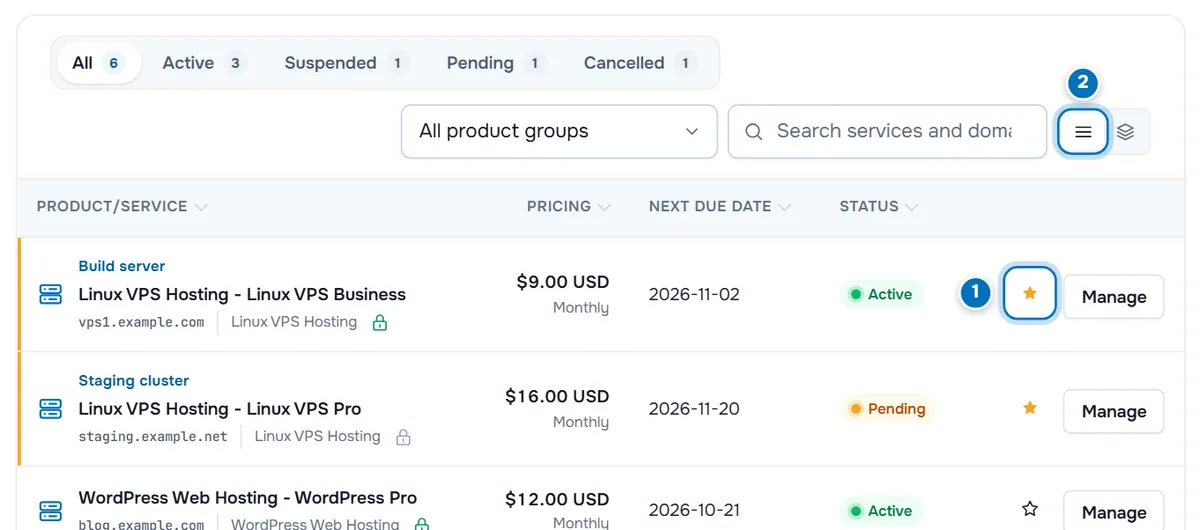
- Star — select it to pin the service; select it again to unpin it. Pinned services are listed first in My Services (after the page reloads), carry a coloured edge and appear in the Pinned widget on the dashboard. A nickname, if you gave one, shows above the product name.
- Layout switch — List view shows a table, Grid view shows cards. Your choice is remembered for your account.
The same star is on the page of each service, and on domains in Domains › My Domains and on each domain page.
Verify: the dashboard shows the service under Pinned.
Step 2: Give a service or domain a nickname
A nickname such as "Build server" or "Shop" is easier to recognise than a product name.
- Open the service from My Services (or a domain from My Domains).
- Next to the name at the top, select the tag icon, Rename this service (or Rename this domain).
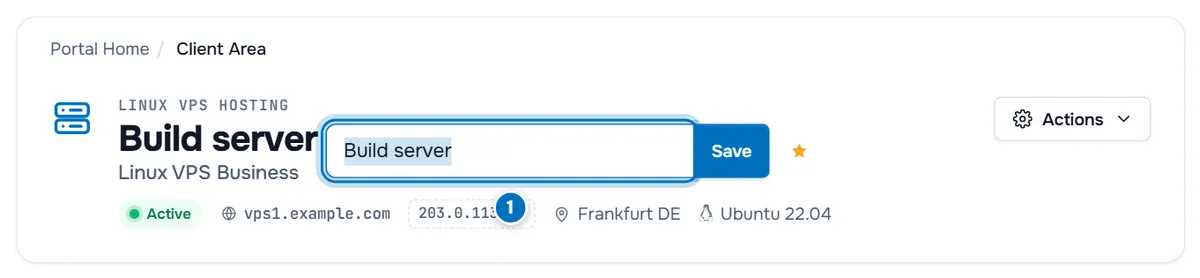
- Nickname field — type up to 60 characters and select Save. Esc cancels. Save an empty field to remove the nickname.
Verify: the nickname appears as the title of the page with the product name below it, and above the product name in My Services. You can also find the service by its nickname with Ctrl K, see search and keyboard shortcuts.
Step 3: Hide or show dashboard widgets
On the dashboard, the widgets Get set up, Account health, Spending, last 12 months, Upcoming renewals, Pinned and Quick actions each have an x button, Hide this widget. Hidden widgets move to Hidden widgets at the bottom of the dashboard. Select a widget there to show it again. See the client area tour for what each widget does.
Step 4: Switch between light and dark mode
Select the sun or moon icon in the top bar (Toggle dark mode), or choose Toggle dark mode in the search window (Ctrl K). The whole client area and our website switch at once. Your choice is remembered in this browser.
Step 5: Change the language
Select the globe icon in the top bar. The menu Choose language lists the languages of the client area; select one and the page reloads in that language.
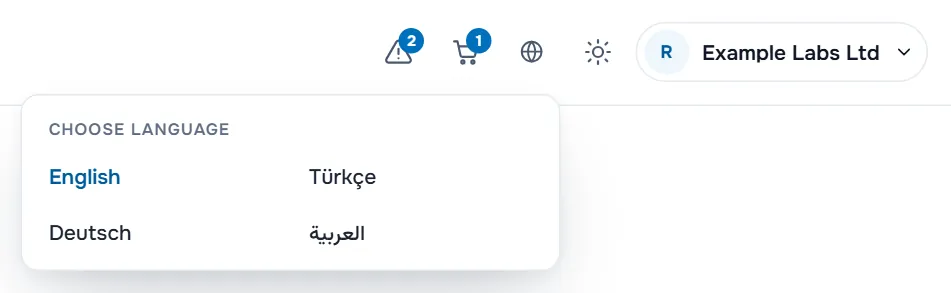
To keep a language for your account, also set Language under account menu › Account Details, in Billing Information (see account details and profile). On smaller screens the globe icon is not in the top bar; use that setting instead.
A Choose Currency list appears in the same menu only while you browse signed out. A signed-in account always shows prices in the currency of the account.
Step 6: Collapse the menu
On a wide screen, select Collapse menu at the bottom of the left menu. The menu shrinks to icons: point at an icon to see its name, and select a group icon to open its pages. Expand menu brings the full menu back. Your choice is remembered in this browser.
Use the client area on a phone
On a phone, the left menu becomes a drawer and a bar appears at the bottom of the screen.
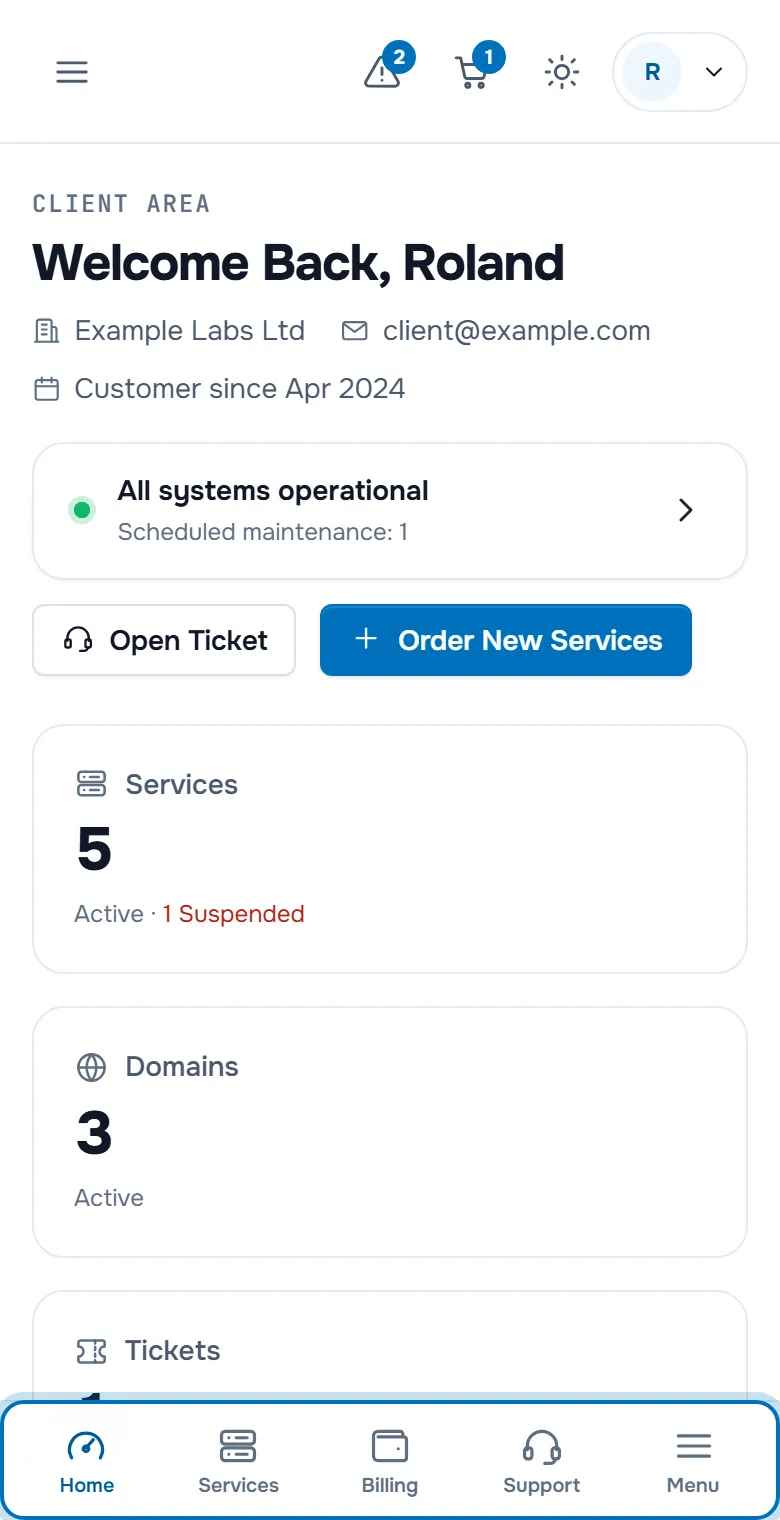
- Home opens the dashboard, Services your services, Billing your invoices and Support your tickets.
- Menu, or the menu button at the top left, opens the full left menu.
- The top bar keeps the notifications, the cart, the theme switch and your account menu.
Troubleshooting
The star does not stay selected. The pin is saved in your account; if saving fails, the star switches back. Reload the page and try again.
My nickname is not saved. A message says Could not save. Please try again. Check your connection and save again.
The pinned service is not at the top of My Services. The list puts pinned services first when it loads. Reload the page.
Next steps
- See everything on the screen: client area tour.
- Find pinned and renamed services faster: search and keyboard shortcuts.
- Manage a service: manage your services.
Frequently asked questions
Who sees my pins and nicknames?
They are saved in your client account, so you see them on every device. Other users who sign in to the same account see them too.
Does a nickname change my server or domain?
No. A nickname is only a label in the client area. The host name of your server, the domain name and your invoices stay the same.
Why does dark mode switch back on another computer?
The theme is remembered in the browser you chose it in. Choose it once on each device or browser you use.
Can I change the currency of my account?
The currency choice appears only while you browse our website signed out. Signed-in accounts use the currency of the account. If you need a different currency, ask our team in a ticket.
Can I show a widget again after hiding it?
Yes. Hidden widgets are listed under Hidden widgets at the bottom of the dashboard. Select one and the dashboard shows it again.