






View and download your invoices
Find an invoice under My Invoices, filter and search the list, understand each part of the invoice page and save it as a PDF or print it for your records.
- Beginner
- 5 min read
- Updated
Tested on: HyperDC client area
This guide is not available in your language yet, so it is shown in English.
On this page
My Invoices lists every invoice of your account, paid or not. This guide shows how to find an invoice, what each part of the invoice page means and how to keep a PDF copy for your accounting.
Before you start
- Sign in to the client area. If you were invited to someone else's account, you need the View & Pay Invoices permission.
- Invoices show the billing details saved under the account menu › Account Details. Update them before a new invoice is created if they should change.
Step 1: Open My Invoices
Go to Billing › My Invoices, or press G and then I. The page starts with a summary card, followed by the list of your invoices.
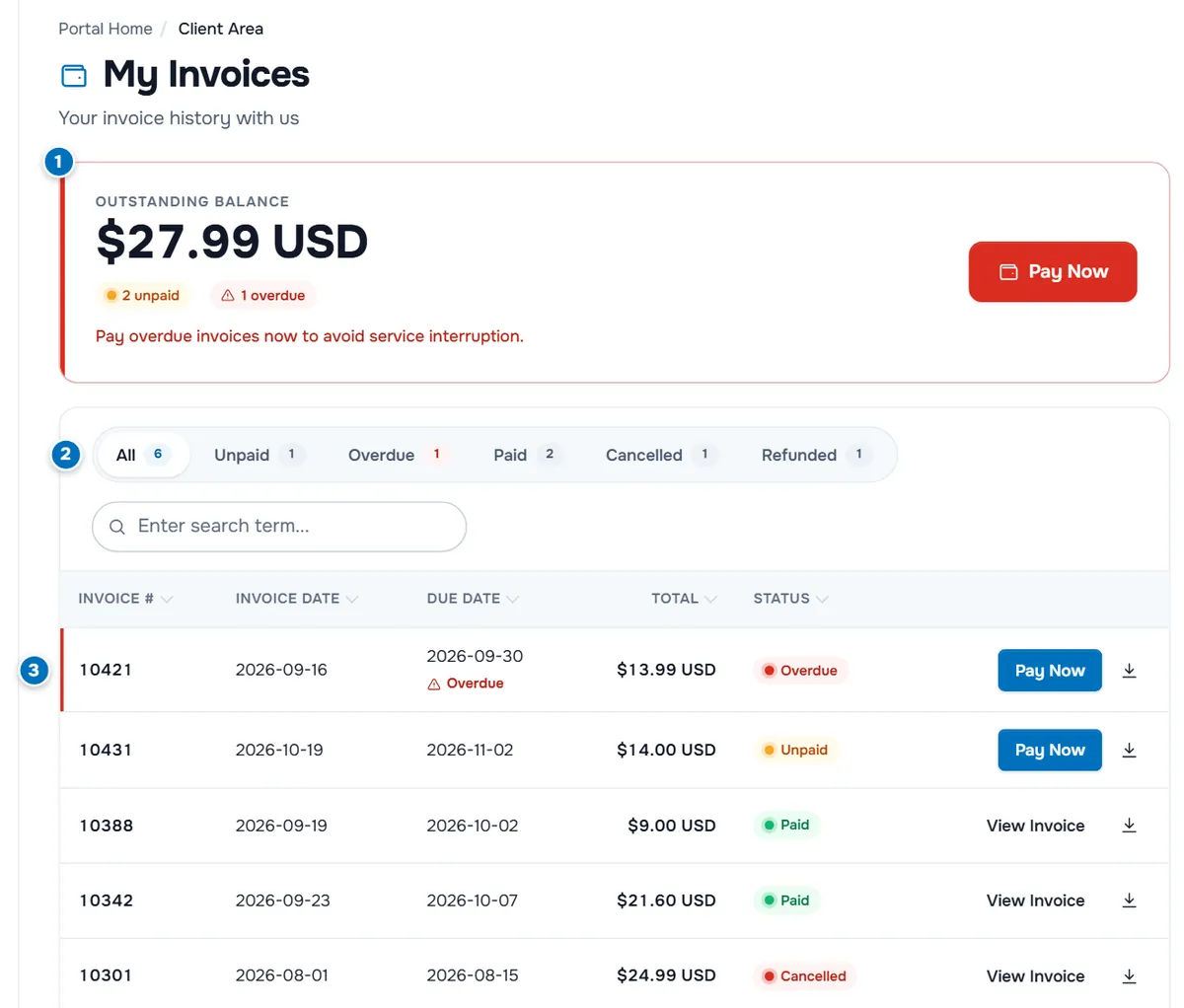
- Outstanding Balance shows the total still due, badges with the number of unpaid and overdue invoices and, when there is one, the Next due date. The button opens the first open invoice with Pay Now. With several open invoices it can read Pay All and open one combined payment, if mass payment is available for your account. When nothing is due, the card says You are all paid up.
- Status filters start with All and add one filter for each status in your list, such as Unpaid, Overdue, Paid, Cancelled and Refunded.
- Invoice rows show Invoice #, Invoice Date, Due Date, Total and Status, with Pay Now on open invoices, View Invoice on the others and a download button at the end.
Step 2: Find the invoice you need
- Search. Type an invoice number, a date or an amount in Enter search term.... The list filters as you type.
- Filter. Select a status filter, for example Paid to collect receipts for your accountant.
- Sort. Select a column heading to sort by it; select it again to reverse the order.
Open invoices also show a note under the due date, such as Due in 3 days or Due tomorrow, and overdue invoices show how many days they are late. Overdue rows are marked in red and listed first.
Verify: the invoice you are looking for is in the list with the status you expect.
Step 3: Open the invoice
Select the invoice number, Pay Now or View Invoice. The invoice opens as a document page; My Invoices at the top left takes you back to the list.
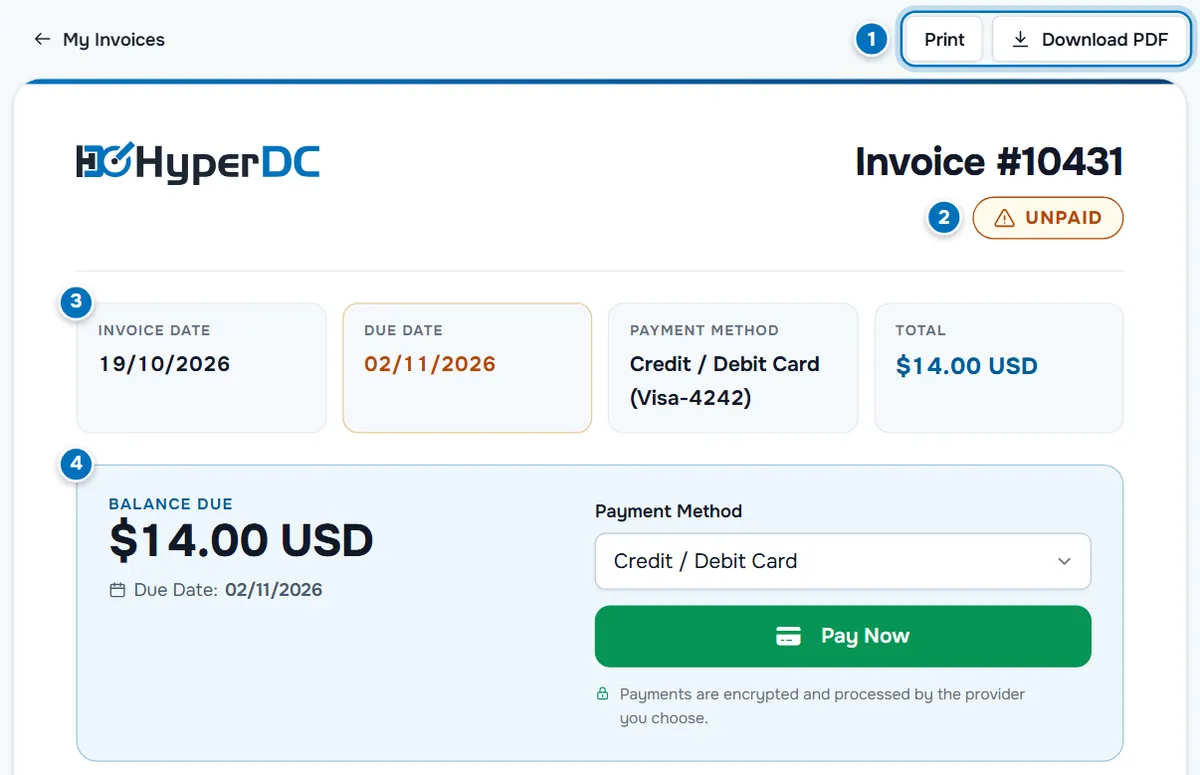
- Print and Download PDF keep a copy of the invoice.
- Status of the invoice, for example Unpaid, Paid, Cancelled, Refunded or Payment Pending.
- Invoice Date, Due Date, Payment Method and Total. The payment method is the one chosen for this invoice; a saved card shows its type and last four digits.
- Balance Due with the due date and the payment area, shown while the invoice is unpaid. How to pay: pay an invoice.
After a payment, a message at the top of the invoice confirms it, for example Thank You! Your payment was successful.
Step 4: Check the details
Scroll down for the rest of the invoice.
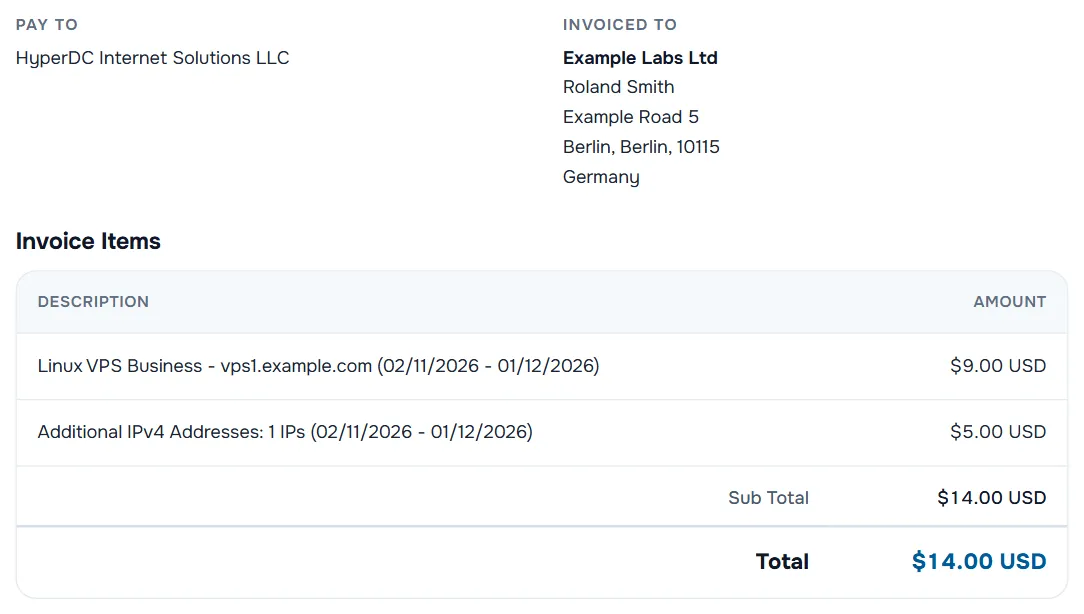
- Pay To shows our company details.
- Invoiced To shows your company, name and address, and your tax ID when one is saved.
- Invoice Items lists each item with its description and Amount. Renewals show the period they cover. Below the items are Sub Total, any taxes and Total; an asterisk marks taxed items.
- Notes appear when the invoice has a note for you.
- Ledger lists every payment, credit or refund on the invoice with Date, Type, Reference and Amount, and ends with the remaining Balance. No Related Transactions Found means nothing has been paid yet.
Step 5: Download or print
- From the list: select the download button at the end of a row to save that invoice as a PDF.
- From the invoice: select Download PDF, or Print to open your browser's print dialog. The printout leaves out the buttons and the payment area.
Troubleshooting
An invoice is missing from the list. Select All and clear the search field. If your user can open several client accounts, switch to the account the invoice belongs to; see switch between accounts.
The PDF does not download. Allow downloads from our site in your browser, then try again. As an alternative, open the invoice and use Print with the browser's option to save as PDF.
The invoice shows old company details. Update Account Details so new invoices use the right details. Open a ticket if an invoice that was already issued needs a correction.
I paid, but the invoice is still unpaid. Some payments need a confirmation from the payment provider or the network before the invoice changes to Paid. If the invoice stays unpaid after a successful payment, open a ticket with the invoice number and the payment reference.
Next steps
- Pay an open invoice: pay an invoice, or pay with crypto.
- All billing pages at a glance: billing overview.
- Common questions: billing FAQ.
Frequently asked questions
Can I download my invoices as PDF files?
Yes. Use the download button at the end of a row in Billing › My Invoices, or open the invoice and select Download PDF.
Do paid invoices stay in the client area?
Yes. Paid invoices stay in Billing › My Invoices. Select the Paid filter to list them and download them again whenever you need them.
Where can I see the payments made on an invoice?
At the bottom of the invoice, in the Ledger. It lists each payment, credit or refund with its date, type, reference and amount, and the remaining balance.
Can I change the company details on an invoice?
Update Account Details in the account menu so new invoices use the right details. If an invoice that was already issued needs a correction, open a support ticket.