






Billing & paymentsCredit & quotes
View and accept a quote
If your account has quotes, find them under My Quotes, check the items, total and validity, download the PDF and accept the quote online with our terms.
- Beginner
- 4 min read
- Updated
Tested on: HyperDC client area
This guide is not available in your language yet, so it is shown in English.
On this page
For custom setups, such as several dedicated servers or a special configuration, we can prepare a quote: an offer with items, a total and a date until which it is valid. If your account has quotes, you find them in the client area and can accept them online.
Before you start
- To ask for a quote, open a support ticket and describe what you need; see open a support ticket.
- If you were invited to someone else's account, you need the View & Accept Quotes permission.
- If your Billing menu does not show My Quotes, there are no quotes for your account yet.
Step 1: Open My Quotes
Go to Billing › My Quotes.
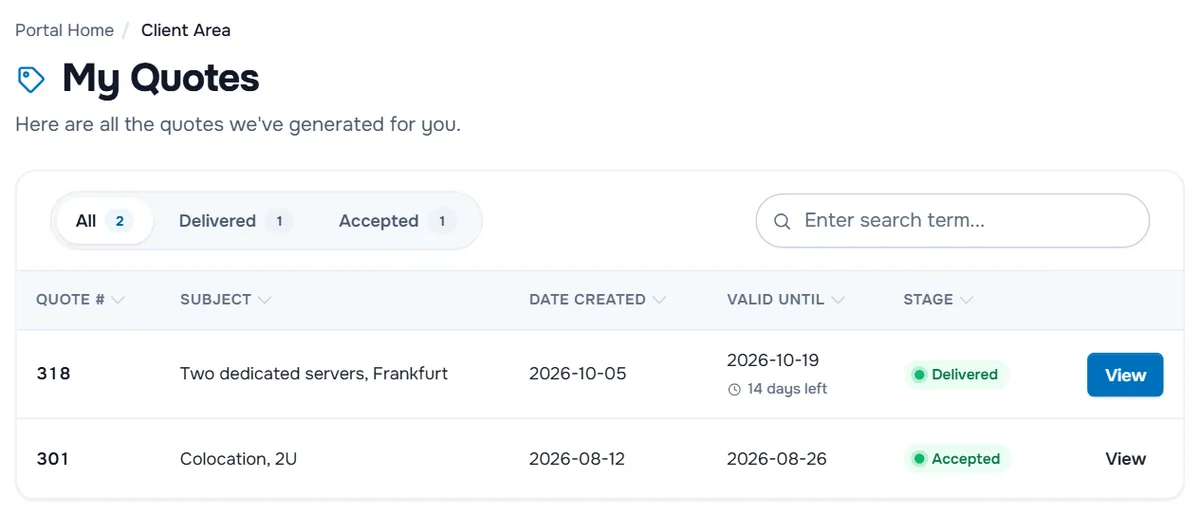
- Stage filters such as All, Delivered and Accepted narrow the list; Enter search term... searches it.
- Each row shows Quote #, Subject, Date Created, Valid Until and Stage. Quotes you can still accept show how many days are left, for example 14 days left or Last day.
- View opens the quote in a new tab; the download button next to it saves the PDF.
| Stage | What it means |
|---|---|
| Delivered | The quote was sent to you. You can accept it until Valid Until. |
| On Hold | The quote is paused, and you can still accept it. |
| Accepted | You accepted the quote. |
| Expired | The quote is no longer valid. Ask for a new one in a ticket. |
Step 2: Read the quote
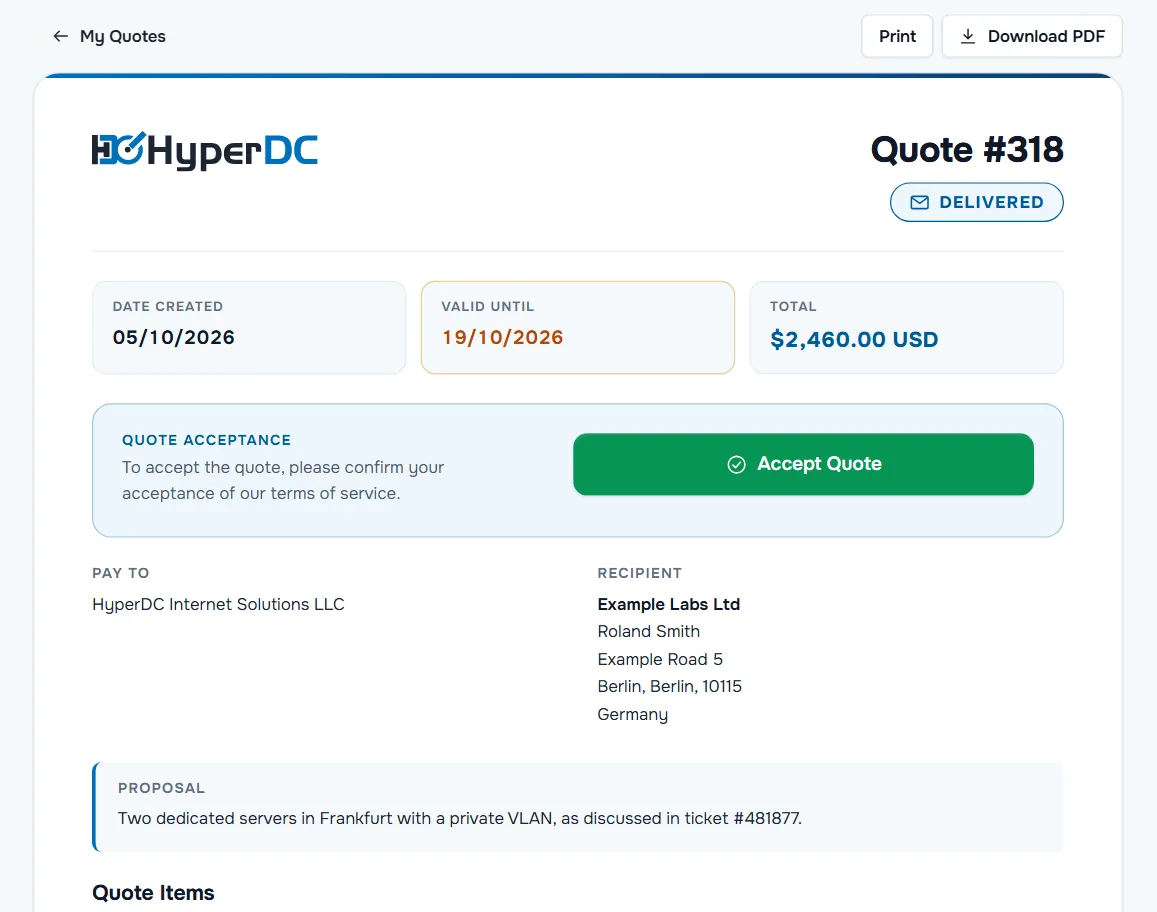
- Print and Download PDF are at the top; My Quotes takes you back to the list.
- The stamp under the quote number shows the stage. Date Created, Valid Until and Total follow.
- Quote Acceptance with Accept Quote appears while the quote is Delivered or On Hold.
- Pay To shows our company details, Recipient yours.
- Proposal describes the offer in our words.
- Quote Items lists each item with its Description, any Discount (%) and Amount, then Sub Total, taxes where they apply and Total. Notes appear when the quote has one.
Verify: the items, the total and the date in Valid Until match what you discussed with us.
Step 3: Accept the quote
- Select Accept Quote.
- In the dialog, read To accept the quote, please confirm your acceptance of our terms of service. and tick I have read and agree to the Terms of Service. The link opens the terms of service.
- Read the warning under the box: accepting a quote is considered entering into a contract, and you cannot cancel it once accepted.
- Select Accept Quote in the dialog, or Cancel to go back.
Verify: the stamp and the Stage in My Quotes change to Accepted.
Step 4: Pay the invoice
After you accept, the invoice for the quoted items follows. You find it under Billing › My Invoices and in your email. Pay it like any other invoice; see pay an invoice. If the invoice does not arrive, reply in the ticket where you asked for the quote.
Troubleshooting
My Quotes is not in my Billing menu. There are no quotes for your account yet. Ask for one in a support ticket.
There is no Accept Quote button. Only quotes in the stage Delivered or On Hold can be accepted. Accepted and expired quotes cannot; ask for a new quote if the old one expired.
"You must accept our Terms of Service". Tick the terms box in the dialog before you select Accept Quote.
I want to change something in the quote. Do not accept it. Reply in your ticket with the changes and ask for an updated quote.
Next steps
- Pay the invoice of an accepted quote: pay an invoice.
- Talk to us about a custom setup: support tickets.
- All billing pages at a glance: billing overview.
Frequently asked questions
How do I ask for a quote?
Open a support ticket and describe what you need, for example the servers, locations and billing cycle. The quote then appears under Billing › My Quotes and is emailed to you.
Is accepting a quote binding?
Yes. The acceptance dialog says that accepting a quote is considered entering into a contract and that it cannot be cancelled once accepted. Read the quote and the terms of service first.
What happens after I accept a quote?
The quote changes to Accepted. The invoice for the quoted items follows under Billing › My Invoices and by email; pay it like any other invoice.
Can I download a quote as a PDF?
Yes. Select Download PDF on the quote, or the download button next to it in My Quotes.