






Billing & paymentsPaying invoices
Pay an invoice in the client area
Pay a HyperDC invoice step by step: choose the payment method, pay with a saved or new card, confirm with your bank, apply account credit or pay in parts.
- Beginner
- 6 min read
- Updated
Tested on: HyperDC client area
This guide is not available in your language yet, so it is shown in English.
On this page
Every unpaid invoice can be paid from your client area in a few steps. This guide covers card payments and the other listed methods, the bank confirmation step, account credit and invoices paid in several parts. Paying with crypto has its own guide: pay an invoice with crypto.
Before you start
- Find the invoice under Billing › My Invoices, or use the link in the invoice email.
- Have your payment method ready. The methods offered are the ones available for your account and the invoice, for example card payments, your account credit or crypto with HyperDC Pay.
- Check your company details under the account menu › Account Details if they should appear on the invoice.
Step 1: Open the invoice
In My Invoices, select Pay Now next to the invoice. The Invoices tile on your dashboard and the Pay Invoice button on a service page lead to open invoices too.
Verify: the invoice shows the status Unpaid and the amount under Balance Due.
Step 2: Choose the payment method
The Balance Due box shows the amount still to pay and the due date.
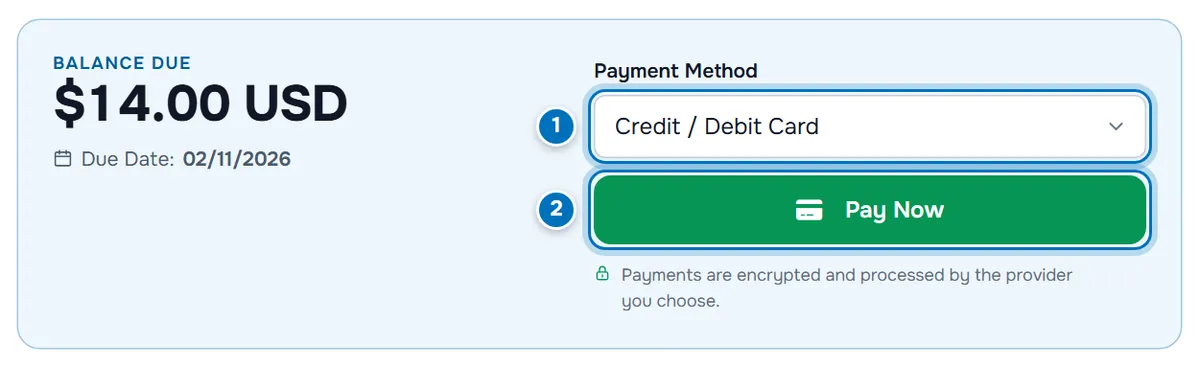
- Payment Method lists the methods available for this invoice. When you choose another method, the page reloads with the payment button of that method.
- Pay Now starts the payment with the method shown.
If you choose HyperDC Pay (Crypto), a crypto payment panel replaces the button. Continue with pay an invoice with crypto.
Step 3: Pay by card
For card payments, Pay Now opens the Make Payment page for the invoice.
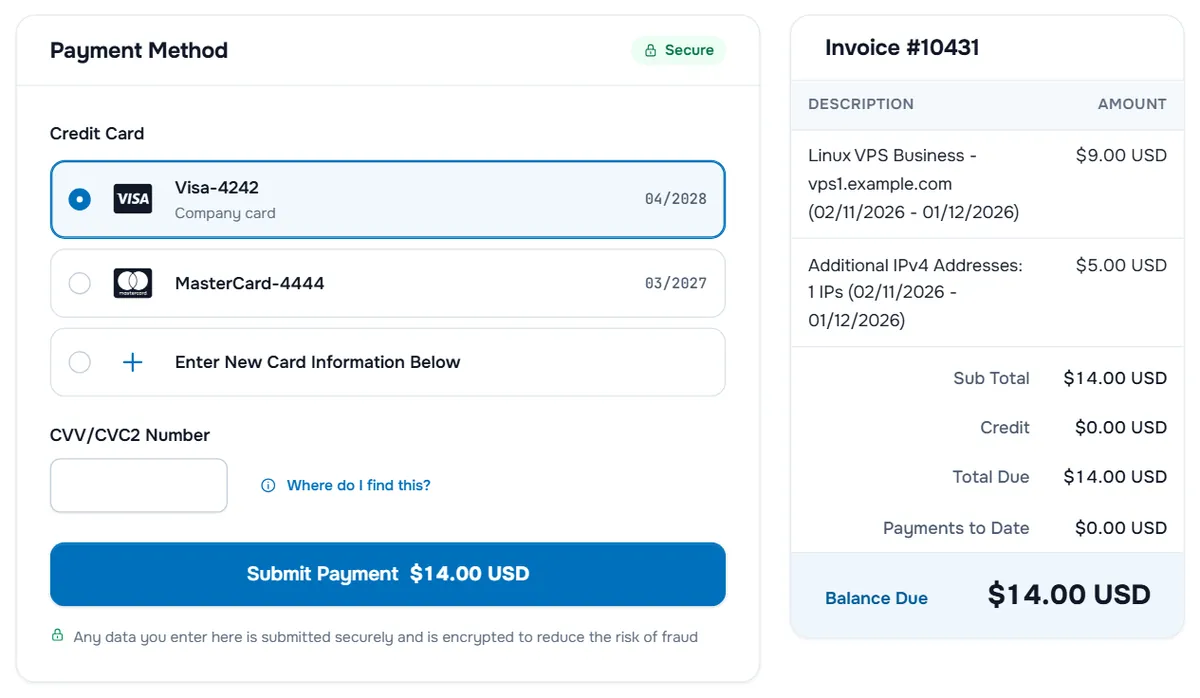
- Credit Card lists your saved cards with their description and expiry date. A card that expires soon shows Expires soon; an expired card shows Expired and cannot be chosen.
- Enter New Card Information Below opens the fields for a new card: Card Number, Expiry Date and the billing address. You can add an optional Card Description. If the page shows Save card for faster checkout in future, leave it on to keep the card for later payments.
- CVV/CVC2 Number is the three- or four-digit security code of the card. Where do I find this? shows where it is printed.
- Submit Payment shows the amount that will be charged and sends the payment. While it runs, the button reads Please Wait...; do not close the page.
The invoice summary on the right lists the items, Sub Total, Credit, Total Due, Payments to Date and Balance Due. With some card providers, the provider's own secure card form opens inside the page instead of the card fields; fill it in the same way.
Verify: you return to the invoice, which shows Paid and the message Thank You! Your payment was successful. A payment confirmation email follows.
Step 4: Confirm the payment with your bank
Some card payments need an extra check by your card issuer. The page Credit Card Details then opens with the line Your card issuer asks you to confirm this payment. and shows your bank's check in a frame.
- Approve the payment in your banking app, or enter the code your bank sends you.
- Wait until the page continues by itself. Do not reload the page or use the back button while the check runs, or the payment can be cancelled.
Verify: the invoice shows Paid. If the bank declines the check, the invoice stays Unpaid and you can try again.
Use your account credit
If your account has credit, an Apply Credit box appears under the payment area of every unpaid invoice.
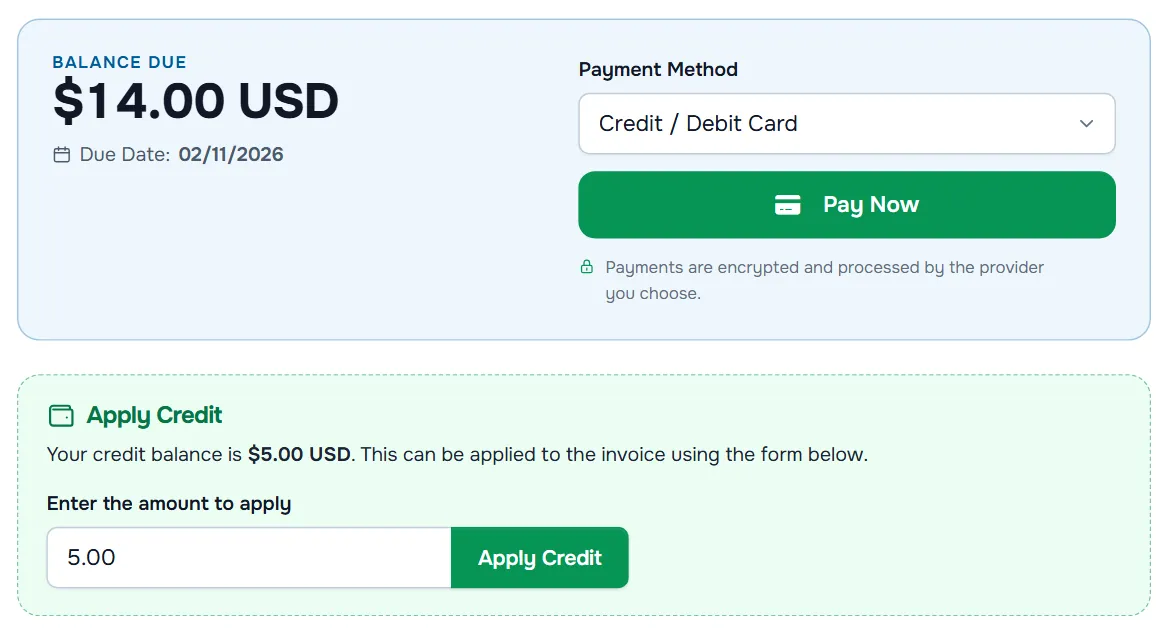
- Read your balance in the line Your credit balance is ….
- Check the amount in Enter the amount to apply. To use only part of your credit, enter a smaller amount.
- Select Apply Credit.
Verify: if the credit covers the whole balance, the invoice changes to Paid. Otherwise Balance Due goes down and you pay the rest with Pay Now. More about credit: account credit and Add Funds.
Pay an invoice in parts
An invoice can receive more than one payment, for example part of your credit and the rest by card. Each payment is listed in the Ledger at the bottom of the invoice, and Balance Due always shows what is left. The invoice changes to Paid when nothing is left to pay. A card payment charges the remaining balance shown on Submit Payment.
Troubleshooting
The card was declined, or the invoice says "Unfortunately your payment attempt was not successful." Check that the card is valid, allowed for online payments and has enough funds, and approve the payment in your bank's app if it asks. Then try again or choose another card or method. We cannot see why a bank declines a payment.
The bank confirmation frame stays empty. Turn off browser extensions that block pop-ups or frames for this page, or try another browser, then pay again.
The invoice says it is awaiting confirmation of my payment. Some providers confirm a payment a little later. The invoice changes to Paid when the confirmation arrives, and you receive an email. If it stays unpaid, open a ticket with the invoice number and the payment reference.
I cannot choose my saved card. Expired cards cannot be used. Add the new card, or update the card in the account menu › Payment Methods; see saved payment methods.
Next steps
- Save a card for next time: saved payment methods.
- Pay with Bitcoin, Ether or stablecoins: pay an invoice with crypto.
- Keep your services running: renewals and overdue invoices.
Frequently asked questions
Which payment methods can I use?
The methods available for your account and the invoice, for example card payments, your account credit or crypto with HyperDC Pay. The Payment Method list on the invoice shows them.
Can I change the payment method of an invoice?
Yes, while the invoice is unpaid. Choose another method in the Payment Method list on the invoice; the page reloads with the payment button of that method.
Why does my bank ask me to confirm the payment?
Many card issuers check online card payments with an extra step, for example a confirmation in your banking app or a code by text message. Complete it to finish the payment.
Can I pay part of an invoice with my credit?
Yes. Enter a smaller amount in the Apply Credit box. The balance due goes down by that amount and you pay the rest with another method.
Where are the cards I paid with?
Saved cards are listed in the account menu under Payment Methods, where you can set a default card and manage your cards.