






Billing & paymentsPaying invoices
Pay several invoices at once with Mass Payment
If your Billing menu shows Mass Payment, pay all your unpaid HyperDC invoices in one go: check the items, choose a payment method and select Make Payment.
- Beginner
- 4 min read
- Updated
Tested on: HyperDC client area
This guide is not available in your language yet, so it is shown in English.
On this page
When several invoices are due at the same time, for example the renewals of different services, Mass Payment lets you pay them together with one payment. This page is available when your Billing menu shows Mass Payment.
Before you start
- Check that Billing in the left menu shows Mass Payment. If it does not, pay the invoices one by one; see pay an invoice.
- Mass Payment is most useful with two or more unpaid invoices. Their total is charged in one payment, so make sure your payment method covers it.
Step 1: Open Mass Payment
Choose one of these ways:
- Billing › Mass Payment in the left menu.
- Pay All in the summary card of My Invoices, shown when more than one invoice is open.
- Make Payment under Quick actions on your dashboard.
Verify: the page Mass Payment opens with the line Below is a summary of the selected invoices and the total due to pay all of them.
Step 2: Check the invoices
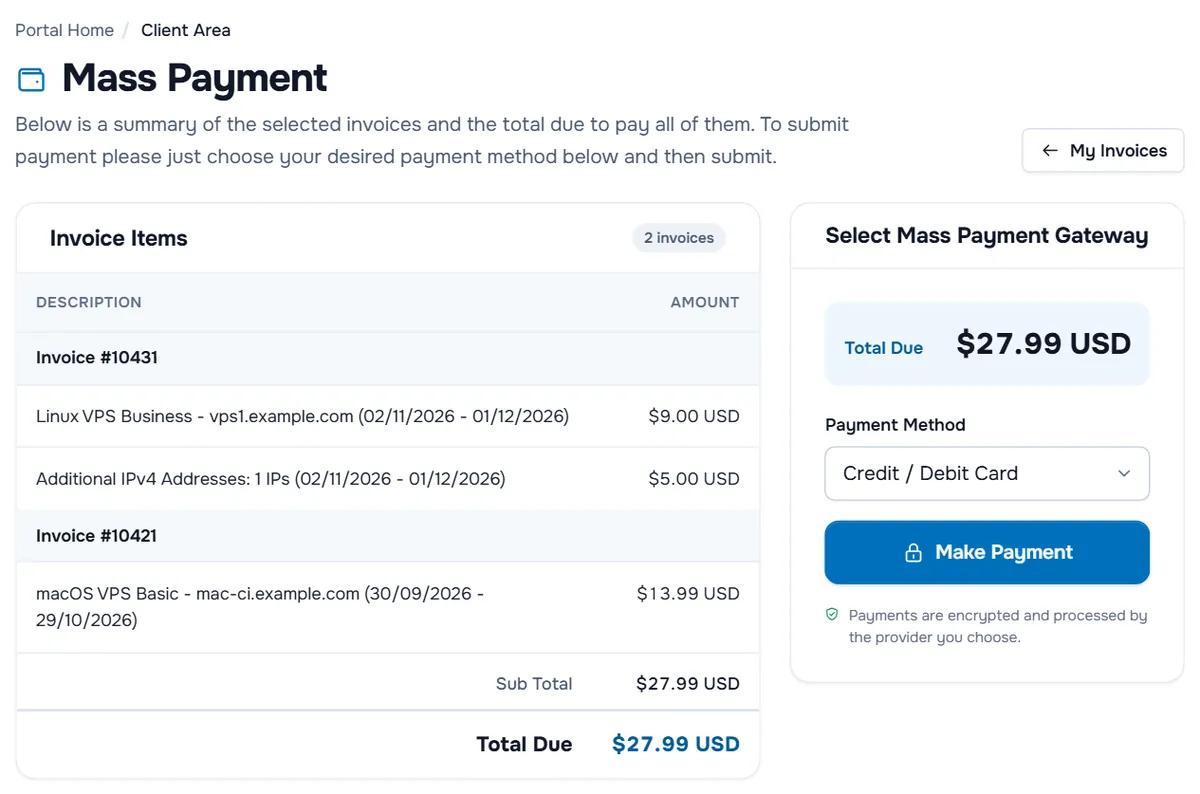
- Invoice Items lists the items grouped by invoice, each group headed by its invoice number. The badge next to the title shows how many invoices are included. Select an invoice number to open that invoice in a new tab.
- Under the items you see Sub Total, any taxes, Credit already applied to the invoices, Partial Payments already made and Total Due.
- My Invoices at the top right takes you back without paying.
Verify: Total Due matches the outstanding balance shown on My Invoices.
Step 3: Choose a payment method and pay
- Under Select Mass Payment Gateway, check Total Due once more.
- Choose a method in Payment Method. The list shows the methods available for your account.
- Select Make Payment.
One combined invoice for the total is created and opens. Pay it like any other invoice: by card as described in pay an invoice, or with crypto as described in pay an invoice with crypto if you chose HyperDC Pay.
Verify: once the payment is complete, the invoices that were included show Paid in My Invoices.
Troubleshooting
Mass Payment is not in my Billing menu. It is not available for your account. Pay the invoices one by one with Pay Now.
I only want to pay some of the invoices. Mass Payment always includes all unpaid invoices. Open the invoices you want to pay under My Invoices and pay them one by one.
The payment failed. The combined invoice stays unpaid under My Invoices. Open it and try again with Pay Now, or choose another method. If you are unsure which invoice to pay, open a ticket.
An invoice I expected is missing. Only unpaid invoices are included. Check its status under My Invoices: paid and cancelled invoices are left out.
Next steps
- Pay a single invoice: pay an invoice.
- Keep a copy for your records: view and download invoices.
- Avoid many invoices at once next time: renewals and overdue invoices.
Frequently asked questions
What does Mass Payment do?
It lists all your unpaid invoices on one page with one total, so you pay them with a single payment instead of one by one.
Can I choose which invoices are included?
Mass Payment includes all your unpaid invoices. To pay only some of them, open each invoice under Billing › My Invoices and select Pay Now.
Why is there no Mass Payment in my Billing menu?
Mass Payment is not available for every account. Pay your invoices one by one instead, or use account credit if your account has some.
Which payment methods can I use for a mass payment?
The methods in the Payment Method list on the Mass Payment page. They are the methods available for your account, for example card payments.