






Your servicesManaging services
Find your services in My Services
Use My Products & Services in the client area: filter by status or product group, search, switch between list and grid, pin services and read each status.
- Beginner
- 5 min read
- Updated
Tested on: HyperDC client area
This guide is not available in your language yet, so it is shown in English.
On this page
Everything you order at HyperDC, from servers to hosting accounts, is listed on one page: My Products & Services. This guide shows how to find a service quickly, what each part of a row tells you and what the statuses mean.
Before you start
- Sign in to the client area.
- If you can open more than one client account, make sure you are in the right one. See switch between accounts.
Step 1: Open My Services
In the left menu, open Services › My Services. On a phone, tap Services in the bottom bar. With a keyboard, press g and then s from any client area page.
The page My Products & Services opens. The Order New Services button at the top right takes you to the store when you need something new.
Verify: the heading reads My Products & Services and the list shows your services, or "No services yet" if you have not ordered anything.
Step 2: Filter and search the list
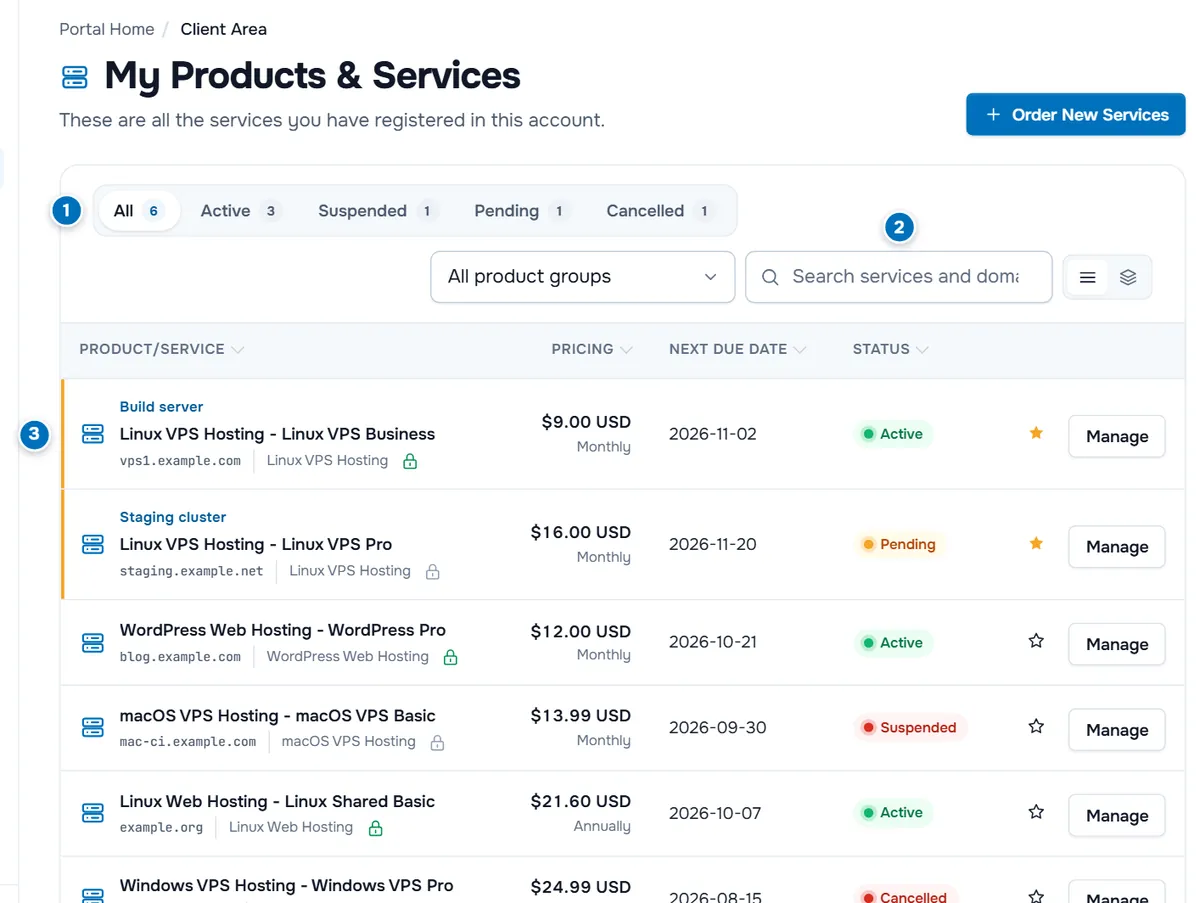
- Status filter — All and one chip for each status in your list, each with the number of services. Select a chip to show only those services. The chips appear when your services have more than one status.
- Search and product group — type in Search services and domains to filter the rows by any text they show, such as a product name, domain or nickname. The All product groups menu narrows the list to one product line, such as Linux VPS Hosting. It appears when you have services in more than one group.
- A service row — described in the next step.
If no row matches, the list shows "No services match these filters." Select All, choose All product groups and clear the search box to see everything again.
Step 3: Read a service row
Each row shows, from left to right:
- Nickname (if you gave the service one), shown in small blue text above the product name.
- Product/Service: the product group and plan, for example "Linux VPS Hosting - Linux VPS Business". Select it to open the service.
- Domain or hostname and the product group below it. Selecting the domain opens that address in a new tab.
- Lock icon: the SSL state of the domain, where we can check it. A green lock means an active certificate; hover over the icon for details.
- Pricing: the recurring amount and the billing cycle, such as Monthly or Annually.
- Next Due Date: the date the next renewal invoice is due.
- Status: the current state of the service, explained below.
- Star to pin the service and Manage to open its page.
Select a column heading, such as Next Due Date, to sort the list by that column.
Step 4: Switch between list and grid view
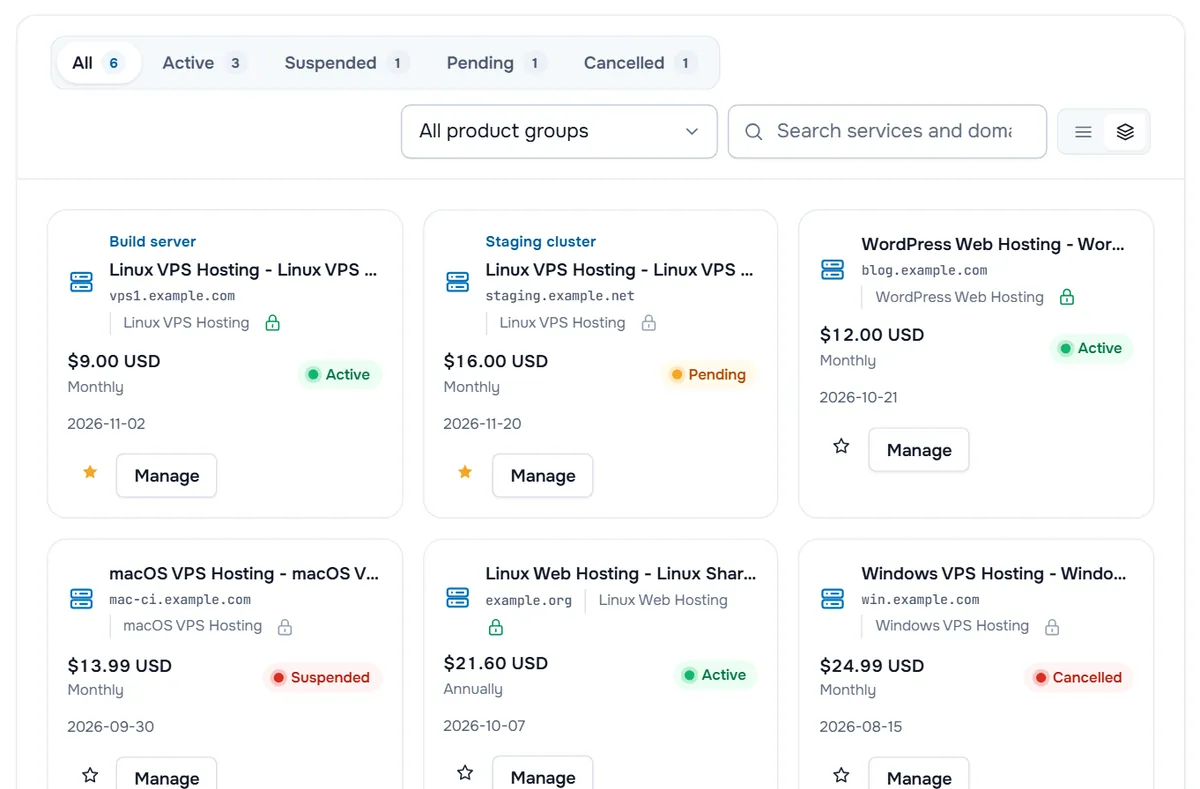
The two buttons next to the search box switch between List view and Grid view. The grid shows each service as a card with the same details, which is easier to scan on a tablet or when you have many services. Your choice is remembered the next time you open the page.
Step 5: Pin the services you use most
Select the star in a row (Pin to dashboard). Pinned services move to the top of the list, are marked with a coloured edge and also appear on your dashboard, so you can open them in one click. Select the star again to unpin.
To give a service a nickname, open it and use the tag icon next to its name. See personalise your client area for pins, nicknames and other settings.
What each status means
| Status | What it means | What to do |
|---|---|---|
| Pending | The order is placed, but the service is not set up yet. Usually the first invoice is still unpaid or the order is being checked. | Pay the open invoice under Billing › My Invoices. See after you order. |
| Active | The service is set up and running. | Open it with Manage for its details. |
| Suspended | The service is stopped, most often because an invoice is overdue. | Pay the overdue invoice; the service page may also show the Suspension Reason. |
| Terminated | The service has been removed together with its data. It cannot be started again. | Order a new service if you need it again. |
| Cancelled | The service or its order was cancelled and is no longer renewed. | Nothing, unless you cancelled by mistake: then open a ticket. |
| Fraud | The order did not pass our order checks and was not set up. | Open a ticket if you think this is a mistake. |
Troubleshooting
The page says "No services yet". You have no services in this client account. If you ordered with another account, sign in with it or switch accounts. Otherwise use Order New Services.
A service is missing although I know it exists. A status chip, the product group menu or the search box is still filtering the list. Select All, choose All product groups and clear the search box.
The status chips or the product group menu are missing. They only appear when there is something to choose: more than one status, or services in more than one product group.
A service shows Pending for a long time. Check Billing › My Invoices for an unpaid invoice. If the invoice is paid, open a ticket with the order number.
Next steps
- Open a service and learn its page: manage your services.
- Keep an eye on what is due soon: renewals and overdue invoices.
- Make the client area your own: personalise your client area.
Frequently asked questions
I just ordered a service. Why is it not in the list?
New orders appear with the status Pending as soon as the order is placed. If you still do not see it, select All in the status filter, choose All product groups and clear the search box. If you have access to several client accounts, check that you are in the account you ordered with.
What does the star in a row do?
It pins the service. Pinned services are listed first and also appear on your dashboard. Select the star again to unpin the service.
Can I give a service my own name?
Yes. Open the service and select the tag icon next to its name (Rename this service). The nickname appears above the product name in the list. It is only a label for you and does not change the hostname or the domain.
How do I find a server by its IP address?
Use the search at the top of every client area page (Ctrl + K, Cmd + K on a Mac, or /). It finds services by product name, domain, nickname and IP address. The search box inside the list filters by the text the rows show.
Where are my cancelled and terminated services?
They stay in the list with their status, so you can still look up their details. Select the matching status chip to show only them, or All to see every service.