






Billing & paymentsPayment methods
Manage your saved payment methods
Save a card or bank account in the HyperDC client area, choose your default payment method, update expiry dates and billing addresses, and remove old cards.
- Beginner
- 5 min read
- Updated
Tested on: HyperDC client area
This guide is not available in your language yet, so it is shown in English.
On this page
Saved payment methods make paying faster: a saved card can be chosen on the card payment page with one click and, where the payment method supports it, charged for renewal invoices. This guide covers the Payment Methods page in the account menu.
Before you start
- Open the account menu (your name at the top right) and choose Payment Methods. If you were invited to someone else's account and do not see this page, ask the account owner.
- What you can add depends on the payment methods available for your account. The page shows Add New Credit Card, Add New Bank Account or both.
The Payment Methods page
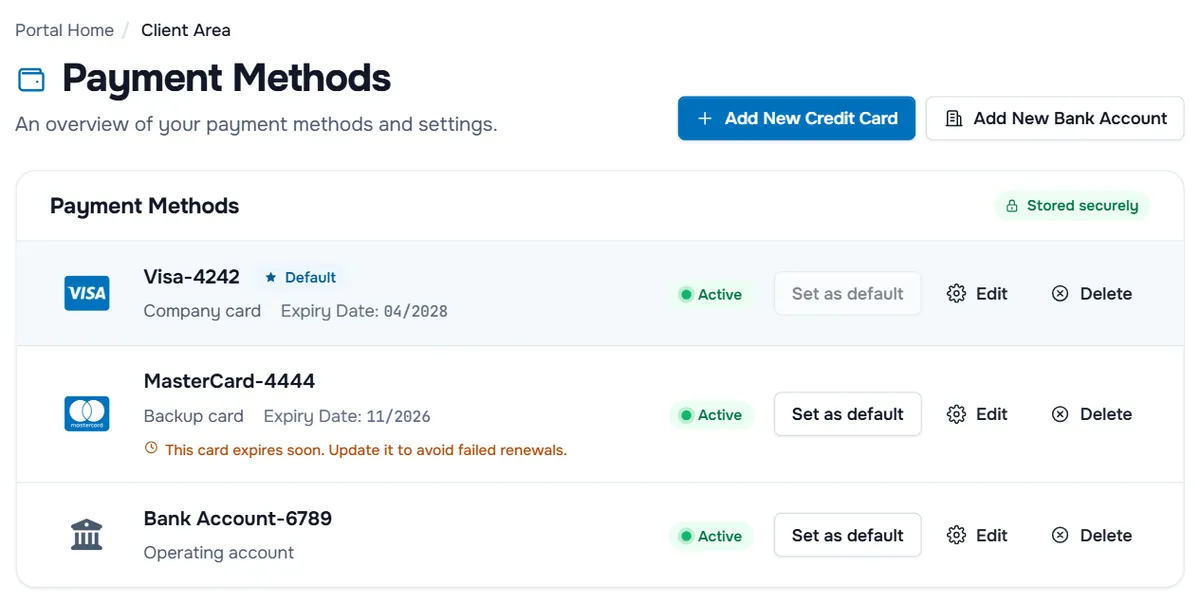
- Each method shows its name, for example the card type with the last four digits, your description and, for cards, the Expiry Date.
- Default marks the method that is used first.
- This card expires soon. Update it to avoid failed renewals. appears shortly before a card expires. An expired card shows This card has expired. Add a new card or update it to keep automatic payments working.
- Set as default, Edit and Delete are the actions of each method.
Step 1: Add a card or bank account
- Select Add New Credit Card, or Add New Bank Account if it is shown.
- The page Add New Payment Method opens. Under Type, choose the kind of method, for example Credit / Debit Card. The fields of that type load below it; Please Wait... shows while they load.
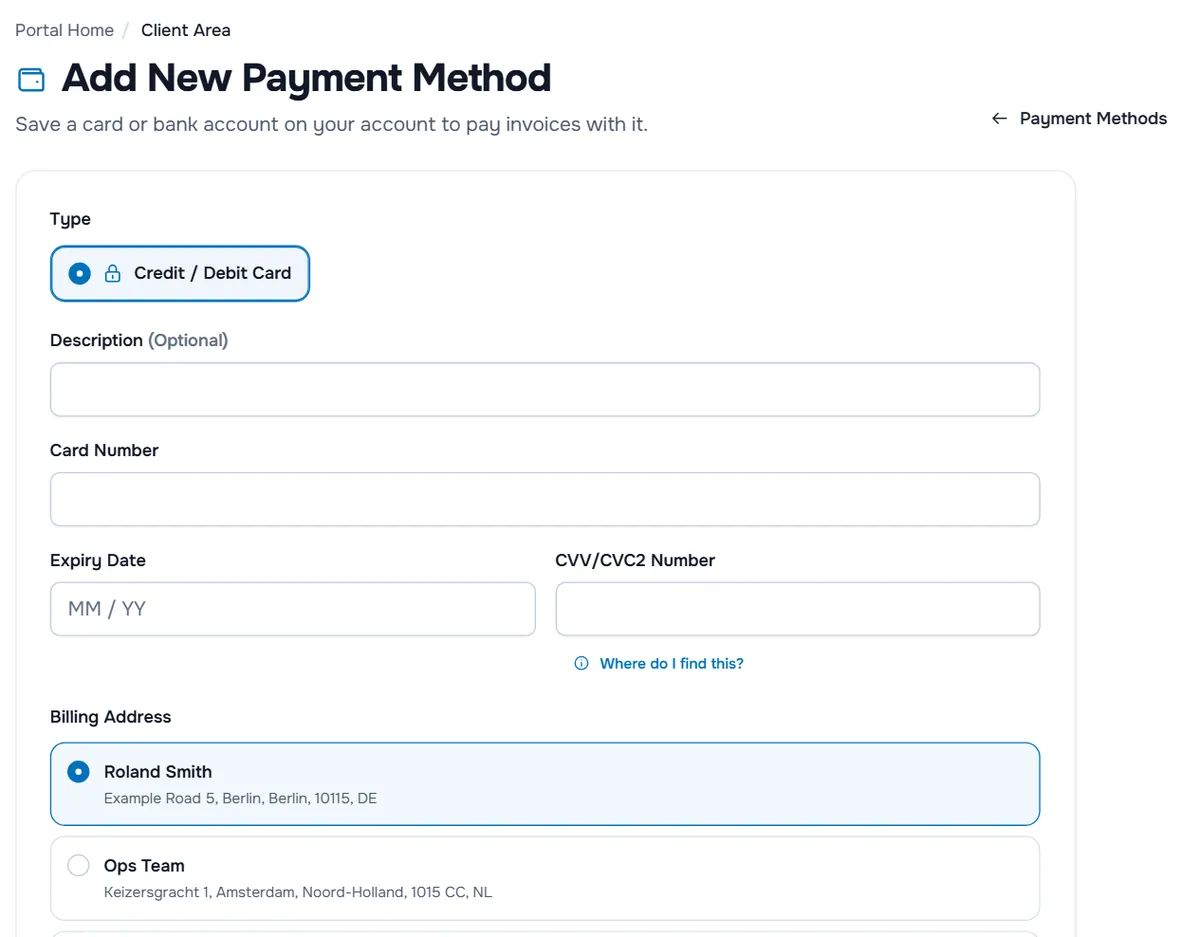
- Fill in the fields:
- Card: Card Number, Expiry Date and, if asked, CVV/CVC2 Number. With some card providers, their own secure card form appears here instead; fill it in the same way.
- Bank account: Account Type (Checking or Savings), Account Holder Name, Bank Name, Sort Code/Routing Number and Account Number.
- Optionally enter a Description, for example "Company card", so you can tell your methods apart.
- Under Billing Address, choose the address that belongs to the card or account: your own address or one of your contacts. Add a new address opens a form for another address.
- Select Save Changes.
Verify: the message Payment method added successfully appears and the method is in the list.
Step 2: Choose your default method
Select Set as default next to the method that should be used first. The button is greyed out on the current default and on expired cards.
Verify: the Default badge moves to that method and the message Default payment method updated successfully appears.
Step 3: Edit a method
Select Edit to open Edit Payment Method. You can update the description, the billing address and the expiry date. The type and the card number cannot be changed: for a new card, add it in Step 1 and delete the old one. Select Save Changes when you are done.
Verify: the message Payment method updated successfully appears.
Step 4: Delete a method
- Select Delete next to the method.
- Confirm with Delete in the dialog Are you sure you want to delete this payment method? This action cannot be undone.
Verify: the message The payment method was deleted successfully appears. If Delete is not shown, open a ticket to have the method removed.
Saved cards and renewals
When the payment method of a renewal invoice is a card and you have a saved card, the card can be charged automatically around the due date, where that payment method supports it. Keep the expiry date current: the client area also shows a notice at the top when a saved card expires soon. Crypto payments with HyperDC Pay are never charged automatically; you send each payment from your own wallet.
Troubleshooting
"The card number you entered does not appear to be valid." Check the number for typing errors. If the page says We are unable to accept the card type you entered. Please use a different card., that card type is not accepted; use another card.
"Payment method failed to create successfully. Please try again." The card provider did not accept the card. Check the details, approve any request from your bank and try again, or use another card.
Set as default is greyed out. The method is already the default, or the card has expired.
Add New Bank Account is missing. Bank accounts are not offered for your account. Use a card or another method listed on your invoices.
Next steps
- Pay with your saved card: pay an invoice.
- What happens around the due date: renewals and overdue invoices.
- All billing pages at a glance: billing overview.
Frequently asked questions
Where do I manage my saved cards?
In the account menu (your name at the top right) under Payment Methods. There you can add, edit and delete methods and choose your default.
Can I change the number of a saved card?
No. Edit only changes the description, billing address and expiry date. For a new card number, add the card as a new payment method and delete the old one.
What happens when my card expires?
An expired card can no longer be used, and the list warns you shortly before it expires. Update the expiry date or add a new card so that renewal payments do not fail.
How are my card details shown and protected?
The list shows only the card type, the last four digits and the expiry date. The data you enter is sent encrypted, as the note under the form says.
Which saved method is used first?
The one marked Default. It is selected first when you pay by card and is normally the one used where card payments are charged automatically.