# Publish to Windows hosting with Web Deploy
> Publish your ASP.NET site to HyperDC Windows hosting with Web Deploy: switch it on, add a publishing account, download the Publish Profile and import it.
Difficulty: Intermediate
Web Deploy publishes your ASP.NET site from Visual Studio straight to your Windows hosting, over an encrypted HTTPS connection. You switch it on per website, publish with a publishing account and import that account's **Publish Profile** once.
## Switch on Web Deploy for a website
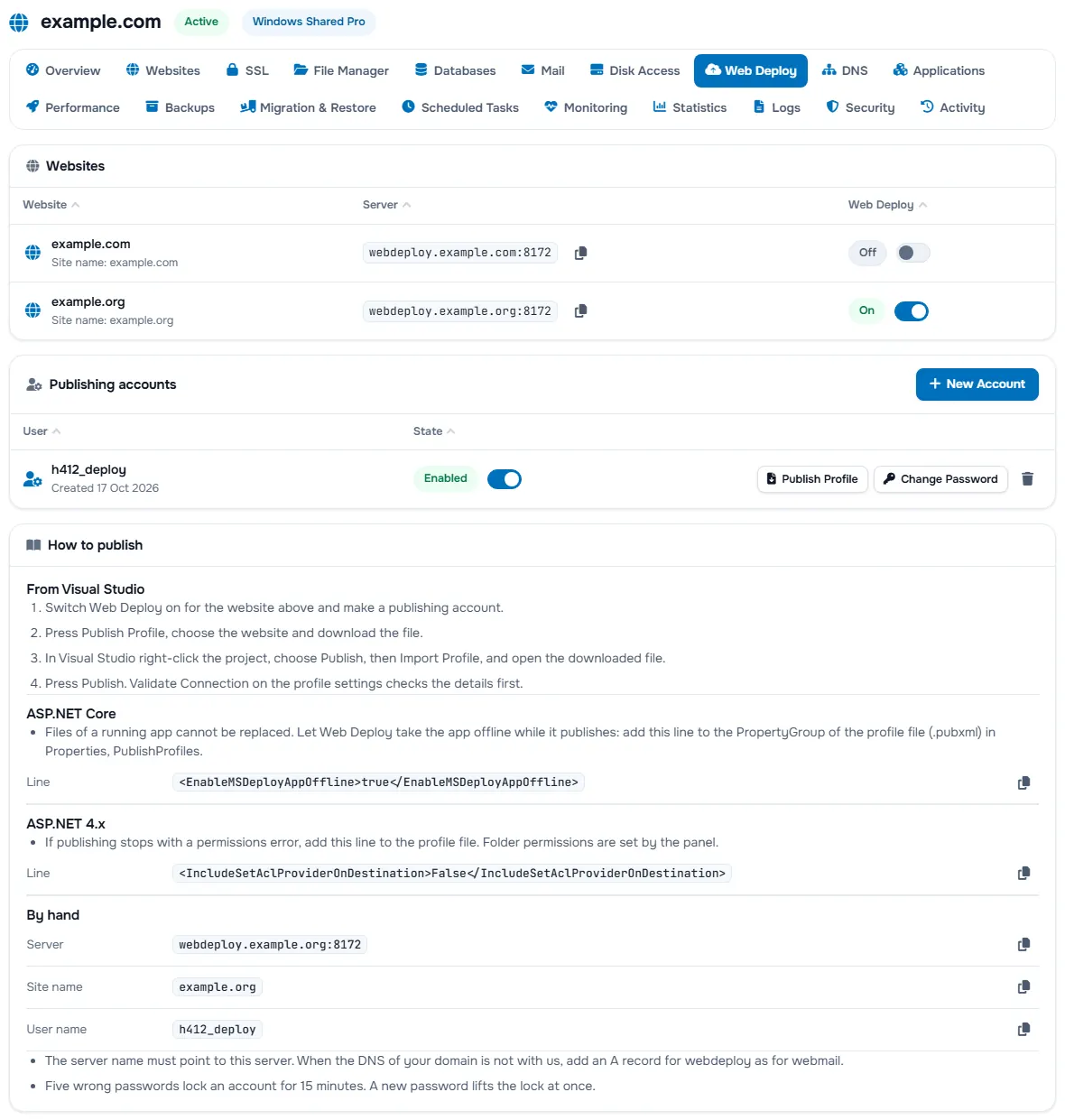
1. In the client area, open your hosting service and select the **Web Deploy** tab.
2. In the **Websites** table, turn the **Web Deploy** switch on in the row of your website.
The **Server** column shows the address programs publish to, such as `webdeploy.example.com:8172`, with your own domain in place of `example.com`. The copy button next to it copies the address, and under the domain you see its **Site name**. Until the domain points to the server, the address shows **Waiting for its certificate**; the name works by itself once the domain points here. When your domain's DNS is not with us, add an A record for `webdeploy` at your DNS provider, as for webmail.
## Add a publishing account
Under **Publishing accounts**, select **New Account**, enter the **User name** and a **Password** of its own, not the one of your hosting service, and select **Create Account**. The password has at least 10 characters, mixing three of lower case, upper case, digits and symbols. Account names look like `hw12_deploy`, and the list shows the full name to sign in with.
Each account has a row with:
- **State**: the switch that turns the account on or off. Off, it cannot publish until you enable it again. Five wrong passwords lock an account for 15 minutes, and the state then shows **Locked For 15 Minutes**; a new password lifts the lock at once.
- **Publish Profile**: downloads the profile for Visual Studio.
- **Change Password**: sets a new password for the account.
- The bin icon, which deletes the account.
## Download the Publish Profile
1. Select **Publish Profile** in the account's row.
2. If the account publishes more than one website, choose the website and select **Show Profile**.
3. We send a 6-digit code to your e-mail address. Enter it in **Code** within 10 minutes and select **Confirm Code**.
4. Select **Download Profile**. The file `example.com.PublishSettings` is named after your domain. The same window shows the **Server**, **Site name**, **User name** and **Password**, hidden until you select **Show Password**, so you can also type them by hand.
> **Warning**
>
> Keep the file private: anyone who has it can publish to your website. If it leaks, select **Change Password** in the account's row and download a new profile.
## Publish from Visual Studio
1. Open your project in Visual Studio, right-click it and choose **Publish**.
2. Choose **Import Profile**, select the `.PublishSettings` file and finish the wizard.
3. Optionally, **Validate Connection** in the profile settings checks the details first.
4. Select **Publish**.
The **How to publish** panel at the bottom of the **Web Deploy** tab repeats these steps. Under **By hand**, it lists the **Server**, **Site name** and **User name** to type into another program.
**Verify:** the Output window ends with a successful publish, and your website shows the new version.
## Publish with msdeploy.exe
On a build server or from the command line, publish a folder with `msdeploy.exe`. Use the `msdeploySite` value from inside the profile as the site name, and the account's user name and password:
```
msdeploy.exe -verb:sync -source:contentPath="C:\publish\mysite" -dest:contentPath="SITE_NAME",computerName="https://webdeploy.example.com:8172/msdeploy.axd?site=SITE_NAME",userName="hw12_deploy",password="YOUR_PASSWORD",authType="Basic"
```
Replace `SITE_NAME`, the account name, `YOUR_PASSWORD` and the domain with your own values.
## Troubleshooting
**Visual Studio says it is not authorised.** Check that the account's **State** is on and that **Web Deploy** is on for the website. If you changed the password, download a new Publish Profile and import it again. If the state shows **Locked For 15 Minutes**, wait, or set a new password with **Change Password**.
**Publishing stops with a permissions error (ASP.NET 4.x).** Folder permissions are set by the panel. Under **ASP.NET 4.x**, the **How to publish** panel gives the line to add to your profile file:
```
False
```
**The code does not arrive.** The window shows which e-mail address we sent it to; look in that mailbox's spam folder too. After 10 minutes the code expires: select **Publish Profile** again for a new one.
**Files cannot be overwritten (ASP.NET Core).** A running app locks its files. Under **ASP.NET Core**, the **How to publish** panel of the **Web Deploy** tab gives the line to add to your profile file (`.pubxml`), so Web Deploy takes the app offline while it publishes. See also [deploy an ASP.NET site](/guides/deploy-aspnet-windows-hosting) for `app_offline.htm`.
## Next steps
- Choose the runtime and connect a database: [deploy an ASP.NET site](/guides/deploy-aspnet-windows-hosting).
- Upload single files without Visual Studio: [upload files on Windows hosting](/guides/windows-hosting-disk-access).
- Errors after publishing: [ASP.NET and IIS errors](/guides/aspnet-iis-errors).
## Frequently asked questions
### Which programs can publish with Web Deploy?
We test Visual Studio (Publish, then Import Profile) and msdeploy.exe. Any other Web Deploy client can use the same server address, user name and password.
### Why do I have to enter a code?
The Publish Profile lets a program sign in as the publishing account, so we first send a 6-digit code to your e-mail address. The code is valid for 10 minutes.
### What does the Web Deploy address show in a browser?
A page that says Web Deploy is ready. That is normal: the address answers only over HTTPS and is meant for publishing programs.
### Can a developer publish without my client area login?
Yes. Add a publishing account for them with New Account and give them its Publish Profile. Switch the account off or delete it when the work is done.
---
Source: \
Updated: 2026-11-06