






Website & orderingAfter you order
What happens after you order
After you order: read the order confirmation, pay the invoice, follow your service from Pending to Active and find the welcome email with login details.
- Beginner
- 6 min read
- Updated
Tested on: HyperDC website
On this page
After you select Complete Order, your order exists, but the service is not running yet. It goes through four stages: an invoice is created, you pay it, we set the service up, and we email you the details to use it. This guide shows what you see at each stage and where to find everything in your client area.
Step 1: Read the order confirmation
The Order Confirmation page appears after checkout: "Thank you for your order. You will receive a confirmation email shortly."
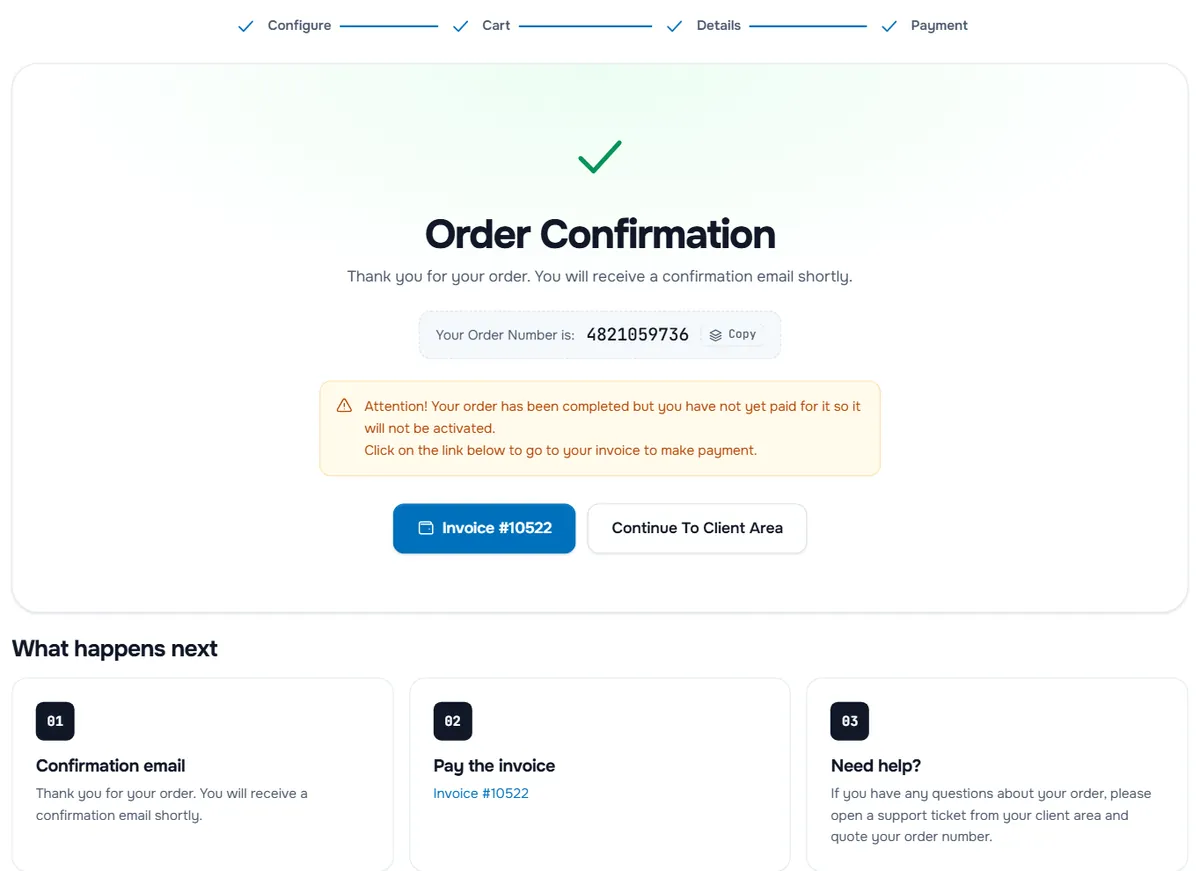
- Your Order Number is: — the number to quote if you contact us. Copy puts it on your clipboard.
- A yellow notice "Attention! Your order has been completed but you have not yet paid for it so it will not be activated." appears when the invoice is still open.
- Invoice #… opens the invoice so you can pay it. Continue To Client Area opens your client area.
- What happens next sums up the next steps: the Confirmation email, Pay the invoice (or Manage your services when it is already paid) and Need help?
Verify: an order confirmation email arrives, and the invoice for the order is listed under Billing › My Invoices.
Step 2: Pay the invoice
The service is set up only after its invoice is paid. Open it from the confirmation page, from the invoice email or under Billing › My Invoices.
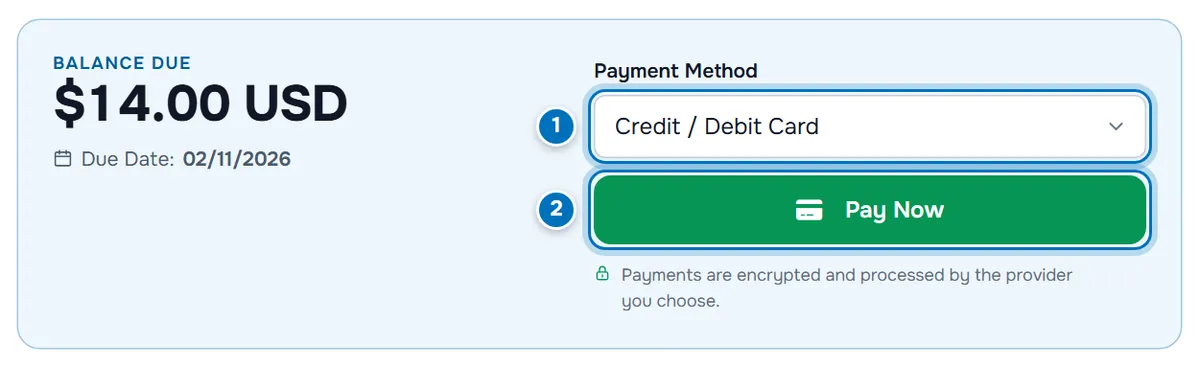
- Payment Method — the methods available for this invoice.
- Pay Now — starts the payment with the chosen method.
Verify: the invoice status changes to Paid and a payment confirmation email arrives. Step-by-step help: pay your first invoice.
Step 3: Follow the service status
Open Services › My Services. The new service is listed with its status.
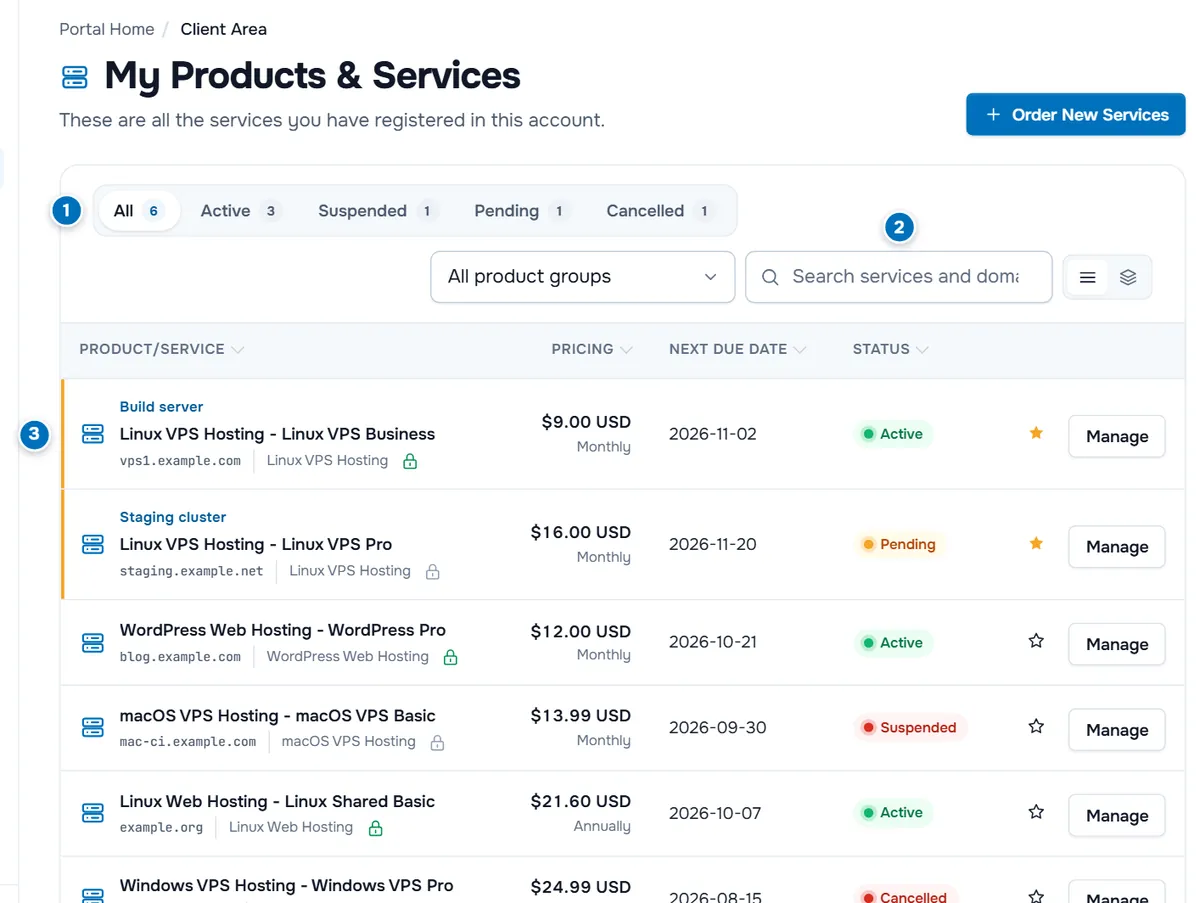
- Status filter — All, Active, Suspended, Pending and Cancelled, each with a count.
- Search and product group filter — find a service by name or domain.
- Service row — the product, its domain or hostname, price and cycle, Next Due Date and status, with Manage to open the service page.
A new service is Pending until it is set up, then Active. Some orders are reviewed by our team before setup; if a paid service stays Pending longer than you expect, open a support ticket with your order number.
Step 4: Find the welcome email and your login details
When the service is ready, we send a welcome email with what you need to use it:
- Servers: the IP address, the user name and the root or Administrator password. If you set your own root password in the order form, use that one.
- Web hosting: the control panel address, your user name and the nameservers to set for your domain.
- Domains: a confirmation of the registration or transfer. For some registrations the registrant also receives an email asking to verify the contact details; confirm it in time so the domain stays active.
Lost the email? Open the account menu › Email History. Every email we sent you is listed with date and subject; View Message opens it.
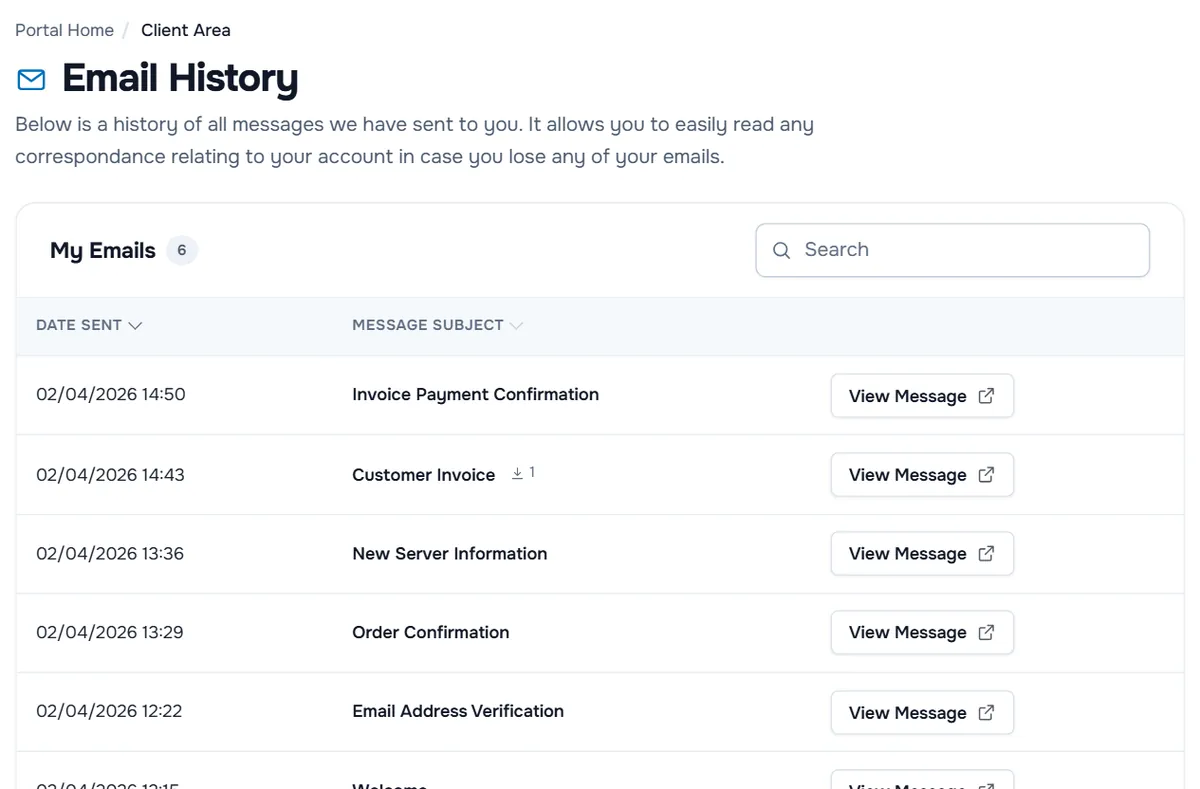
The service page (Manage on My Services) also shows details such as the hostname, the primary IP address and the user name, see manage your services.
Step 5: Verify your email address
New accounts receive an email to confirm their address. Until you confirm it, the client area shows "Please check your email and follow the link to verify your email address." with Resend Verification Email. Select the link in the email; "Your email address has been verified" confirms it. If the link has expired, sign in and resend it.
Troubleshooting
The service stays Pending. Check Billing › My Invoices for an unpaid invoice. If the invoice is paid, the order may be under review; open a ticket with the order number if you need the service by a certain time.
I paid, but the invoice still shows Unpaid. Card payments are usually recorded within moments; crypto payments are recorded after the network confirmations. If the invoice stays unpaid after a successful payment, open a ticket with the invoice number and the payment reference.
The welcome email has not arrived. Look in the spam folder and in Email History. If the service is Active but no email is listed, open a ticket.
The verification link says it has expired. Sign in to the client area and select Resend Verification Email, then use the new link.
Next steps
- Connect to your server: SSH on Linux or Remote Desktop on Windows.
- Get to know the service page: manage your services.
- Questions about your order: support tickets.
Frequently asked questions
My new service shows Pending. What does that mean?
The order is not set up yet. Most often the invoice is still unpaid; check Billing › My Invoices. Once the invoice is paid and the setup is done, the status changes to Active and we send the welcome email.
Where do I find my login details?
In the welcome email we send when the service is ready. You can read it again under the account menu › Email History. The service page under Services › My Services shows details such as the IP address and the user name.
I did not receive the confirmation or the welcome email.
Check the spam folder first. Every email we send is listed under the account menu › Email History, where View Message opens it. If the email address of your account is wrong, correct it under Account Details.
What should I quote when I contact support about an order?
Your order number from the Order Confirmation page, or the invoice number. Open a support ticket from your client area and include it, so we can find the order at once.
Do I have to verify my email address?
You can use the client area before it is verified, but verify it soon: it confirms that our invoices and security notices reach you. Use the link in the verification email or Resend Verification Email in the client area.