






Billing & paymentsCredit & quotes
Account credit and Add Funds
How account credit works at HyperDC: where you see your balance, how credit pays invoices, and how to add funds in advance if your Billing menu shows Add Funds.
- Beginner
- 5 min read
- Updated
Tested on: HyperDC client area
This guide is not available in your language yet, so it is shown in English.
On this page
Account credit is a balance on your client account. It can pay invoices and orders in full or in part. This guide shows where you see your credit, how it is used and, where it is offered, how to add funds in advance.
Before you start
- Sign in to the client area.
- Add Funds is available when your Billing menu shows it. Credit itself can also build up without Add Funds, for example from an overpayment.
Where you see your credit
- Dashboard: the Credit balance tile shows your balance. Where Add Funds is offered, the tile links to it.
- My Invoices: the summary card shows Available Credit Balance when you have credit.
- Unpaid invoices: an Apply Credit box appears under the payment area.
- Top of the client area: a notice can remind you of your credit balance.
Where credit comes from
- Add Funds payments, where Add Funds is offered.
- Overpayments, for example a crypto payment that was larger than the invoice, or an invoice paid twice.
- Credit added to your account, for example after we agreed on an adjustment with you in a ticket.
How credit is used
- New invoices. Credit is normally applied to an invoice when it is created, as the Add Funds page explains. If the credit covers the invoice, it is paid right away; otherwise the rest stays due.
- Orders. At checkout, the payment step offers to apply your credit to the order. If it covers the total, no further payment is due.
- Any unpaid invoice. Apply credit by hand with Apply Credit, as shown below.
Apply credit to an invoice
- Open the invoice from Billing › My Invoices with Pay Now.
- In the Apply Credit box, check the amount in Enter the amount to apply. Enter a smaller amount to keep part of your credit.
- Select Apply Credit.
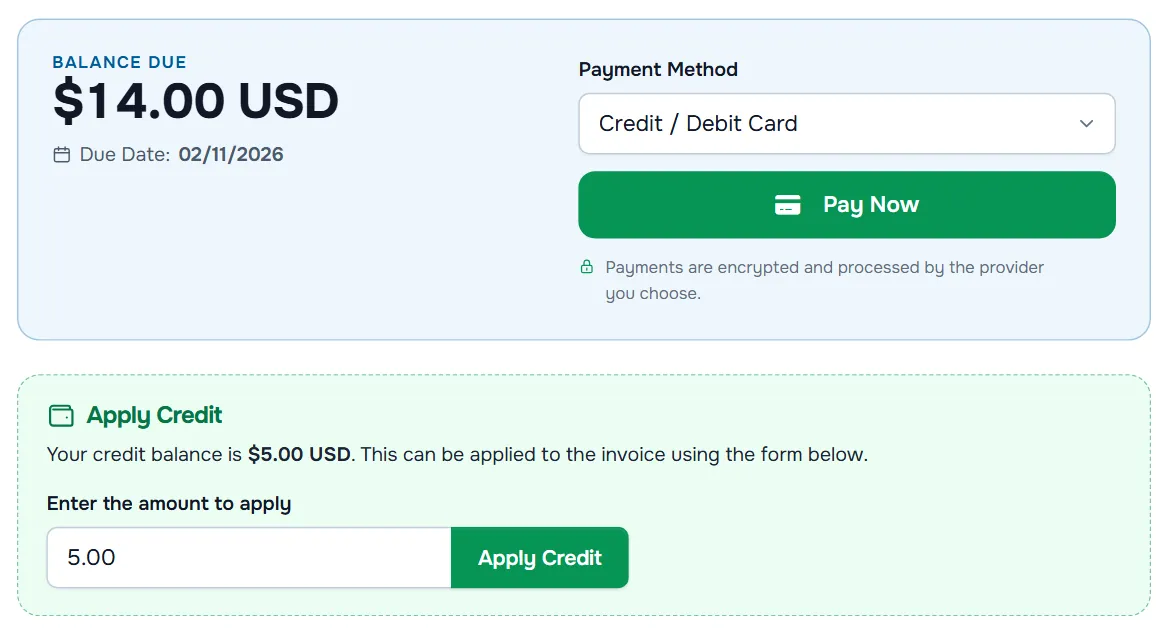
Verify: if the credit covers the balance, the invoice changes to Paid. Otherwise Balance Due goes down and you pay the rest with Pay Now; see pay an invoice.
Add funds in advance
If your Billing menu shows Add Funds, you can pay an amount into your credit balance in advance, for example to cover upcoming renewals with one payment.
- Go to Billing › Add Funds, or select the Credit balance tile on your dashboard.
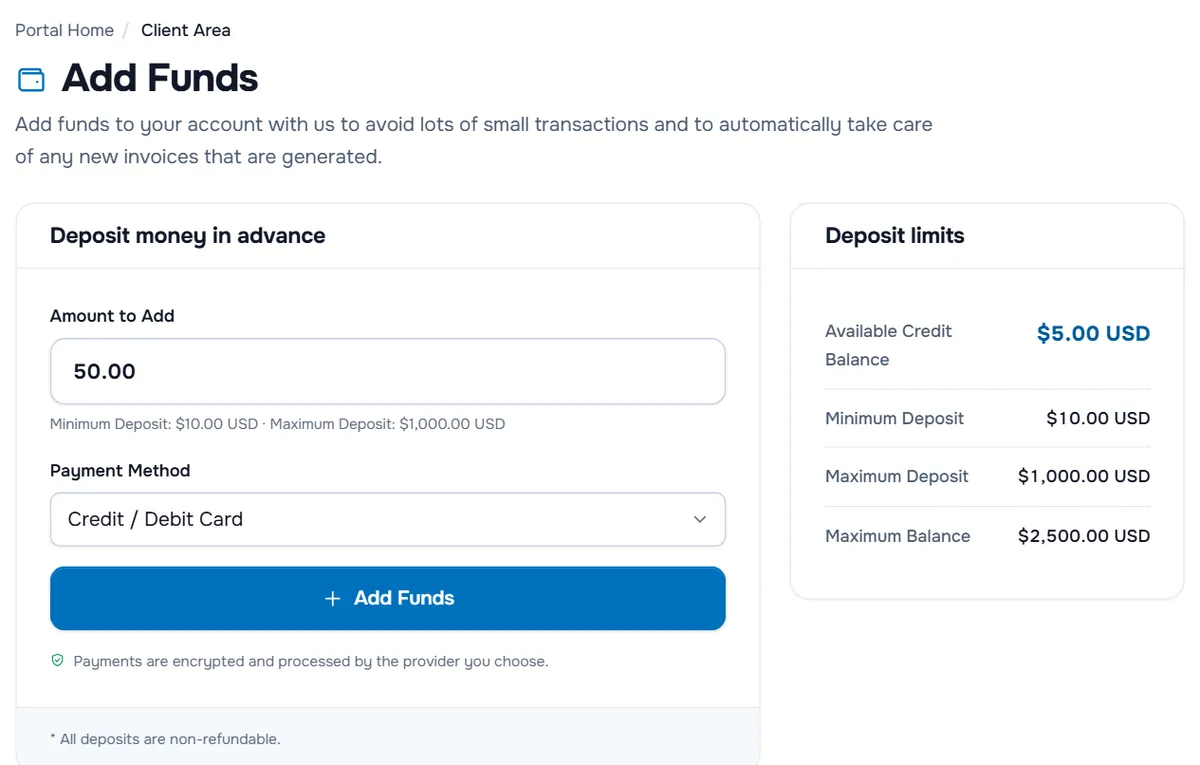
- In Deposit money in advance, enter the amount in Amount to Add. The line under the field and the Deposit limits card show the Minimum Deposit and Maximum Deposit. Maximum Balance is the largest credit balance your account can hold. The card also shows your Available Credit Balance.
- Choose a Payment Method. The list shows the methods available for your account.
- Read the note at the bottom of the form, All deposits are non-refundable., then select Add Funds.
- An invoice for the amount is created and opens. Pay it like any other invoice.
Verify: after the payment, Available Credit Balance and the Credit balance tile show the new amount.
Troubleshooting
Add Funds is not in my Billing menu. It is not offered for your account. Pay your invoices with the methods listed on them.
"You must have at least one active order before you can add funds…" Add Funds needs an active service on your account. Order and pay for a service first.
"Minimum Deposit amount is …" or "Maximum Deposit amount is …". The amount is outside the limits shown on the page. Change the amount and try again. Maximum Balance amount is … means the new balance would exceed the largest balance allowed.
My credit was not used for a new invoice. Open the invoice and use Apply Credit. If the box is missing, your balance is zero; check the Credit balance tile.
Next steps
- Pay the rest of an invoice: pay an invoice.
- Pay several invoices at once: mass payment.
- Refund rules: the refund policy and our refunds FAQ.
Frequently asked questions
What is account credit?
A balance on your client account that can pay invoices in full or in part. It can come from Add Funds payments, from overpayments or from credit added to your account.
Is my credit used automatically?
Credit is normally applied to new invoices when they are created. If it does not cover the whole invoice, the rest stays due. You can also apply credit by hand on any unpaid invoice.
Can I use my credit when I order?
Yes. If your account has credit, the checkout offers to apply it to the order. If it covers the total, no further payment is due.
Why can I not add funds?
Add Funds is not offered for every account, and it can require at least one active service. The page tells you which applies. You can still pay invoices with the other listed methods.
Can I get my credit paid out?
Credit is meant to pay invoices. The Add Funds page notes that deposits are non-refundable; for everything else, the refund policy applies. Ask us in a support ticket.