






Account & securityProfile & contacts
Find an email we sent you: Email History
Email History in your client area keeps a copy of every email we sent you: welcome emails with login details, invoices, ticket replies and verification links.
- Beginner
- 3 min read
- Updated
Tested on: HyperDC client area
This guide is not available in your language yet, so it is shown in English.
On this page
Every email we send to your client account is also kept in your client area. When a welcome email, an invoice notice or a verification link went to the spam folder or was deleted, Email History still has a copy. This guide shows how to find and read it.
Before you start
- You need to be the account owner or a user with the View Emails permission.
- If you have access to several client accounts, switch to the one the email belongs to first, see switch between client accounts.
Step 1: Open Email History
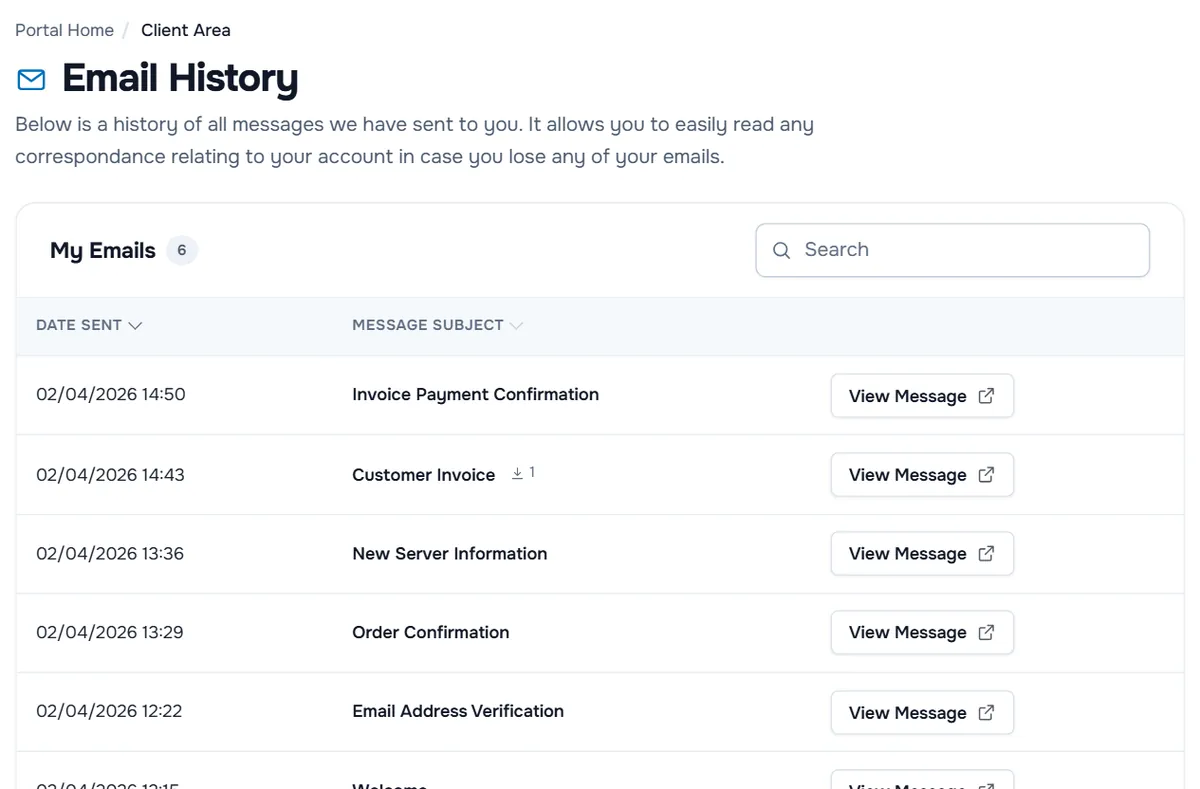
Open the account menu (your name at the top right) and select Email History. The page explains: "Below is a history of all messages we have sent to you."
The card My Emails shows the number of messages and lists them with:
- Date Sent — when the email was sent. Newest messages come first.
- Message Subject — what the email is about. A small download icon with a number next to the subject means the email had attachments, such as an invoice PDF.
- View Message — opens the email in a new tab.
Step 2: Find the message
- Type a word from the subject in Search, for example the name of a service, a domain or the word invoice. The list filters as you type.
- Select the Date Sent or Message Subject heading to sort by that column.
- Long lists are split into pages; the page links are below the list.
Typical messages you may look for:
- Welcome emails with the IP address, user name and password of a new server, or the control panel address of a hosting account.
- Invoice emails and payment confirmations.
- Order confirmations after checkout.
- Ticket replies, which you can also read under Support › Tickets.
- Email address verification, if you need the link again. If it has expired, request a new one from the notice at the top of the client area.
Verify: the message you need appears in the list. If the search shows "No Records Found", try a shorter word.
Step 3: Read the message
Select View Message. The email opens in a new tab with its subject and date at the top. If it had attachments, their file names are listed above the message. Select Close Window when you are done; if the tab cannot close itself, it takes you back to the list.
Step 4: Get the files you need
The message view shows attachment names only. Download documents where they live in the client area:
- Invoices: Billing › My Invoices, then Download PDF on the invoice, see view and download invoices.
- Service details: the service page under Services › My Services shows the IP address, user name and other details, see manage your services.
Troubleshooting
The list is empty or shows "No Records Found". No email has been sent to this client account yet, or your search is too narrow. Clear the Search field.
An email I received is not listed. You may be in another client account; check the name at the top right. Emails about other accounts appear in their own Email History.
I cannot open Email History. Your login lacks the View Emails permission. Ask the account owner.
Our emails land in spam. Add our sending address to your contacts or safe senders list, and check your email preferences under Account Details, see contacts and email preferences.
Next steps
Frequently asked questions
Where do I find the login details of my new server?
In the welcome email we sent when the service was ready. Open Email History, search for the service or a word like server, and select View Message. The service page also shows the IP address and user name.
Can I download an invoice from Email History?
The message view lists the names of attachments but does not offer them for download. Open the invoice under Billing › My Invoices and use Download PDF there.
Can I resend an email to myself from here?
No. Email History only shows the messages. Copy what you need from the message view, or open a ticket if you need us to send something again.
Why can a colleague not see Email History?
Users need the View Emails permission for this account. The account owner can add it under User Management › Manage Permissions.