






Account & securityProfile & contacts
Contacts and email preferences
Add contacts to your HyperDC client account so your accounting or technical team receives invoices, ticket copies or domain notices without a login.
- Beginner
- 5 min read
- Updated
Tested on: HyperDC client area
This guide is not available in your language yet, so it is shown in English.
On this page
A contact is a person who should hear about your account without signing in, for example your accountant, who needs the invoices, or a colleague who should get copies of support messages. Contacts belong to the client account. This guide adds a contact, chooses which emails it receives and shows where else contacts are used.
Before you start
- You need to be the account owner or a user with the View & Manage Contacts permission.
- Have the person's name, email address and, if they should appear on invoices, their address ready.
Step 1: Open Contacts
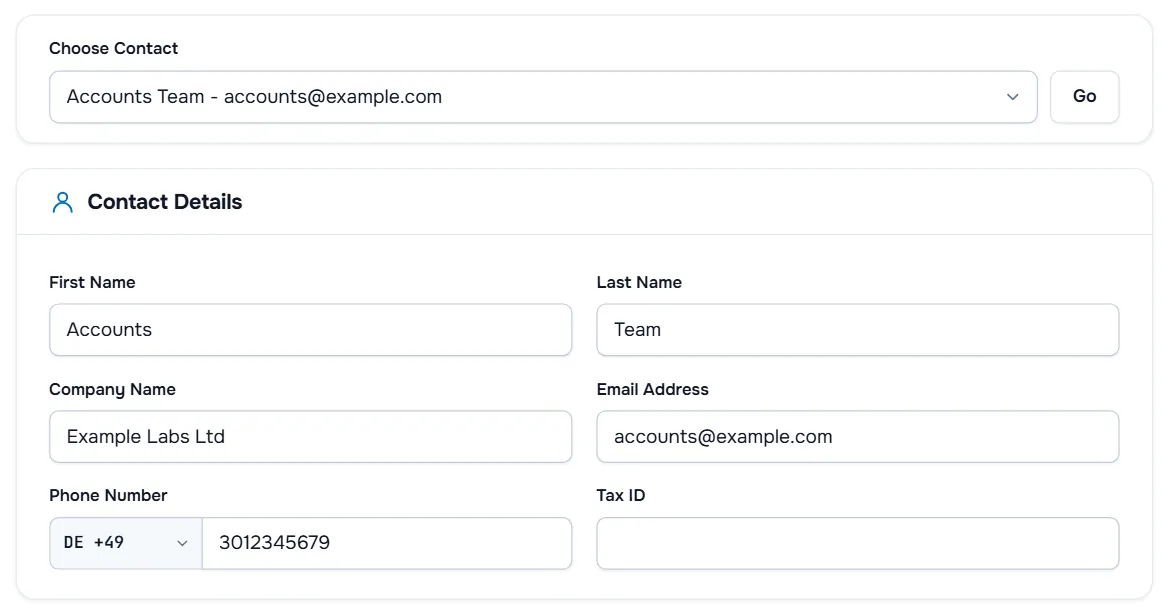
Open the account menu (your name at the top right) and select Contacts. The page says "People who receive billing, support or domain emails for this account." Use Choose Contact to open an existing contact and select Go if the page does not switch by itself.
Step 2: Add a new contact
- Select Add New Contact, at the top right of the page or as the last entry of Choose Contact. The page explains: "Add a person who should receive emails about this account. Contacts cannot sign in."
- In Contact Details, fill in First Name, Last Name, Company Name, Email Address and Phone Number, and the tax field if one is shown.
- In Billing Address, fill in Address 1, Address 2, City, State/Region, Zip Code and Country. The address matters when you use the contact on invoices or as a domain contact.
Step 3: Choose the email preferences
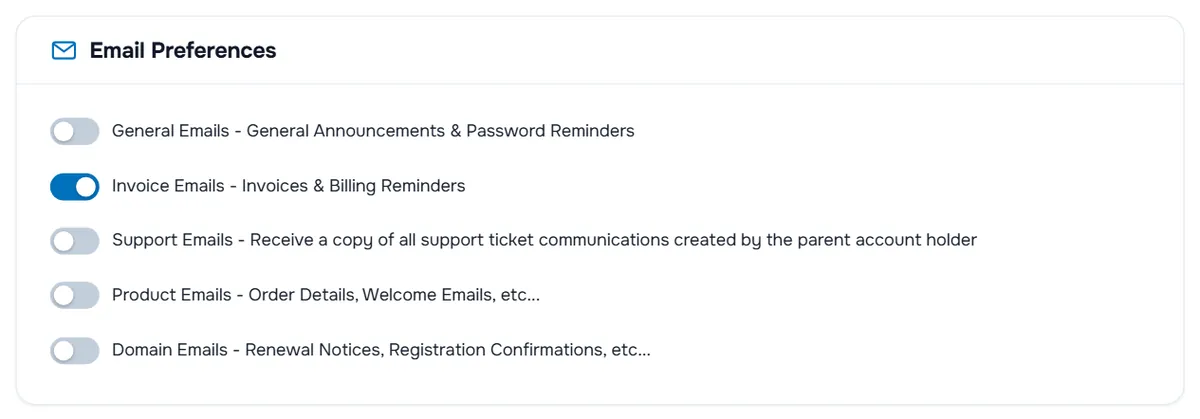
In Email Preferences, switch on what this contact should receive:
- General Emails — general announcements and password reminders
- Invoice Emails — invoices and billing reminders
- Support Emails — a copy of the support ticket messages of the account holder
- Product Emails — order details, welcome emails and similar messages
- Domain Emails — renewal notices, registration confirmations and similar messages
Then select Add New Contact at the bottom of the form.
Verify: the page shows "Contact created successfully!" and the contact appears in Choose Contact.
Step 4: Edit or delete a contact
- Select the contact in Choose Contact.
- Change the details or the Email Preferences and select Save Changes. The page confirms "Contact updated successfully!".
- To remove the contact, select Delete Contact and confirm "Are you sure you want to delete this contact?".
Before you delete a contact, check that it is not the Default Billing Contact under Account Details or a domain contact you still need.
Where else contacts are used
- Invoices: under Account Details, Default Billing Contact addresses invoices to a contact instead of the account details, see Account Details and Your Profile.
- Saved cards and bank accounts: if your account menu shows Payment Methods, the form for a card or bank account has a Billing Address choice: the account address or one of your contacts.
- Domains: on a domain's Contact Information page, Use existing account contact with Choose Contact fills the registrant, admin or technical details from a contact, see manage your domain.
The Account health card on Security Settings asks you to Add a technical contact until a contact receives product, support or domain emails, or another user has access. A second person who hears about outages, renewals and tickets keeps your services safe when you are away.
Your own email preferences
The contact preferences above only apply to the contact. Which emails the account's main address receives is set under Account Details › Email Preferences, when your account shows that section.
Troubleshooting
The contact does not receive emails. Check the spelling of the email address and the switched-on types, and ask the person to check their spam folder. Email History shows which messages the account was sent, see email history.
I cannot switch off domain emails for the account. At least one recipient must receive domain notices. Turn on Domain Emails for a contact first.
I cannot open Contacts. Your login lacks the View & Manage Contacts permission. Ask the account owner.
Next steps
Frequently asked questions
What is the difference between a contact and a user?
A contact only receives the emails you select and can be used as a billing or domain contact. A user signs in to the client area with their own email address and password. If the person also needs to sign in, invite them as a user under User Management.
Can a contact sign in or open tickets?
No. Contacts cannot sign in. With Support Emails switched on, they receive a copy of the ticket messages, but replies are made by a user who signs in.
Does a contact receive emails for every service?
A contact receives the selected email types for the whole client account, for all its services and domains.
How do I stop emails to a contact?
Open the contact, switch off the email types in Email Preferences and save, or delete the contact with Delete Contact.